
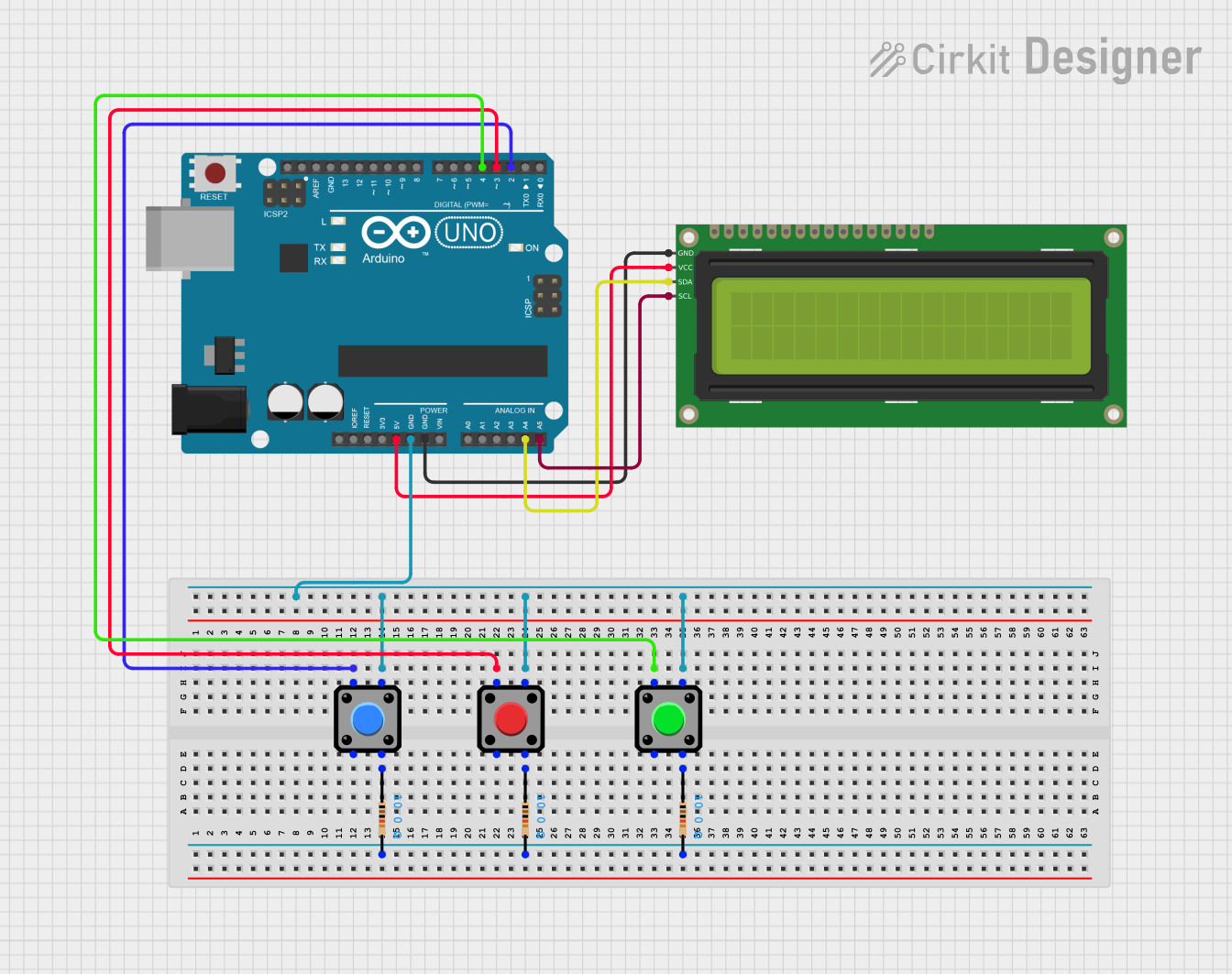
Circuit Documentation
Summary
This circuit is a simple quiz game using an Arduino UNO microcontroller, a 16x2 I2C LCD display, and three pushbuttons. The LCD displays questions, and the user can answer by pressing the "True" or "False" buttons. The "Retry" button allows the user to restart the game. The circuit also includes resistors for proper button operation.
Component List
Arduino UNO
- Description: Microcontroller board based on the ATmega328P.
- Pins: UNUSED, IOREF, Reset, 3.3V, 5V, GND, Vin, A0, A1, A2, A3, A4, A5, SCL, SDA, AREF, D13, D12, D11, D10, D9, D8, D7, D6, D5, D4, D3, D2, D1, D0
16x2 I2C LCD
- Description: 16x2 character LCD display with I2C interface.
- Pins: GND, VCC, SDA, SCL
Red Pushbutton
- Description: Pushbutton switch.
- Pins: Pin 1, Pin 2, Pin 3, Pin 4
Pushbutton
- Description: Pushbutton switch.
- Pins: Pin 1, Pin 2, Pin 3, Pin 4
Pushbutton
- Description: Pushbutton switch.
- Pins: Pin 1, Pin 2, Pin 3, Pin 4
Resistor (10 Ohms)
- Description: Resistor with a resistance of 10 Ohms.
- Pins: pin1, pin2
Resistor (10 Ohms)
- Description: Resistor with a resistance of 10 Ohms.
- Pins: pin1, pin2
Resistor (10 Ohms)
- Description: Resistor with a resistance of 10 Ohms.
- Pins: pin1, pin2
Wiring Details
Arduino UNO
- GND: Connected to Pin 4 of all pushbuttons and GND of the 16x2 I2C LCD.
- 5V: Connected to VCC of the 16x2 I2C LCD.
- D2: Connected to Pin 1 of the first pushbutton.
- D3: Connected to Pin 1 of the Red Pushbutton.
- D4: Connected to Pin 1 of the second pushbutton.
- A4: Connected to SDA of the 16x2 I2C LCD.
- A5: Connected to SCL of the 16x2 I2C LCD.
16x2 I2C LCD
- GND: Connected to GND of the Arduino UNO.
- VCC: Connected to 5V of the Arduino UNO.
- SDA: Connected to A4 of the Arduino UNO.
- SCL: Connected to A5 of the Arduino UNO.
Red Pushbutton
- Pin 1: Connected to D3 of the Arduino UNO.
- Pin 3: Connected to pin1 of a 10 Ohm resistor.
- Pin 4: Connected to GND of the Arduino UNO.
Pushbutton (First)
- Pin 1: Connected to D2 of the Arduino UNO.
- Pin 3: Connected to pin1 of a 10 Ohm resistor.
- Pin 4: Connected to GND of the Arduino UNO.
Pushbutton (Second)
- Pin 1: Connected to D4 of the Arduino UNO.
- Pin 3: Connected to pin1 of a 10 Ohm resistor.
- Pin 4: Connected to GND of the Arduino UNO.
Resistors
Resistor 1 (10 Ohms):
- pin1: Connected to Pin 3 of the first pushbutton.
- pin2: Connected to pin2 of the other two resistors.
Resistor 2 (10 Ohms):
- pin1: Connected to Pin 3 of the Red Pushbutton.
- pin2: Connected to pin2 of the other two resistors.
Resistor 3 (10 Ohms):
- pin1: Connected to Pin 3 of the second pushbutton.
- pin2: Connected to pin2 of the other two resistors.
Code Documentation
#include <Wire.h>
#include <LiquidCrystal_I2C.h>

// Initialize the LCD (16x2) with I2C address 0x27
LiquidCrystal_I2C lcd(0x27, 16, 2);

// Pin definitions for buttons
const int buttonTrue = 2;    // "True" button
const int buttonFalse = 3;   // "False" button
const int buttonRetry = 4;   // "Retry" button (optional)

// Quiz data
String questions[] = {"Is Earth round?", "Sky is green?", "2+3=7?", "3+8=11?"};
bool answers[] = {true, false, false, true};
int totalQuestions = sizeof(questions) / sizeof(questions[0]);

// Variables to track state
int currentQuestion = 0;
int score = 0;

void setup() {
  // Initialize LCD and buttons
  lcd.init();
  lcd.backlight();

  pinMode(buttonTrue, INPUT_PULLUP);
  pinMode(buttonFalse, INPUT_PULLUP);
  pinMode(buttonRetry, INPUT_PULLUP);

  // Welcome message
  lcd.setCursor(0, 0);
  lcd.print("Quiz Game!");
  delay(2000);
  lcd.clear();

  displayQuestion();
}

void loop() {
  // Check for button presses
  if (digitalRead(buttonTrue) == LOW) {
    checkAnswer(true);
  } else if (digitalRead(buttonFalse) == LOW) {
    checkAnswer(false);
  } else if (digitalRead(buttonRetry) == LOW) {
    resetGame();
  }
}

void displayQuestion() {
  lcd.clear();
  lcd.setCursor(0, 0);
  lcd.print("Q");
  lcd.print(currentQuestion + 1);
  lcd.print(": ");
  lcd.setCursor(0, 1);
  lcd.print(questions[currentQuestion]);
}

void checkAnswer(bool userAnswer) {
  if (userAnswer == answers[currentQuestion]) {
    score++;
    lcd.clear();
    lcd.print("Correct!");
  } else {
    lcd.clear();
    lcd.print("Wrong!");
  }
  delay(2000);

  currentQuestion++;
  if (currentQuestion < totalQuestions) {
    displayQuestion();
  } else {
    displayScore();
  }
}

void displayScore() {
  lcd.clear();
  lcd.print("Score:");
  lcd.setCursor(0, 1);
  lcd.print(score);
  lcd.print("/");
  lcd.print(totalQuestions);
  delay(5000);
  lcd.clear();
  lcd.print("Press Retry");
  lcd.setCursor(0, 1);
  lcd.print("to play again");
}

void resetGame() {
  currentQuestion = 0;
  score = 0;
  displayQuestion();
}
This code initializes the LCD and buttons, displays a welcome message, and then enters a loop where it waits for button presses to answer quiz questions or restart the game. The displayQuestion, checkAnswer, displayScore, and resetGame functions handle the quiz logic and display updates.