
Wi-Fi Controlled Robotic Car with ESP32-CAM and L298N Motor Driver
View and Edit Project In Cirkit Designer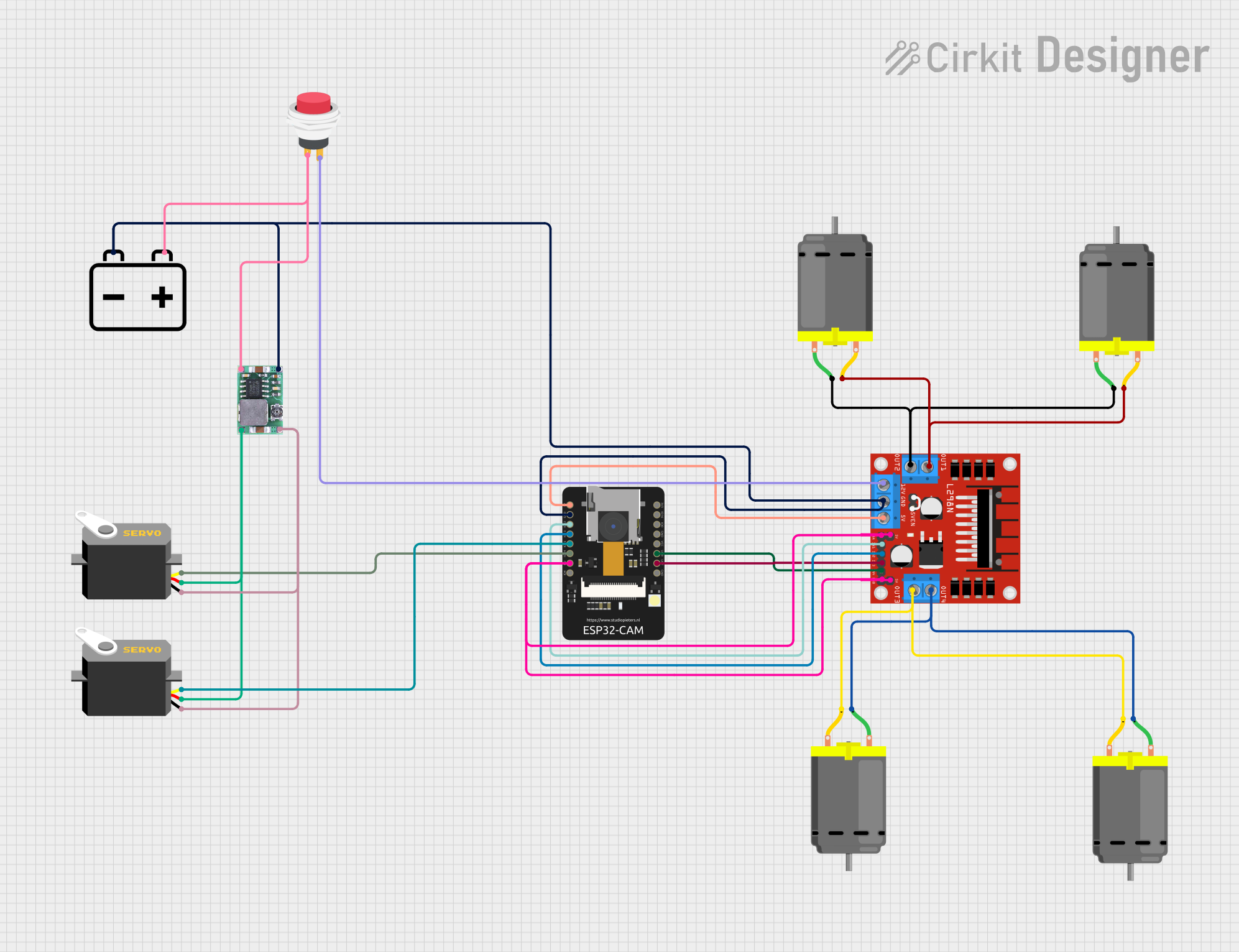
Circuit Documentation
Summary
This document provides a detailed overview of a circuit designed to control a robotic car with an ESP32-CAM module. The circuit includes multiple DC motors, a motor driver, a servo motor, a push switch, a step-down buck converter, and a 12V battery. The ESP32-CAM module is used for both camera functionality and controlling the motors and servos. The circuit is designed to be controlled via a web interface, allowing for remote operation.
Component List
DC Motor
- Description: A motor that converts direct current electrical energy into mechanical energy.
- Pins: pin 1, pin 2
L298N DC Motor Driver
- Description: A dual H-Bridge motor driver that allows for control of two DC motors.
- Pins: OUT1, OUT2, 12V, GND, 5V, OUT3, OUT4, 5V-ENA-JMP-I, 5V-ENA-JMP-O, +5V-J1, +5V-J2, ENA, IN1, IN2, IN3, IN4, ENB
ESP32-CAM
- Description: A microcontroller with integrated camera module, WiFi, and Bluetooth capabilities.
- Pins: 5V, GND, IO12, IO13, IO15, IO14, IO2, IO4, VOT, VOR, VCC, IO0, IO16, 3V3
12V Battery
- Description: A power source providing 12V DC.
- Pins: -, +
Mini-360 DC-DC Step Down Buck Converter
- Description: A voltage regulator that steps down 12V to a lower voltage.
- Pins: Input -, Input +, Output +, Output -
Servo
- Description: A motor that allows for precise control of angular position.
- Pins: gnd, vcc, pulse
2Pin Push Switch
- Description: A simple push-button switch.
- Pins: Input +, Output +
Wiring Details
DC Motor
Motor 1:
- pin 1: Connected to L298N DC motor driver OUT2
- pin 2: Connected to L298N DC motor driver OUT1
Motor 2:
- pin 1: Connected to L298N DC motor driver OUT4
- pin 2: Connected to L298N DC motor driver OUT3
L298N DC Motor Driver
- OUT1: Connected to DC Motor 1 pin 2
- OUT2: Connected to DC Motor 1 pin 1
- OUT3: Connected to DC Motor 2 pin 2
- OUT4: Connected to DC Motor 2 pin 1
- 12V: Connected to 2Pin Push Switch Output +
- GND: Connected to Mini-360 DC-DC Step Down Buck Converter Input -, ESP32-CAM GND, 12V Battery -
- 5V: Connected to ESP32-CAM 5V
- 5V-ENA-JMP-I: Connected to 5V-ENA-JMP-O
- 5V-ENA-JMP-O: Connected to 5V-ENA-JMP-I
- +5V-J1: Connected to ESP32-CAM IO2
- +5V-J2: Connected to ESP32-CAM IO2
- ENA: Connected to ESP32-CAM IO2
- IN1: Connected to ESP32-CAM IO12
- IN2: Connected to ESP32-CAM IO13
- IN3: Connected to ESP32-CAM VOT
- IN4: Connected to ESP32-CAM VOR
- ENB: Connected to ESP32-CAM IO2
ESP32-CAM
- 5V: Connected to L298N DC motor driver 5V
- GND: Connected to Mini-360 DC-DC Step Down Buck Converter Input -, L298N DC motor driver GND, 12V Battery -
- IO2: Connected to L298N DC motor driver +5V-J1, +5V-J2, ENA, ENB
- IO12: Connected to L298N DC motor driver IN1
- IO13: Connected to L298N DC motor driver IN2
- IO14: Connected to Servo pulse
- IO15: Connected to Servo pulse
- VOT: Connected to L298N DC motor driver IN3
- VOR: Connected to L298N DC motor driver IN4
12V Battery
- -: Connected to Mini-360 DC-DC Step Down Buck Converter Input -, L298N DC motor driver GND, ESP32-CAM GND
- +: Connected to 2Pin Push Switch Input +
Mini-360 DC-DC Step Down Buck Converter
- Input -: Connected to 12V Battery -
- Input +: Connected to 2Pin Push Switch Input +
- Output +: Connected to Servo vcc
- Output -: Connected to Servo gnd
Servo
Servo 1:
- gnd: Connected to Mini-360 DC-DC Step Down Buck Converter Output -
- vcc: Connected to Mini-360 DC-DC Step Down Buck Converter Output +
- pulse: Connected to ESP32-CAM IO15
Servo 2:
- gnd: Connected to Mini-360 DC-DC Step Down Buck Converter Output -
- vcc: Connected to Mini-360 DC-DC Step Down Buck Converter Output +
- pulse: Connected to ESP32-CAM IO14
2Pin Push Switch
- Input +: Connected to 12V Battery +
- Output +: Connected to L298N DC motor driver 12V
Code Documentation
Overview
The code is written for the ESP32-CAM module and is responsible for controlling the motors, servos, and camera. It sets up a web server to provide a user interface for controlling the car and viewing the camera feed.
Code Breakdown
Includes and Definitions
#include "esp_camera.h"
#include <Arduino.h>
#include <WiFi.h>
#include <AsyncTCP.h>
#include <ESPAsyncWebServer.h>
#include <iostream>
#include <sstream>
#include <ESP32Servo.h>

#define PAN_PIN 14
#define TILT_PIN 15

Servo panServo;
Servo tiltServo;

struct MOTOR_PINS
{
  int pinEn;
  int pinIN1;
  int pinIN2;
};

std::vector<MOTOR_PINS> motorPins =
{
  {2, 12, 13}, //RIGHT_MOTOR Pins (EnA, IN1, IN2)
  {2, 1, 3},  //LEFT_MOTOR  Pins (EnB, IN3, IN4)
};
#define LIGHT_PIN 4

#define UP 1
#define DOWN 2
#define LEFT 3
#define RIGHT 4
#define STOP 0

#define RIGHT_MOTOR 0
#define LEFT_MOTOR 1

#define FORWARD 1
#define BACKWARD -1

const int PWMFreq = 1000; /* 1 KHz */
const int PWMResolution = 8;
const int PWMSpeedChannel = 2;
const int PWMLightChannel = 3;

//Camera related constants
#define PWDN_GPIO_NUM     32
#define RESET_GPIO_NUM    -1
#define XCLK_GPIO_NUM      0
#define SIOD_GPIO_NUM     26
#define SIOC_GPIO_NUM     27
#define Y9_GPIO_NUM       35
#define Y8_GPIO_NUM       34
#define Y7_GPIO_NUM       39
#define Y6_GPIO_NUM       36
#define Y5_GPIO_NUM       21
#define Y4_GPIO_NUM       19
#define Y3_GPIO_NUM       18
#define Y2_GPIO_NUM        5
#define VSYNC_GPIO_NUM    25
#define HREF_GPIO_NUM     23
#define PCLK_GPIO_NUM     22

const char* ssid     = "MyWiFiCar";
const char* password = "12345678";

AsyncWebServer server(80);
AsyncWebSocket wsCamera("/Camera");
AsyncWebSocket wsCarInput("/CarInput");
uint32_t cameraClientId = 0;

const char* htmlHomePage PROGMEM = R"HTMLHOMEPAGE(
<!DOCTYPE html>
<html>
  <head>
  <meta name="viewport" content="width=device-width, initial-scale=1, maximum-scale=1, user-scalable=no">
    <style>
    .arrows {
      font-size:30px;
      color:red;
    }
    td.button {
      background-color:black;
      border-radius:25%;
      box-shadow: 5px 5px #888888;
    }
    td.button:active {
      transform: translate(5px,5px);
      box-shadow: none;
    }

    .noselect {
      -webkit-touch-callout: none; /* iOS Safari */
        -webkit-user-select: none; /* Safari */
         -khtml-user-select: none; /* Konqueror HTML */