
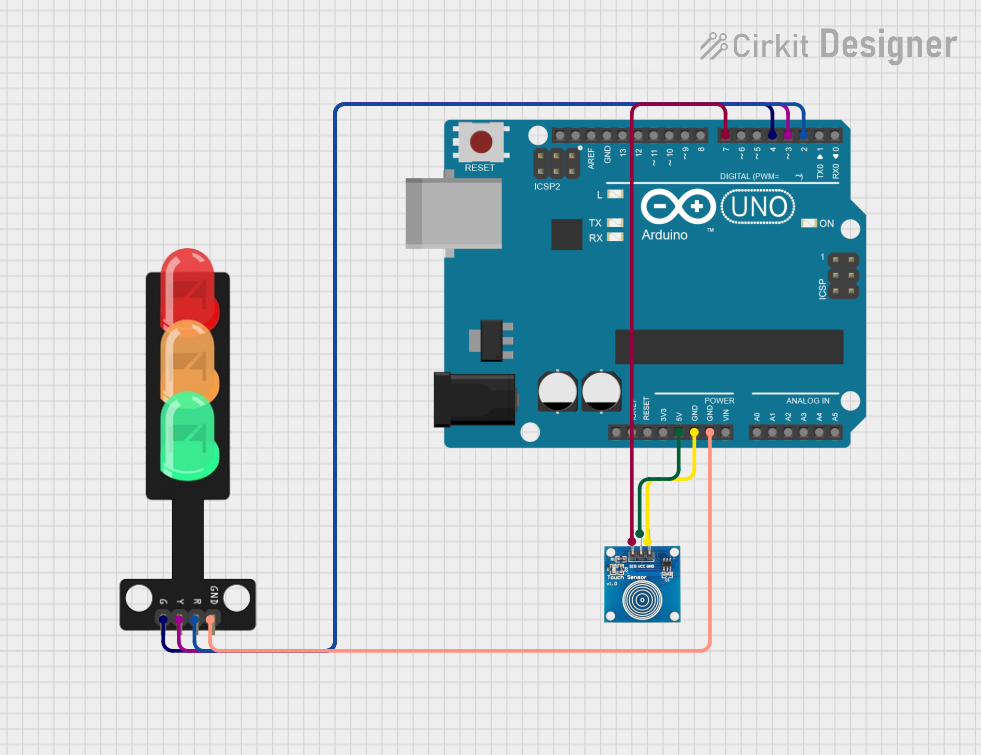
Circuit Documentation
Summary
This circuit is designed to control a traffic light system using an Arduino UNO microcontroller and a touch sensor. The system operates in a cycle where the touch sensor's input is used to switch between the traffic light states: red, yellow, green, and off. The Arduino UNO reads the state of the touch sensor and controls the traffic light LEDs accordingly.
Component List
Touch Sensor
- Pins: IO, VCC, GND
- Description: A sensor that detects touch or proximity. It is used to change the state of the traffic lights.
Arduino UNO
- Pins: UNUSED, IOREF, Reset, 3.3V, 5V, GND, Vin, A0-A5, SCL, SDA, AREF, D0-D13
- Description: A microcontroller board based on the ATmega328P. It is the central controller for the traffic light system.
Traffic Light
- Pins: Green, Yellow, Red, GND
- Description: A set of LEDs representing a traffic light. Each LED can be controlled individually to represent the traffic light's state.
Wiring Details
Touch Sensor
- IO: Connected to Arduino UNO's digital pin D7
- VCC: Connected to Arduino UNO's 5V power supply
- GND: Connected to Arduino UNO's ground
Arduino UNO
- D7: Connected to the touch sensor's IO pin
- 5V: Provides power to the touch sensor
- GND: Common ground for the circuit
- D4: Connected to the traffic light's Green LED
- D3: Connected to the traffic light's Yellow LED
- D2: Connected to the traffic light's Red LED
Traffic Light
- Green: Controlled by Arduino UNO's digital pin D4
- Yellow: Controlled by Arduino UNO's digital pin D3
- Red: Controlled by Arduino UNO's digital pin D2
- GND: Connected to Arduino UNO's ground
Documented Code
/*
 * This Arduino Sketch controls a traffic light system using a touch sensor.
 * When the touch sensor is pressed, the red LED turns on. On the next press,
 * the yellow LED turns on. On the next press, the green LED turns on. On the
 * next press, all LEDs turn off. This cycle repeats with each subsequent press.
 */

const int touchPin = 7; // Pin connected to touch sensor IO
const int redPin = 2;   // Pin connected to red LED
const int yellowPin = 3; // Pin connected to yellow LED
const int greenPin = 4;  // Pin connected to green LED

int touchState = 0; // Current state of the touch sensor
int lastTouchState = 0; // Previous state of the touch sensor
int ledState = 0; // State of the LEDs (0: off, 1: red, 2: yellow, 3: green)

void setup() {
  pinMode(touchPin, INPUT);
  pinMode(redPin, OUTPUT);
  pinMode(yellowPin, OUTPUT);
  pinMode(greenPin, OUTPUT);
  digitalWrite(redPin, LOW);
  digitalWrite(yellowPin, LOW);
  digitalWrite(greenPin, LOW);
}

void loop() {
  touchState = digitalRead(touchPin);

  // Check if the touch sensor state has changed
  if (touchState != lastTouchState) {
    if (touchState == HIGH) {
      // Cycle through LED states
      ledState = (ledState + 1) % 4;
      updateLEDs();
    }
    delay(50); // Debounce delay
  }

  lastTouchState = touchState;
}

void updateLEDs() {
  // Turn off all LEDs
  digitalWrite(redPin, LOW);
  digitalWrite(yellowPin, LOW);
  digitalWrite(greenPin, LOW);

  // Turn on the appropriate LED based on the current state
  switch (ledState) {
    case 1:
      digitalWrite(redPin, HIGH);
      break;
    case 2:
      digitalWrite(yellowPin, HIGH);
      break;
    case 3:
      digitalWrite(greenPin, HIGH);
      break;
  }
}
The code is written for the Arduino UNO microcontroller. It initializes the pins connected to the touch sensor and traffic light LEDs, reads the state of the touch sensor, and cycles through the traffic light states upon each touch sensor activation. The updateLEDs function is responsible for turning on the appropriate LED based on the current state.