
Arduino UNO-Based Smart Item Booking System with Bluetooth and LCD Display
View and Edit Project In Cirkit Designer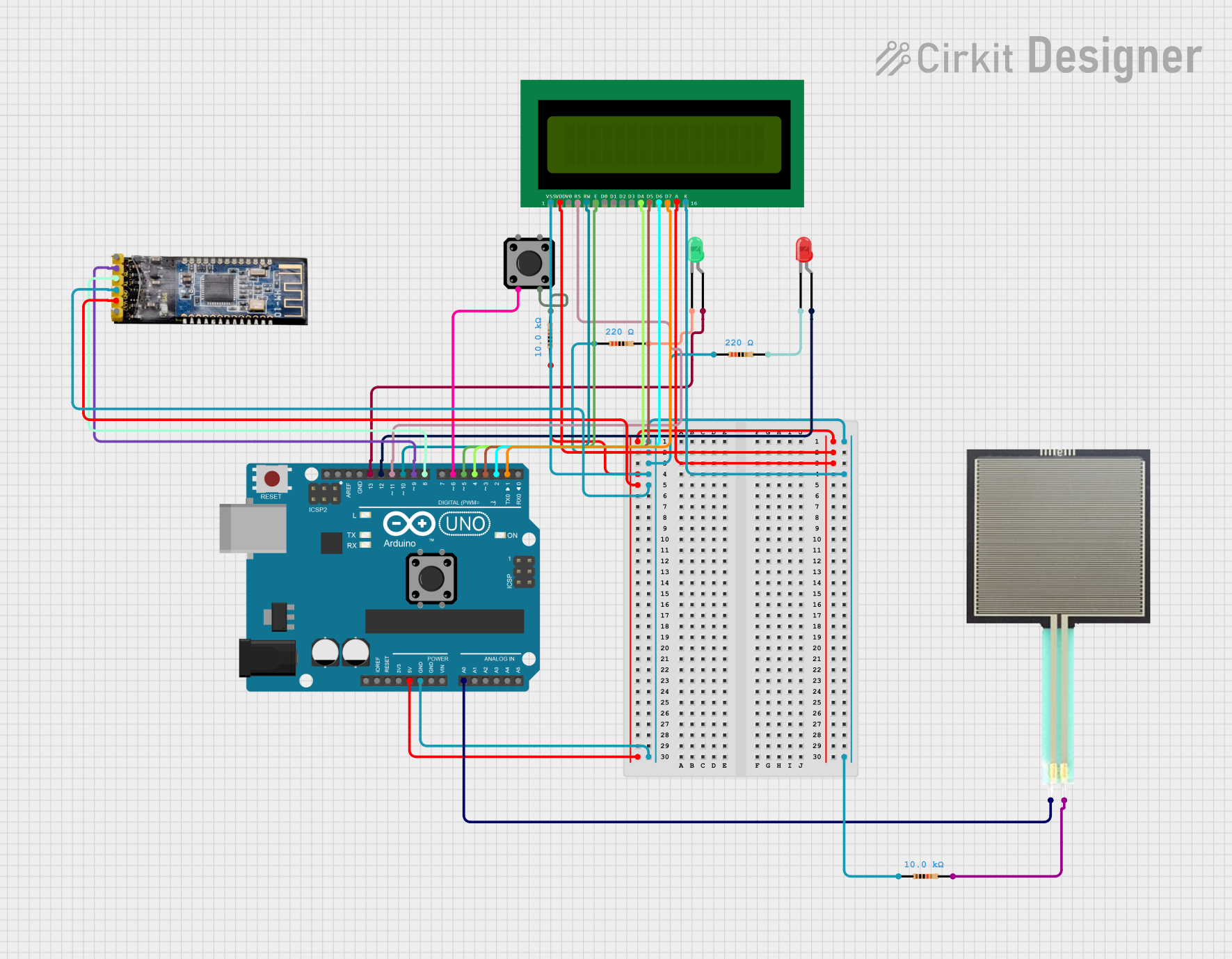
Circuit Documentation
Summary
This circuit is designed to monitor the availability of an item using a Force Sensitive Resistor (FSR) and provide visual feedback through LEDs and an LCD display. It also includes a tactile switch button for booking the item and a Bluetooth module for sending notifications. The circuit is controlled by an Arduino UNO microcontroller.
Component List
Arduino UNO
- Description: Microcontroller board based on the ATmega328P.
- Pins: UNUSED, IOREF, Reset, 3.3V, 5V, GND, Vin, A0, A1, A2, A3, A4, A5, SCL, SDA, AREF, D13, D12, D11, D10, D9, D8, D7, D6, D5, D4, D3, D2, D1, D0
Tactile Switch Buttons - 12mm Square
- Description: Momentary push button switch.
- Pins: 3, 1, 4, 2
16X2 LCD
- Description: 16x2 character LCD display.
- Pins: VSS, VDD, V0, RS, RW, E, D1, D0, D2, D3, D4, D6, D5, D7, A, K
Square FSR
- Description: Force Sensitive Resistor.
- Pins: A0, A1
Resistor (10k Ohms)
- Description: Resistor with a resistance of 10k Ohms.
- Pins: pin1, pin2
Resistor (220 Ohms)
- Description: Resistor with a resistance of 220 Ohms.
- Pins: pin1, pin2
LED: Two Pin (red)
- Description: Red LED.
- Pins: cathode, anode
LED: Two Pin (green)
- Description: Green LED.
- Pins: cathode, anode
Bluetooth module HM-10
- Description: Bluetooth module for wireless communication.
- Pins: BRK, RX, TX, GND, VCC, State
Wiring Details
Arduino UNO
5V connected to:
- Resistor (10k Ohms) pin1
- Bluetooth module HM-10 VCC
- 16X2 LCD VDD
- 16X2 LCD A
GND connected to:
- Resistor (220 Ohms) pin1
- Resistor (220 Ohms) pin1
- 16X2 LCD VSS
- Bluetooth module HM-10 GND
- 16X2 LCD K
- Resistor (10k Ohms) pin1
A0 connected to:
- Square FSR A0
D13 connected to:
- LED: Two Pin (green) anode
D12 connected to:
- LED: Two Pin (red) anode
D11 connected to:
- 16X2 LCD RS
D10 connected to:
- 16X2 LCD RW
D9 connected to:
- Bluetooth module HM-10 RX
D8 connected to:
- Bluetooth module HM-10 TX
D6 connected to:
- Tactile Switch Buttons - 12mm Square pin3
D5 connected to:
- 16X2 LCD E
D4 connected to:
- 16X2 LCD D4
D3 connected to:
- 16X2 LCD D5
D2 connected to:
- 16X2 LCD D6
D1 connected to:
- 16X2 LCD D7
Tactile Switch Buttons - 12mm Square
- pin4 connected to:
- Resistor (10k Ohms) pin2
Resistor (10k Ohms)
- pin2 connected to:
- Square FSR A1
Resistor (220 Ohms)
- pin2 connected to:
- LED: Two Pin (green) cathode
Resistor (220 Ohms)
- pin2 connected to:
- LED: Two Pin (red) cathode
Code Documentation
#include <LiquidCrystal.h>
#include <SoftwareSerial.h>

// Define pins for FSR, green LED, red LED, LCD, button, and Bluetooth module
const int fsrPin = A0;
const int greenLedPin = 13;
const int redLedPin = 12;
const int buttonPin = 6;
const int btRxPin = 9;
const int btTxPin = 8;

// Initialize the LCD and Bluetooth serial communication
LiquidCrystal lcd(11, 10, 5, 4, 3, 2, 1);
SoftwareSerial btSerial(btRxPin, btTxPin);

// Variables for booking status and notification timing
bool itemIsBooked = false;
unsigned long bookingTime = 0;
const unsigned long notificationDelay = 300000; // 5 minutes in milliseconds

void setup() {
  // Set FSR pin as input
  pinMode(fsrPin, INPUT);

  // Set LED pins as output
  pinMode(greenLedPin, OUTPUT);
  pinMode(redLedPin, OUTPUT);

  // Set button pin as input with pull-up resistor
  pinMode(buttonPin, INPUT_PULLUP);

  // Initialize the LCD
  lcd.begin(16, 2);

  // Initialize Bluetooth serial communication
  btSerial.begin(9600);
}

void loop() {
  // Read the analog value from the FSR
  int fsrReading = analogRead(fsrPin);

  // Set a threshold for pressure detection
  int pressureThreshold = 500; // Adjust this value as needed

  // Check if pressure is above the threshold
  if (fsrReading > pressureThreshold) {
    // Turn on green LED and display "Item available"
    digitalWrite(greenLedPin, HIGH);
    digitalWrite(redLedPin, LOW);
    lcd.clear();
    lcd.setCursor(0, 0);
    lcd.print("Item available");

    // Check if button is pressed
    if (digitalRead(buttonPin) == LOW && !itemIsBooked) {
      // Button pressed, simulate booking process
      lcd.clear();
      lcd.setCursor(0, 0);
      lcd.print("Booking...");
      delay(2000); // Simulate booking process delay
      lcd.clear();
      lcd.setCursor(0, 0);
      lcd.print("Item booked!");

      itemIsBooked = true;
      bookingTime = millis();
    }
  } else {
    // Turn on red LED and display "Item not available"
    digitalWrite(greenLedPin, LOW);
    digitalWrite(redLedPin, HIGH);
    lcd.clear();
    lcd.setCursor(0, 0);
    lcd.print("Item not available");

    // Reset booking status if pressure is removed
    itemIsBooked = false;
  }

  // Check if it's time to send a notification
  if (itemIsBooked && millis() - bookingTime >= notificationDelay) {
    btSerial.println("Please return the item");
    itemIsBooked = false; // Reset the booking status
  }

  delay(100); // Adjust delay as needed
}
This code initializes the necessary components and continuously monitors the FSR to determine the availability of the item. It provides visual feedback through LEDs and an LCD display and allows booking the item using a button. If the item is booked, a notification is sent via Bluetooth after a specified delay.