
How to Use USB Type-C Interface: Examples, Pinouts, and Specs
 Design with USB Type-C Interface in Cirkit Designer
Introduction
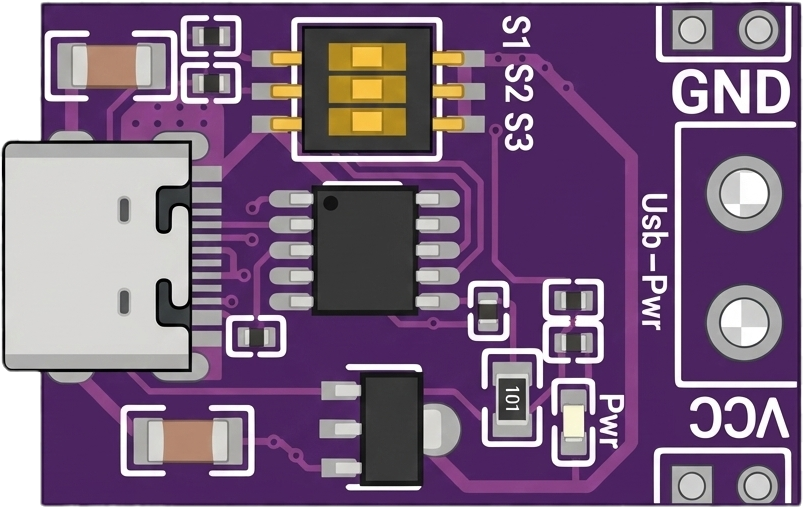
The USB Type-C Interface by YFUSET is a versatile and compact connector standard designed to support multiple functionalities, including high-speed data transfer, power delivery, and video output. Its reversible plug orientation eliminates the frustration of incorrect insertion, making it user-friendly and efficient. This interface is widely adopted in modern electronics due to its ability to handle multiple protocols and its compact design.
Explore Projects Built with USB Type-C Interface
 Open Project in Cirkit Designer
 Open Project in Cirkit Designer
 Open Project in Cirkit Designer
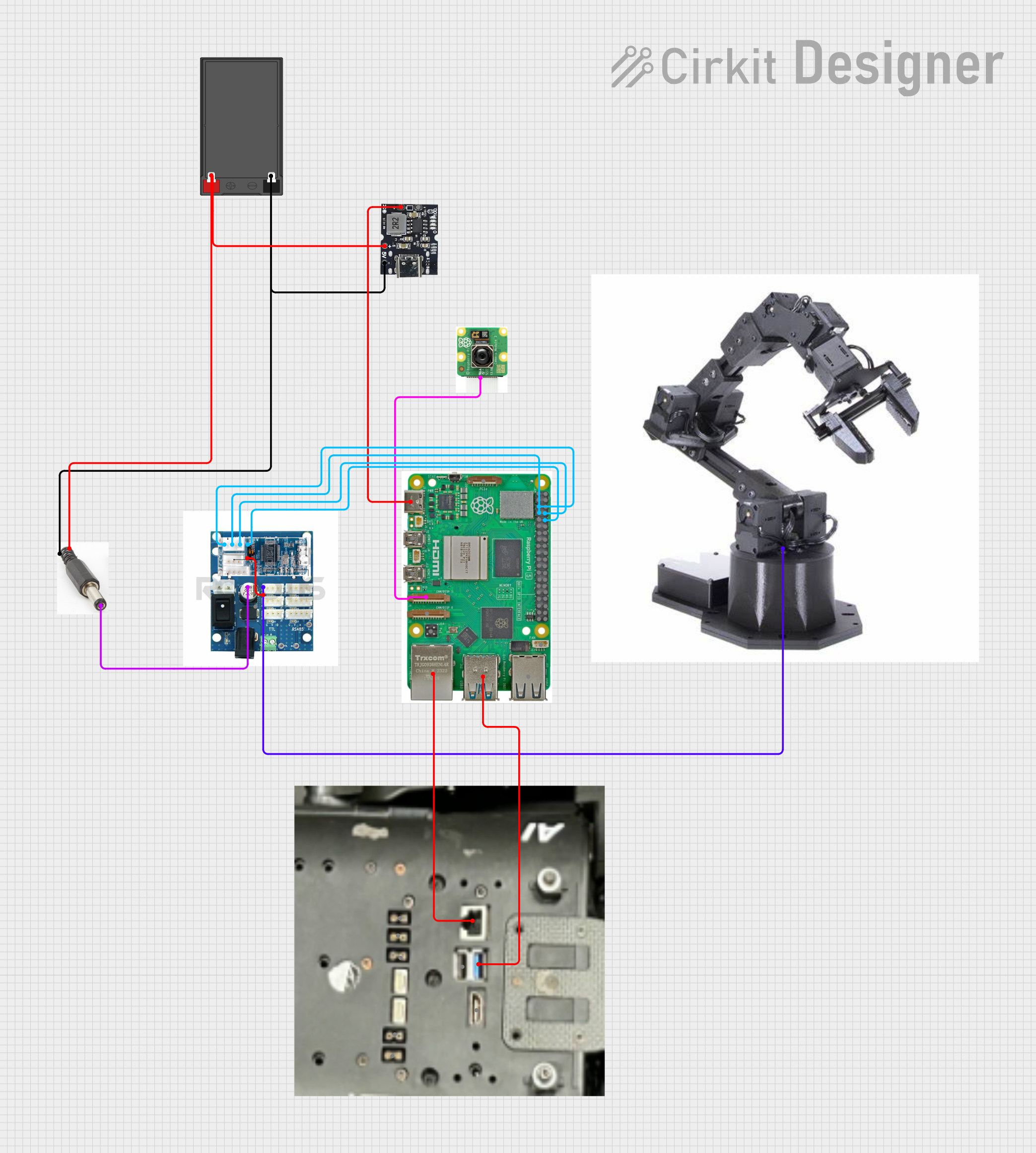 Open Project in Cirkit Designer
Explore Projects Built with USB Type-C Interface
Open Project in Cirkit DesignerOpen Project in Cirkit DesignerOpen Project in Cirkit DesignerOpen Project in Cirkit DesignerCommon Applications and Use Cases
- Smartphones and Tablets: For charging, data transfer, and video output.
- Laptops and Desktops: As a universal port for peripherals, charging, and external displays.
- Consumer Electronics: Used in devices like headphones, gaming consoles, and cameras.
- Power Delivery Systems: Supports fast charging for a wide range of devices.
- Docking Stations: Enables multi-functionality, including Ethernet, HDMI, and USB hub connections.
Technical Specifications
Key Technical Details
| Parameter | Specification |
|---|---|
| Connector Type | USB Type-C (24-pin) |
| Data Transfer Rate | Up to 40 Gbps (with USB4 or Thunderbolt 4 support) |
| Power Delivery (PD) | Up to 100W (20V, 5A) |
| Video Output | Supports DisplayPort, HDMI, and VGA (via adapters) |
| Reversible Plug Orientation | Yes |
| Operating Temperature | -40°C to 85°C |
| Dimensions | 8.4mm x 2.6mm |
Pin Configuration and Descriptions
The USB Type-C connector has 24 pins, divided into two symmetrical rows, allowing for reversible plug orientation. Below is the pin configuration:
| Pin Name | Description | Notes |
|---|---|---|
| A1, B1 | GND | Ground |
| A2, B2 | TX1+ | SuperSpeed differential pair (positive) |
| A3, B3 | TX1- | SuperSpeed differential pair (negative) |
| A4, B4 | VBUS | Power supply (up to 20V, 5A) |
| A5, B5 | CC1, CC2 | Configuration channel for power and data |
| A6, B6 | D+ | USB 2.0 differential pair (positive) |
| A7, B7 | D- | USB 2.0 differential pair (negative) |
| A8, B8 | SBU1, SBU2 | Sideband use for alternate modes |
| A9, B9 | RX2- | SuperSpeed differential pair (negative) |
| A10, B10 | RX2+ | SuperSpeed differential pair (positive) |
| A11, B11 | Shield | Connector shield |
| A12, B12 | GND | Ground |
Usage Instructions
How to Use the USB Type-C Interface in a Circuit
- Power Delivery: Connect the VBUS and GND pins to the power source. Use the CC pins to negotiate the required voltage and current with the connected device.
- Data Transfer: Use the TX, RX, and D+/- pins for high-speed data communication. Ensure proper impedance matching for differential pairs.
- Video Output: Utilize the SBU pins and alternate mode configurations (e.g., DisplayPort) for video output. Adapters may be required for HDMI or VGA.
- Reversible Design: The symmetrical pin layout allows the connector to function regardless of plug orientation.
Important Considerations and Best Practices
- Power Delivery: Ensure the power source supports USB PD specifications to avoid overloading the device.
- Signal Integrity: Use high-quality cables and maintain proper trace impedance for high-speed signals.
- Alternate Modes: Verify compatibility with the desired protocol (e.g., DisplayPort, Thunderbolt) before implementation.
- Heat Management: Ensure adequate ventilation or heat dissipation for high-power applications.
Example: Connecting USB Type-C to an Arduino UNO
While the Arduino UNO does not natively support USB Type-C, you can use a USB Type-C breakout board to interface with it. Below is an example of using USB Type-C for power delivery to the Arduino UNO:
// Example: Using USB Type-C to power an Arduino UNO
// Ensure the USB Type-C breakout board is configured for 5V output.

void setup() {
  // Initialize the onboard LED pin
  pinMode(LED_BUILTIN, OUTPUT);
}

void loop() {
  // Blink the onboard LED to confirm power delivery
  digitalWrite(LED_BUILTIN, HIGH); // Turn the LED on
  delay(1000);                     // Wait for 1 second
  digitalWrite(LED_BUILTIN, LOW);  // Turn the LED off
  delay(1000);                     // Wait for 1 second
}
Troubleshooting and FAQs
Common Issues and Solutions
Issue: The device does not charge or power on.
- Solution: Verify the power source and ensure the CC pins are properly configured for power delivery.
Issue: Data transfer is slow or unreliable.
- Solution: Check the quality of the USB Type-C cable and ensure proper connections for the TX/RX and D+/- pins.
Issue: Video output is not working.
- Solution: Confirm that the connected device supports the required alternate mode (e.g., DisplayPort). Use a compatible adapter if necessary.
Issue: Overheating during high-power applications.
- Solution: Ensure the power delivery system is within the specified limits (up to 100W). Provide adequate cooling or ventilation.
FAQs
Q: Can I use USB Type-C for both power and data simultaneously?
A: Yes, USB Type-C supports simultaneous power delivery and data transfer.Q: Is USB Type-C backward compatible with older USB standards?
A: Yes, with the appropriate adapters or cables, USB Type-C can interface with USB 2.0, 3.0, and 3.1 devices.Q: How do I enable alternate modes like DisplayPort?
A: Alternate modes require compatible devices and may need specific configurations on the CC pins. Check the device's documentation for details.Q: Can I use any USB Type-C cable for high-speed data transfer?
A: No, ensure the cable is certified for the required data rate (e.g., USB4 or Thunderbolt 4) to achieve optimal performance.