Cirkit Designer Logo
Cirkit Designer
Your all-in-one circuit design IDE
Home / 
Component Documentation

How to Use raspberry pi pico: Examples, Pinouts, and Specs
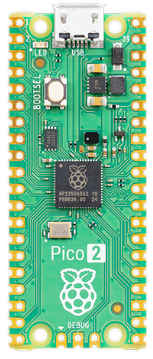

Image of raspberry pi pico
Cirkit Designer LogoDesign with raspberry pi pico in Cirkit Designer

Introduction

The Raspberry Pi Pico is a compact and versatile microcontroller board built around the Raspberry Pi RP2040 chip. It features dual-core ARM Cortex-M0+ processors, 264KB of SRAM, and 2MB of onboard flash memory. Designed for flexibility and ease of use, the Pico supports programming in MicroPython and C/C++, making it an excellent choice for beginners and experienced developers alike.

Common applications of the Raspberry Pi Pico include:

  • IoT (Internet of Things) devices
  • Robotics and automation projects
  • Sensor interfacing and data logging
  • Prototyping and educational projects
  • Low-power embedded systems

Explore Projects Built with raspberry pi pico
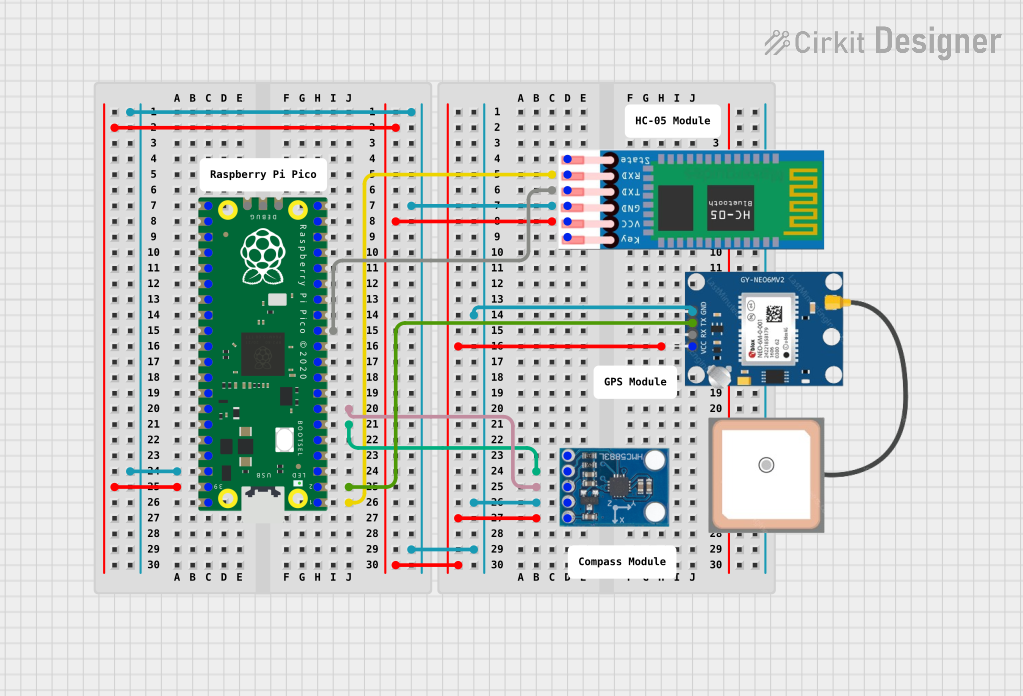
Use Cirkit Designer to design, explore, and prototype these projects online. Some projects support real-time simulation. Click "Open Project" to start designing instantly!
Raspberry Pi Pico-Based Navigation Assistant with Bluetooth and GPS
Image of sat_dish: compass example: A project utilizing raspberry pi pico in a practical application
This circuit features a Raspberry Pi Pico microcontroller interfaced with an HC-05 Bluetooth module for wireless communication, an HMC5883L compass module for magnetic field measurement, and a GPS NEO 6M module for location tracking. The Pico is configured to communicate with the HC-05 via serial connection (TX/RX), with the compass module via I2C (SCL/SDA), and with the GPS module via serial (TX/RX). Common power (VCC) and ground (GND) lines are shared among all modules, indicating a unified power system.
Cirkit Designer LogoOpen Project in Cirkit Designer
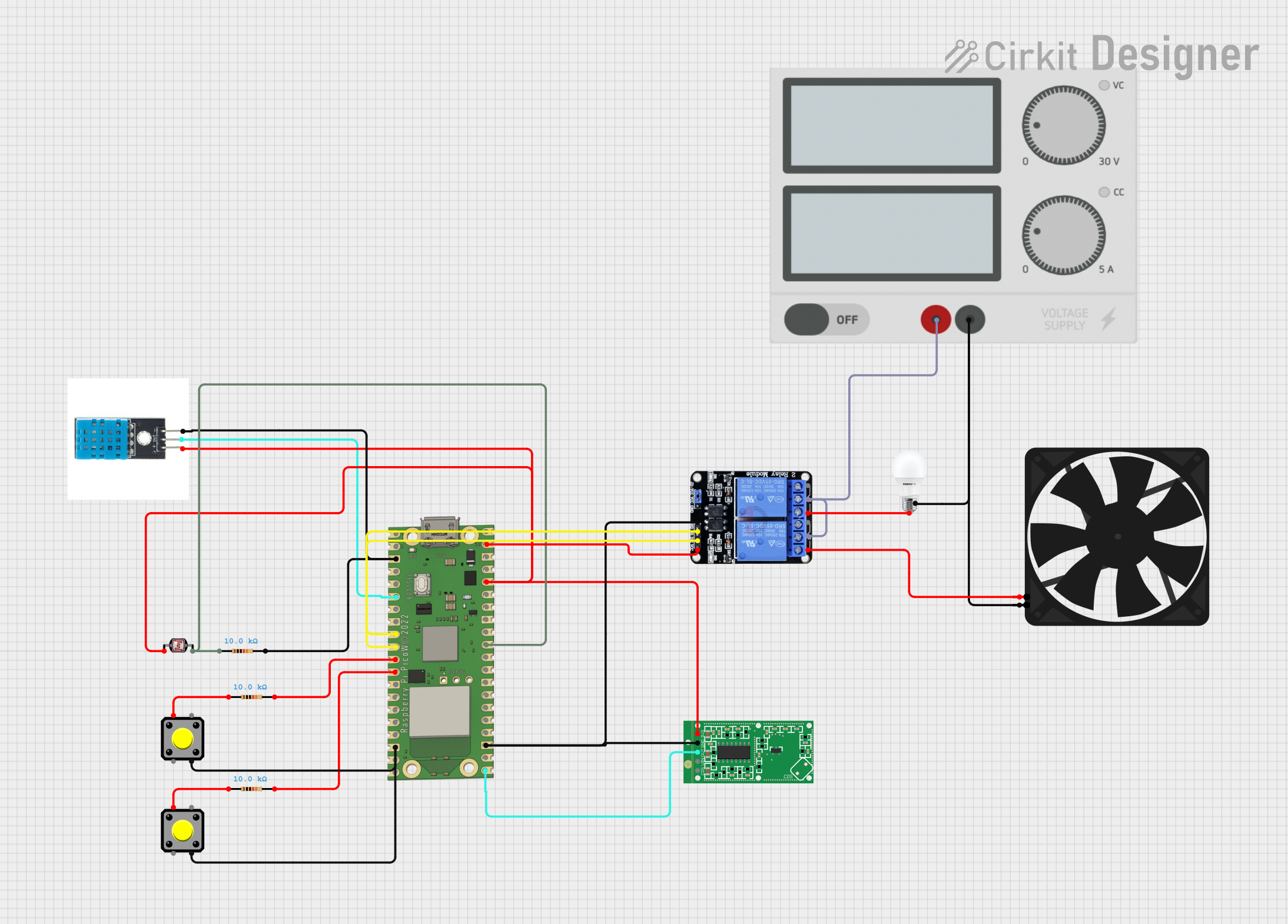
Raspberry Pi Pico W-Based Smart Home Automation System with Motion Detection and Environmental Monitoring
Image of Smart Home Automation 1: A project utilizing raspberry pi pico in a practical application
This circuit features a Raspberry Pi Pico W microcontroller connected to various sensors and actuators, including a DHT11 temperature and humidity sensor, an RCWL-0516 microwave radar motion sensor, a photocell (LDR) with a resistor for light detection, and a two-channel relay controlling a bulb and a fan. The microcontroller runs code to monitor environmental conditions and motion, displaying information on an LCD and allowing remote control via MQTT messages over Wi-Fi. It supports both automatic sensor-based operation and remote app control, with pushbuttons to switch between modes.
Cirkit Designer LogoOpen Project in Cirkit Designer
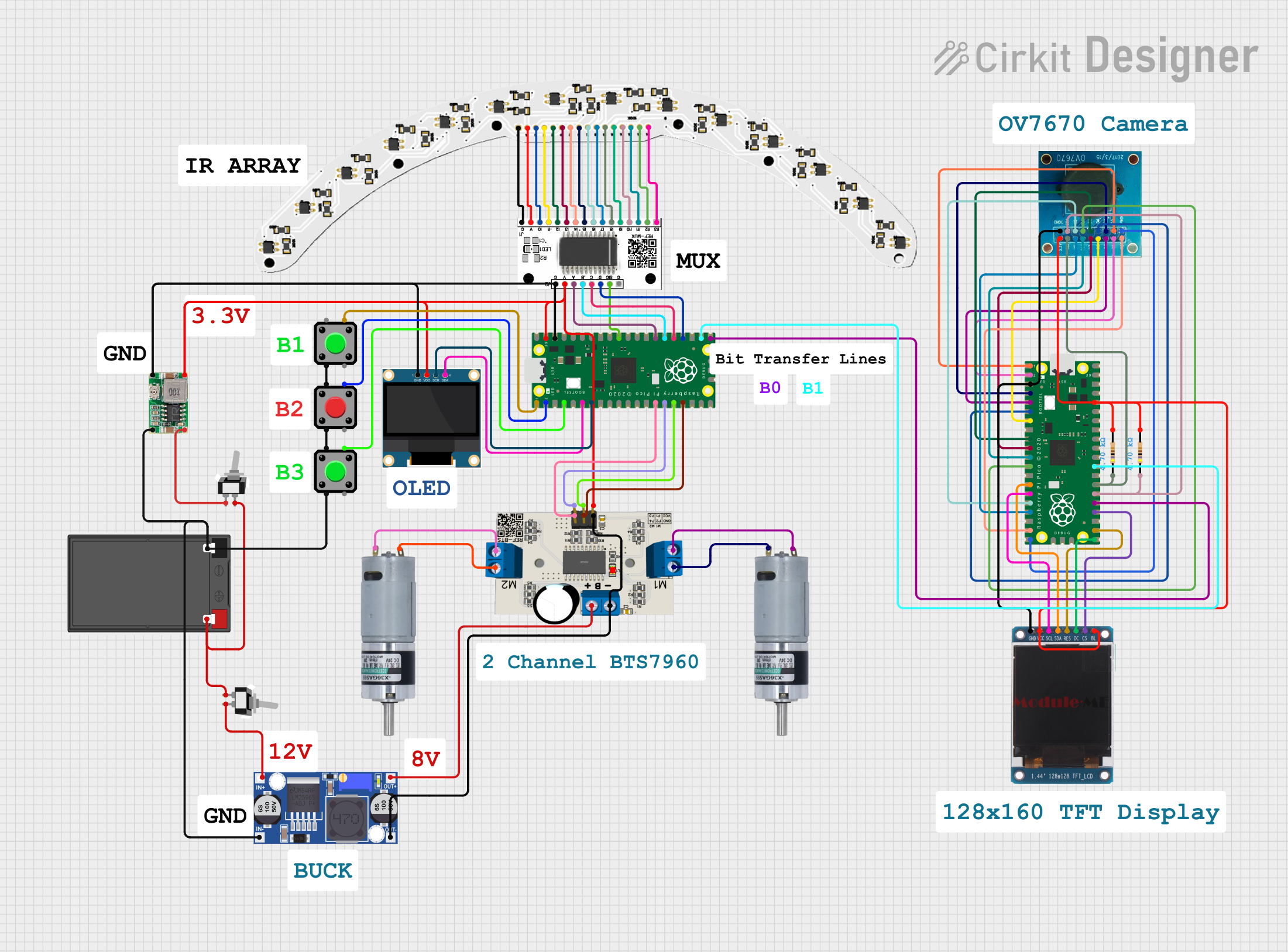
Raspberry Pi Pico and OV7670 Camera-Based Robotic System with TFT Display
Image of REF Speed Bot V3 CKT: A project utilizing raspberry pi pico in a practical application
This circuit features two Raspberry Pi Pico microcontrollers interfacing with various peripherals including an OV7670 camera module, a TFT display, and an OLED display. It also includes a multiplexer and a motor driver to control two planetary gearbox motors, powered by a battery and regulated through buck converters. The setup is designed for image capture, display, and motor control applications.
Cirkit Designer LogoOpen Project in Cirkit Designer
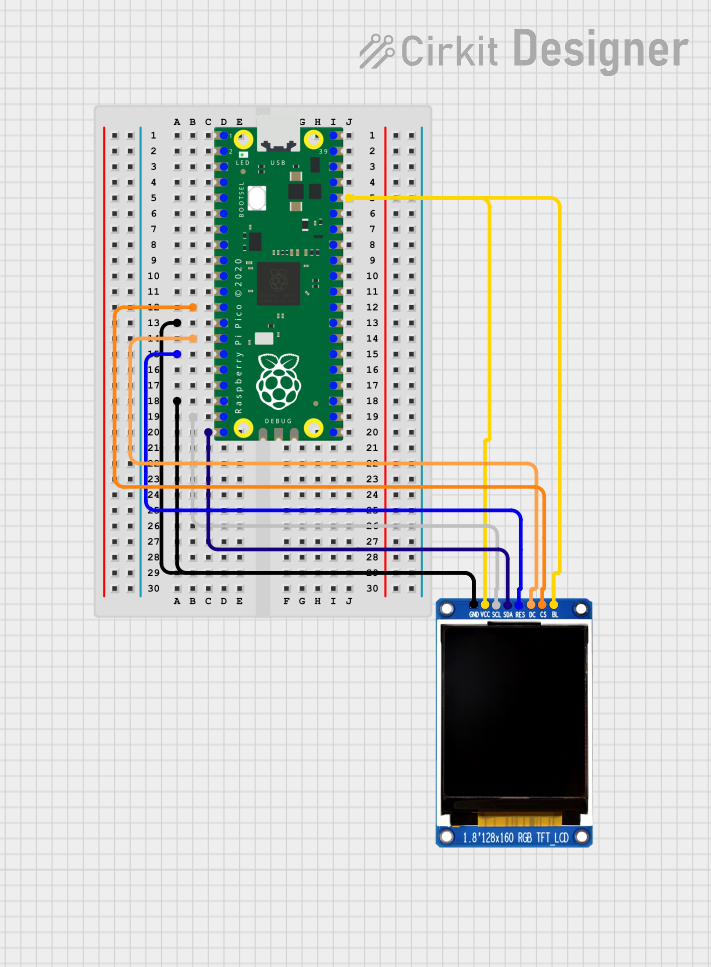
Raspberry Pi Pico Controlled ST7735S Display Module
Image of PICO_ST7735_TEST: A project utilizing raspberry pi pico in a practical application
This circuit connects a Raspberry Pi Pico microcontroller to a China ST7735S 160x128 pixel display. The Pico is configured to provide power (VCC and BL), grounding (GND), and control signals (CS, DC, RES) to the display, as well as SPI communication via SCL and SDA pins for data transfer. The purpose of this circuit is to enable the Raspberry Pi Pico to control and display graphics or text on the ST7735S LCD screen.
Cirkit Designer LogoOpen Project in Cirkit Designer

Explore Projects Built with raspberry pi pico

Use Cirkit Designer to design, explore, and prototype these projects online. Some projects support real-time simulation. Click "Open Project" to start designing instantly!
Image of sat_dish: compass example: A project utilizing raspberry pi pico in a practical application
Raspberry Pi Pico-Based Navigation Assistant with Bluetooth and GPS
This circuit features a Raspberry Pi Pico microcontroller interfaced with an HC-05 Bluetooth module for wireless communication, an HMC5883L compass module for magnetic field measurement, and a GPS NEO 6M module for location tracking. The Pico is configured to communicate with the HC-05 via serial connection (TX/RX), with the compass module via I2C (SCL/SDA), and with the GPS module via serial (TX/RX). Common power (VCC) and ground (GND) lines are shared among all modules, indicating a unified power system.
Cirkit Designer LogoOpen Project in Cirkit Designer
Image of Smart Home Automation 1: A project utilizing raspberry pi pico in a practical application
Raspberry Pi Pico W-Based Smart Home Automation System with Motion Detection and Environmental Monitoring
This circuit features a Raspberry Pi Pico W microcontroller connected to various sensors and actuators, including a DHT11 temperature and humidity sensor, an RCWL-0516 microwave radar motion sensor, a photocell (LDR) with a resistor for light detection, and a two-channel relay controlling a bulb and a fan. The microcontroller runs code to monitor environmental conditions and motion, displaying information on an LCD and allowing remote control via MQTT messages over Wi-Fi. It supports both automatic sensor-based operation and remote app control, with pushbuttons to switch between modes.
Cirkit Designer LogoOpen Project in Cirkit Designer
Image of REF Speed Bot V3 CKT: A project utilizing raspberry pi pico in a practical application
Raspberry Pi Pico and OV7670 Camera-Based Robotic System with TFT Display
This circuit features two Raspberry Pi Pico microcontrollers interfacing with various peripherals including an OV7670 camera module, a TFT display, and an OLED display. It also includes a multiplexer and a motor driver to control two planetary gearbox motors, powered by a battery and regulated through buck converters. The setup is designed for image capture, display, and motor control applications.
Cirkit Designer LogoOpen Project in Cirkit Designer
Image of PICO_ST7735_TEST: A project utilizing raspberry pi pico in a practical application
Raspberry Pi Pico Controlled ST7735S Display Module
This circuit connects a Raspberry Pi Pico microcontroller to a China ST7735S 160x128 pixel display. The Pico is configured to provide power (VCC and BL), grounding (GND), and control signals (CS, DC, RES) to the display, as well as SPI communication via SCL and SDA pins for data transfer. The purpose of this circuit is to enable the Raspberry Pi Pico to control and display graphics or text on the ST7735S LCD screen.
Cirkit Designer LogoOpen Project in Cirkit Designer

Technical Specifications

Key Technical Details

  • Microcontroller: Raspberry Pi RP2040
  • Processor: Dual-core ARM Cortex-M0+ @ 133 MHz
  • Memory: 264KB SRAM, 2MB onboard QSPI flash
  • GPIO Pins: 26 multi-function GPIO pins (3.3V logic level)
  • Interfaces: I2C, SPI, UART, PWM, ADC (3 channels), USB 1.1
  • Power Supply: 1.8V to 5.5V (via micro-USB or VSYS pin)
  • Operating Temperature: -20°C to +85°C
  • Dimensions: 51mm x 21mm

Pin Configuration and Descriptions

The Raspberry Pi Pico has 40 pins, including power, ground, and GPIO pins. Below is a summary of the pin configuration:

Pin Number Pin Name Description
1 GP0 GPIO0, UART0 TX, I2C0 SDA, SPI0 RX
2 GP1 GPIO1, UART0 RX, I2C0 SCL, SPI0 CSn
3 GND Ground
4 GP2 GPIO2, UART1 TX, I2C1 SDA, SPI0 SCK
5 GP3 GPIO3, UART1 RX, I2C1 SCL, SPI0 TX
36 3V3(OUT) 3.3V Output
39 VSYS Power input (1.8V to 5.5V)
40 GND Ground

For a complete pinout diagram, refer to the official Raspberry Pi Pico documentation.

Usage Instructions

How to Use the Raspberry Pi Pico in a Circuit

  1. Powering the Pico:

    • Connect the Pico to a computer or power source via the micro-USB port.
    • Alternatively, supply power through the VSYS pin (1.8V to 5.5V).
  2. Programming the Pico:

    • Install MicroPython or C/C++ development tools.
    • For MicroPython, download the firmware from the Raspberry Pi website and flash it to the Pico.
    • Use a code editor like Thonny (for MicroPython) or Visual Studio Code (for C/C++).
  3. Connecting Peripherals:

    • Use the GPIO pins to interface with sensors, actuators, or other devices.
    • Ensure that all connected devices operate at 3.3V logic levels to avoid damage.
  4. Example Circuit:

    • Connect an LED to GPIO15 with a 330-ohm resistor in series.
    • Use the following MicroPython code to blink the LED.

Example MicroPython Code


Import the machine and time modules

import machine import time

Configure GPIO15 as an output pin

led = machine.Pin(15, machine.Pin.OUT)

Blink the LED in a loop

while True: led.value(1) # Turn the LED on time.sleep(1) # Wait for 1 second led.value(0) # Turn the LED off time.sleep(1) # Wait for 1 second


Important Considerations and Best Practices

  • Always check the voltage and current ratings of connected devices to avoid damage.
  • Use level shifters if interfacing with 5V logic devices.
  • Avoid shorting GPIO pins or connecting them directly to power or ground.
  • Use decoupling capacitors for stable power supply in noisy environments.

Troubleshooting and FAQs

Common Issues and Solutions

  1. The Pico is not detected by the computer:

    • Ensure the micro-USB cable supports data transfer (not just charging).
    • Hold the BOOTSEL button while connecting the Pico to the computer to enter USB mass storage mode.
  2. MicroPython code is not running:

    • Verify that the MicroPython firmware is correctly flashed.
    • Check for syntax errors in the code.
  3. Connected devices are not working:

    • Confirm that the GPIO pins are configured correctly in the code.
    • Check wiring and ensure proper voltage levels.
  4. The Pico overheats or behaves erratically:

    • Ensure the power supply voltage is within the specified range (1.8V to 5.5V).
    • Avoid drawing excessive current from the GPIO pins.

FAQs

  • Q: Can I power the Pico with a battery?
    A: Yes, you can power the Pico using a battery connected to the VSYS pin, as long as the voltage is between 1.8V and 5.5V.

  • Q: How do I reset the Pico?
    A: Press the RESET button (if available) or disconnect and reconnect the power supply.

  • Q: Can I use the Pico with Arduino IDE?
    A: Yes, the Pico is compatible with the Arduino IDE. Install the RP2040 board package to get started.

  • Q: What is the maximum current the GPIO pins can source/sink?
    A: Each GPIO pin can source/sink up to 12mA, with a total maximum current of 50mA for all GPIOs combined.