
Cirkit Designer
Your all-in-one circuit design IDE
Home /
Component Documentation
How to Use AC PLUG: Examples, Pinouts, and Specs
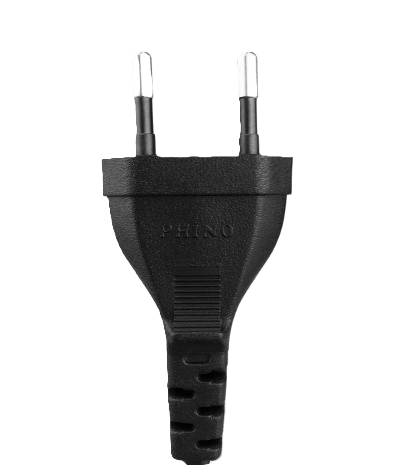
 Design with AC PLUG in Cirkit Designer
Introduction
An AC plug, manufactured by AC with the part ID "plug," is a device designed to connect electrical appliances to an alternating current (AC) power supply. It typically consists of two or three prongs that fit into a corresponding socket, enabling the safe and efficient transfer of electrical power. AC plugs are essential components in household, industrial, and commercial electrical systems.
Explore Projects Built with AC PLUG
Dual 5V Power Supply Distribution Circuit with Toggle Switch Control
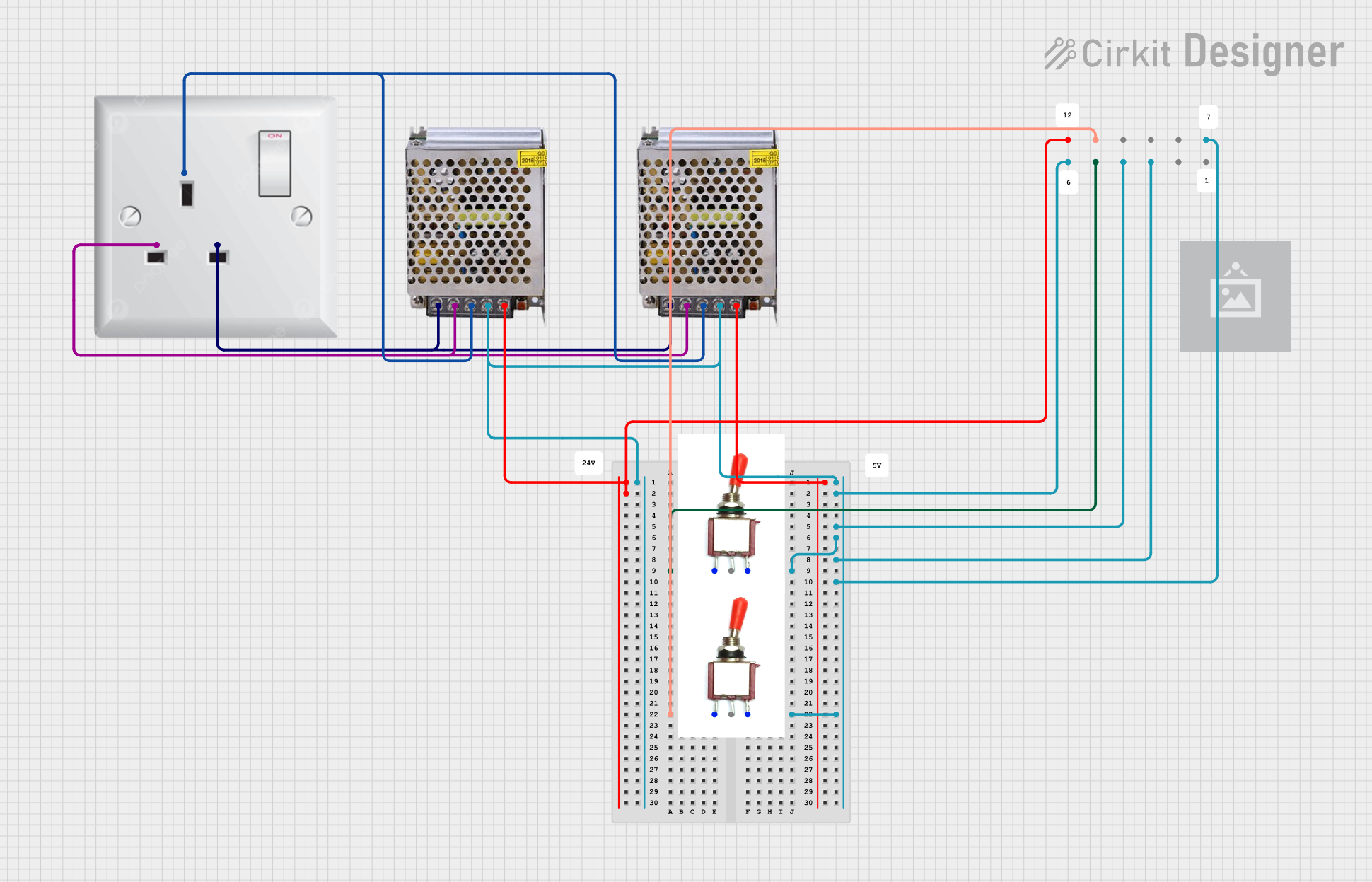
This circuit consists of two 5V 5A power supplies connected to an AC wall plug point, providing DC output through a 12-way connector. The ground connections from both power supplies are interconnected and also connected to the ground pins of two toggle switches. The DC outputs from the power supplies are separately connected to different pins on the 12-way connector, with each power supply output being switchable via one of the toggle switches.
Open Project in Cirkit DesignerBattery-Powered USB Charger with LED Indicator and DC Motor
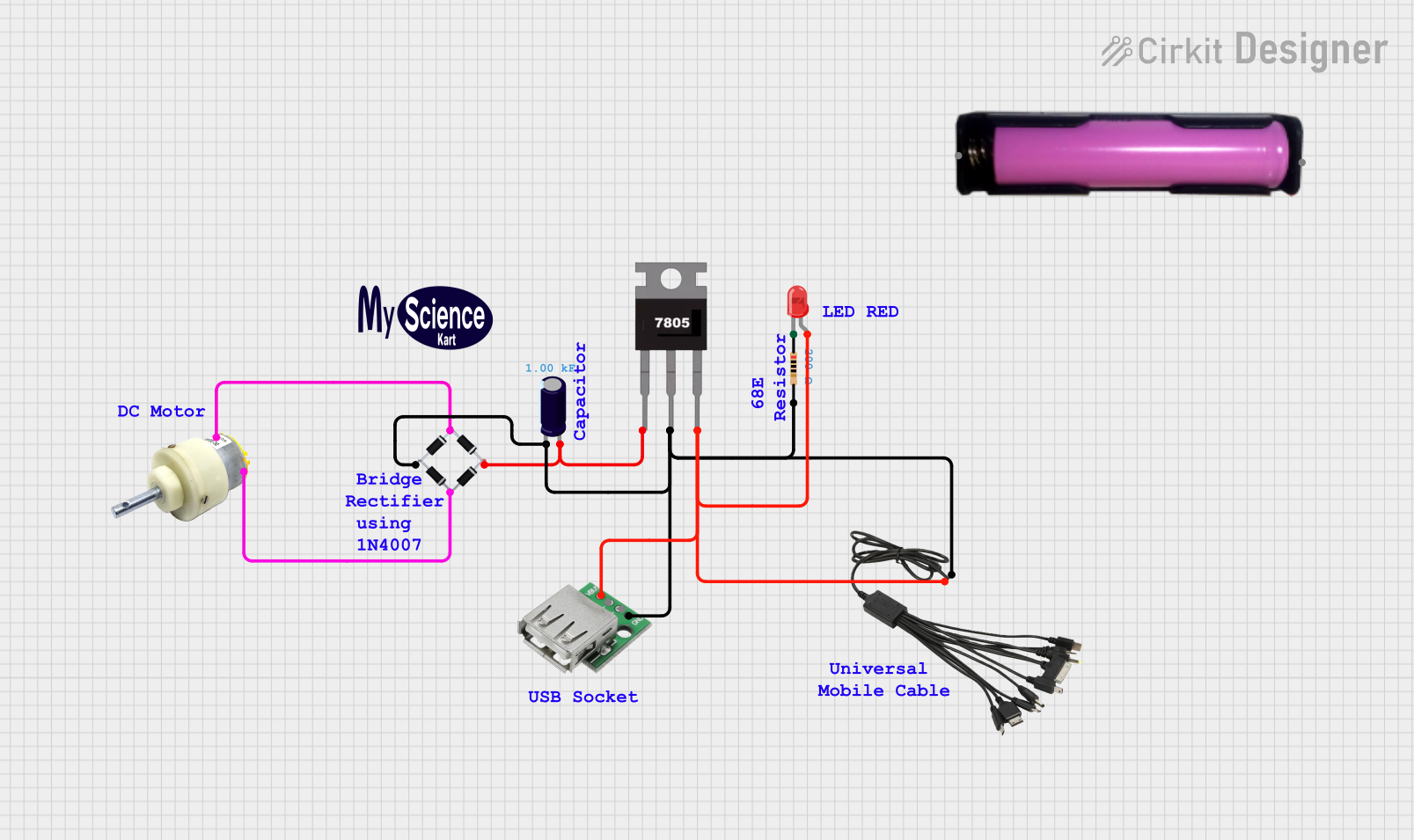
This circuit converts AC power to DC using a bridge rectifier and regulates the voltage to 5V with a 7805 voltage regulator. It powers a USB port and indicates power status with an LED, while also providing a charging interface through a multi-charging cable.
Open Project in Cirkit Designer220V to 5V Power Supply with Transformer and Bridge Rectifier
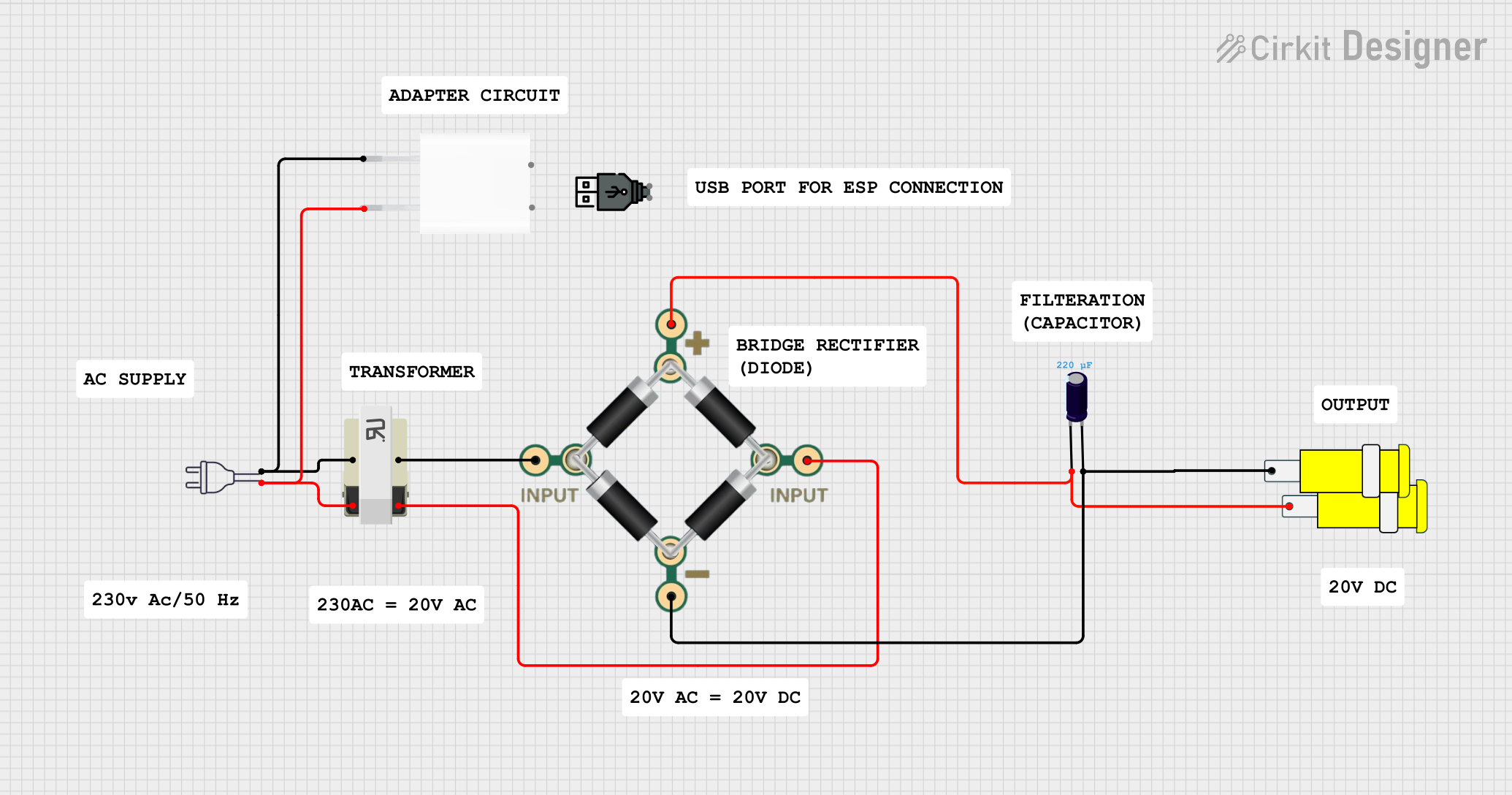
This circuit converts 220V AC power to a 5V DC output. It uses a transformer to step down the voltage, a bridge rectifier to convert AC to DC, and a capacitor to smooth the output. The final 5V DC is available through a connector.
Open Project in Cirkit DesignerAC to DC Micro USB Power Supply with Buck Converter
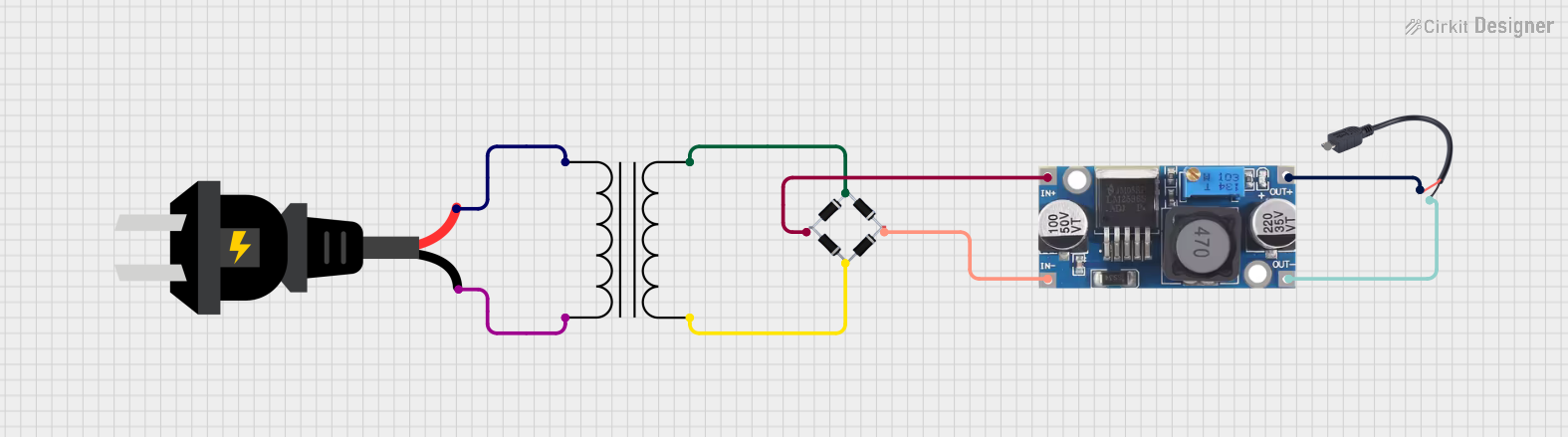
This circuit is designed to convert AC power to regulated DC power. An AC source feeds a power transformer that steps down the voltage, which is then rectified by a bridge rectifier to produce a pulsating DC. This DC is further converted to a stable DC output by a step-down buck converter, which then provides power through a Micro USB connector.
Open Project in Cirkit DesignerExplore Projects Built with AC PLUG
Dual 5V Power Supply Distribution Circuit with Toggle Switch Control
This circuit consists of two 5V 5A power supplies connected to an AC wall plug point, providing DC output through a 12-way connector. The ground connections from both power supplies are interconnected and also connected to the ground pins of two toggle switches. The DC outputs from the power supplies are separately connected to different pins on the 12-way connector, with each power supply output being switchable via one of the toggle switches.
Open Project in Cirkit DesignerBattery-Powered USB Charger with LED Indicator and DC Motor
This circuit converts AC power to DC using a bridge rectifier and regulates the voltage to 5V with a 7805 voltage regulator. It powers a USB port and indicates power status with an LED, while also providing a charging interface through a multi-charging cable.
Open Project in Cirkit Designer220V to 5V Power Supply with Transformer and Bridge Rectifier
This circuit converts 220V AC power to a 5V DC output. It uses a transformer to step down the voltage, a bridge rectifier to convert AC to DC, and a capacitor to smooth the output. The final 5V DC is available through a connector.
Open Project in Cirkit DesignerAC to DC Micro USB Power Supply with Buck Converter
This circuit is designed to convert AC power to regulated DC power. An AC source feeds a power transformer that steps down the voltage, which is then rectified by a bridge rectifier to produce a pulsating DC. This DC is further converted to a stable DC output by a step-down buck converter, which then provides power through a Micro USB connector.
Open Project in Cirkit DesignerCommon Applications and Use Cases
- Powering household appliances such as lamps, televisions, and kitchen devices.
- Connecting industrial equipment to AC power sources.
- Providing power to office equipment like computers and printers.
- Used in extension cords and power strips for distributing electricity.
Technical Specifications
Key Technical Details
| Parameter | Specification |
|---|---|
| Manufacturer | AC |
| Part ID | plug |
| Voltage Rating | 110V - 250V AC |
| Current Rating | 10A - 16A |
| Frequency | 50Hz / 60Hz |
| Number of Prongs | 2 or 3 (depending on the model) |
| Material | High-grade thermoplastic or metal |
| Safety Standards | Compliant with IEC and UL standards |
Pin Configuration and Descriptions
| Pin Number | Description | Notes |
|---|---|---|
| Pin 1 | Live (L) | Carries the current to the device. |
| Pin 2 | Neutral (N) | Completes the circuit. |
| Pin 3 | Ground (G) (optional) | Provides safety by grounding. |
Usage Instructions
How to Use the AC Plug in a Circuit
- Inspect the Plug: Ensure the AC plug is free from damage, such as cracks or exposed wires.
- Connect to Appliance: Attach the plug to the appliance's power cord securely.
- Insert into Socket: Insert the plug into a compatible AC socket, ensuring a snug fit.
- Power On: Turn on the appliance or device to begin operation.
Important Considerations and Best Practices
- Voltage Compatibility: Verify that the plug's voltage rating matches the power supply.
- Grounding: Use a 3-prong plug for devices requiring grounding to ensure safety.
- Avoid Overloading: Do not exceed the current rating of the plug to prevent overheating.
- Inspect Regularly: Periodically check the plug for wear and tear to avoid electrical hazards.
- Use in Dry Conditions: Avoid using the plug in wet or damp environments unless it is specifically rated for such conditions.
Example: Connecting to an Arduino UNO
While an AC plug is not directly connected to an Arduino UNO, it can be used to power an external power supply that, in turn, powers the Arduino. Below is an example of how to use an AC plug with a 12V DC adapter to power an Arduino UNO:
/* Example: Blinking an LED with Arduino UNO powered via AC plug and adapter
   Ensure the AC plug is connected to a 12V DC adapter, which powers the Arduino. */

int ledPin = 13; // Pin connected to the onboard LED

void setup() {
  pinMode(ledPin, OUTPUT); // Set the LED pin as an output
}

void loop() {
  digitalWrite(ledPin, HIGH); // Turn the LED on
  delay(1000);                // Wait for 1 second
  digitalWrite(ledPin, LOW);  // Turn the LED off
  delay(1000);                // Wait for 1 second
}
Troubleshooting and FAQs
Common Issues Users Might Face
- Loose Connection: The plug does not fit securely into the socket.
- Solution: Ensure the socket is compatible with the plug's prong configuration.
- Overheating: The plug becomes warm during use.
- Solution: Check for overloading or loose connections. Reduce the load if necessary.
- No Power: The connected device does not turn on.
- Solution: Verify the power supply, inspect the plug for damage, and check the appliance.
- Sparking: Sparks appear when inserting or removing the plug.
- Solution: Ensure the socket is in good condition and avoid inserting/removing the plug under load.
Tips for Troubleshooting
- Use a multimeter to check for continuity in the plug's prongs.
- Replace damaged plugs immediately to avoid electrical hazards.
- Ensure the plug is compatible with the regional socket type (e.g., Type A, Type B, etc.).
By following these guidelines, the AC plug can be used safely and effectively in a variety of applications.