
How to Use Elecrow esp tft 4,3 : Examples, Pinouts, and Specs
 Design with Elecrow esp tft 4,3 in Cirkit Designer
Introduction
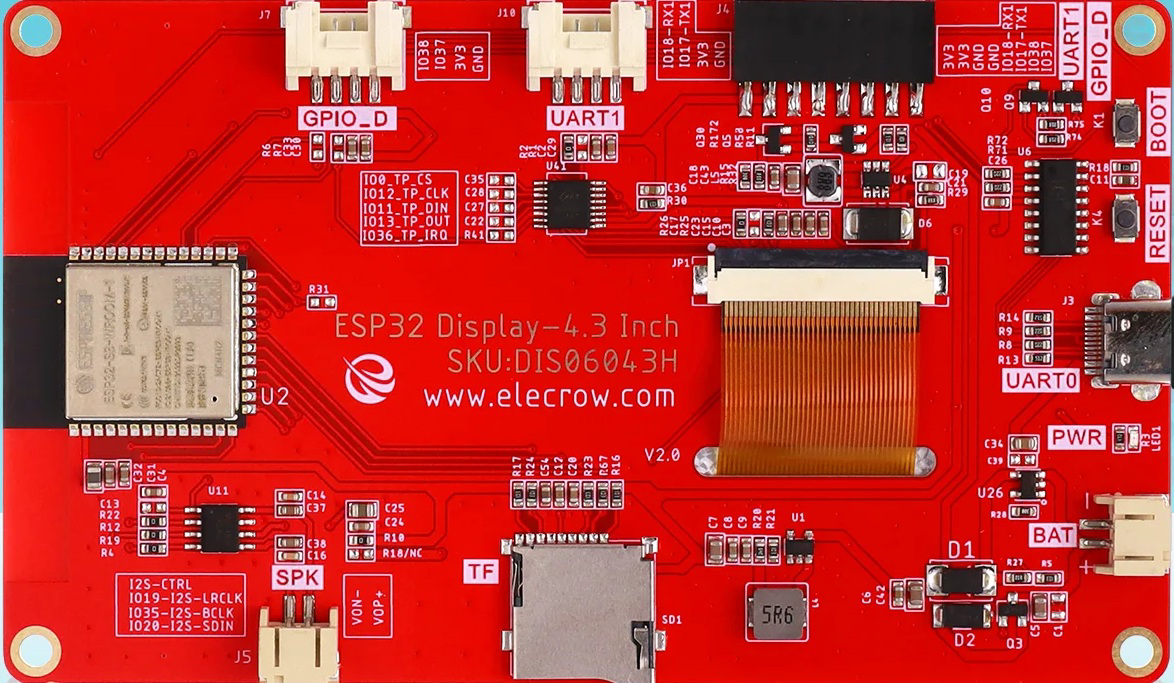
The Elecrow ESP TFT 4.3 is a 4.3-inch TFT display module designed for seamless integration with ESP microcontrollers. It features a vibrant touchscreen interface, making it ideal for interactive applications such as IoT dashboards, smart home controls, and portable devices. With its high-resolution display and touch functionality, this module is perfect for projects requiring a user-friendly graphical interface.
Explore Projects Built with Elecrow esp tft 4,3
 Open Project in Cirkit Designer
 Open Project in Cirkit Designer
 Open Project in Cirkit Designer
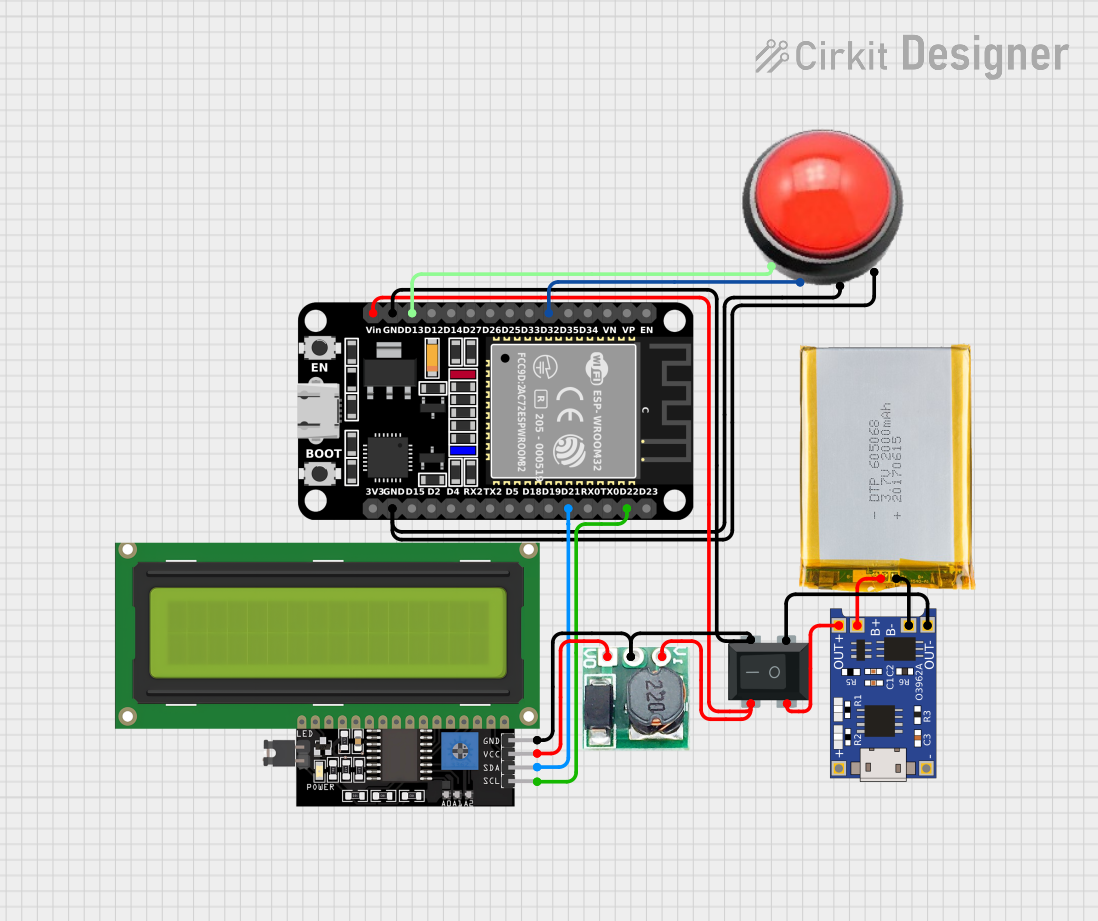 Open Project in Cirkit Designer
Explore Projects Built with Elecrow esp tft 4,3
Open Project in Cirkit DesignerOpen Project in Cirkit DesignerOpen Project in Cirkit DesignerOpen Project in Cirkit DesignerCommon Applications
- IoT control panels and dashboards
- Smart home automation systems
- Portable devices with graphical user interfaces
- Educational and prototyping projects
- Industrial control systems
Technical Specifications
Key Technical Details
| Specification | Value |
|---|---|
| Display Type | TFT LCD |
| Screen Size | 4.3 inches |
| Resolution | 480 x 272 pixels |
| Touchscreen Type | Resistive |
| Interface | SPI |
| Operating Voltage | 3.3V |
| Backlight Current | 120mA (typical) |
| Dimensions | 105mm x 67mm x 4.5mm |
| Operating Temperature Range | -20°C to 70°C |
Pin Configuration and Descriptions
| Pin Name | Pin Number | Description |
|---|---|---|
| VCC | 1 | Power supply input (3.3V) |
| GND | 2 | Ground |
| CS | 3 | Chip Select for SPI communication |
| SCK | 4 | SPI Clock |
| MOSI | 5 | SPI Master Out Slave In |
| MISO | 6 | SPI Master In Slave Out |
| T_IRQ | 7 | Touchscreen interrupt signal |
| T_CS | 8 | Touchscreen Chip Select |
| T_CLK | 9 | Touchscreen SPI Clock |
| T_DIN | 10 | Touchscreen SPI Data Input |
| T_DO | 11 | Touchscreen SPI Data Output |
| RESET | 12 | Reset pin for the display module |
| DC | 13 | Data/Command control for SPI |
| BL | 14 | Backlight control (PWM supported) |
Usage Instructions
Connecting the Elecrow ESP TFT 4.3 to an ESP32
To use the Elecrow ESP TFT 4.3 with an ESP32 microcontroller, follow these steps:
- Power Supply: Connect the
VCCpin to the 3.3V output of the ESP32 and theGNDpin to the ground. - SPI Communication: Connect the
CS,SCK,MOSI, andMISOpins to the corresponding SPI pins on the ESP32. - Touchscreen Interface: Connect the
T_CS,T_CLK,T_DIN, andT_DOpins to additional GPIO pins on the ESP32. - Backlight Control: Optionally, connect the
BLpin to a PWM-capable GPIO pin for brightness control. - Reset and DC Pins: Connect the
RESETandDCpins to GPIO pins for proper initialization and data/command control.
Example Code for Arduino IDE
Below is an example of how to initialize and use the Elecrow ESP TFT 4.3 with an ESP32 using the Arduino IDE. This example uses the popular TFT_eSPI library.
#include <TFT_eSPI.h>  // Include the TFT_eSPI library

TFT_eSPI tft = TFT_eSPI();  // Create an instance of the TFT_eSPI class

void setup() {
  tft.init();  // Initialize the display
  tft.setRotation(1);  // Set the display orientation (1 = landscape)

  // Clear the screen with a black background
  tft.fillScreen(TFT_BLACK);

  // Display a welcome message
  tft.setTextColor(TFT_WHITE, TFT_BLACK);  // Set text color and background
  tft.setTextSize(2);  // Set text size
  tft.setCursor(10, 10);  // Set cursor position
  tft.println("Welcome to Elecrow!");  // Print text to the screen
}

void loop() {
  // Example: Draw a red rectangle on the screen
  tft.fillRect(50, 50, 100, 50, TFT_RED);

  // Add your custom code here
}
Important Considerations
- Ensure the operating voltage is strictly 3.3V to avoid damaging the module.
- Use level shifters if connecting to a 5V microcontroller.
- For optimal performance, use short and properly shielded wires for SPI connections.
- Calibrate the touchscreen using the appropriate library functions if touch accuracy is critical.
Troubleshooting and FAQs
Common Issues and Solutions
Display Not Turning On
- Cause: Incorrect power supply or loose connections.
- Solution: Verify that the
VCCandGNDpins are properly connected to a 3.3V power source.
Touchscreen Not Responding
- Cause: Incorrect wiring of touchscreen pins or missing library.
- Solution: Double-check the connections for
T_CS,T_CLK,T_DIN, andT_DO. Ensure the touchscreen library is installed and initialized correctly.
Flickering or Dim Backlight
- Cause: Insufficient current supply or improper backlight control.
- Solution: Ensure the power supply can provide at least 120mA. If using PWM for backlight control, verify the PWM signal is stable.
Incorrect Display Orientation
- Cause: Default rotation setting in the library.
- Solution: Use the
setRotation()function in the code to adjust the orientation.
FAQs
Q: Can I use this display with an Arduino UNO?
A: While it is possible, the Arduino UNO may not have sufficient memory or processing power for complex graphics. Additionally, level shifters are required since the UNO operates at 5V.
Q: What libraries are recommended for this display?
A: The TFT_eSPI library is highly recommended for its performance and compatibility with ESP microcontrollers.
Q: How do I control the brightness of the backlight?
A: Connect the BL pin to a PWM-capable GPIO pin on the ESP32 and use the analogWrite() function to adjust brightness.
Q: Is the touchscreen resistive or capacitive?
A: The touchscreen is resistive, which means it can be operated with a stylus or finger.
By following this documentation, you can effectively integrate the Elecrow ESP TFT 4.3 into your projects and create stunning graphical interfaces.