
How to Use LED MODULE RGB : Examples, Pinouts, and Specs
 Design with LED MODULE RGB in Cirkit Designer
Introduction
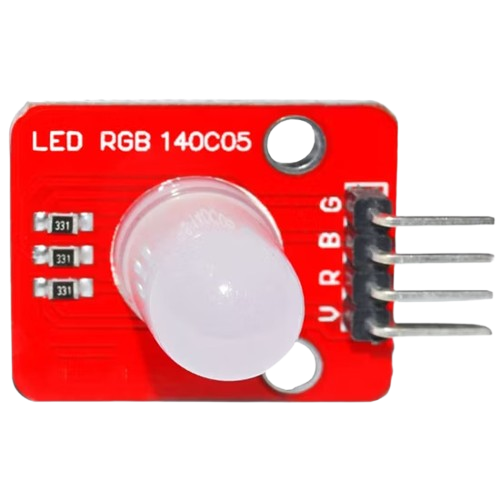
The Keyes LED MODULE RGB (Part ID: FUT3203) is a versatile lighting component that integrates red, green, and blue LEDs into a single module. By varying the intensity of each LED, this module can produce a wide spectrum of colors, making it ideal for applications requiring dynamic and customizable lighting. It is commonly used in decorative lighting, status indicators, displays, and DIY electronics projects.
This module is compatible with microcontrollers such as Arduino, Raspberry Pi, and other development boards, making it a popular choice for hobbyists and professionals alike.
Explore Projects Built with LED MODULE RGB
 Open Project in Cirkit Designer
 Open Project in Cirkit Designer
 Open Project in Cirkit Designer
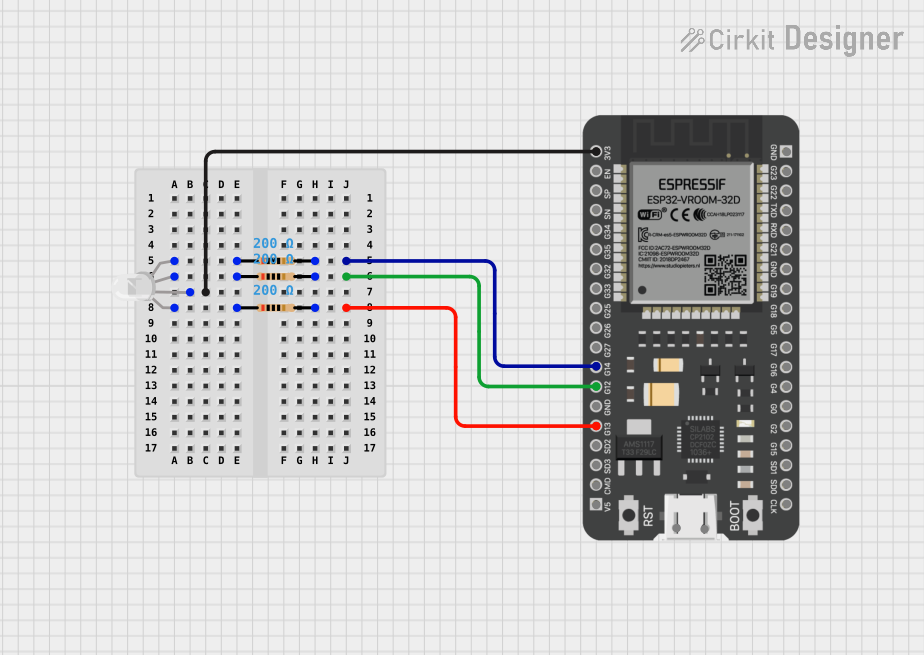 Open Project in Cirkit Designer
Explore Projects Built with LED MODULE RGB
Open Project in Cirkit DesignerOpen Project in Cirkit DesignerOpen Project in Cirkit DesignerOpen Project in Cirkit DesignerTechnical Specifications
Below are the key technical details of the Keyes LED MODULE RGB (FUT3203):
| Parameter | Value |
|---|---|
| Operating Voltage | 3.3V to 5V |
| Operating Current | 20mA per channel (R, G, B) |
| LED Colors | Red, Green, Blue (RGB) |
| Control Method | PWM (Pulse Width Modulation) |
| Dimensions | 25mm x 15mm x 10mm |
| Mounting Type | PCB module with mounting holes |
Pin Configuration and Descriptions
The module has 4 pins, as described in the table below:
| Pin | Name | Description |
|---|---|---|
| 1 | R | Red LED control pin. Connect to a PWM-capable pin on the microcontroller. |
| 2 | G | Green LED control pin. Connect to a PWM-capable pin on the microcontroller. |
| 3 | B | Blue LED control pin. Connect to a PWM-capable pin on the microcontroller. |
| 4 | GND | Ground pin. Connect to the ground of the power supply or microcontroller. |
Usage Instructions
How to Use the Component in a Circuit
- Power Supply: Connect the GND pin of the module to the ground of your power supply or microcontroller. Ensure the operating voltage is within the range of 3.3V to 5V.
- Control Pins: Connect the R, G, and B pins to PWM-capable pins on your microcontroller. These pins allow you to control the brightness of each LED color.
- Resistors: If not already integrated into the module, use current-limiting resistors (typically 220Ω to 330Ω) in series with the R, G, and B pins to prevent overcurrent damage to the LEDs.
- Programming: Use PWM signals to adjust the intensity of each LED color and create the desired color output.
Important Considerations and Best Practices
- Current Limiting: Always use appropriate resistors if the module does not include them to avoid damaging the LEDs.
- Heat Management: Prolonged use at high brightness levels may generate heat. Ensure proper ventilation or heat dissipation.
- Voltage Compatibility: Verify that the operating voltage of your microcontroller matches the module's requirements (3.3V or 5V).
- PWM Frequency: Use a PWM frequency of at least 500Hz to avoid visible flickering.
Example Code for Arduino UNO
Below is an example of how to control the Keyes LED MODULE RGB using an Arduino UNO:
// Define the pins connected to the RGB module
const int redPin = 9;   // PWM pin for Red LED
const int greenPin = 10; // PWM pin for Green LED
const int bluePin = 11;  // PWM pin for Blue LED

void setup() {
  // Set the RGB pins as output
  pinMode(redPin, OUTPUT);
  pinMode(greenPin, OUTPUT);
  pinMode(bluePin, OUTPUT);
}

void loop() {
  // Example: Cycle through Red, Green, and Blue colors
  setColor(255, 0, 0); // Red
  delay(1000);         // Wait 1 second
  setColor(0, 255, 0); // Green
  delay(1000);         // Wait 1 second
  setColor(0, 0, 255); // Blue
  delay(1000);         // Wait 1 second
}

// Function to set the RGB color
void setColor(int redValue, int greenValue, int blueValue) {
  analogWrite(redPin, redValue);   // Set Red LED brightness
  analogWrite(greenPin, greenValue); // Set Green LED brightness
  analogWrite(bluePin, blueValue);  // Set Blue LED brightness
}
Troubleshooting and FAQs
Common Issues and Solutions
LEDs Not Lighting Up:
- Ensure the module is connected to the correct power supply voltage (3.3V or 5V).
- Check for loose or incorrect wiring connections.
- Verify that the microcontroller pins are configured as outputs.
Incorrect Colors or No Color Change:
- Confirm that the PWM pins on the microcontroller are functioning correctly.
- Check the code for errors in the PWM signal values.
Flickering LEDs:
- Increase the PWM frequency to reduce visible flicker.
- Ensure a stable power supply without voltage fluctuations.
Overheating:
- Reduce the brightness levels of the LEDs.
- Ensure proper ventilation or heat dissipation around the module.
FAQs
Q: Can I use this module with a 12V power supply?
A: No, the module is designed to operate at 3.3V to 5V. Using a higher voltage may damage the LEDs.
Q: Do I need external resistors for this module?
A: Some versions of the Keyes LED MODULE RGB include built-in resistors. Check the datasheet or test the module to confirm. If resistors are not included, use external resistors (220Ω to 330Ω) to limit current.
Q: Can I control this module without a microcontroller?
A: Yes, you can use simple switches or potentiometers to control the LEDs manually, but a microcontroller is recommended for precise color control.
Q: Is this module compatible with Raspberry Pi?
A: Yes, the module can be controlled using the GPIO pins of a Raspberry Pi. However, ensure proper voltage level shifting if using a 3.3V GPIO system.