
How to Use Adafruit Arcade Joystick: Examples, Pinouts, and Specs
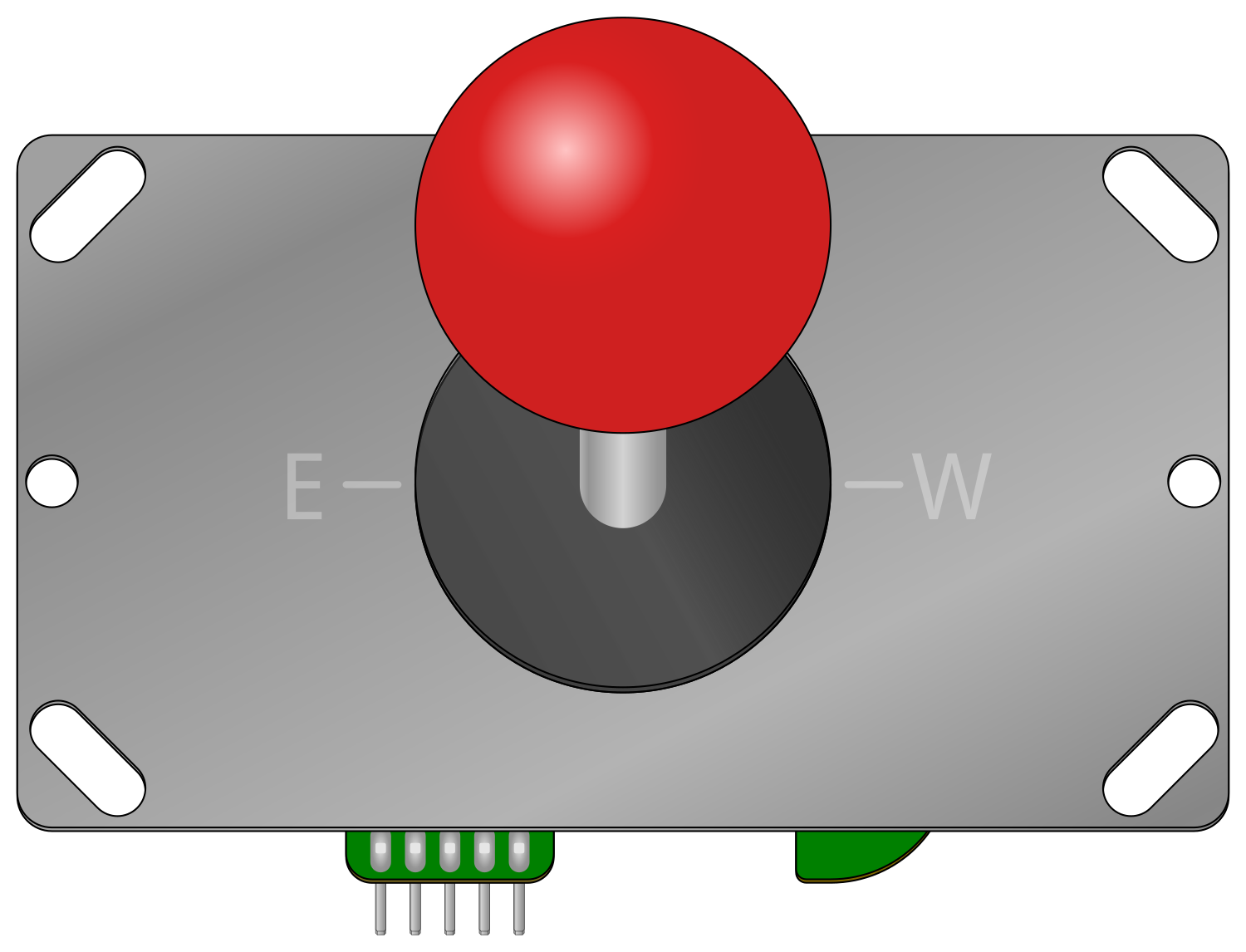
 Design with Adafruit Arcade Joystick in Cirkit Designer
Introduction
The Adafruit Arcade Joystick is a versatile and durable joystick designed for arcade-style gaming and DIY electronics projects. Its sturdy build and smooth operation make it ideal for creating custom gaming consoles, robotics control systems, and other interactive projects. The joystick is compatible with a wide range of microcontrollers, including Arduino, Raspberry Pi, and other development boards, making it a popular choice for hobbyists and professionals alike.
Explore Projects Built with Adafruit Arcade Joystick
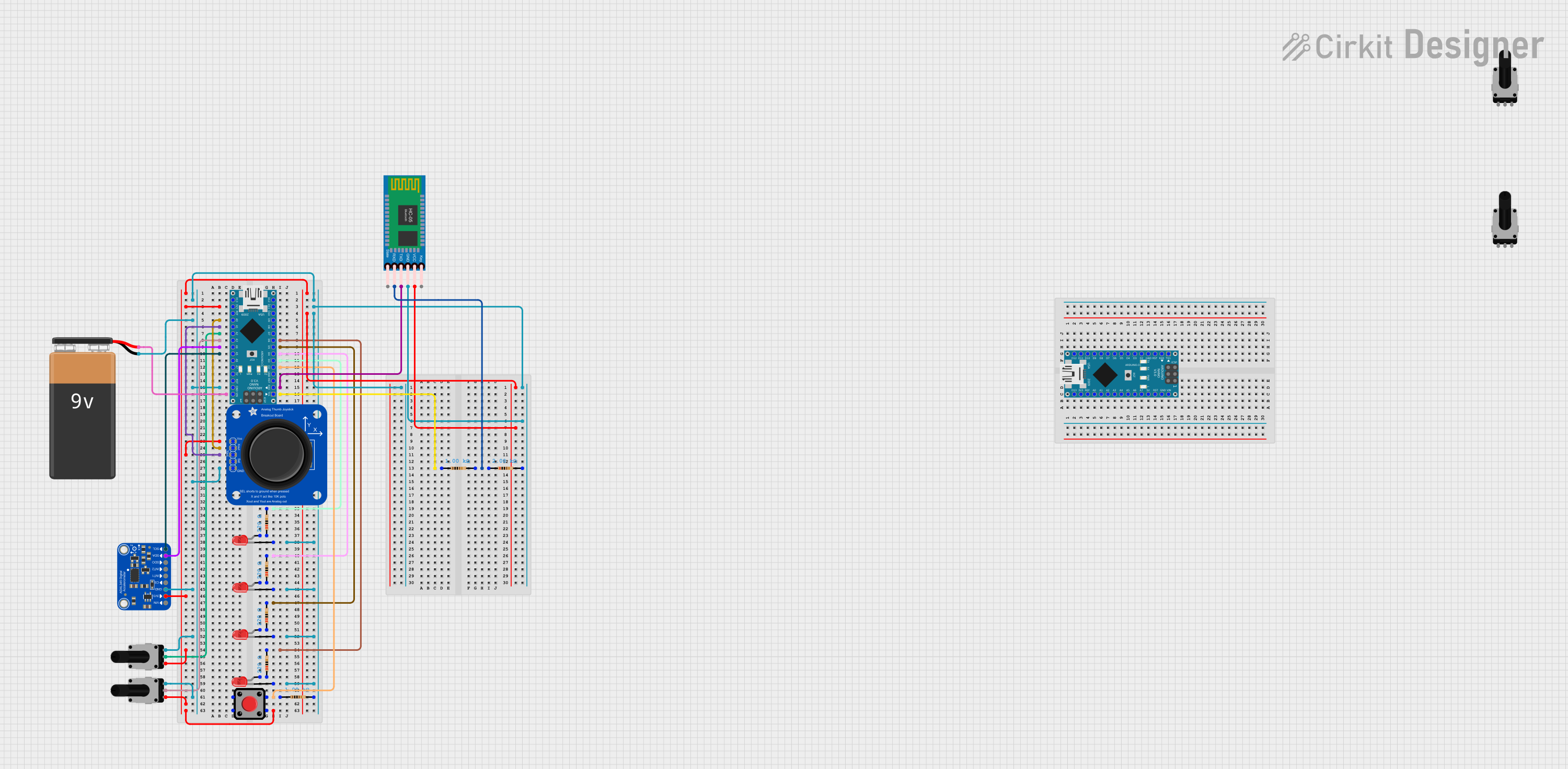 Open Project in Cirkit Designer
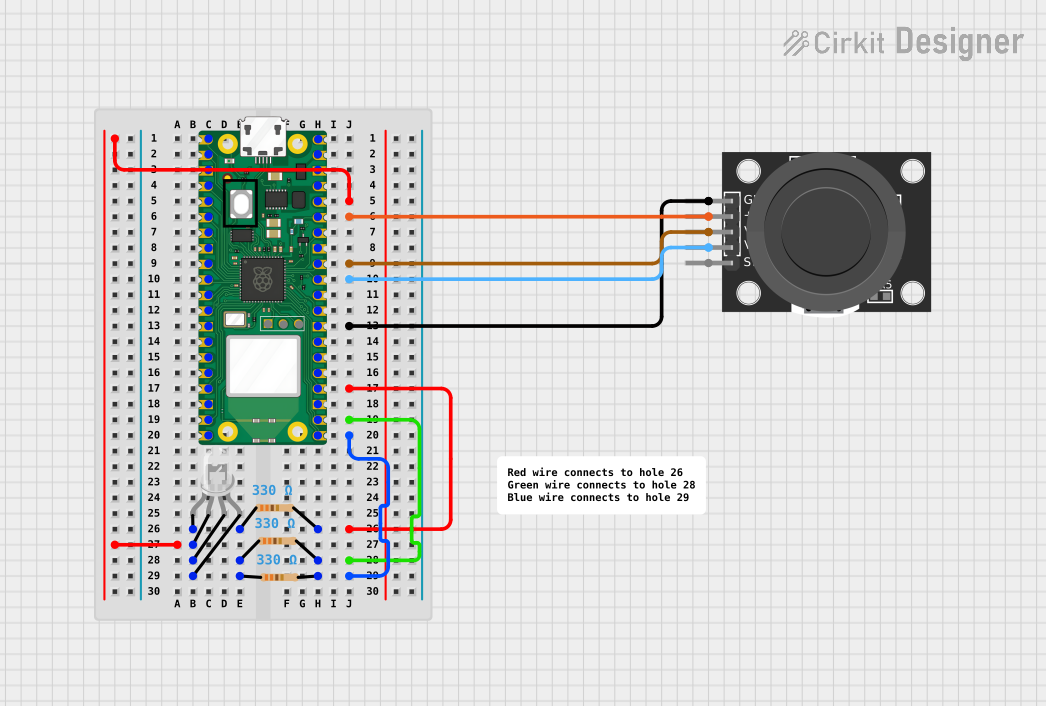 Open Project in Cirkit Designer
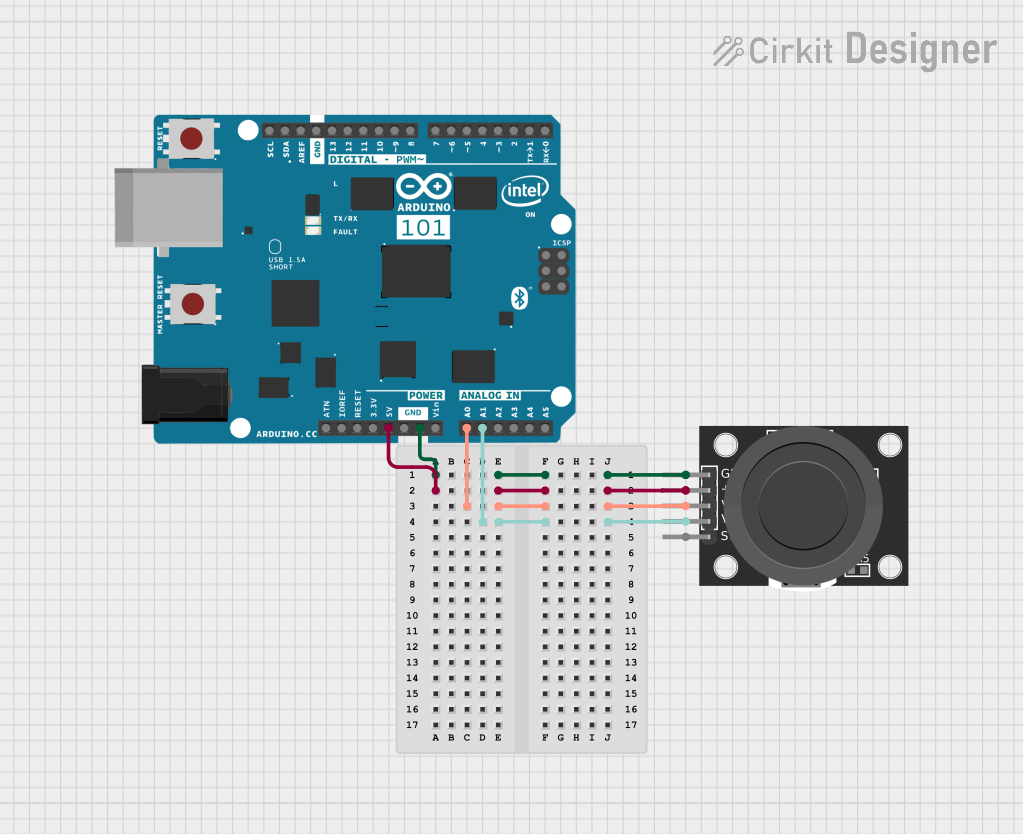 Open Project in Cirkit Designer
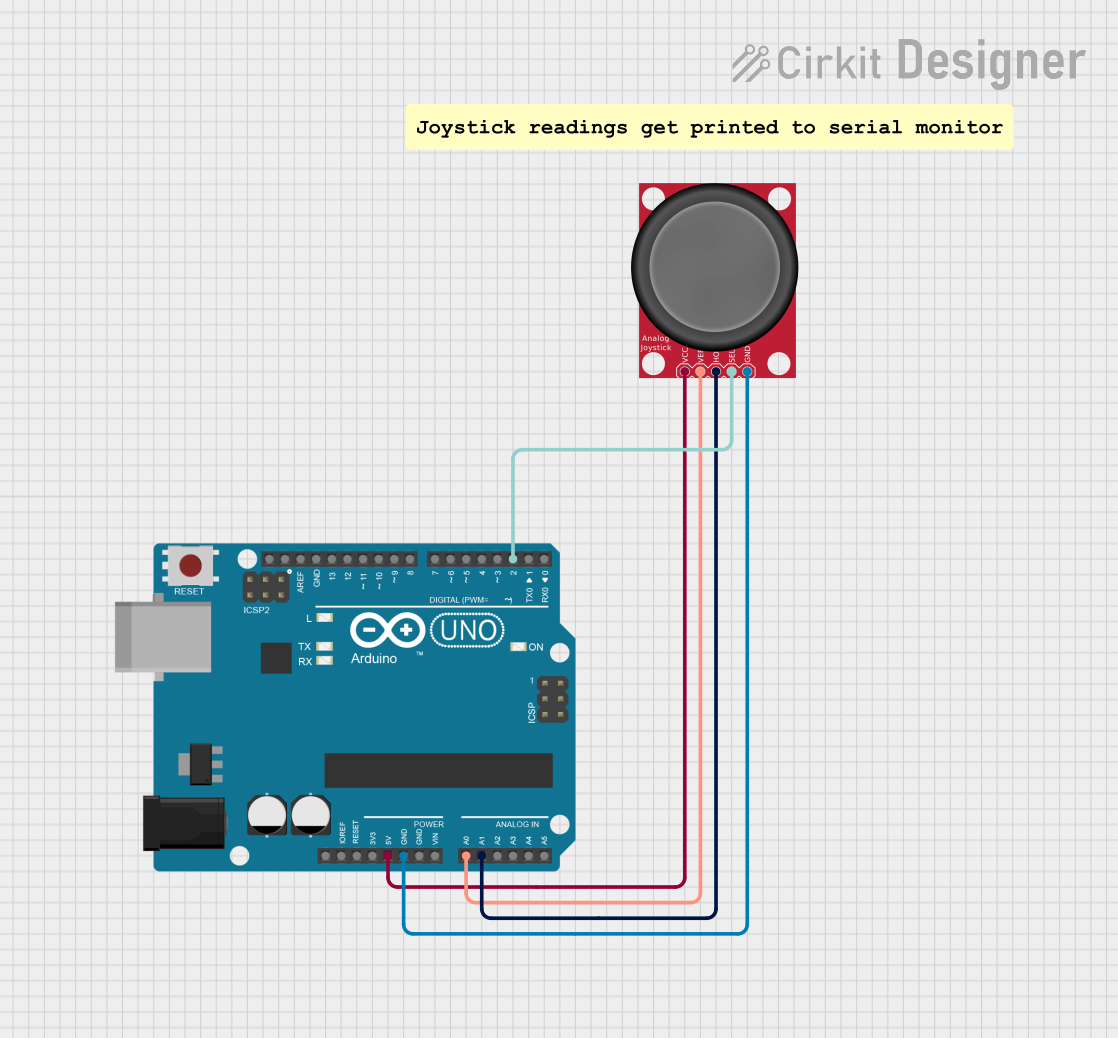 Open Project in Cirkit Designer
Explore Projects Built with Adafruit Arcade Joystick
Open Project in Cirkit DesignerOpen Project in Cirkit DesignerOpen Project in Cirkit DesignerOpen Project in Cirkit DesignerCommon Applications and Use Cases
- Custom arcade gaming consoles
- Robotics and remote control systems
- Interactive art installations
- DIY game controllers
- Educational electronics projects
Technical Specifications
The Adafruit Arcade Joystick is designed for ease of use and robust performance. Below are its key technical details:
Key Specifications
- Type: 8-way arcade joystick
- Switch Type: Microswitches with quick-connect terminals
- Operating Voltage: N/A (mechanical switches only)
- Dimensions: 95mm x 60mm x 60mm (approx.)
- Mounting Plate: Universal mounting plate for easy installation
- Handle Type: Ball-top handle
- Weight: ~150g
Pin Configuration and Descriptions
The joystick uses four microswitches to detect directional input. Each switch corresponds to one direction: up, down, left, or right. The switches are connected via quick-connect terminals.
| Pin | Direction | Description |
|---|---|---|
| 1 | Up | Activates when the joystick is pushed upward. |
| 2 | Down | Activates when the joystick is pushed downward. |
| 3 | Left | Activates when the joystick is pushed to the left. |
| 4 | Right | Activates when the joystick is pushed to the right. |
| COM | Common Ground | Shared ground connection for all switches. |
Usage Instructions
How to Use the Component in a Circuit
Wiring the Joystick:
- Connect the COM terminal to the ground (GND) pin of your microcontroller.
- Connect each directional pin (Up, Down, Left, Right) to a digital input pin on your microcontroller.
- Use pull-up or pull-down resistors if necessary to ensure stable input readings.
Mounting the Joystick:
- Secure the joystick to your project enclosure using the provided mounting plate and screws.
- Ensure the joystick is oriented correctly for intuitive directional control.
Reading Input:
- When the joystick is moved in a specific direction, the corresponding microswitch closes, pulling the connected pin LOW (or HIGH, depending on your circuit configuration).
- Use your microcontroller to detect these changes and respond accordingly.
Important Considerations and Best Practices
- Ensure all connections are secure to avoid intermittent signals.
- Use debounce logic in your code to filter out noise from the mechanical switches.
- Avoid excessive force on the joystick to prevent damage to the microswitches.
- Test the joystick in all directions to confirm proper operation before finalizing your project.
Example Code for Arduino UNO
Below is an example of how to use the Adafruit Arcade Joystick with an Arduino UNO to detect directional input:
// Define pin connections for the joystick
const int pinUp = 2;    // Pin for "Up" direction
const int pinDown = 3;  // Pin for "Down" direction
const int pinLeft = 4;  // Pin for "Left" direction
const int pinRight = 5; // Pin for "Right" direction

void setup() {
  // Set joystick pins as inputs with internal pull-up resistors
  pinMode(pinUp, INPUT_PULLUP);
  pinMode(pinDown, INPUT_PULLUP);
  pinMode(pinLeft, INPUT_PULLUP);
  pinMode(pinRight, INPUT_PULLUP);

  // Initialize serial communication for debugging
  Serial.begin(9600);
}

void loop() {
  // Read the state of each joystick direction
  bool upState = digitalRead(pinUp);    // HIGH = not pressed, LOW = pressed
  bool downState = digitalRead(pinDown);
  bool leftState = digitalRead(pinLeft);
  bool rightState = digitalRead(pinRight);

  // Print joystick direction to the Serial Monitor
  if (!upState) {
    Serial.println("Joystick moved UP");
  }
  if (!downState) {
    Serial.println("Joystick moved DOWN");
  }
  if (!leftState) {
    Serial.println("Joystick moved LEFT");
  }
  if (!rightState) {
    Serial.println("Joystick moved RIGHT");
  }

  // Add a small delay to avoid flooding the Serial Monitor
  delay(100);
}
Troubleshooting and FAQs
Common Issues and Solutions
Joystick Not Responding:
- Cause: Loose or incorrect wiring.
- Solution: Double-check all connections, ensuring the COM terminal is connected to GND and each directional pin is connected to the correct microcontroller pins.
Erratic or Unstable Input:
- Cause: Switch bounce or electrical noise.
- Solution: Implement software debounce logic in your code or use external capacitors to filter noise.
Incorrect Direction Detected:
- Cause: Joystick orientation is incorrect.
- Solution: Reorient the joystick or remap the pins in your code to match the physical directions.
Microswitch Not Activating:
- Cause: Faulty or damaged microswitch.
- Solution: Test the microswitch with a multimeter and replace it if necessary.
FAQs
Q: Can I use this joystick with a Raspberry Pi?
A: Yes, the joystick can be connected to the GPIO pins of a Raspberry Pi. Use pull-up or pull-down resistors as needed and write a Python script to read the GPIO inputs.
Q: Is the joystick compatible with analog input pins?
A: No, the joystick uses digital microswitches, so it is designed for digital input pins only.
Q: Can I replace the ball-top handle?
A: Yes, the handle is removable and can be replaced with compatible handles for customization.
Q: Does the joystick support diagonal movement?
A: Yes, diagonal movement is achieved by simultaneously activating two adjacent directional switches (e.g., Up + Right).
This documentation provides all the necessary details to get started with the Adafruit Arcade Joystick. Happy building!