
How to Use MB102: Examples, Pinouts, and Specs
 Design with MB102 in Cirkit Designer
Introduction
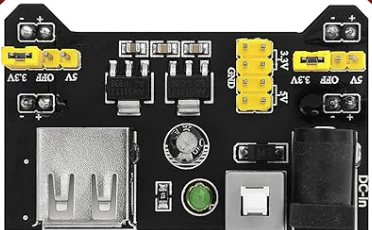
The MB102 is a breadboard power supply module designed to provide a convenient and reliable power source for electronic circuits built on a breadboard. It is widely used in prototyping and development due to its simplicity and versatility. The module typically offers dual voltage outputs of 5V and 3.3V, making it compatible with a wide range of components, sensors, and microcontrollers.
Explore Projects Built with MB102
 Open Project in Cirkit Designer
 Open Project in Cirkit Designer
 Open Project in Cirkit Designer
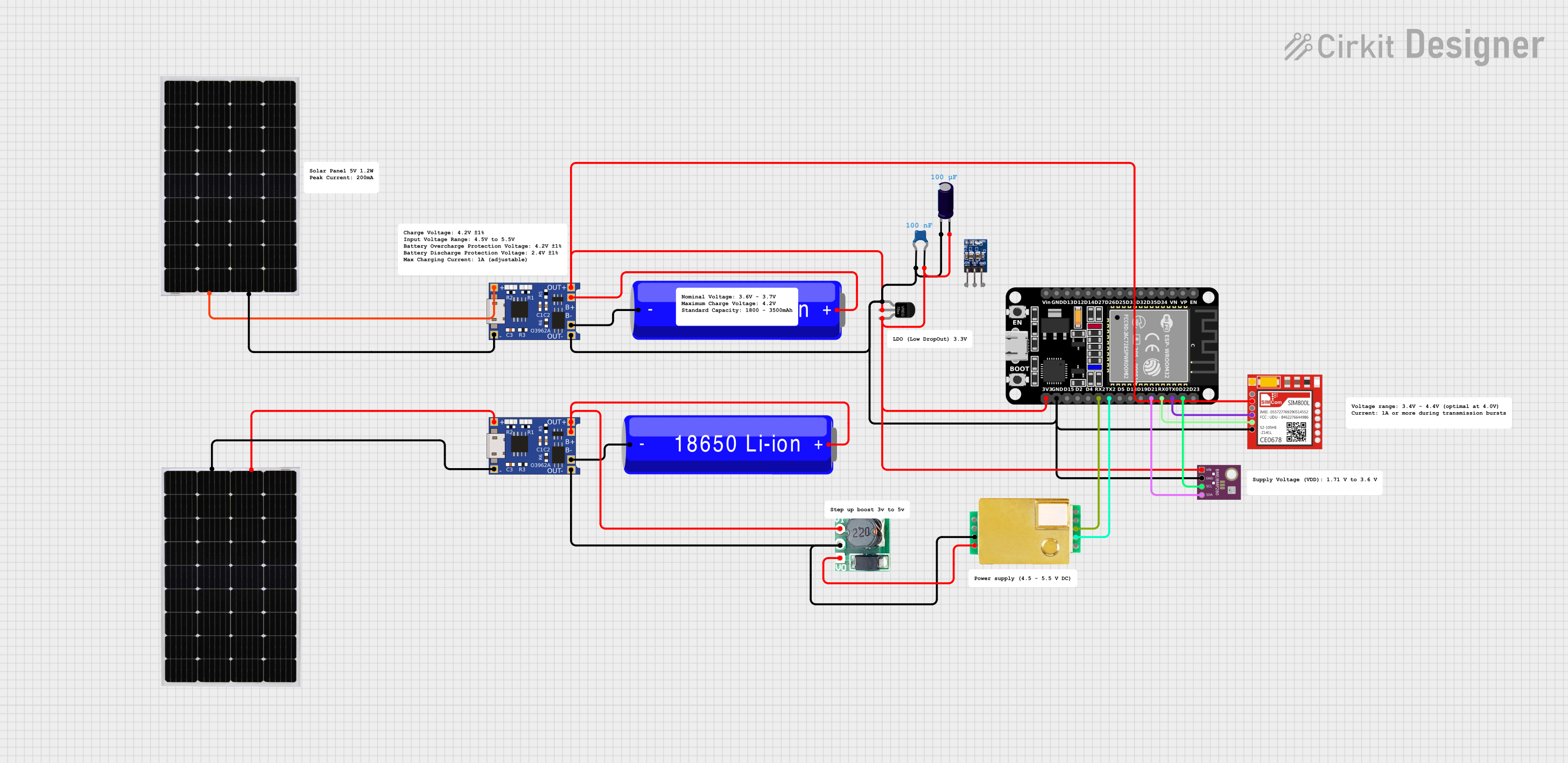 Open Project in Cirkit Designer
Explore Projects Built with MB102
Open Project in Cirkit DesignerOpen Project in Cirkit DesignerOpen Project in Cirkit DesignerOpen Project in Cirkit DesignerCommon Applications and Use Cases:
- Powering breadboard-based circuits during prototyping.
- Supplying regulated 5V or 3.3V to sensors, modules, and microcontrollers.
- Educational projects and DIY electronics.
- Testing and debugging small electronic circuits.
Technical Specifications
Below are the key technical details of the MB102 breadboard power supply module:
| Parameter | Specification |
|---|---|
| Input Voltage | 6.5V to 12V (via DC barrel jack) or 5V (via USB) |
| Output Voltage | 3.3V and 5V (selectable via jumpers) |
| Output Current | Up to 700mA (depending on input source) |
| Power Input Options | DC barrel jack or USB connector |
| Dimensions | 5.3cm x 3.5cm x 1.5cm |
| Compatibility | Standard 400-point and 830-point breadboards |
Pin Configuration and Descriptions
The MB102 module does not have traditional pins but instead connects directly to the power rails of a breadboard. Below is a description of its key components:
| Component | Description |
|---|---|
| DC Barrel Jack | Accepts 6.5V to 12V input for powering the module. |
| USB Connector | Provides an alternative 5V input source. |
| Voltage Selection Jumpers | Allows selection between 3.3V and 5V for each power rail. |
| Power Rails | Outputs regulated 3.3V or 5V to the breadboard's power rails. |
| Power Switch | Turns the module on or off. |
| LED Indicator | Lights up when the module is powered on. |
Usage Instructions
How to Use the MB102 in a Circuit:
Connect the Module to a Breadboard:
- Align the MB102 module with the power rails of your breadboard and insert it securely.
- Ensure the module fits properly into the breadboard without bending any pins.
Provide Power to the Module:
- Use a DC adapter (6.5V to 12V) to connect to the barrel jack, or use a USB cable to supply 5V via the USB connector.
Select the Desired Output Voltage:
- Use the jumpers on the module to set the output voltage for each power rail (3.3V or 5V).
Power On the Module:
- Flip the power switch to the "ON" position. The LED indicator will light up, confirming the module is powered.
Connect Your Circuit:
- Use the breadboard's power rails to distribute the regulated voltage to your components and modules.
Important Considerations and Best Practices:
- Input Voltage Range: Ensure the input voltage is within the specified range (6.5V to 12V for the barrel jack or 5V for USB). Exceeding this range may damage the module.
- Current Limitations: The module can supply up to 700mA, but this depends on the input source. Avoid overloading the module to prevent overheating.
- Voltage Selection: Double-check the jumper settings before connecting your circuit to avoid supplying the wrong voltage to your components.
- Heat Management: If the module becomes excessively hot, reduce the load or check for short circuits in your circuit.
Example: Using MB102 with an Arduino UNO
The MB102 can be used to power an Arduino UNO via the breadboard. Below is an example of how to connect and use it:
- Insert the MB102 into the breadboard and set the output voltage to 5V.
- Connect the breadboard's 5V power rail to the Arduino UNO's 5V pin.
- Connect the ground (GND) rail to the Arduino UNO's GND pin.
- Power the MB102 using a DC adapter or USB cable.
Here is a simple Arduino code example to blink an LED using the MB102 as the power source:
// Simple LED Blink Example
// Connect an LED to pin 13 of the Arduino UNO with a 220-ohm resistor.

void setup() {
  pinMode(13, OUTPUT); // Set pin 13 as an output pin
}

void loop() {
  digitalWrite(13, HIGH); // Turn the LED on
  delay(1000);            // Wait for 1 second
  digitalWrite(13, LOW);  // Turn the LED off
  delay(1000);            // Wait for 1 second
}
Troubleshooting and FAQs
Common Issues and Solutions:
Module Does Not Power On:
- Check the input voltage and ensure it is within the specified range.
- Verify that the power switch is in the "ON" position.
- Inspect the connections to the breadboard for proper alignment.
Incorrect Output Voltage:
- Ensure the jumpers are set correctly for the desired voltage (3.3V or 5V).
- Measure the output voltage with a multimeter to confirm the settings.
Overheating:
- Reduce the load on the module by disconnecting some components.
- Check for short circuits or excessive current draw in your circuit.
LED Indicator Not Lit:
- Verify the input power source is functioning correctly.
- Inspect the module for physical damage or loose connections.
FAQs:
Q: Can I use the MB102 to power a Raspberry Pi?
A: The MB102 is not recommended for powering a Raspberry Pi, as it may not provide sufficient current for stable operation. Use a dedicated power supply for the Raspberry Pi.
Q: Can I use both the USB and DC barrel jack inputs simultaneously?
A: No, only one input source should be used at a time to avoid damaging the module.
Q: What is the maximum current the MB102 can supply?
A: The module can supply up to 700mA, but this depends on the input source and load conditions.
Q: Is the MB102 compatible with all breadboards?
A: The MB102 is designed for standard 400-point and 830-point breadboards. Ensure your breadboard is compatible before use.