
How to Use VBCore G474 EvalBoard: Examples, Pinouts, and Specs
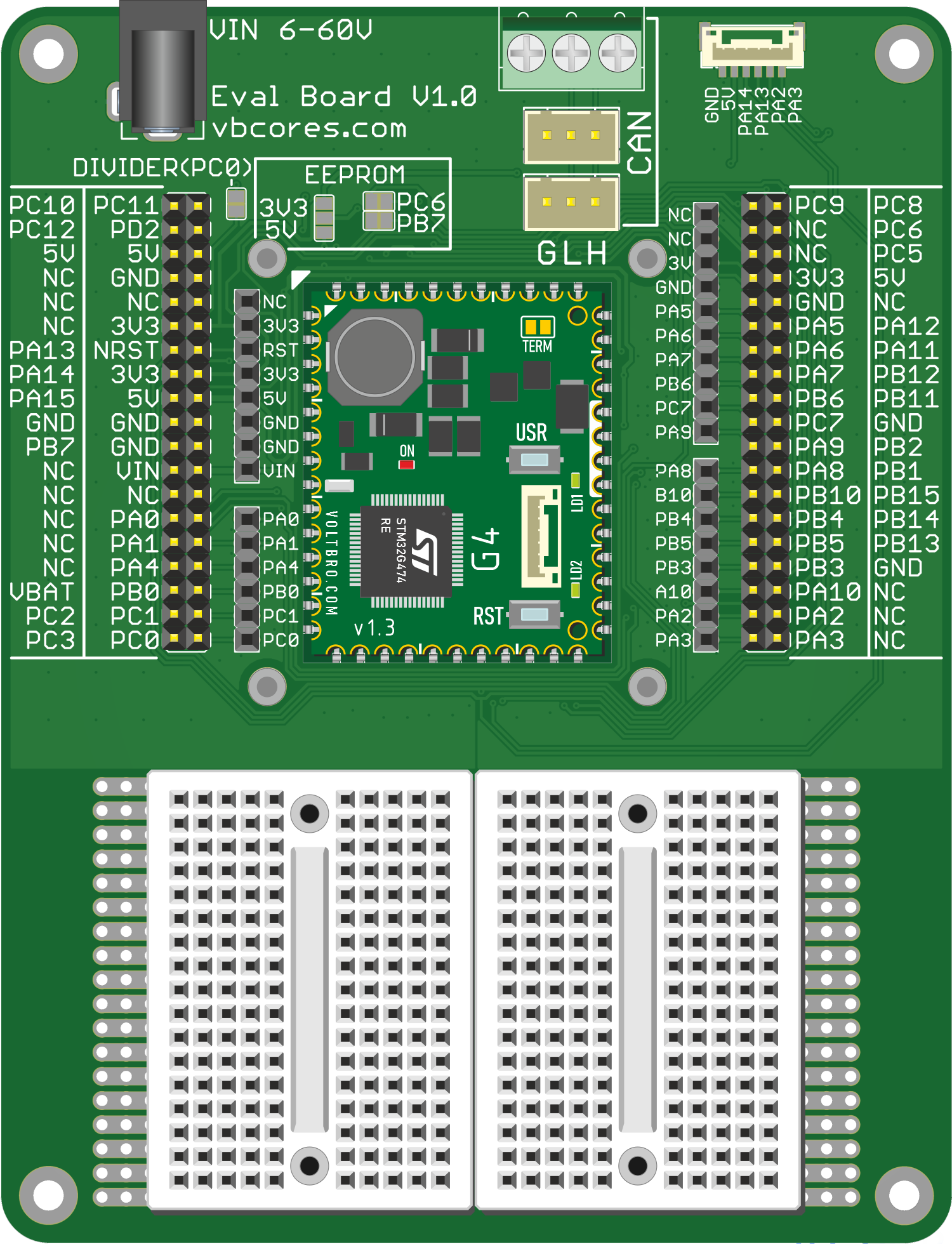
 Design with VBCore G474 EvalBoard in Cirkit Designer
Introduction
The VBCore G474 EvalBoard by Voltbro is a versatile development board designed to evaluate and prototype applications using the VBCore G474 microcontroller. This board is equipped with a wide range of interfaces and peripherals, making it ideal for embedded system development, testing, and debugging. It is particularly suited for applications in industrial automation, IoT devices, motor control, and general-purpose embedded systems.
Explore Projects Built with VBCore G474 EvalBoard
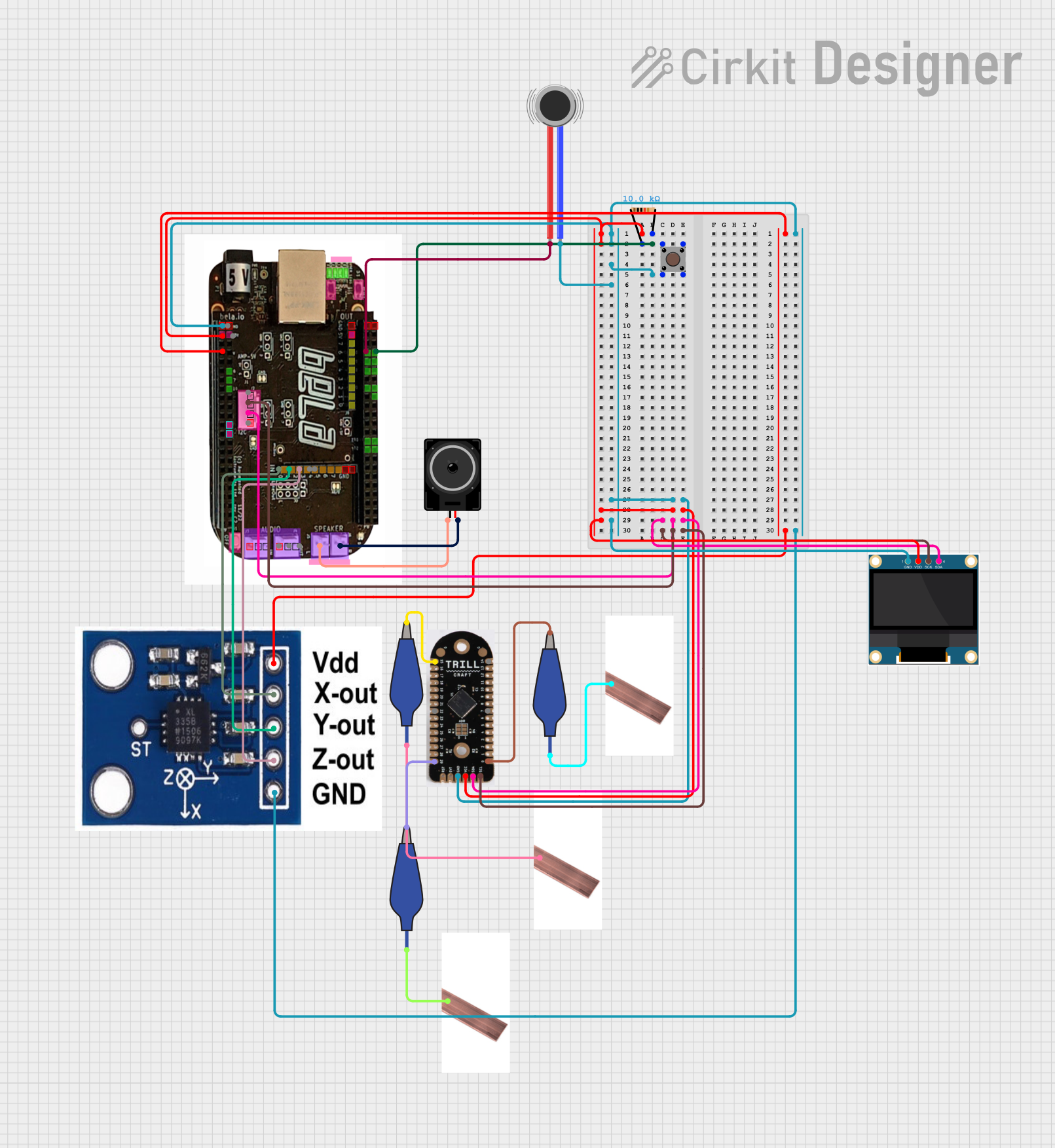 Open Project in Cirkit Designer
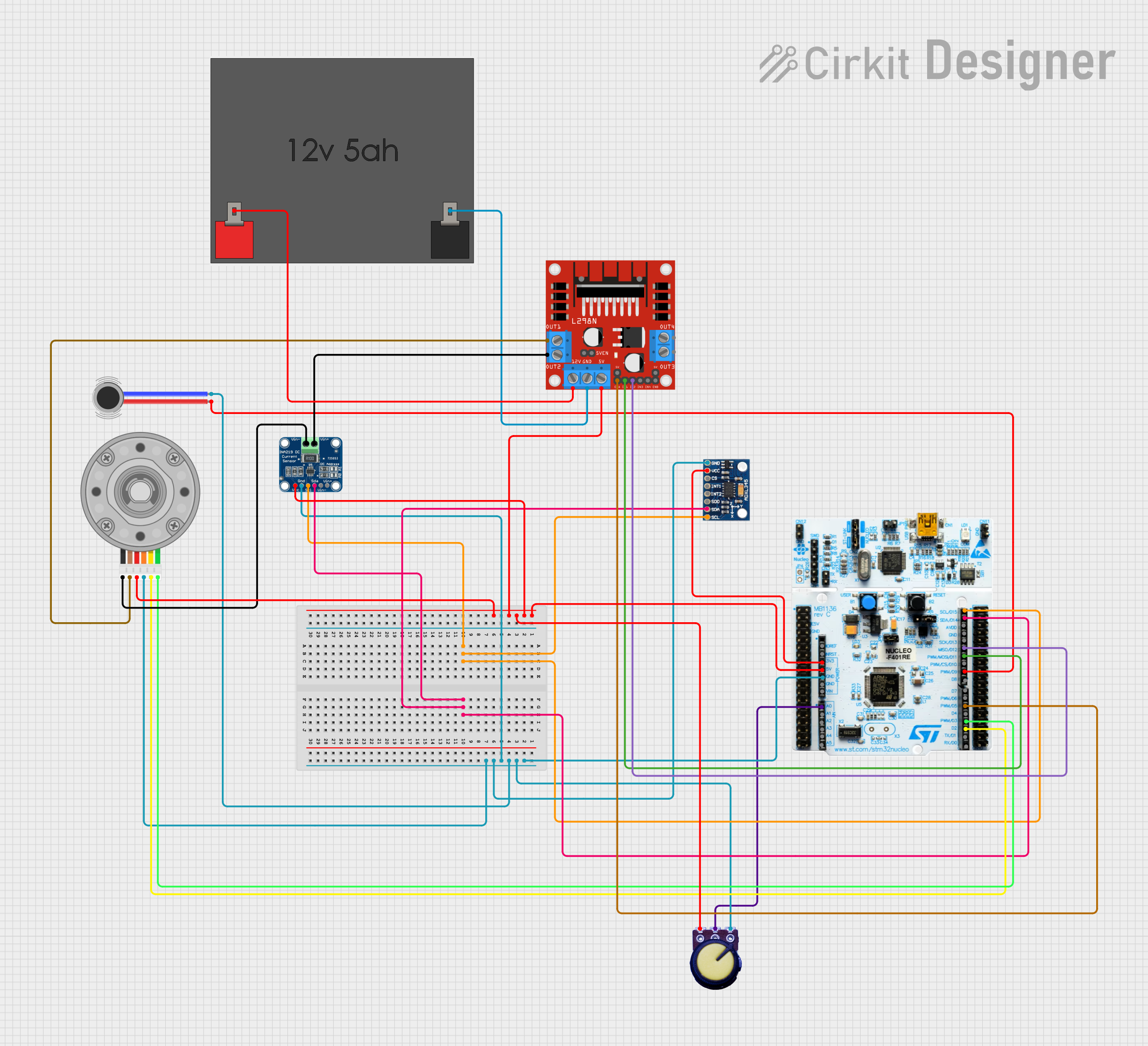 Open Project in Cirkit Designer
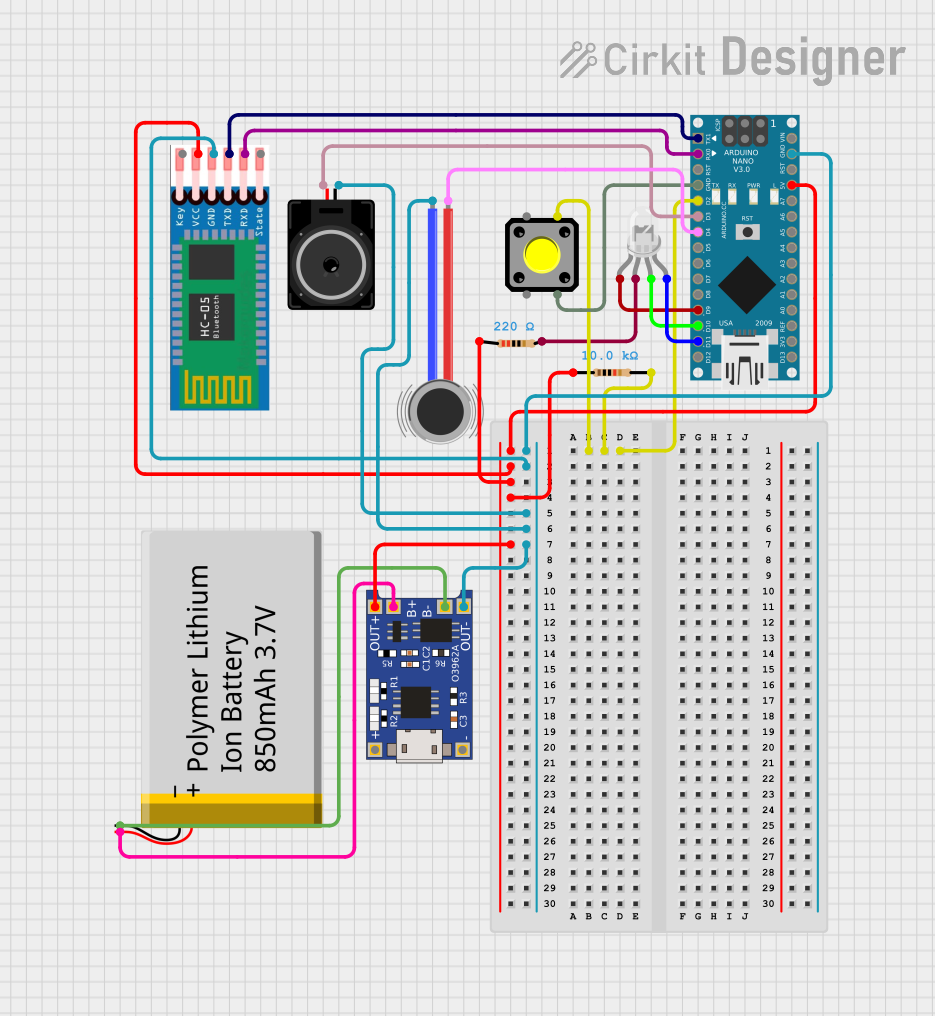 Open Project in Cirkit Designer
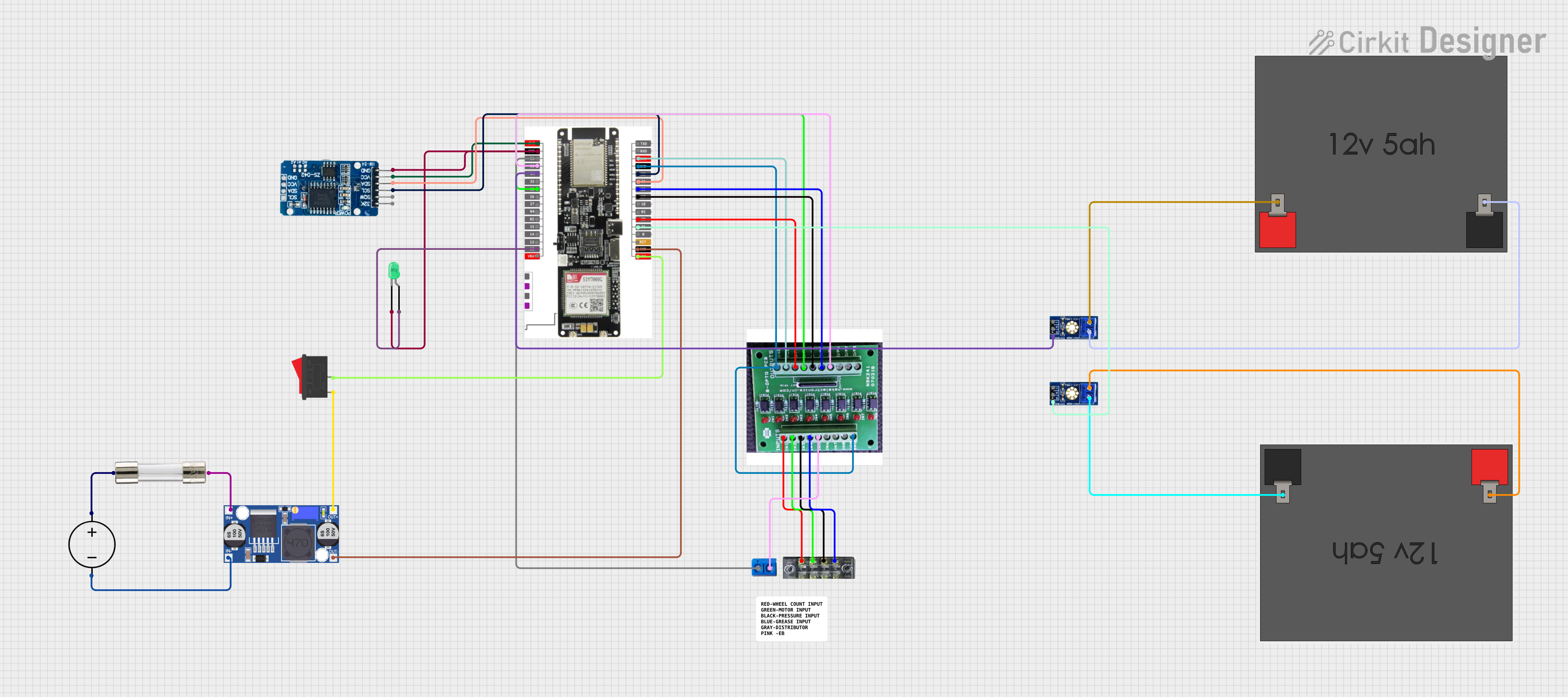 Open Project in Cirkit Designer
Explore Projects Built with VBCore G474 EvalBoard
Open Project in Cirkit DesignerOpen Project in Cirkit DesignerOpen Project in Cirkit DesignerOpen Project in Cirkit DesignerCommon Applications and Use Cases
- Industrial Automation: Prototyping control systems for machinery and robotics.
- IoT Development: Building and testing connected devices with sensors and actuators.
- Motor Control: Evaluating motor drivers and control algorithms.
- Embedded System Prototyping: Rapid development of custom embedded solutions.
- Educational Use: Teaching microcontroller programming and hardware interfacing.
Technical Specifications
Key Technical Details
- Microcontroller: VBCore G474 (32-bit ARM Cortex-M4 core with FPU)
- Operating Voltage: 3.3V
- Input Voltage Range: 5V via USB or 7-12V via external power jack
- Clock Speed: 120 MHz
- Flash Memory: 512 KB
- SRAM: 128 KB
- Communication Interfaces:
- 2x UART
- 2x I2C
- 2x SPI
- 1x CAN
- GPIO Pins: 40 (configurable as digital I/O, PWM, or ADC)
- ADC Resolution: 12-bit, up to 16 channels
- PWM Channels: 8
- Connectivity: USB Type-C for programming and power
- Debugging: Onboard SWD interface
- Dimensions: 85mm x 55mm
Pin Configuration and Descriptions
The VBCore G474 EvalBoard features a 40-pin header for GPIO and peripheral access. Below is the pinout description:
| Pin Number | Pin Name | Function | Description |
|---|---|---|---|
| 1 | VCC | Power | 3.3V power output |
| 2 | GND | Ground | Ground connection |
| 3 | PA0 | GPIO/ADC1_IN0 | General-purpose I/O or ADC input |
| 4 | PA1 | GPIO/ADC1_IN1 | General-purpose I/O or ADC input |
| 5 | PB6 | GPIO/I2C1_SCL | I2C1 clock line |
| 6 | PB7 | GPIO/I2C1_SDA | I2C1 data line |
| 7 | PA5 | GPIO/SPI1_SCK | SPI1 clock line |
| 8 | PA6 | GPIO/SPI1_MISO | SPI1 Master-In-Slave-Out |
| 9 | PA7 | GPIO/SPI1_MOSI | SPI1 Master-Out-Slave-In |
| 10 | PB10 | GPIO/UART3_TX | UART3 transmit |
| 11 | PB11 | GPIO/UART3_RX | UART3 receive |
| 12 | PA8 | GPIO/PWM1_CH1 | PWM output channel 1 |
| 13 | PA9 | GPIO/PWM1_CH2 | PWM output channel 2 |
| 14 | PA10 | GPIO/PWM1_CH3 | PWM output channel 3 |
| 15 | PA11 | GPIO/USB_DM | USB data minus |
| 16 | PA12 | GPIO/USB_DP | USB data plus |
| ... | ... | ... | ... |
Usage Instructions
How to Use the Component in a Circuit
Powering the Board:
- Connect the board to a computer or USB power source using the USB Type-C port.
- Alternatively, supply 7-12V to the external power jack.
Programming the Microcontroller:
- Use the onboard USB Type-C port to upload code via a compatible IDE (e.g., STM32CubeIDE or Arduino IDE).
- Ensure the correct board and microcontroller settings are selected in the IDE.
Connecting Peripherals:
- Use the 40-pin header to connect external devices such as sensors, actuators, or communication modules.
- Refer to the pinout table for the correct pin assignments.
Debugging:
- Connect an SWD debugger to the onboard SWD interface for advanced debugging and programming.
Important Considerations and Best Practices
- Voltage Levels: Ensure all connected peripherals operate at 3.3V logic levels to avoid damage.
- Pin Multiplexing: Some pins have multiple functions (e.g., GPIO, ADC, PWM). Configure them appropriately in your code.
- Power Supply: If using high-power peripherals, ensure the external power supply can provide sufficient current.
- Static Protection: Handle the board with care to avoid electrostatic discharge (ESD) damage.
Example Code for Arduino IDE
Below is an example of how to blink an LED connected to pin PA0 using the Arduino IDE:
// Define the pin for the LED
#define LED_PIN PA0

void setup() {
  pinMode(LED_PIN, OUTPUT); // Set PA0 as an output pin
}

void loop() {
  digitalWrite(LED_PIN, HIGH); // Turn the LED on
  delay(1000);                // Wait for 1 second
  digitalWrite(LED_PIN, LOW);  // Turn the LED off
  delay(1000);                // Wait for 1 second
}
Troubleshooting and FAQs
Common Issues and Solutions
The board does not power on:
- Ensure the USB cable is properly connected and functional.
- If using an external power supply, verify the voltage is within the 7-12V range.
Unable to upload code:
- Check that the correct board and microcontroller are selected in the IDE.
- Ensure the USB driver for the VBCore G474 EvalBoard is installed on your computer.
- Press the reset button on the board before attempting to upload.
Peripherals not working as expected:
- Double-check the pin connections and configurations in your code.
- Verify that the peripheral operates at 3.3V logic levels.
Debugging not functioning:
- Ensure the SWD debugger is properly connected to the SWD interface.
- Verify the debugger settings in your IDE.
FAQs
Q: Can I use 5V peripherals with this board?
A: No, the VBCore G474 EvalBoard operates at 3.3V logic levels. Use level shifters if interfacing with 5V peripherals.
Q: What IDEs are compatible with this board?
A: The board is compatible with STM32CubeIDE, Keil uVision, and the Arduino IDE (with the appropriate core installed).
Q: How do I reset the board?
A: Press the onboard reset button to restart the microcontroller.
Q: Can I power the board using batteries?
A: Yes, you can use a battery pack that provides 7-12V and connect it to the external power jack.
This concludes the documentation for the VBCore G474 EvalBoard. For further assistance, refer to the official Voltbro user manual or support resources.