
How to Use Flow Sensor: Examples, Pinouts, and Specs
 Design with Flow Sensor in Cirkit Designer
Introduction
A flow sensor is a device designed to measure the flow rate of liquids or gases within a system. It provides real-time data that can be used for monitoring, control, and automation purposes. Flow sensors are commonly used in industrial processes, water management systems, HVAC systems, and medical devices. They are essential for ensuring efficiency, safety, and accuracy in applications where fluid flow is a critical parameter.
Explore Projects Built with Flow Sensor
 Open Project in Cirkit Designer
 Open Project in Cirkit Designer
 Open Project in Cirkit Designer
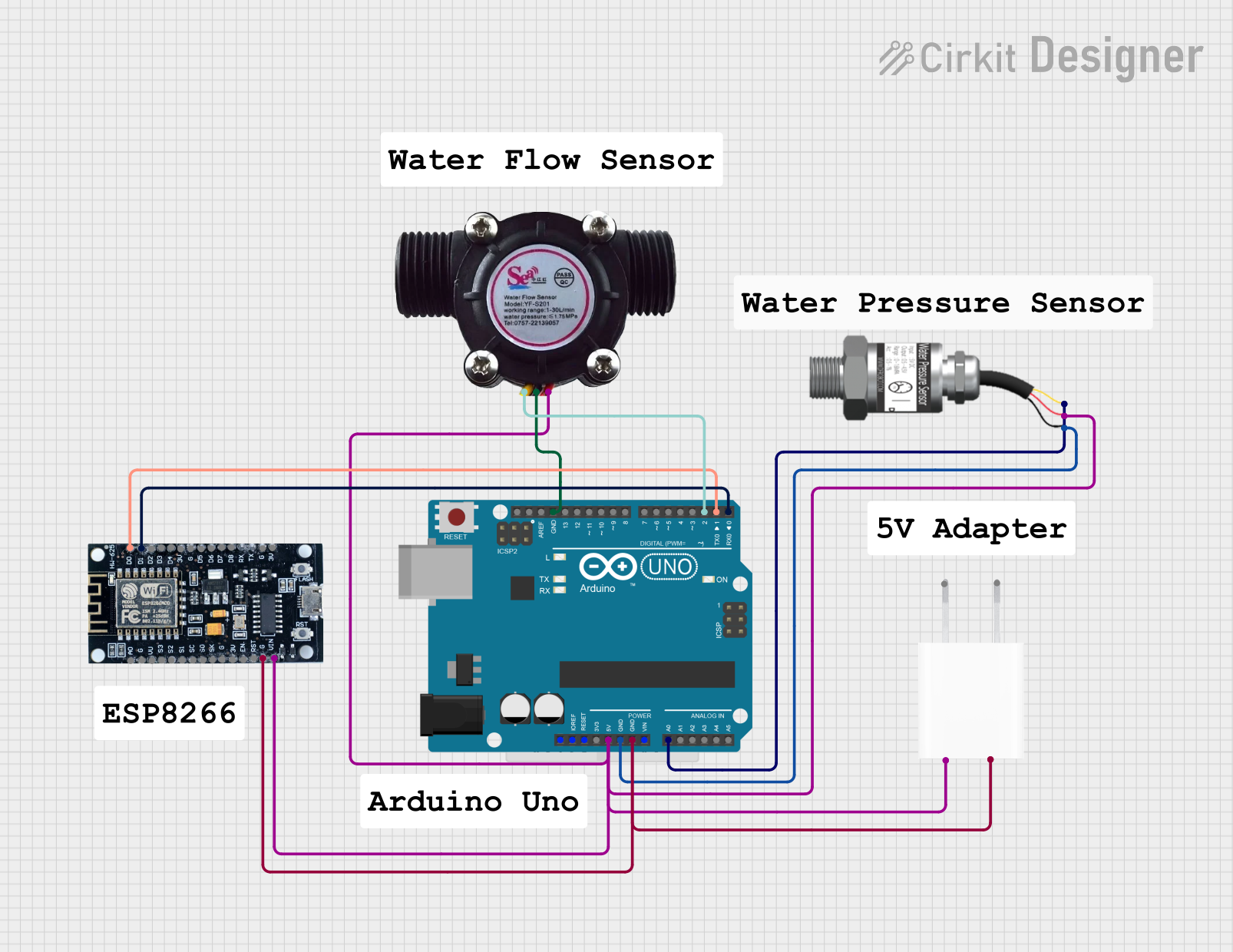 Open Project in Cirkit Designer
Explore Projects Built with Flow Sensor
Open Project in Cirkit DesignerOpen Project in Cirkit DesignerOpen Project in Cirkit DesignerOpen Project in Cirkit DesignerTechnical Specifications
Below are the general technical specifications for a typical flow sensor. Note that specific models may vary, so always refer to the datasheet of your particular sensor.
Key Specifications
- Measurement Medium: Liquids or gases (depending on the sensor type)
- Flow Rate Range: 1 L/min to 30 L/min (varies by model)
- Operating Voltage: 5V to 24V DC
- Output Signal: Pulse signal (digital)
- Accuracy: ±1% to ±5% (depending on the model)
- Operating Temperature: -20°C to 85°C
- Maximum Pressure: 1.75 MPa (varies by model)
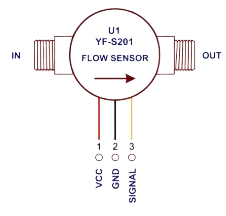
- Connector Type: 3-pin (VCC, GND, Signal)
Pin Configuration and Descriptions
The flow sensor typically has a 3-pin connector. Below is the pinout description:
| Pin | Name | Description |
|---|---|---|
| 1 | VCC | Power supply input (5V to 24V DC) |
| 2 | GND | Ground connection |
| 3 | Signal | Pulse output signal proportional to flow |
Usage Instructions
How to Use the Flow Sensor in a Circuit
- Power the Sensor: Connect the VCC pin to a 5V or 12V DC power source (depending on the sensor's rating). Connect the GND pin to the ground of your circuit.
- Connect the Signal Pin: The signal pin outputs a digital pulse signal. Connect this pin to a microcontroller's digital input pin (e.g., Arduino UNO pin D2).
- Calibrate the Sensor: Each pulse corresponds to a specific volume of fluid. Refer to the sensor's datasheet for the pulse-per-liter (PPL) value and use it to calculate the flow rate.
- Read the Data: Use a microcontroller to count the pulses over a specific time interval and calculate the flow rate.
Important Considerations and Best Practices
- Avoid Air Bubbles: Ensure the fluid is free of air bubbles, as they can affect the accuracy of the readings.
- Install Properly: Install the sensor in the correct orientation (usually indicated by an arrow on the sensor body).
- Filter the Signal: Use a capacitor or software debounce to filter noise from the pulse signal.
- Check Compatibility: Ensure the sensor's operating voltage matches your circuit's power supply.
Example Code for Arduino UNO
Below is an example of how to interface a flow sensor with an Arduino UNO to measure the flow rate:
// Flow Sensor Example Code for Arduino UNO
// Measures flow rate in liters per minute (L/min)

const int flowSensorPin = 2; // Signal pin connected to digital pin 2
volatile int pulseCount = 0; // Variable to store pulse count

// Calibration factor (pulses per liter)
const float calibrationFactor = 4.5;

unsigned long oldTime = 0; // To track time for flow rate calculation
float flowRate = 0;        // Flow rate in L/min

void setup() {
  pinMode(flowSensorPin, INPUT_PULLUP); // Set signal pin as input with pull-up
  attachInterrupt(digitalPinToInterrupt(flowSensorPin), countPulses, RISING);
  Serial.begin(9600); // Initialize serial communication
}

void loop() {
  unsigned long currentTime = millis();

  // Calculate flow rate every second
  if (currentTime - oldTime >= 1000) {
    detachInterrupt(digitalPinToInterrupt(flowSensorPin)); // Disable interrupt

    // Calculate flow rate in L/min
    flowRate = (pulseCount / calibrationFactor);

    // Print flow rate to Serial Monitor
    Serial.print("Flow Rate: ");
    Serial.print(flowRate);
    Serial.println(" L/min");

    pulseCount = 0; // Reset pulse count
    oldTime = currentTime; // Update time

    attachInterrupt(digitalPinToInterrupt(flowSensorPin), countPulses, RISING);
  }
}

// Interrupt Service Routine (ISR) to count pulses
void countPulses() {
  pulseCount++;
}
Notes:
- Replace the
calibrationFactorwith the value specified in your sensor's datasheet. - Ensure the flow sensor is properly installed and free of obstructions.
Troubleshooting and FAQs
Common Issues and Solutions
No Signal Output
- Cause: Incorrect wiring or insufficient power supply.
- Solution: Double-check the wiring and ensure the power supply matches the sensor's requirements.
Inaccurate Readings
- Cause: Air bubbles in the fluid or incorrect calibration factor.
- Solution: Remove air bubbles and verify the calibration factor from the datasheet.
Fluctuating Readings
- Cause: Electrical noise or unstable fluid flow.
- Solution: Add a capacitor across the power supply pins to filter noise and ensure a steady flow.
Sensor Not Responding
- Cause: Damaged sensor or incorrect installation.
- Solution: Inspect the sensor for physical damage and ensure it is installed in the correct orientation.
FAQs
Can the flow sensor measure gas flow?
- Some flow sensors are designed for gases, but most are for liquids. Check the datasheet to confirm compatibility.
What is the lifespan of a flow sensor?
- The lifespan depends on the operating conditions and the quality of the sensor. Most sensors last several years under normal conditions.
How do I clean the flow sensor?
- Disconnect the sensor from the system and flush it with clean water. Avoid using harsh chemicals unless specified by the manufacturer.
By following this documentation, you can effectively integrate and troubleshoot a flow sensor in your projects.