
How to Use ESP8266: Examples, Pinouts, and Specs
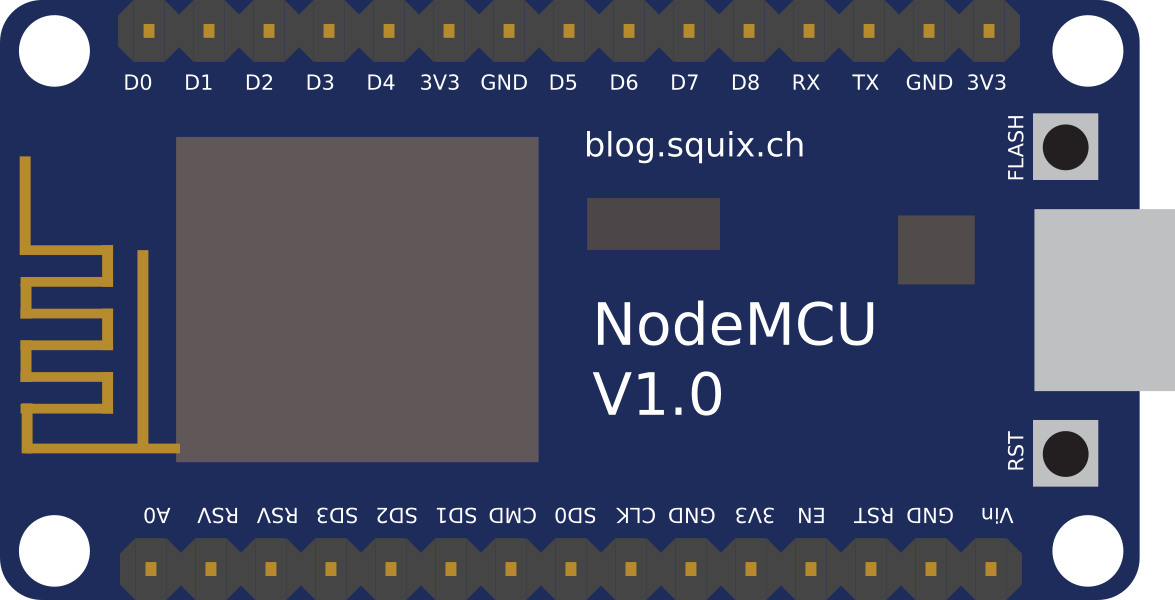
 Design with ESP8266 in Cirkit Designer
Introduction
The ESP8266 is a low-cost Wi-Fi microchip with a full TCP/IP stack and microcontroller capability. It is widely used in Internet of Things (IoT) applications due to its affordability, compact size, and versatility. The chip can operate as a standalone microcontroller or as a Wi-Fi adapter for other microcontrollers, such as the Arduino UNO. Its ability to connect devices to the internet makes it a popular choice for smart home systems, remote monitoring, and wireless sensor networks.
Explore Projects Built with ESP8266
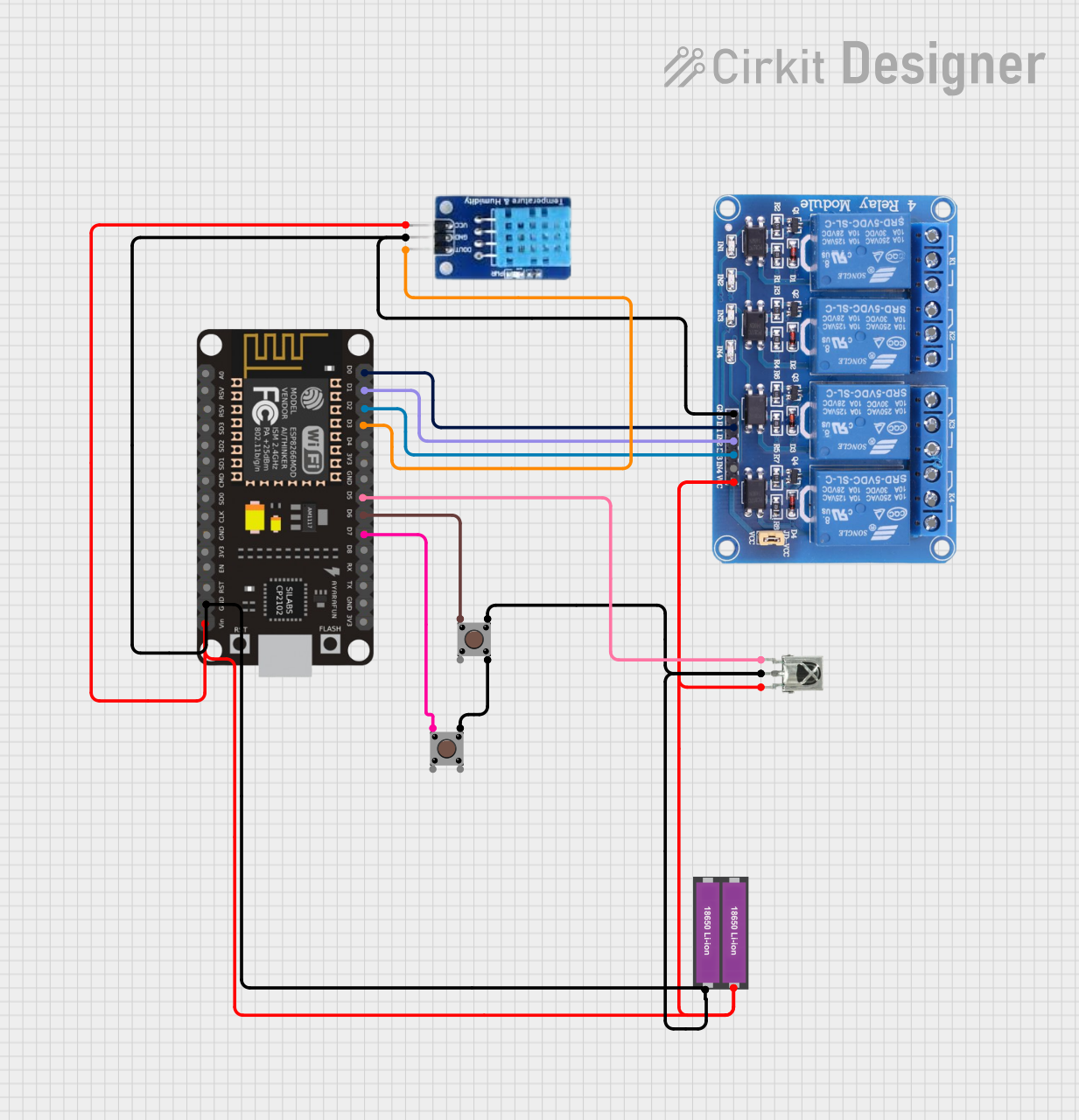 Open Project in Cirkit Designer
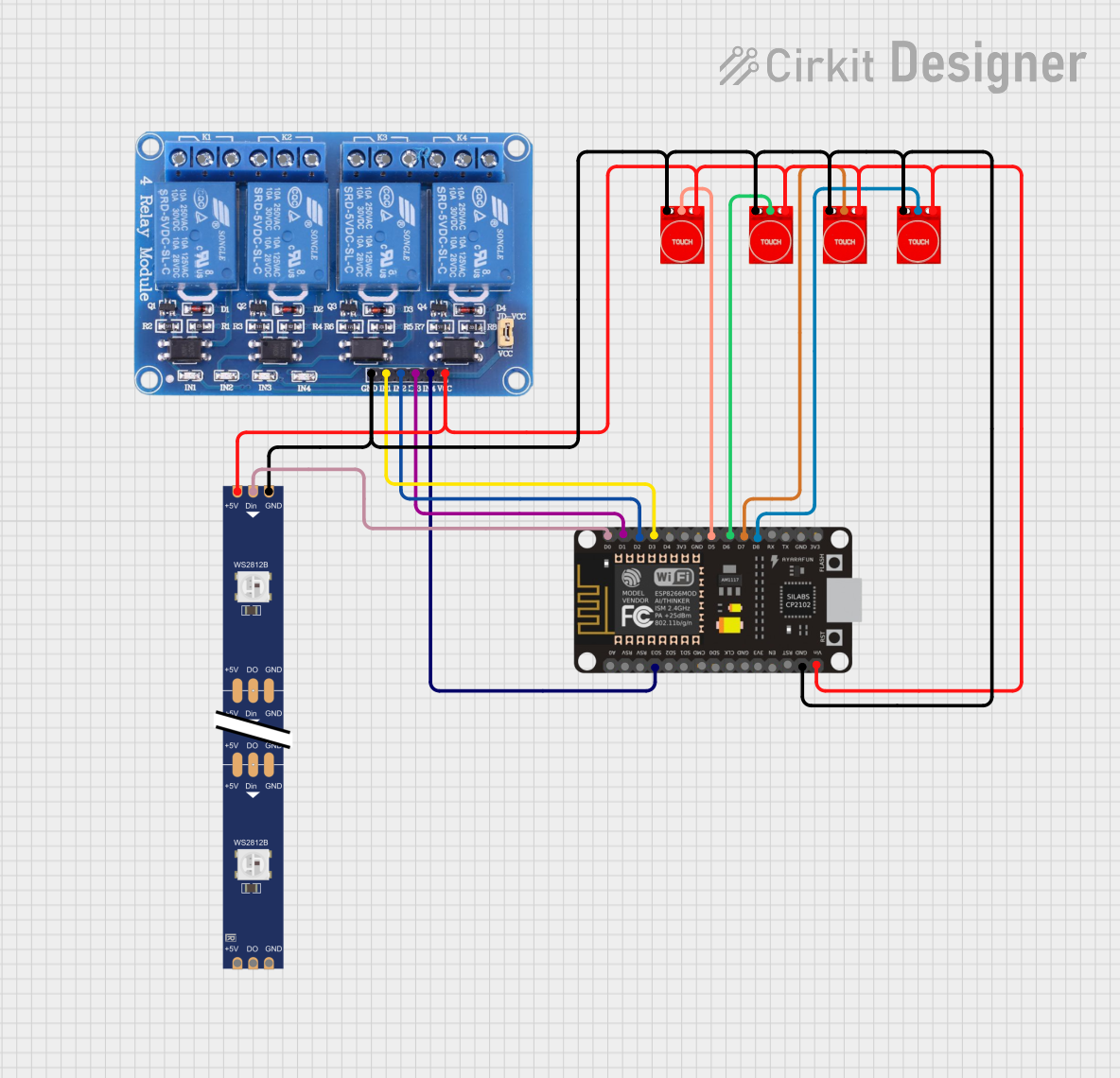 Open Project in Cirkit Designer
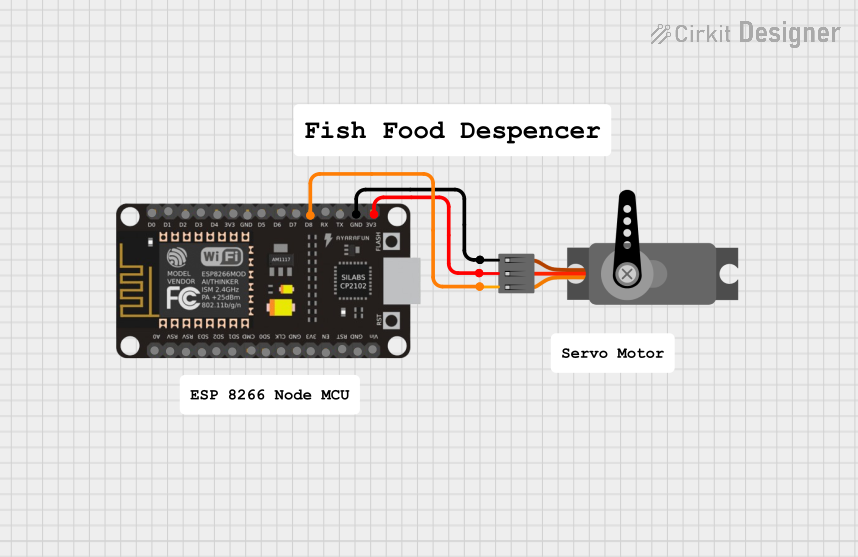 Open Project in Cirkit Designer
 Open Project in Cirkit Designer
Explore Projects Built with ESP8266
Open Project in Cirkit DesignerOpen Project in Cirkit DesignerOpen Project in Cirkit DesignerOpen Project in Cirkit DesignerCommon Applications
- Smart home automation (e.g., controlling lights, thermostats, and appliances)
- Wireless sensor networks
- Remote data logging and monitoring
- IoT prototyping and development
- Wi-Fi-enabled robotics and drones
Technical Specifications
The ESP8266 is available in various module formats, with the ESP-01 being one of the most common. Below are the key technical details and pin configurations for the ESP-01 module.
Key Technical Details
| Parameter | Value |
|---|---|
| Operating Voltage | 3.0V - 3.6V |
| Operating Current | ~80mA (average), ~200mA (peak) |
| Wi-Fi Standards | 802.11 b/g/n |
| Processor | 32-bit Tensilica L106 @ 80 MHz |
| Flash Memory | 512 KB to 4 MB (module-dependent) |
| GPIO Pins | 2 (on ESP-01) |
| Communication Protocols | UART, SPI, I2C |
| Operating Temperature | -40°C to 125°C |
Pin Configuration (ESP-01 Module)
| Pin Name | Pin Number | Description |
|---|---|---|
| VCC | 1 | Power supply (3.3V) |
| GND | 2 | Ground |
| TX | 3 | UART Transmit (connect to RX of host device) |
| RX | 4 | UART Receive (connect to TX of host device) |
| CH_PD | 5 | Chip enable (connect to 3.3V for operation) |
| GPIO0 | 6 | General-purpose I/O pin |
| GPIO2 | 7 | General-purpose I/O pin |
| RST | 8 | Reset (active low) |
Usage Instructions
Connecting the ESP8266 to an Arduino UNO
To use the ESP8266 with an Arduino UNO, follow these steps:
- Power Supply: The ESP8266 operates at 3.3V. Use a voltage regulator or level shifter to ensure the Arduino's 5V logic does not damage the ESP8266.
- Wiring:
- Connect the ESP8266's
VCCandCH_PDpins to a 3.3V power source. - Connect
GNDto the ground of the Arduino. - Connect the
TXpin of the ESP8266 to a voltage divider (to step down the Arduino's 5V TX signal to 3.3V) and then to the Arduino's RX pin. - Connect the
RXpin of the ESP8266 to the Arduino's TX pin.
- Connect the ESP8266's
- Programming: Use the Arduino IDE to send AT commands or upload custom firmware to the ESP8266.
Example Code: Connecting to Wi-Fi
The following Arduino sketch demonstrates how to connect the ESP8266 to a Wi-Fi network using AT commands.
#include <SoftwareSerial.h>

// Create a SoftwareSerial object to communicate with the ESP8266
SoftwareSerial esp8266(2, 3); // RX, TX

void setup() {
  Serial.begin(9600); // Start serial communication with the PC
  esp8266.begin(9600); // Start serial communication with the ESP8266

  Serial.println("Initializing ESP8266...");

  // Send AT command to test communication
  sendCommand("AT", "OK");

  // Set Wi-Fi mode to station
  sendCommand("AT+CWMODE=1", "OK");

  // Connect to Wi-Fi network
  sendCommand("AT+CWJAP=\"YourSSID\",\"YourPassword\"", "OK");

  Serial.println("ESP8266 connected to Wi-Fi!");
}

void loop() {
  // Add your main code here
}

// Function to send AT commands and wait for a response
void sendCommand(String command, String expectedResponse) {
  esp8266.println(command); // Send the command to the ESP8266
  delay(2000); // Wait for the response

  while (esp8266.available()) {
    String response = esp8266.readString();
    Serial.println(response); // Print the response to the Serial Monitor

    if (response.indexOf(expectedResponse) != -1) {
      Serial.println("Command executed successfully.");
      return;
    }
  }

  Serial.println("Error: Expected response not received.");
}
Important Considerations
- Power Supply: Ensure the ESP8266 receives a stable 3.3V power supply. Using 5V directly can damage the module.
- Baud Rate: The default baud rate of the ESP8266 is 115200, but it can be changed using AT commands. Ensure the baud rate matches the Arduino's configuration.
- GPIO Usage: GPIO0 and GPIO2 are used for boot modes. Ensure they are in the correct state during power-up:
- GPIO0: HIGH for normal operation, LOW for firmware flashing.
- GPIO2: Must be HIGH during boot.
Troubleshooting and FAQs
Common Issues
ESP8266 Not Responding to AT Commands
- Solution: Check the wiring and ensure the ESP8266 is powered correctly. Verify the baud rate settings in the Arduino IDE.
Wi-Fi Connection Fails
- Solution: Double-check the SSID and password in the
AT+CWJAPcommand. Ensure the Wi-Fi network is within range.
- Solution: Double-check the SSID and password in the
Module Overheating
- Solution: Ensure the ESP8266 is not exposed to voltages above 3.6V. Use a proper voltage regulator if necessary.
Garbage Characters in Serial Monitor
- Solution: Ensure the baud rate in the Serial Monitor matches the ESP8266's baud rate.
FAQs
Can the ESP8266 be programmed directly without an Arduino?
- Yes, the ESP8266 can be programmed using the Arduino IDE or other tools by flashing custom firmware.
What is the maximum range of the ESP8266?
- The range depends on the environment but is typically around 50 meters indoors and 100 meters outdoors.
Can the ESP8266 operate on 5V?
- No, the ESP8266 requires a 3.3V power supply. Use a voltage regulator or level shifter for safe operation.
By following this documentation, users can effectively integrate the ESP8266 into their projects and troubleshoot common issues.