
How to Use arduino nano type c : Examples, Pinouts, and Specs
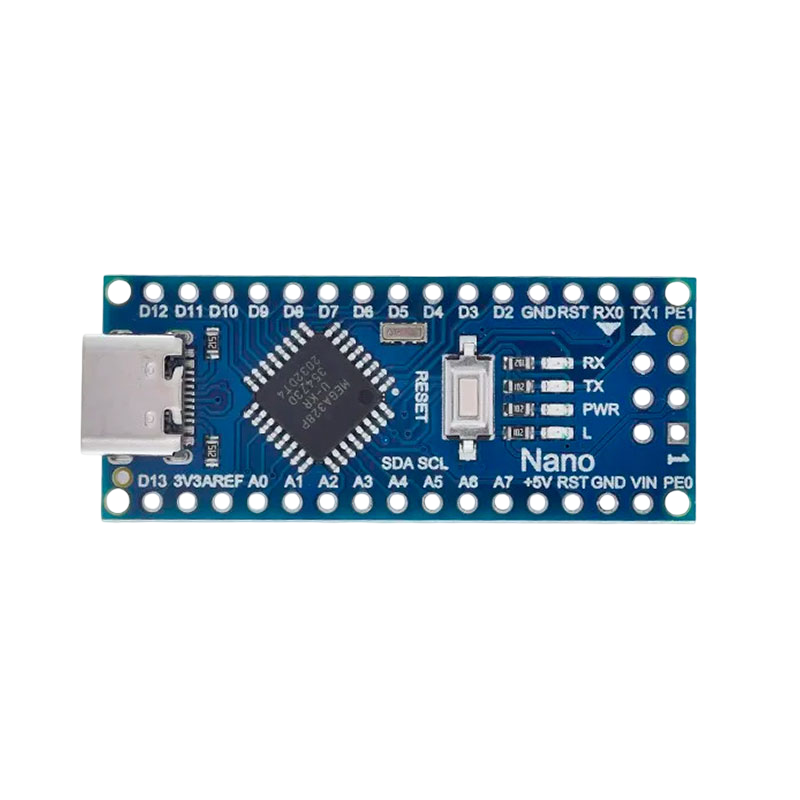
 Design with arduino nano type c in Cirkit Designer
Introduction
The Arduino Nano Type-C is a compact microcontroller board based on the ATmega328P, designed for small-scale projects and prototyping. It features a USB Type-C connector for programming and power, making it more versatile and modern compared to older Nano models. Its small form factor and robust functionality make it an excellent choice for embedded systems, IoT devices, and educational purposes.
Explore Projects Built with arduino nano type c
 Open Project in Cirkit Designer
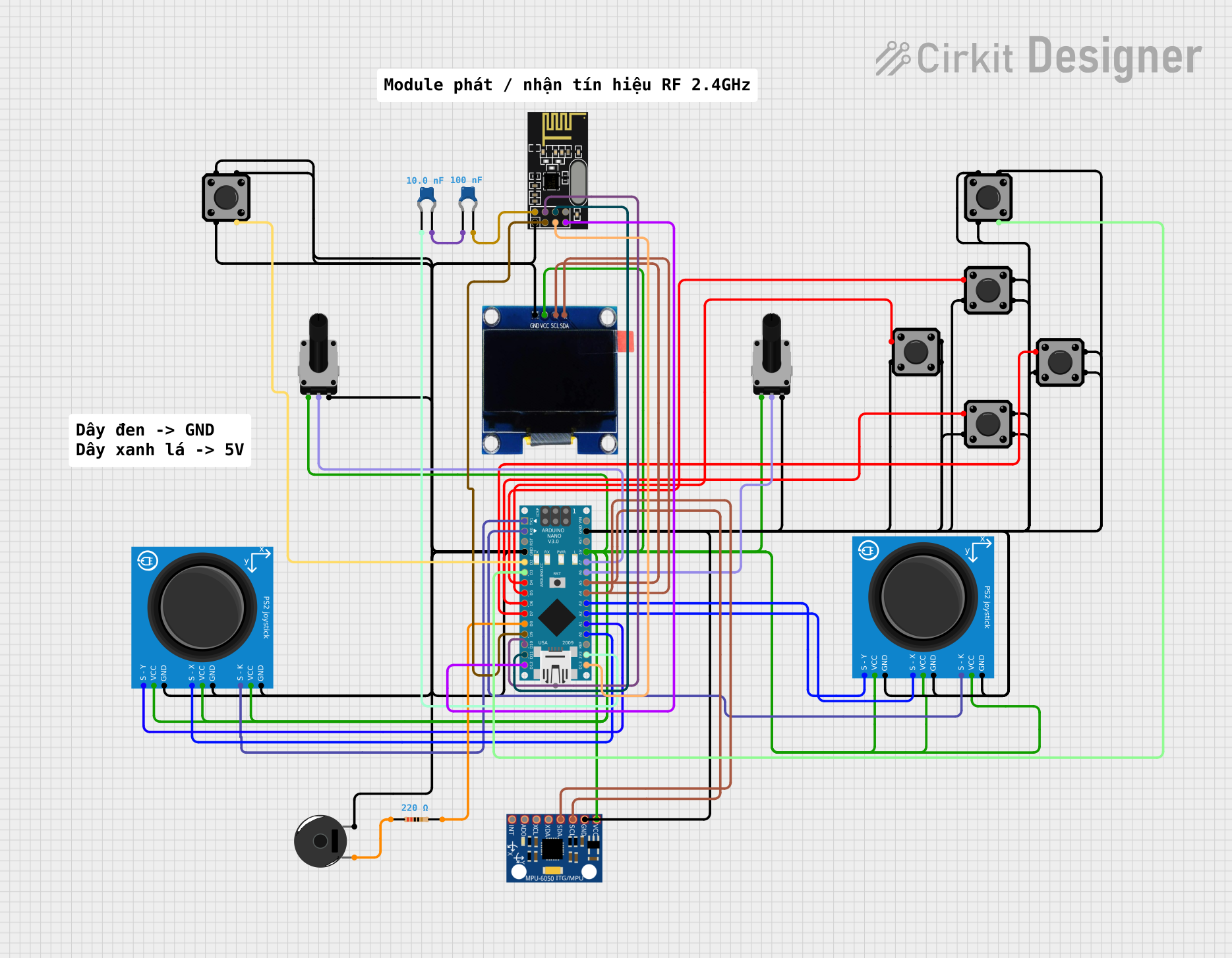 Open Project in Cirkit Designer
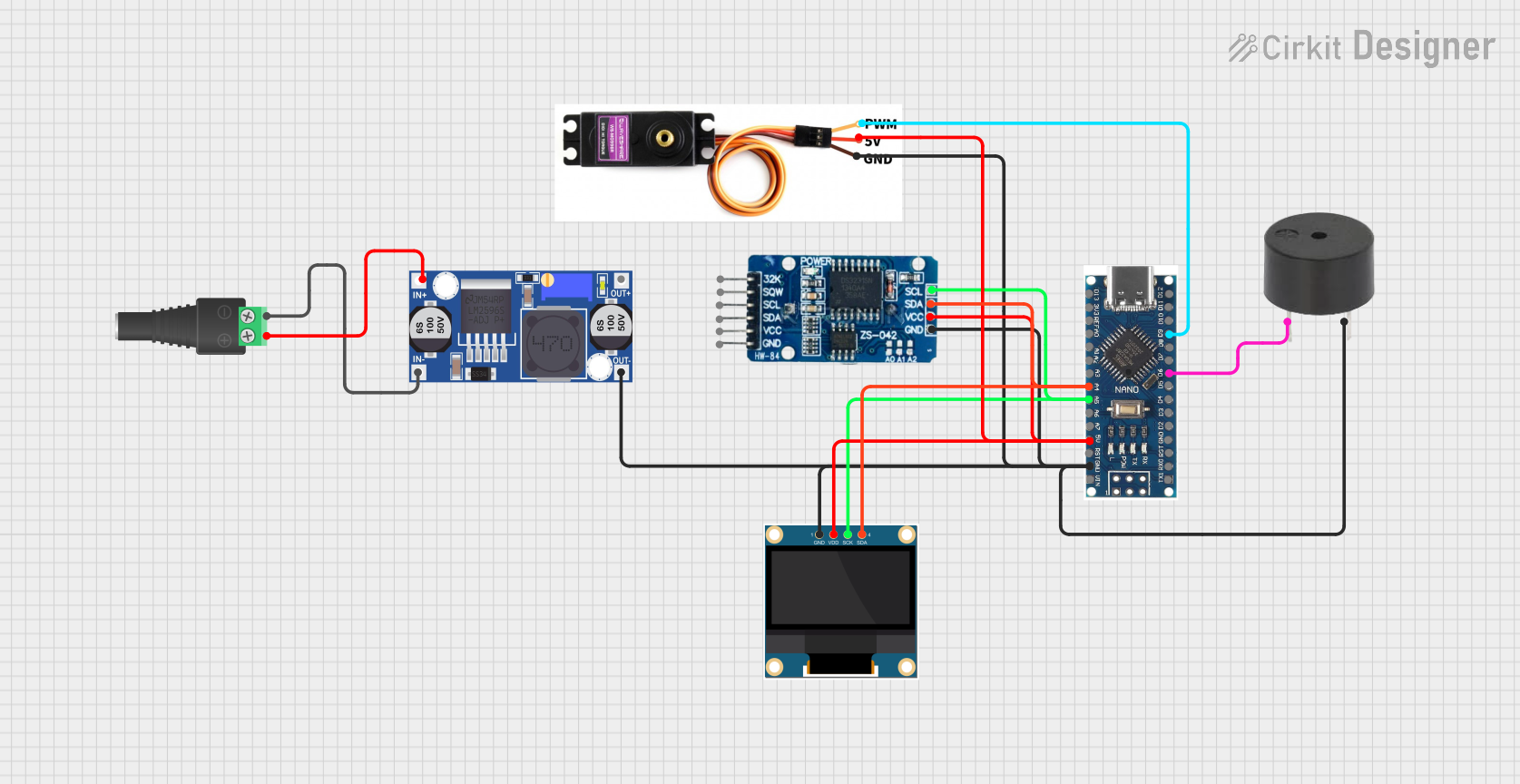 Open Project in Cirkit Designer
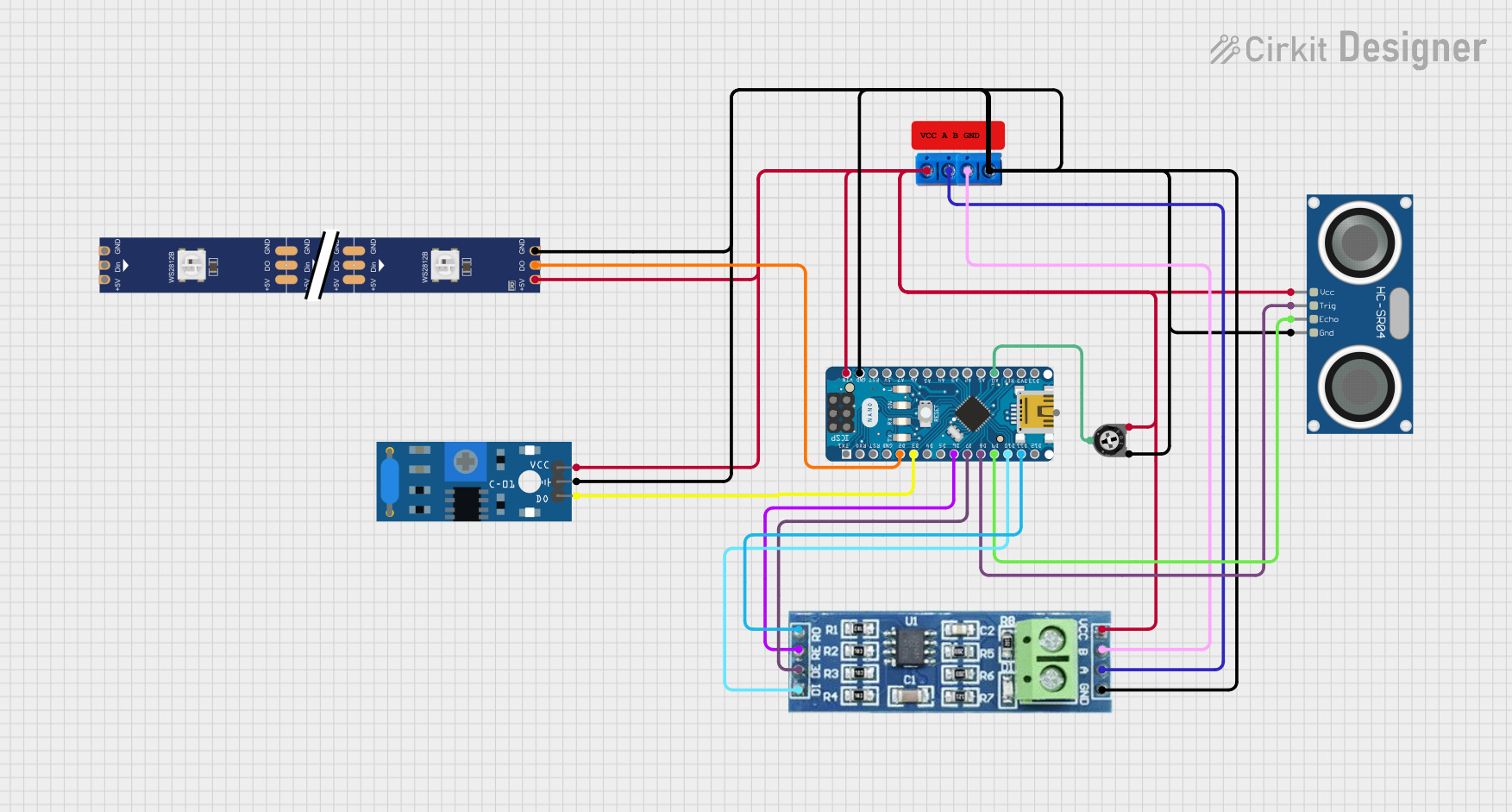 Open Project in Cirkit Designer
Explore Projects Built with arduino nano type c
Open Project in Cirkit DesignerOpen Project in Cirkit DesignerOpen Project in Cirkit DesignerOpen Project in Cirkit DesignerCommon Applications and Use Cases
- Prototyping small electronic circuits
- IoT (Internet of Things) devices
- Robotics and automation projects
- Wearable electronics
- Educational tools for learning microcontroller programming
Technical Specifications
The Arduino Nano Type-C retains the core features of the classic Arduino Nano while introducing a USB Type-C connector for improved connectivity. Below are the key technical details:
Key Technical Details
| Parameter | Specification |
|---|---|
| Microcontroller | ATmega328P |
| Operating Voltage | 5V |
| Input Voltage (VIN) | 7-12V |
| Digital I/O Pins | 14 (6 PWM outputs) |
| Analog Input Pins | 8 |
| DC Current per I/O Pin | 40 mA |
| Flash Memory | 32 KB (2 KB used by bootloader) |
| SRAM | 2 KB |
| EEPROM | 1 KB |
| Clock Speed | 16 MHz |
| USB Connector | USB Type-C |
| Dimensions | 45 mm x 18 mm |
Pin Configuration and Descriptions
The Arduino Nano Type-C has a total of 30 pins. Below is the pinout description:
| Pin Number | Pin Name | Description |
|---|---|---|
| 1-14 | D0-D13 | Digital I/O pins (D3, D5, D6, D9, D10, D11 support PWM) |
| 15-22 | A0-A7 | Analog input pins |
| 23 | VIN | Input voltage (7-12V) |
| 24 | GND | Ground |
| 25 | 5V | Regulated 5V output |
| 26 | 3.3V | Regulated 3.3V output |
| 27 | RST | Reset pin |
| 28 | TX | UART Transmit |
| 29 | RX | UART Receive |
| 30 | USB Type-C | USB connector for power and programming |
Usage Instructions
The Arduino Nano Type-C is easy to use and program, making it suitable for both beginners and advanced users. Below are the steps to get started:
How to Use the Arduino Nano Type-C in a Circuit
Powering the Board:
- Connect the board to your computer using a USB Type-C cable for power and programming.
- Alternatively, supply power through the VIN pin (7-12V) or the 5V pin (regulated 5V).
Programming the Board:
- Install the Arduino IDE from the official Arduino website.
- Connect the board to your computer via USB Type-C.
- In the Arduino IDE, go to
Tools > Boardand select "Arduino Nano". - Under
Tools > Processor, select "ATmega328P (Old Bootloader)" if the default option does not work. - Write your code and click the upload button to program the board.
Connecting Components:
- Use the digital and analog pins to connect sensors, actuators, and other components.
- Ensure that the current drawn by connected components does not exceed 40 mA per pin.
Example Code: Blinking an LED
The following example demonstrates how to blink an LED connected to pin D13:
// This example code blinks an LED connected to pin D13 on the Arduino Nano Type-C.
// The LED will turn on for 1 second, then off for 1 second, repeatedly.

void setup() {
  pinMode(13, OUTPUT); // Set pin D13 as an output pin
}

void loop() {
  digitalWrite(13, HIGH); // Turn the LED on
  delay(1000);            // Wait for 1 second
  digitalWrite(13, LOW);  // Turn the LED off
  delay(1000);            // Wait for 1 second
}
Important Considerations and Best Practices
- Always check the power requirements of connected components to avoid overloading the board.
- Use a proper USB Type-C cable that supports data transfer for programming.
- Avoid shorting pins or connecting components incorrectly, as this may damage the board.
- If using the VIN pin for power, ensure the input voltage is within the 7-12V range.
Troubleshooting and FAQs
Common Issues and Solutions
The board is not recognized by the computer:
- Ensure you are using a USB Type-C cable that supports data transfer.
- Check if the correct drivers are installed. You can download the CH340 driver if required.
Error uploading code to the board:
- Verify that the correct board and processor are selected in the Arduino IDE.
- Try selecting "ATmega328P (Old Bootloader)" under
Tools > Processor. - Ensure no other application is using the COM port.
The board is not powering on:
- Check the USB cable and power source.
- If using VIN, ensure the input voltage is between 7-12V.
Connected components are not working:
- Double-check the wiring and connections.
- Ensure the components are compatible with the board's voltage and current ratings.
FAQs
Q: Can I power the Arduino Nano Type-C with a 3.7V LiPo battery?
A: No, the VIN pin requires a voltage between 7-12V. However, you can use a step-up converter to increase the voltage to the required range.
Q: Is the Arduino Nano Type-C compatible with shields designed for the classic Nano?
A: Yes, the pinout is identical to the classic Nano, so most shields are compatible.
Q: How do I reset the board?
A: Press the reset button on the board or connect the RST pin to GND momentarily.
Q: Can I use the Arduino Nano Type-C for 3.3V logic?
A: Yes, the board provides a 3.3V output pin, but the I/O pins operate at 5V logic levels. Use level shifters if needed for 3.3V devices.