
How to Use Traffic Light: Examples, Pinouts, and Specs
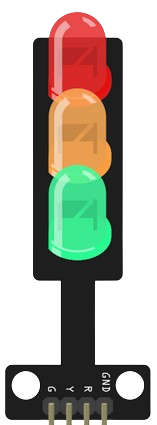
 Design with Traffic Light in Cirkit Designer
Introduction
A traffic light is a signaling device that uses colored lights—red, yellow, and green—to control traffic flow at intersections. These lights indicate stop, caution, and go, respectively, ensuring safe and orderly movement of vehicles and pedestrians. Traffic lights are widely used in urban areas, highways, and pedestrian crossings to manage traffic efficiently and reduce accidents.
Explore Projects Built with Traffic Light
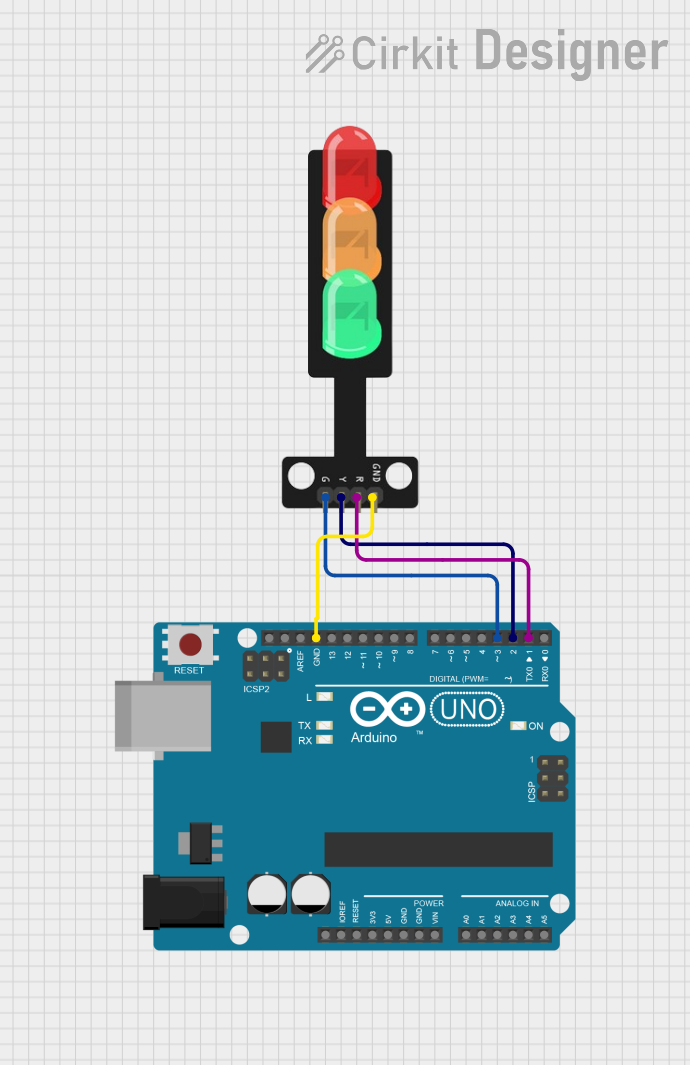 Open Project in Cirkit Designer
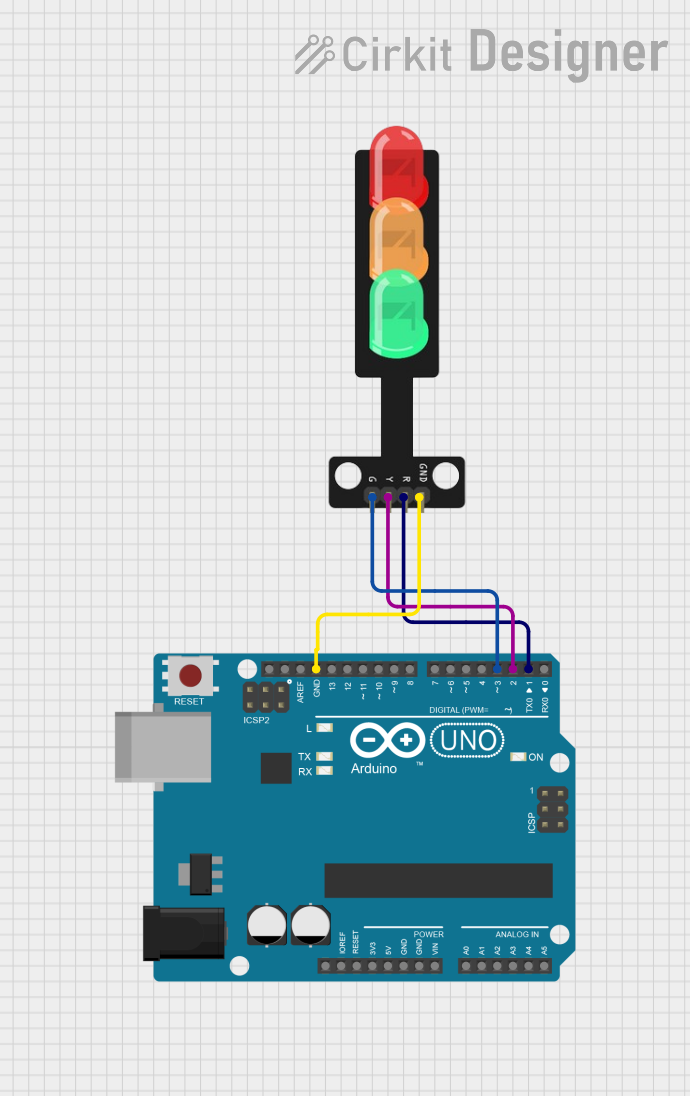 Open Project in Cirkit Designer
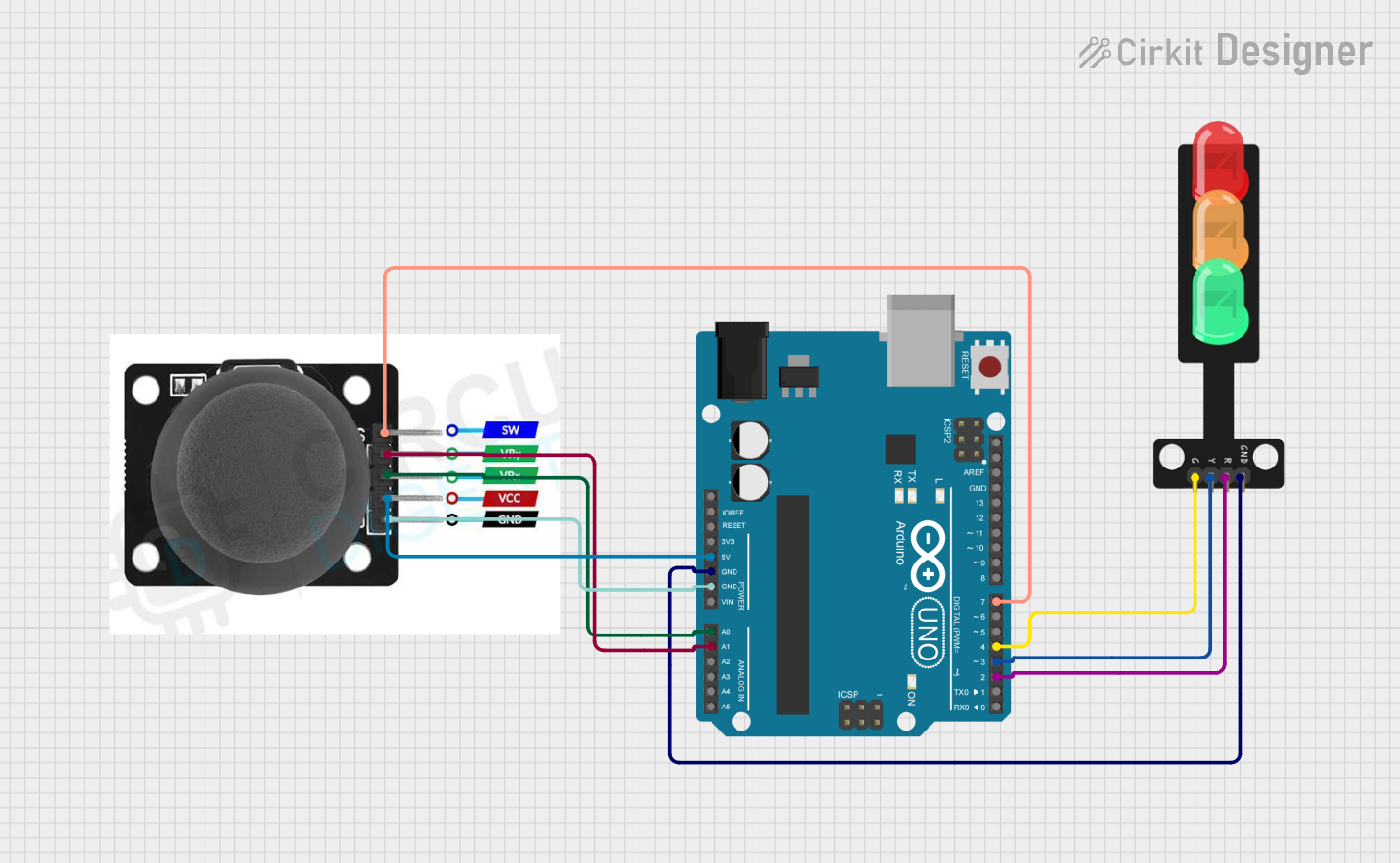 Open Project in Cirkit Designer
 Open Project in Cirkit Designer
Explore Projects Built with Traffic Light
Open Project in Cirkit DesignerOpen Project in Cirkit DesignerOpen Project in Cirkit DesignerOpen Project in Cirkit DesignerCommon Applications and Use Cases
- Traffic control at road intersections
- Pedestrian crossings
- Industrial automation systems for signaling
- Educational projects and simulations
- Smart city infrastructure and IoT-based traffic management systems
Technical Specifications
Below are the general technical specifications for a standard traffic light module used in electronics projects:
| Parameter | Value |
|---|---|
| Operating Voltage | 5V DC |
| Current Consumption | ~20mA per LED |
| LED Colors | Red, Yellow, Green |
| LED Type | High-brightness LEDs |
| Control Method | Digital signal (HIGH/LOW) |
| Dimensions | Varies (commonly ~30mm x 10mm) |
Pin Configuration and Descriptions
The traffic light module typically has three or more pins for controlling the LEDs. Below is a table describing the pin configuration:
| Pin Name | Description |
|---|---|
| VCC | Power supply input (5V DC) |
| GND | Ground connection |
| RED | Control pin for the red LED (active HIGH) |
| YELLOW | Control pin for the yellow LED (active HIGH) |
| GREEN | Control pin for the green LED (active HIGH) |
Usage Instructions
How to Use the Component in a Circuit
- Power Supply: Connect the
VCCpin to a 5V DC power source and theGNDpin to the ground. - Control Pins: Use a microcontroller (e.g., Arduino UNO) or a digital circuit to control the
RED,YELLOW, andGREENpins. Set the pins HIGH to turn on the corresponding LED and LOW to turn it off. - Resistors: Use appropriate current-limiting resistors (e.g., 220Ω) in series with each LED to prevent damage due to excessive current.
Important Considerations and Best Practices
- Power Supply: Ensure a stable 5V DC power source to avoid flickering or damage to the LEDs.
- Resistor Selection: Always use resistors to limit current through the LEDs.
- Pin Protection: Avoid directly connecting the control pins to a high-current source to prevent damage to the LEDs or microcontroller.
- Testing: Test each LED individually before integrating the module into a larger circuit.
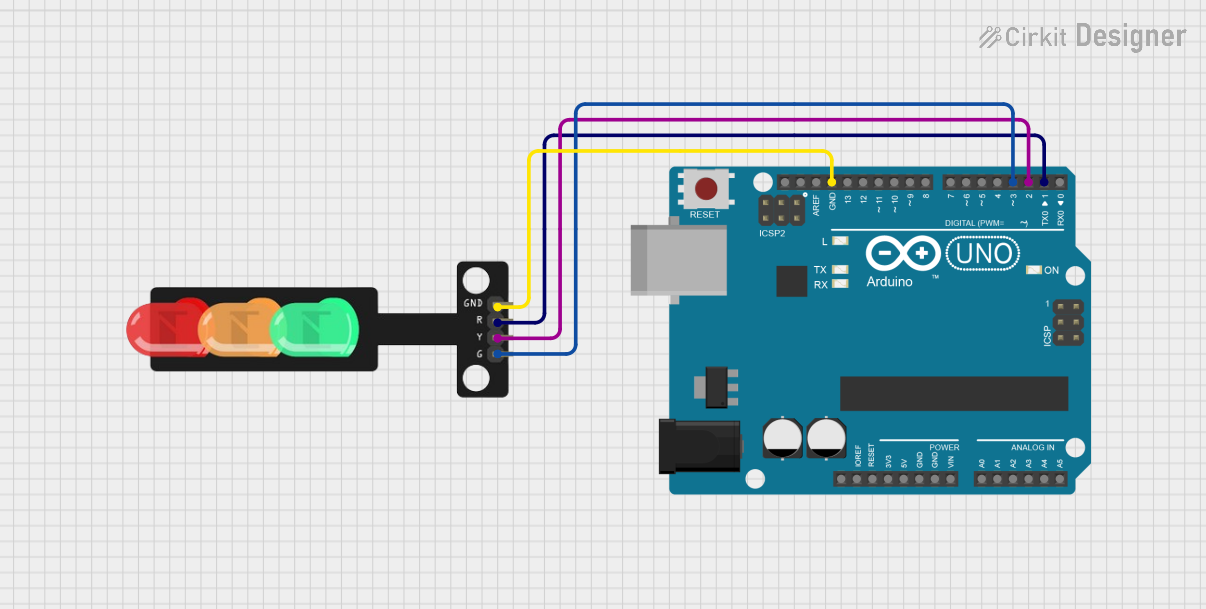
Example: Connecting to an Arduino UNO
Below is an example of how to control a traffic light module using an Arduino UNO:
// Define pin numbers for the traffic light LEDs
const int redPin = 8;    // Pin connected to the red LED
const int yellowPin = 9; // Pin connected to the yellow LED
const int greenPin = 10; // Pin connected to the green LED

void setup() {
  // Set the LED pins as output
  pinMode(redPin, OUTPUT);
  pinMode(yellowPin, OUTPUT);
  pinMode(greenPin, OUTPUT);
}

void loop() {
  // Turn on the red LED and wait for 5 seconds
  digitalWrite(redPin, HIGH);
  delay(5000); // 5000ms = 5 seconds
  digitalWrite(redPin, LOW);

  // Turn on the yellow LED and wait for 2 seconds
  digitalWrite(yellowPin, HIGH);
  delay(2000); // 2000ms = 2 seconds
  digitalWrite(yellowPin, LOW);

  // Turn on the green LED and wait for 5 seconds
  digitalWrite(greenPin, HIGH);
  delay(5000); // 5000ms = 5 seconds
  digitalWrite(greenPin, LOW);
}
Notes:
- Adjust the
delay()values to simulate different traffic light timings. - Ensure proper connections between the Arduino and the traffic light module.
Troubleshooting and FAQs
Common Issues and Solutions
LEDs Not Lighting Up:
- Check the power supply and ensure the
VCCandGNDpins are correctly connected. - Verify that the control pins are set HIGH in the code.
- Inspect the resistors to ensure they are not open or damaged.
- Check the power supply and ensure the
Flickering LEDs:
- Ensure a stable power supply without voltage fluctuations.
- Check for loose connections in the circuit.
Incorrect LED Behavior:
- Double-check the pin connections and ensure they match the code.
- Verify the logic in the code to ensure the correct sequence of operations.
FAQs
Q1: Can I use a 3.3V power supply instead of 5V?
A1: Most traffic light modules are designed for 5V operation. Using 3.3V may result in dim LEDs or improper functioning. Check the module's datasheet for compatibility.
Q2: Do I need to use resistors with the module?
A2: Yes, resistors are essential to limit the current through the LEDs and prevent damage.
Q3: Can I control the traffic light module with a Raspberry Pi?
A3: Yes, you can control the module with a Raspberry Pi using its GPIO pins. Ensure you use appropriate resistors and configure the GPIO pins correctly.
Q4: How do I extend the cable length for the module?
A4: Use shielded cables to reduce noise and ensure proper connections to avoid voltage drops over long distances.
By following this documentation, you can effectively use a traffic light module in your projects and troubleshoot common issues with ease.