
How to Use switch: Examples, Pinouts, and Specs
 Design with switch in Cirkit Designer
Introduction
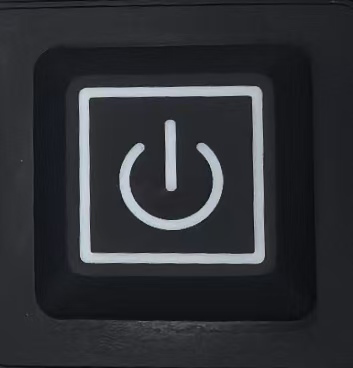
A switch is an electrical component that can open or close a circuit, allowing or interrupting the flow of current. It is one of the most fundamental components in electronics, used to control the operation of devices by manually or automatically toggling the flow of electricity. Switches come in various types, such as toggle switches, push-button switches, slide switches, and rotary switches, each suited for specific applications.
Explore Projects Built with switch
 Open Project in Cirkit Designer
 Open Project in Cirkit Designer
 Open Project in Cirkit Designer
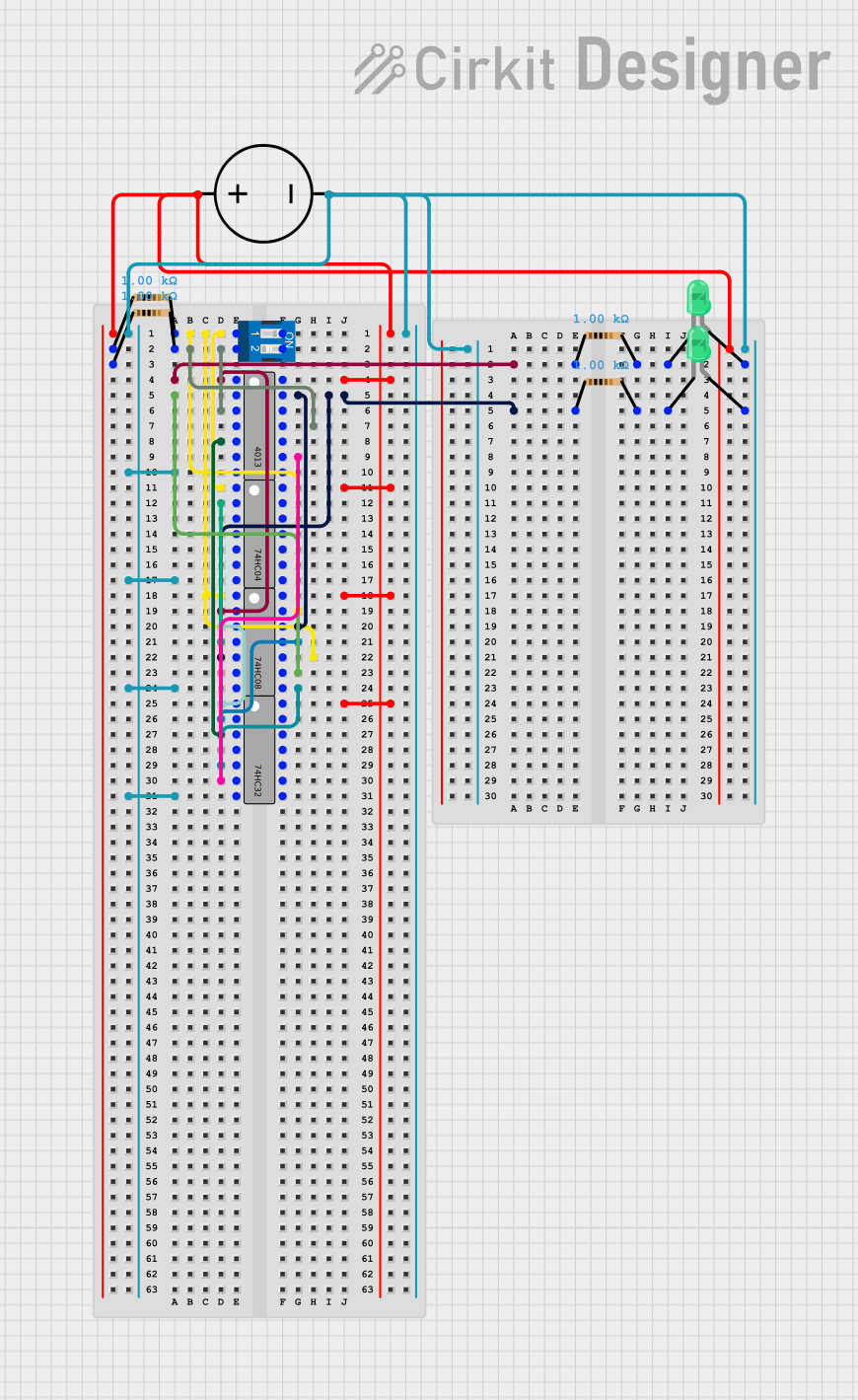 Open Project in Cirkit Designer
Explore Projects Built with switch
Open Project in Cirkit DesignerOpen Project in Cirkit DesignerOpen Project in Cirkit DesignerOpen Project in Cirkit DesignerCommon Applications and Use Cases
- Turning devices on or off (e.g., lights, fans, appliances)
- Mode selection in electronic devices
- Reset functionality in circuits
- User input in embedded systems (e.g., Arduino projects)
- Safety mechanisms in industrial equipment
Technical Specifications
Switches vary widely in their specifications depending on the type and intended application. Below are general technical details for a basic single-pole single-throw (SPST) switch:
| Parameter | Value |
|---|---|
| Voltage Rating | Typically 3V to 250V (AC or DC) |
| Current Rating | Typically 0.1A to 15A |
| Contact Resistance | < 50 mΩ |
| Insulation Resistance | > 100 MΩ |
| Mechanical Life | 10,000 to 1,000,000 operations |
| Operating Temperature | -20°C to 85°C |
Pin Configuration and Descriptions
For a basic SPST switch, the pin configuration is straightforward:
| Pin Name | Description |
|---|---|
| Pin 1 | Input terminal for the circuit |
| Pin 2 | Output terminal for the circuit |
For more complex switches (e.g., SPDT, DPDT), additional pins are used for multiple inputs and outputs.
Usage Instructions
How to Use the Component in a Circuit
- Identify the Terminals: For a basic SPST switch, locate the two terminals (Pin 1 and Pin 2).
- Connect the Switch:
- Connect one terminal (Pin 1) to the power source or signal input.
- Connect the other terminal (Pin 2) to the load or circuit output.
- Toggle the Switch: Flip or press the switch to open or close the circuit, controlling the flow of current.
Important Considerations and Best Practices
- Voltage and Current Ratings: Ensure the switch can handle the voltage and current of your circuit to avoid damage or failure.
- Debouncing: Mechanical switches may produce noise or "bouncing" when toggled. Use a capacitor or software debouncing techniques in digital circuits.
- Mounting: Secure the switch properly to prevent accidental toggling or damage.
- Safety: Avoid using switches in circuits with voltages or currents exceeding their ratings to prevent overheating or arcing.
Example: Using a Switch with an Arduino UNO
Below is an example of how to use a push-button switch with an Arduino UNO to control an LED:
// Define pin numbers
const int switchPin = 2;  // Pin connected to the switch
const int ledPin = 13;    // Pin connected to the LED

// Variable to store the switch state
int switchState = 0;

void setup() {
  pinMode(switchPin, INPUT);  // Set the switch pin as input
  pinMode(ledPin, OUTPUT);    // Set the LED pin as output
}

void loop() {
  // Read the state of the switch
  switchState = digitalRead(switchPin);

  // If the switch is pressed, turn on the LED
  if (switchState == HIGH) {
    digitalWrite(ledPin, HIGH);  // Turn on the LED
  } else {
    digitalWrite(ledPin, LOW);   // Turn off the LED
  }
}
Note: Use a pull-down resistor (e.g., 10kΩ) on the switch pin to ensure a stable LOW state when the switch is not pressed.
Troubleshooting and FAQs
Common Issues Users Might Face
- Switch Not Working:
- Check the connections and ensure the switch terminals are properly wired.
- Verify that the switch is rated for the voltage and current of your circuit.
- Intermittent Behavior:
- This may be caused by switch bouncing. Use a capacitor or software debouncing to resolve the issue.
- Overheating:
- Ensure the switch is not exceeding its current rating. Replace it with a higher-rated switch if necessary.
Solutions and Tips for Troubleshooting
- Test the Switch: Use a multimeter to check continuity between the terminals when the switch is toggled.
- Inspect for Damage: Look for physical damage, such as broken contacts or melted plastic.
- Use Proper Ratings: Always select a switch with voltage and current ratings higher than the maximum values in your circuit.
By following these guidelines, you can effectively use switches in your electronic projects and troubleshoot any issues that arise.