
How to Use LCD: Examples, Pinouts, and Specs
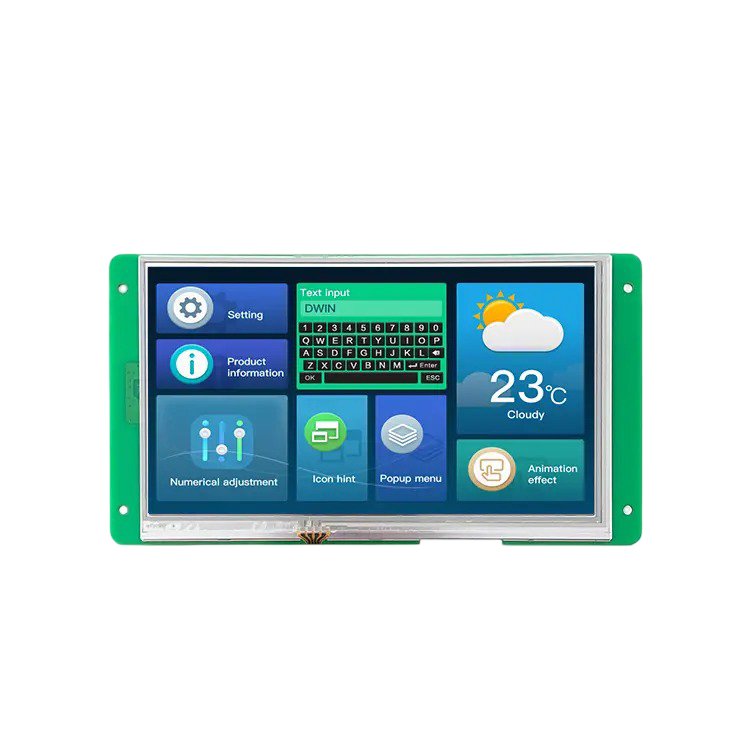
 Design with LCD in Cirkit Designer
Introduction
The Saya Liquid Crystal Display (LCD) is a flat-panel display technology that utilizes liquid crystals to modulate light. This component is widely used in various applications due to its lightweight design, energy efficiency, and ability to display clear images and text. LCDs are commonly found in devices such as televisions, computer monitors, mobile devices, and embedded systems.
Explore Projects Built with LCD
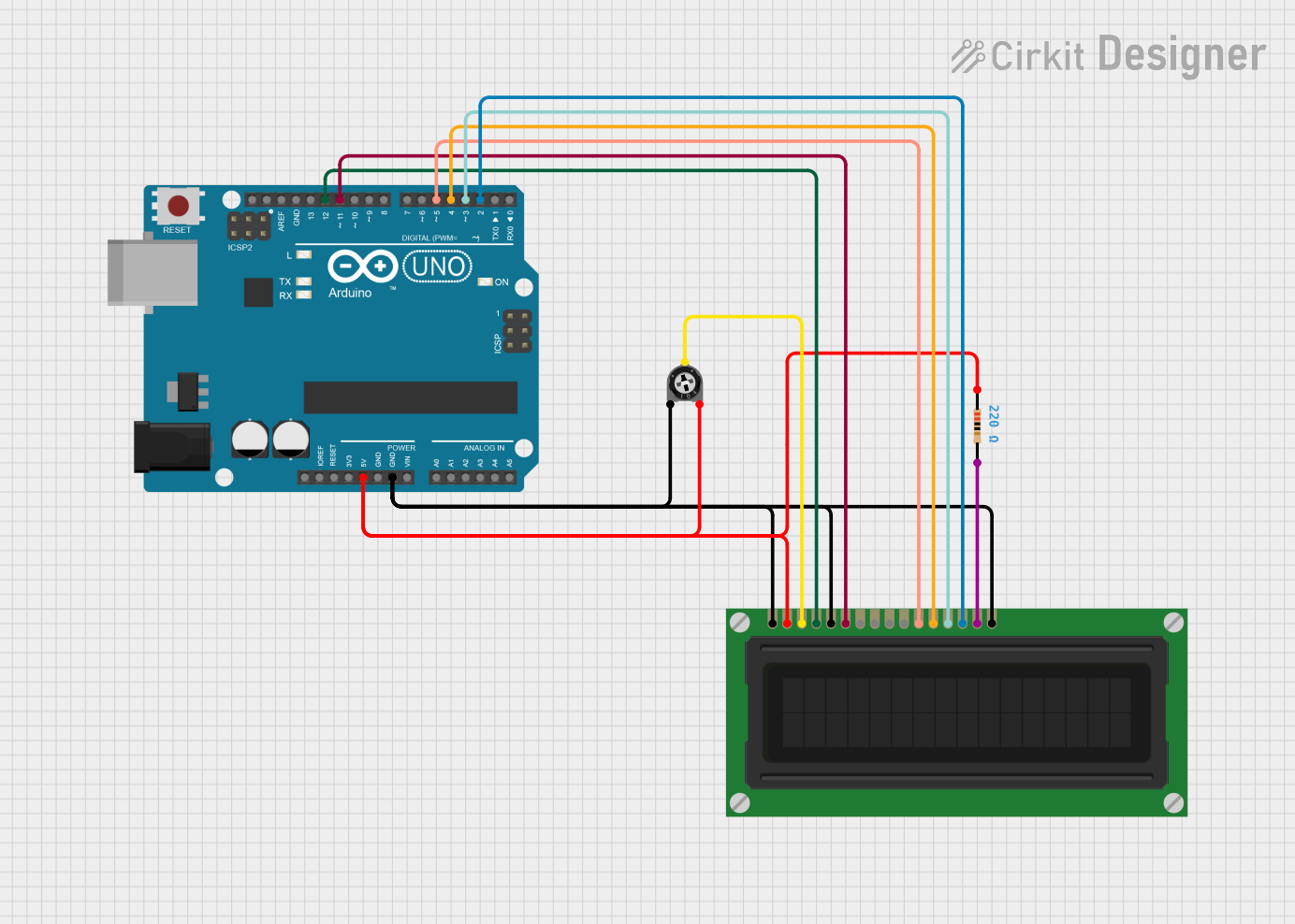 Open Project in Cirkit Designer
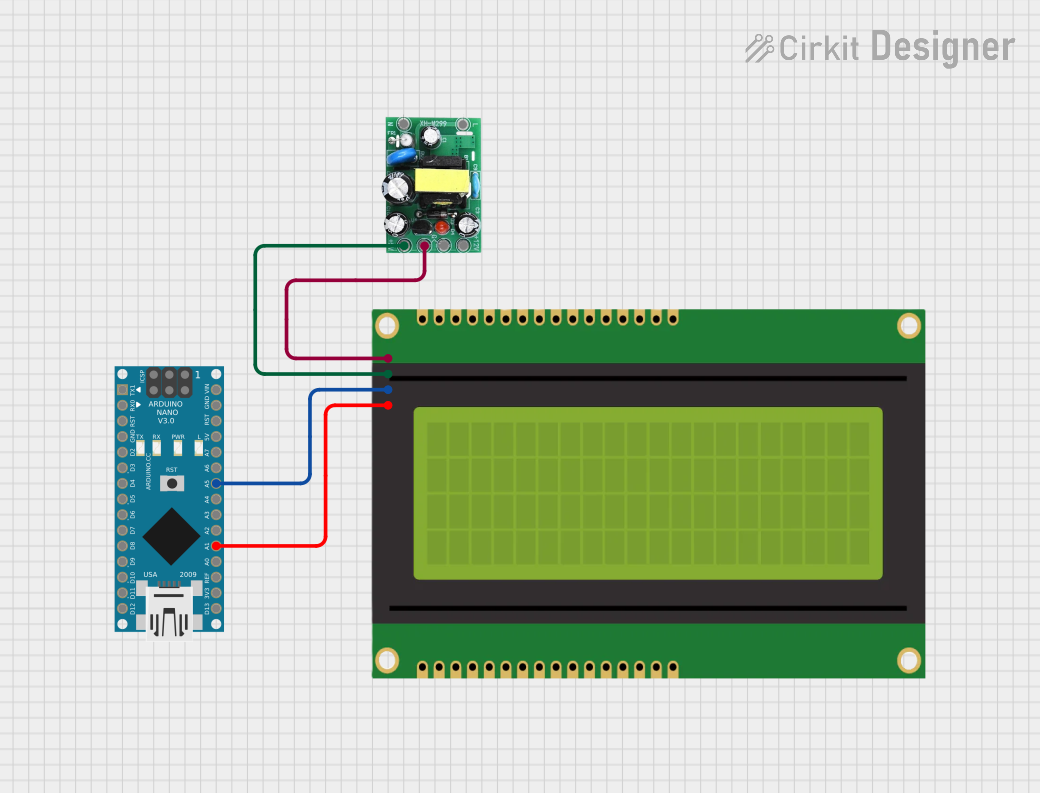 Open Project in Cirkit Designer
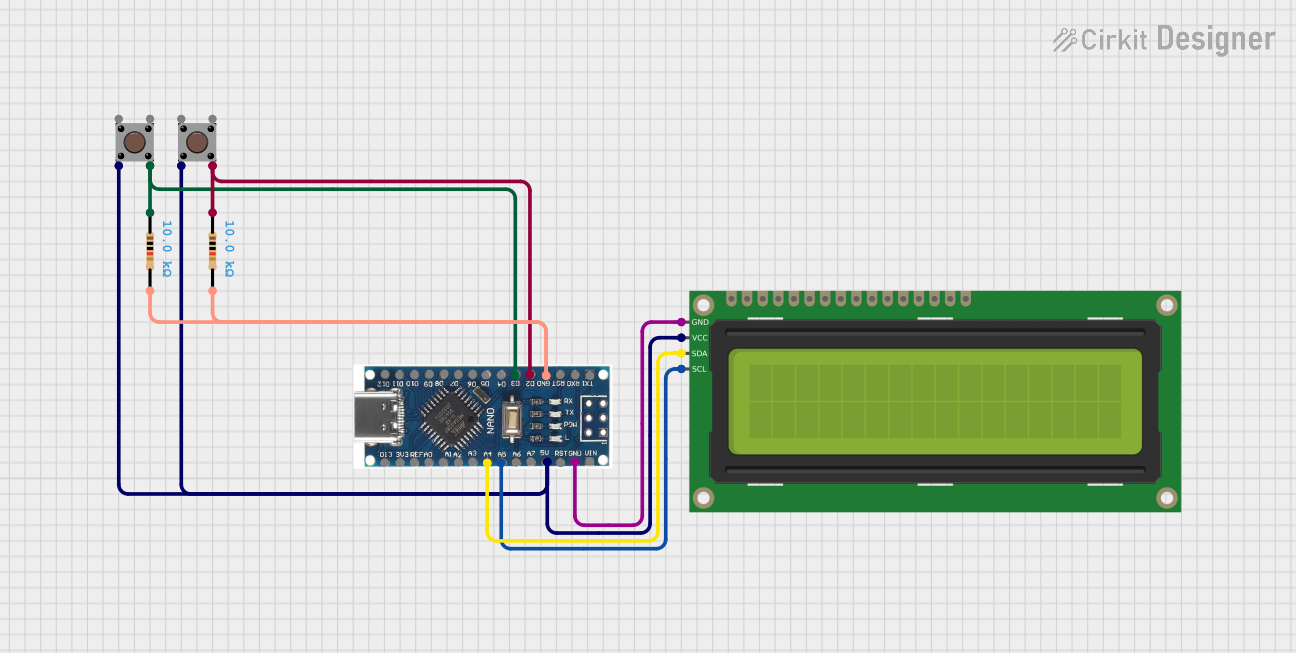 Open Project in Cirkit Designer
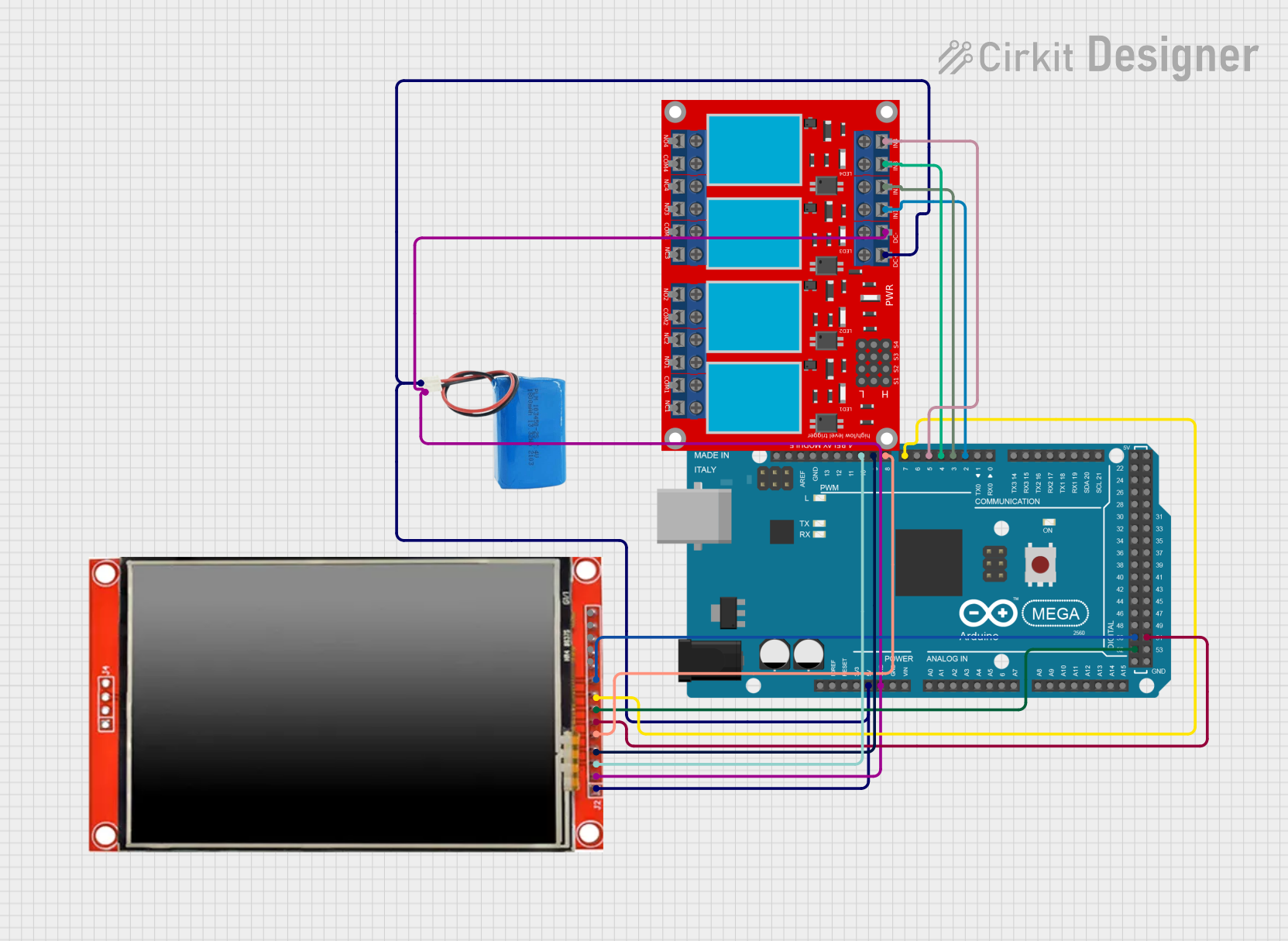 Open Project in Cirkit Designer
Explore Projects Built with LCD
Open Project in Cirkit DesignerOpen Project in Cirkit DesignerOpen Project in Cirkit DesignerOpen Project in Cirkit DesignerCommon Applications and Use Cases
- Displaying text and graphics in embedded systems
- User interfaces for appliances and industrial equipment
- Digital clocks, calculators, and handheld devices
- Portable gaming consoles and wearable devices
Technical Specifications
The following table outlines the key technical specifications of the Saya LCD:
| Parameter | Value |
|---|---|
| Operating Voltage | 4.5V - 5.5V |
| Operating Current | 1mA - 2mA (typical) |
| Display Type | Alphanumeric or Graphical |
| Backlight Voltage | 4.2V - 4.6V |
| Backlight Current | 15mA - 20mA |
| Operating Temperature | -20°C to 70°C |
| Dimensions | 80mm x 36mm x 12mm |
| Interface Type | Parallel (4-bit or 8-bit) |
Pin Configuration and Descriptions
The Saya LCD typically comes with a 16-pin interface. The pin configuration is as follows:
| Pin | Name | Description |
|---|---|---|
| 1 | VSS | Ground (0V) |
| 2 | VDD | Power supply (4.5V - 5.5V) |
| 3 | VO | Contrast adjustment (connect to a potentiometer for contrast control) |
| 4 | RS | Register Select (0: Command mode, 1: Data mode) |
| 5 | RW | Read/Write (0: Write, 1: Read) |
| 6 | E | Enable signal (triggers data read/write) |
| 7-14 | D0-D7 | Data pins (used for 4-bit or 8-bit communication) |
| 15 | LED+ | Backlight anode (connect to +4.2V - 4.6V through a resistor) |
| 16 | LED- | Backlight cathode (connect to ground) |
Usage Instructions
How to Use the LCD in a Circuit
- Power Supply: Connect the VSS pin to ground and the VDD pin to a 5V power source.
- Contrast Adjustment: Connect the VO pin to the middle terminal of a 10kΩ potentiometer. Connect the other two terminals of the potentiometer to VDD and ground.
- Control Pins: Connect the RS, RW, and E pins to the microcontroller's GPIO pins.
- Data Pins: For 4-bit mode, connect D4-D7 to the microcontroller. For 8-bit mode, connect all D0-D7 pins.
- Backlight: Connect LED+ to a 4.2V - 4.6V source through a current-limiting resistor (e.g., 220Ω). Connect LED- to ground.
Important Considerations and Best Practices
- Use a current-limiting resistor for the backlight to prevent damage.
- Ensure proper grounding to avoid noise interference.
- For 4-bit mode, leave D0-D3 unconnected.
- Use a decoupling capacitor (e.g., 0.1µF) between VDD and VSS to stabilize the power supply.
Example Code for Arduino UNO
Below is an example of how to interface the Saya LCD with an Arduino UNO in 4-bit mode:
#include <LiquidCrystal.h>

// Initialize the LCD with the pins connected to RS, E, D4, D5, D6, D7
LiquidCrystal lcd(7, 8, 9, 10, 11, 12);

void setup() {
  lcd.begin(16, 2); // Set up the LCD's number of columns and rows
  lcd.print("Hello, Saya!"); // Print a message to the LCD
}

void loop() {
  lcd.setCursor(0, 1); // Move the cursor to the second row
  lcd.print("LCD Tutorial"); // Display text on the second row
  delay(1000); // Wait for 1 second
  lcd.clear(); // Clear the display
  lcd.print("Enjoy Coding!"); // Display a new message
  delay(1000); // Wait for 1 second
}
Troubleshooting and FAQs
Common Issues and Solutions
No Display on the LCD
- Ensure the power supply is connected properly.
- Check the contrast adjustment using the potentiometer.
- Verify the connections to the microcontroller.
Flickering or Unstable Display
- Add a decoupling capacitor (0.1µF) between VDD and VSS.
- Ensure proper grounding and avoid loose connections.
Backlight Not Working
- Check the current-limiting resistor for the backlight.
- Verify the voltage supplied to the LED+ pin.
Incorrect Characters Displayed
- Ensure the data pins are correctly connected.
- Verify the code logic and ensure the correct mode (4-bit or 8-bit) is selected.
FAQs
Q: Can I use the Saya LCD with a 3.3V microcontroller?
A: Yes, but you will need a level shifter or voltage divider for the control and data pins to avoid damage.
Q: How do I display custom characters on the LCD?
A: Use the createChar() function in the LiquidCrystal library to define custom characters.
Q: Can I use the LCD without a backlight?
A: Yes, the LCD will still function, but the display may be difficult to read in low-light conditions.
By following this documentation, you can effectively integrate the Saya LCD into your projects and troubleshoot common issues with ease.