
How to Use Borne 10 pinos: Examples, Pinouts, and Specs

 Design with Borne 10 pinos in Cirkit Designer
Introduction
The Borne 10 Pinos is a 10-pin terminal block designed for connecting multiple wires in a circuit. It provides a secure and reliable way to establish electrical connections, making it ideal for applications where multiple wires need to be organized and connected efficiently. This component is commonly used in industrial control systems, power distribution boards, and prototyping circuits.
Explore Projects Built with Borne 10 pinos
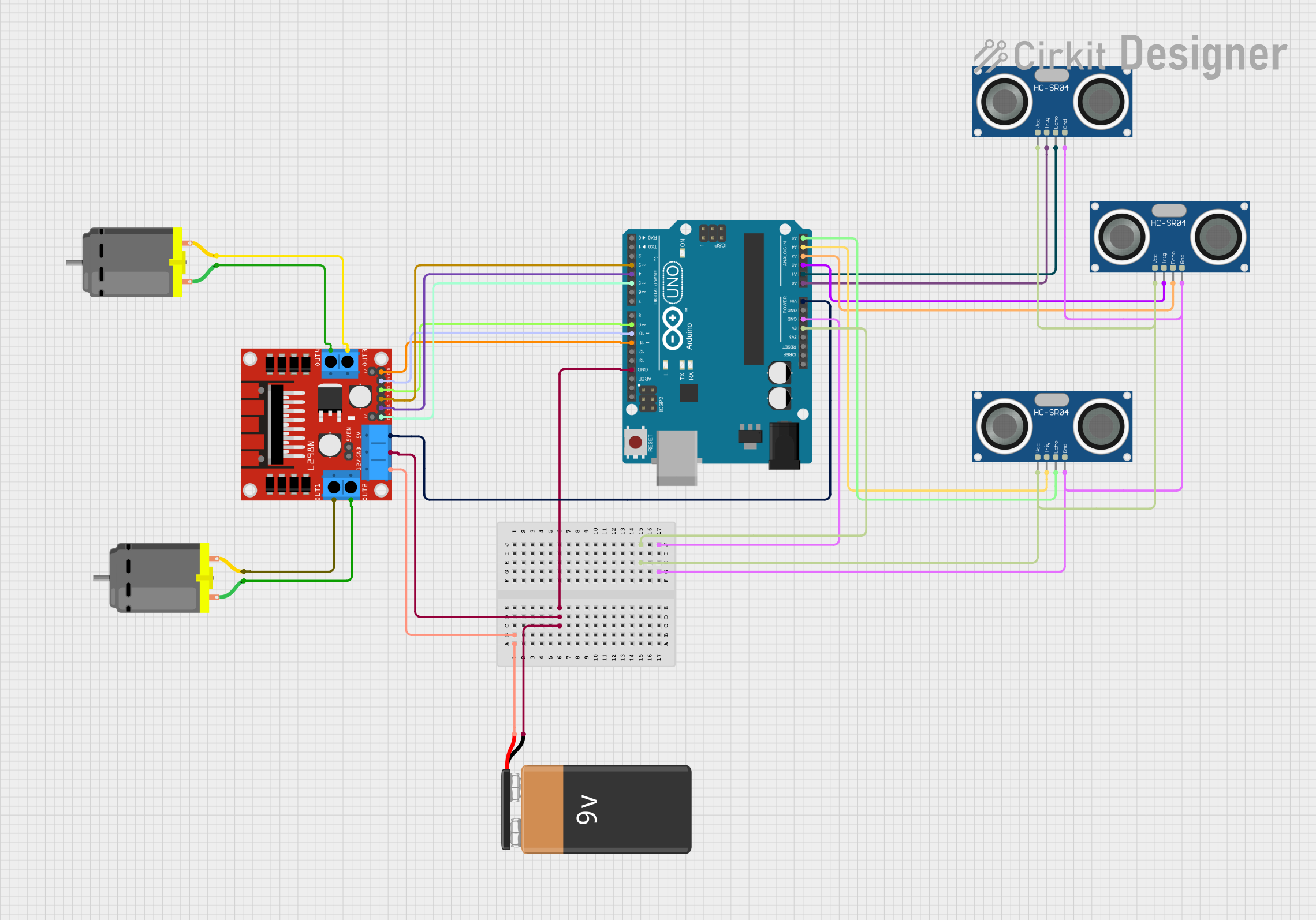 Open Project in Cirkit Designer
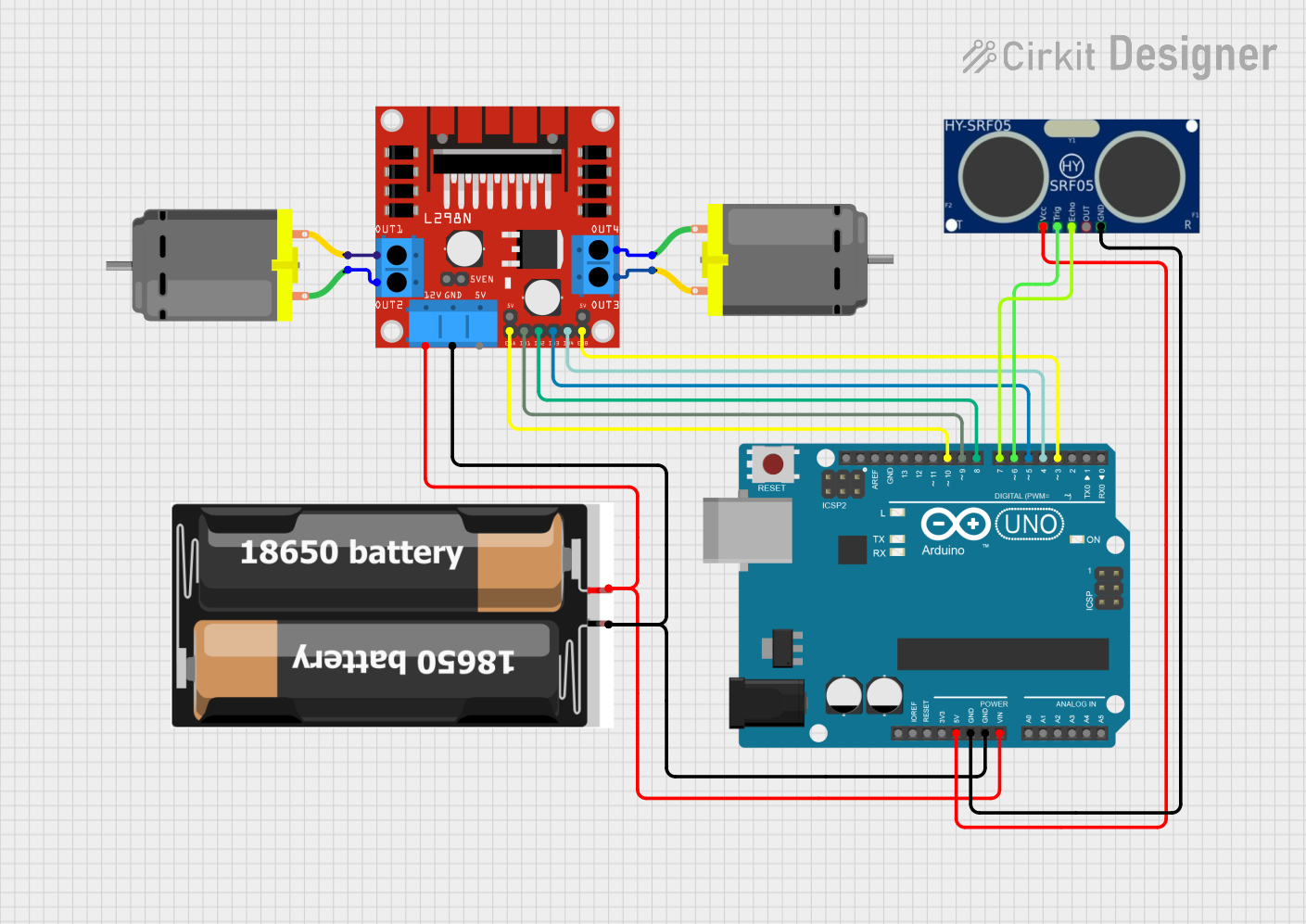 Open Project in Cirkit Designer
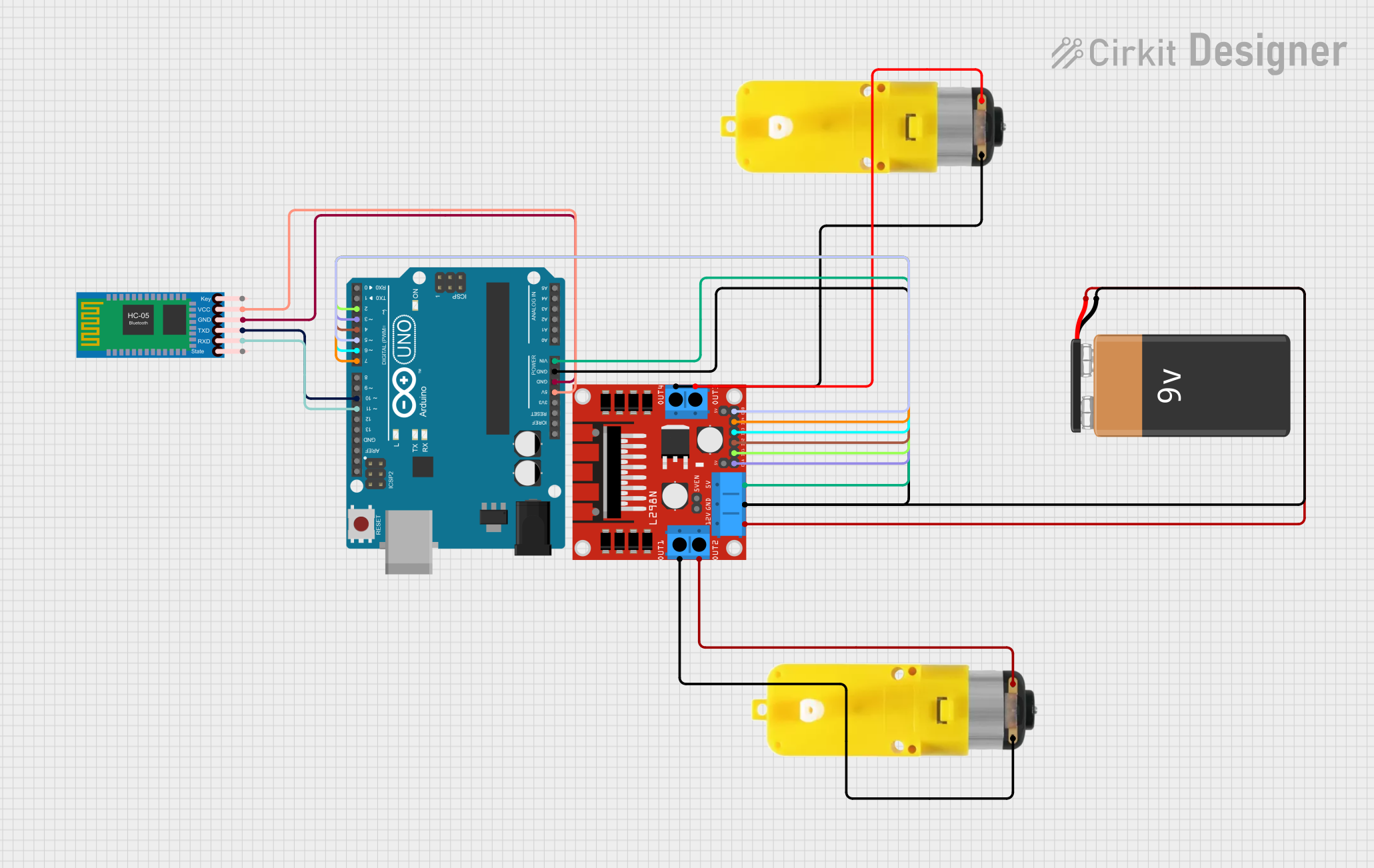 Open Project in Cirkit Designer
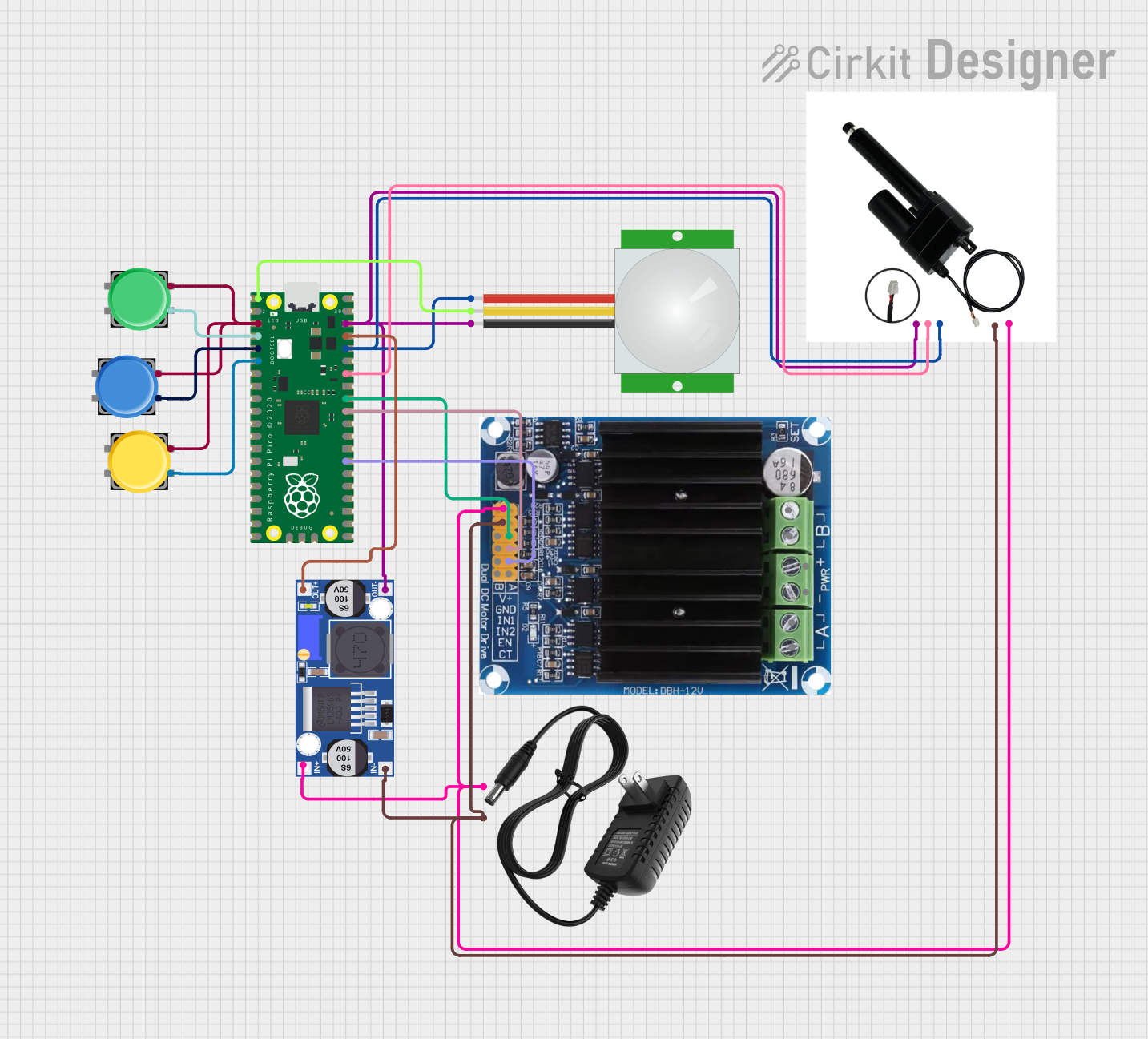 Open Project in Cirkit Designer
Explore Projects Built with Borne 10 pinos
Open Project in Cirkit DesignerOpen Project in Cirkit DesignerOpen Project in Cirkit DesignerOpen Project in Cirkit DesignerCommon Applications and Use Cases
- Industrial control panels and automation systems
- Power distribution in electrical circuits
- Prototyping and testing of electronic circuits
- Connecting sensors, actuators, and other peripherals
- Simplifying wiring in complex systems
Technical Specifications
The following table outlines the key technical details of the Borne 10 Pinos terminal block:
| Parameter | Specification |
|---|---|
| Number of Pins | 10 |
| Rated Voltage | 300V AC/DC |
| Rated Current | 15A |
| Wire Size Compatibility | 22-12 AWG |
| Material | Flame-retardant thermoplastic (UL94-V0) |
| Mounting Type | PCB mount or DIN rail (varies by model) |
| Connection Type | Screw terminal |
| Operating Temperature | -40°C to +105°C |
Pin Configuration and Descriptions
The Borne 10 Pinos terminal block does not have a specific pinout like ICs or microcontrollers. Instead, each pin corresponds to a screw terminal for connecting individual wires. Below is a general description of the pin layout:
| Pin Number | Description |
|---|---|
| 1-10 | Individual screw terminals for wire connections |
Usage Instructions
How to Use the Component in a Circuit
- Prepare the Wires: Strip the insulation from the ends of the wires you want to connect. Ensure the exposed wire length matches the terminal block's specifications (typically 5-7 mm).
- Insert the Wires: Loosen the screw on the desired terminal, insert the stripped wire into the terminal slot, and tighten the screw to secure the connection.
- Mount the Terminal Block: Depending on the model, mount the terminal block onto a PCB or DIN rail as required.
- Verify Connections: Double-check all connections to ensure they are secure and free of loose strands that could cause short circuits.
Important Considerations and Best Practices
- Wire Gauge: Ensure the wire gauge is compatible with the terminal block (22-12 AWG).
- Tightening Torque: Do not overtighten the screws, as this may damage the terminal block or the wires.
- Insulation: Avoid leaving excessive exposed wire outside the terminal to prevent accidental short circuits.
- Current Rating: Do not exceed the rated current (15A) to avoid overheating or damage.
- Mounting: If using a PCB-mounted version, ensure proper soldering for a reliable connection.
Example: Connecting to an Arduino UNO
While the Borne 10 Pinos is not directly connected to an Arduino UNO, it can be used to organize and distribute connections between the Arduino and other components. Below is an example of how to use the terminal block to connect an LED and a resistor to an Arduino:
// Example: Controlling an LED via a terminal block connected to Arduino UNO

// Define the pin connected to the LED
const int ledPin = 9;

void setup() {
  pinMode(ledPin, OUTPUT); // Set the LED pin as an output
}

void loop() {
  digitalWrite(ledPin, HIGH); // Turn the LED on
  delay(1000);                // Wait for 1 second
  digitalWrite(ledPin, LOW);  // Turn the LED off
  delay(1000);                // Wait for 1 second
}

/* Wiring Instructions:
   - Connect one terminal of the LED to a resistor (220 ohms recommended).
   - Connect the other end of the resistor to the terminal block.
   - Use another terminal to connect the LED's cathode to Arduino GND.
   - Connect the terminal block's output to Arduino pin 9.
   - Ensure all connections are secure and insulated.
*/
Troubleshooting and FAQs
Common Issues Users Might Face
- Loose Connections: Wires may come loose if screws are not tightened properly.
- Solution: Ensure screws are securely tightened without overtightening.
- Short Circuits: Exposed wire strands may touch adjacent terminals.
- Solution: Trim excess wire and ensure proper insulation.
- Overheating: The terminal block may overheat if the current exceeds the rated limit.
- Solution: Verify that the connected load does not exceed 15A.
- Wire Compatibility: Some wires may not fit properly due to incompatible gauge sizes.
- Solution: Use wires within the specified range (22-12 AWG).
FAQs
Q: Can I use the Borne 10 Pinos for high-frequency signals?
A: While it is primarily designed for power and low-frequency signals, it can handle high-frequency signals if proper shielding and grounding are implemented.
Q: Is the terminal block suitable for outdoor use?
A: The terminal block is not inherently weatherproof. For outdoor use, ensure it is housed in a weatherproof enclosure.
Q: Can I connect multiple wires to a single terminal?
A: It is not recommended to connect multiple wires to a single terminal, as this may compromise the connection's reliability and safety.
Q: How do I clean the terminal block?
A: Use a dry cloth or compressed air to remove dust. Avoid using liquids or abrasive materials.
By following this documentation, users can effectively utilize the Borne 10 Pinos terminal block in their projects and ensure reliable and secure connections.