
How to Use LCD 128x64 I2C ST7567S: Examples, Pinouts, and Specs
 Design with LCD 128x64 I2C ST7567S in Cirkit Designer
Introduction
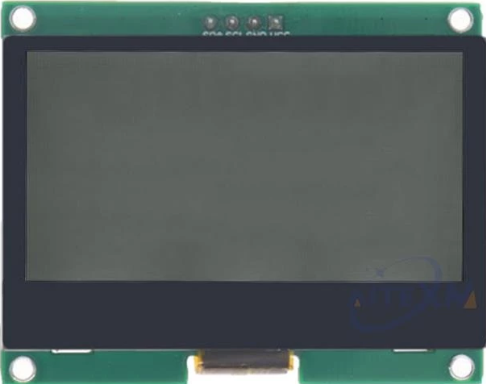
The LCD 128x64 I2C ST7567S (Manufacturer Part ID: 1570) is a graphical LCD display module with a resolution of 128x64 pixels. It is equipped with the ST7567S controller, which enables efficient rendering of both text and graphics. The module uses the I2C communication protocol, making it easy to interface with microcontrollers such as Arduino, Raspberry Pi, and other embedded systems.
Explore Projects Built with LCD 128x64 I2C ST7567S
 Open Project in Cirkit Designer
 Open Project in Cirkit Designer
 Open Project in Cirkit Designer
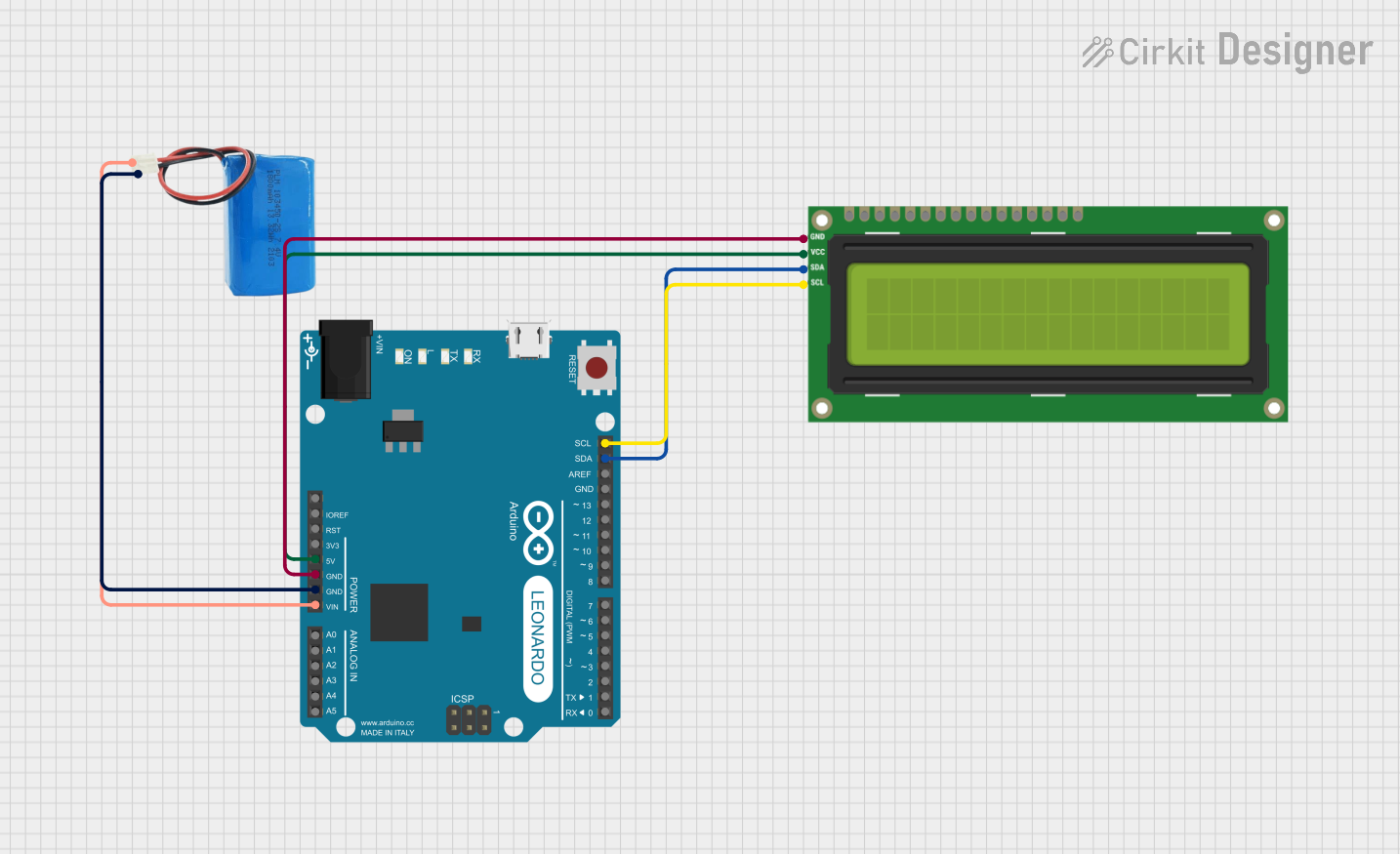 Open Project in Cirkit Designer
Explore Projects Built with LCD 128x64 I2C ST7567S
Open Project in Cirkit DesignerOpen Project in Cirkit DesignerOpen Project in Cirkit DesignerOpen Project in Cirkit DesignerCommon Applications and Use Cases
- Embedded systems requiring graphical or textual displays
- Industrial control panels
- Consumer electronics such as appliances and handheld devices
- Educational and prototyping projects
- IoT devices with visual feedback
Technical Specifications
Below are the key technical details of the LCD 128x64 I2C ST7567S:
| Parameter | Value |
|---|---|
| Manufacturer | China |
| Manufacturer Part ID | 1570 |
| Display Resolution | 128x64 pixels |
| Controller IC | ST7567S |
| Communication Protocol | I2C |
| Operating Voltage | 3.3V to 5V |
| Operating Current | ~2mA (typical) |
| Backlight | LED (white) |
| Viewing Angle | 6 o'clock |
| Operating Temperature | -20°C to +70°C |
| Dimensions | 93mm x 70mm x 12mm |
Pin Configuration and Descriptions
The LCD module has a 4-pin interface for I2C communication. Below is the pinout:
| Pin | Name | Description |
|---|---|---|
| 1 | GND | Ground connection |
| 2 | VCC | Power supply (3.3V to 5V) |
| 3 | SDA | I2C data line |
| 4 | SCL | I2C clock line |
Usage Instructions
How to Use the Component in a Circuit
- Power Supply: Connect the
VCCpin to a 3.3V or 5V power source and theGNDpin to ground. - I2C Connection: Connect the
SDAandSCLpins to the corresponding I2C pins on your microcontroller. For Arduino UNO:SDAconnects to A4.SCLconnects to A5.
- Pull-Up Resistors: Ensure that the I2C lines (
SDAandSCL) have pull-up resistors (typically 4.7kΩ to 10kΩ) if not already present on the module. - Initialization: Use a compatible library (e.g., U8g2 or Adafruit GFX) to initialize and control the display.
Important Considerations and Best Practices
- Voltage Compatibility: Ensure the module's operating voltage matches your microcontroller's I2C voltage level.
- I2C Address: The default I2C address of the module is typically
0x3Cor0x3D. Check the datasheet or test to confirm. - Contrast Adjustment: Some modules may have a potentiometer or software control for adjusting contrast.
- Avoid Noise: Keep I2C lines short and use proper decoupling capacitors to minimize noise.
Example Code for Arduino UNO
Below is an example of how to use the LCD 128x64 I2C ST7567S with an Arduino UNO using the U8g2 library:
#include <Wire.h>
#include <U8g2lib.h>

// Initialize the display with the ST7567S controller and I2C communication
U8G2_ST7567_128X64_F_HW_I2C u8g2(U8G2_R0, /* reset=*/ U8X8_PIN_NONE);

void setup() {
  u8g2.begin(); // Initialize the display
}

void loop() {
  u8g2.clearBuffer(); // Clear the display buffer

  // Draw text on the display
  u8g2.setFont(u8g2_font_ncenB08_tr); // Select a font
  u8g2.drawStr(0, 20, "Hello, World!"); // Draw "Hello, World!" at (0, 20)

  // Draw a rectangle
  u8g2.drawFrame(10, 30, 50, 20); // Draw a rectangle at (10, 30) with width 50 and height 20

  u8g2.sendBuffer(); // Send the buffer to the display
  delay(1000); // Wait for 1 second
}
Troubleshooting and FAQs
Common Issues and Solutions
Display Not Turning On
- Cause: Incorrect power supply or loose connections.
- Solution: Verify that
VCCandGNDare properly connected and the voltage is within the specified range.
No Output on the Display
- Cause: Incorrect I2C address or uninitialized display.
- Solution: Check the I2C address using an I2C scanner sketch and ensure the display is initialized in the code.
Flickering or Noise on the Display
- Cause: Electrical noise or insufficient pull-up resistors on I2C lines.
- Solution: Add or adjust pull-up resistors (4.7kΩ to 10kΩ) and ensure proper grounding.
Contrast Issues
- Cause: Incorrect contrast settings.
- Solution: Adjust the contrast using the potentiometer (if available) or software commands.
FAQs
Q1: Can this display work with 3.3V microcontrollers like ESP32?
A1: Yes, the module supports 3.3V operation and is compatible with 3.3V logic levels.
Q2: What is the maximum I2C clock speed supported?
A2: The ST7567S controller supports I2C clock speeds up to 400kHz (Fast Mode).
Q3: Can I use this display with SPI instead of I2C?
A3: No, this specific module is designed for I2C communication only.
Q4: How do I find the I2C address of the module?
A4: Use an I2C scanner sketch to detect the module's address. The default is typically 0x3C or 0x3D.
By following this documentation, you can effectively integrate the LCD 128x64 I2C ST7567S into your projects and troubleshoot common issues.