
How to Use Grove Button: Examples, Pinouts, and Specs
 Design with Grove Button in Cirkit Designer
Introduction
The Grove Button, manufactured by Seeed Studio, is a simple push-button switch designed for user input in electronic projects. It features a Grove connector, which simplifies integration with microcontrollers and makes it ideal for rapid prototyping. The button operates as a momentary switch, meaning it is only active while being pressed. This component is widely used in applications such as user interfaces, control systems, and interactive projects.
Explore Projects Built with Grove Button
 Open Project in Cirkit Designer
 Open Project in Cirkit Designer
 Open Project in Cirkit Designer
 Open Project in Cirkit Designer
Explore Projects Built with Grove Button
Open Project in Cirkit DesignerOpen Project in Cirkit DesignerOpen Project in Cirkit DesignerOpen Project in Cirkit DesignerCommon Applications
- User input for microcontroller-based systems
- Control panels and interactive devices
- Prototyping and educational projects
- Triggering events in IoT applications
Technical Specifications
The Grove Button is designed for simplicity and reliability. Below are its key technical details:
| Parameter | Value |
|---|---|
| Operating Voltage | 3.3V / 5V |
| Operating Current | ≤10 mA |
| Interface Type | Grove 4-pin connector |
| Dimensions | 20mm x 20mm |
| Button Type | Momentary (push-to-make) |
| Debouncing Circuit | Included |
Pin Configuration
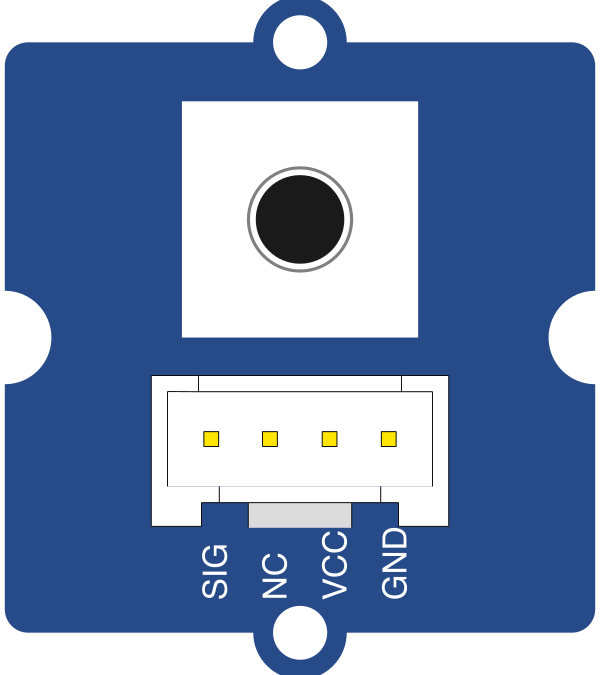
The Grove Button uses a 4-pin Grove connector. The pinout is as follows:
| Pin | Name | Description |
|---|---|---|
| 1 | GND | Ground connection |
| 2 | VCC | Power supply (3.3V or 5V) |
| 3 | SIG | Signal output (HIGH when pressed, LOW otherwise) |
| 4 | NC | Not connected |
Usage Instructions
The Grove Button is straightforward to use in any circuit. Follow the steps below to integrate it into your project:
Connecting the Grove Button
- Connect the Grove Button to a Grove Base Shield or directly to a microcontroller using a Grove cable.
- Ensure the VCC pin is connected to a 3.3V or 5V power source, depending on your system.
- Connect the SIG pin to a digital input pin on your microcontroller.
- Connect the GND pin to the ground of your circuit.
Important Considerations
- The Grove Button includes a built-in debouncing circuit, which eliminates the need for additional software or hardware debouncing.
- Ensure the power supply voltage matches the requirements of your microcontroller to avoid damage.
- Avoid pressing the button with excessive force to maintain its longevity.
Example: Using the Grove Button with Arduino UNO
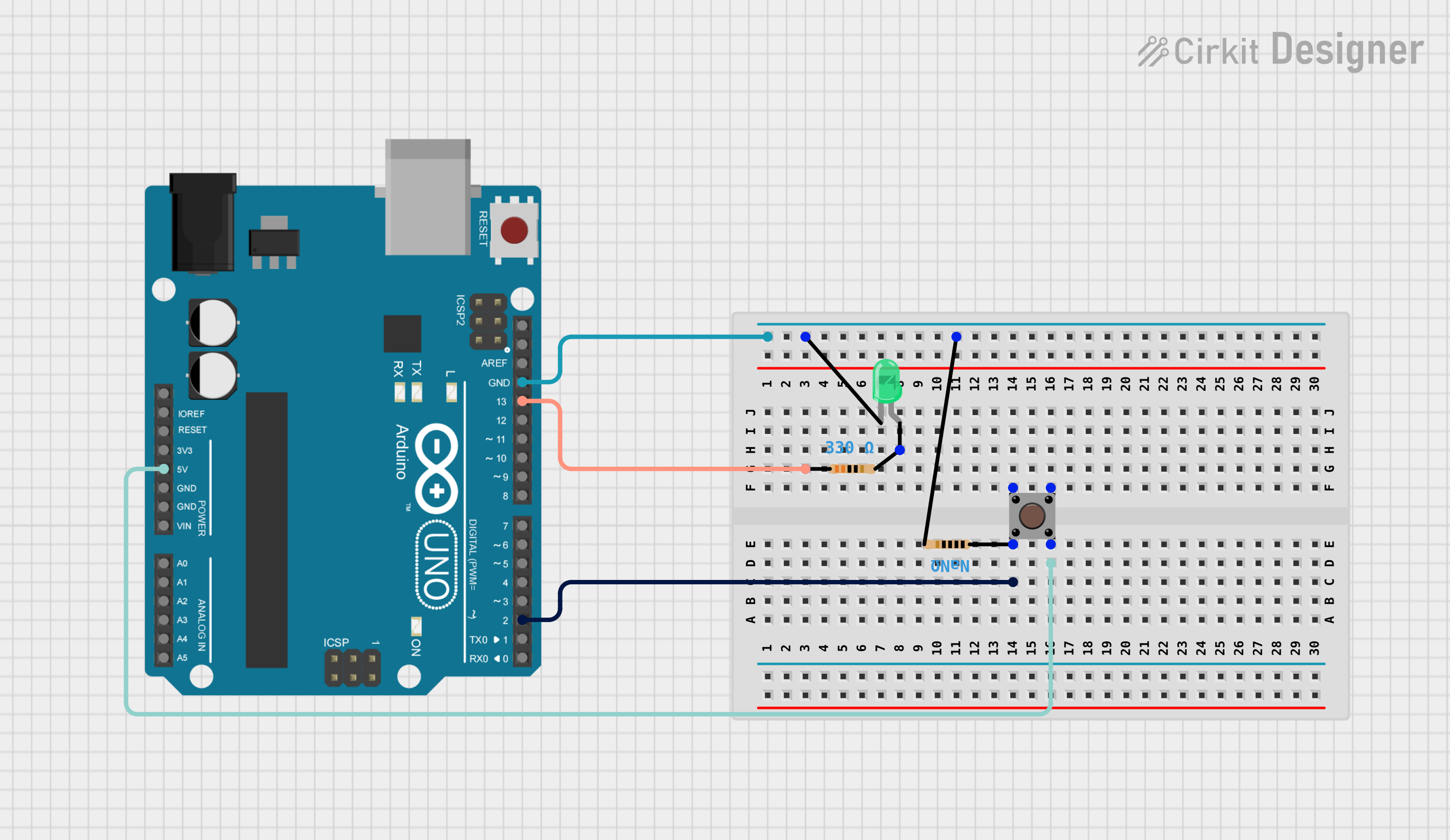
Below is an example of how to use the Grove Button with an Arduino UNO to detect button presses and light up an LED:
// Grove Button connected to digital pin 2
const int buttonPin = 2; // Pin where the button's SIG pin is connected
const int ledPin = 13;   // Built-in LED on Arduino UNO

void setup() {
  pinMode(buttonPin, INPUT); // Set button pin as input
  pinMode(ledPin, OUTPUT);  // Set LED pin as output
  Serial.begin(9600);       // Initialize serial communication
}

void loop() {
  int buttonState = digitalRead(buttonPin); // Read the button state

  if (buttonState == HIGH) {
    // Button is pressed
    digitalWrite(ledPin, HIGH); // Turn on the LED
    Serial.println("Button Pressed!"); // Print message to serial monitor
  } else {
    // Button is not pressed
    digitalWrite(ledPin, LOW); // Turn off the LED
  }

  delay(50); // Small delay to stabilize readings
}
Notes:
- The built-in LED on the Arduino UNO is used in this example for simplicity. You can connect an external LED if desired.
- The
delay(50)is optional but helps stabilize the button readings.
Troubleshooting and FAQs
Common Issues
Button not responding when pressed
- Ensure the Grove Button is properly connected to the microcontroller.
- Verify that the power supply voltage matches the component's requirements (3.3V or 5V).
- Check the Grove cable for any damage or loose connections.
Button signal is unstable
- The Grove Button includes a debouncing circuit, but if instability persists, ensure the microcontroller's input pin is configured correctly.
- Add a small delay (e.g., 50ms) in your code to filter out any residual noise.
Microcontroller not detecting button presses
- Confirm that the SIG pin is connected to the correct digital input pin on the microcontroller.
- Use a multimeter to check if the SIG pin outputs a HIGH signal when the button is pressed.
FAQs
Q: Can I use the Grove Button with a Raspberry Pi?
A: Yes, the Grove Button can be used with a Raspberry Pi. Connect the SIG pin to a GPIO pin on the Raspberry Pi and use a pull-down resistor if necessary. Libraries like RPi.GPIO can be used to read the button state.
Q: Is the Grove Button waterproof?
A: No, the Grove Button is not waterproof. Avoid exposing it to moisture or liquids.
Q: Can I use multiple Grove Buttons in a single project?
A: Yes, you can use multiple Grove Buttons by connecting each to a separate digital input pin on your microcontroller.
Q: Does the Grove Button support analog input?
A: No, the Grove Button outputs a digital signal (HIGH or LOW) and is designed for digital input pins.
By following this documentation, you can easily integrate the Grove Button into your projects and troubleshoot any issues that arise.