
How to Use toggle swich: Examples, Pinouts, and Specs

 Design with toggle swich in Cirkit Designer
Introduction
A toggle switch is a mechanical switch operated by a lever or handle, allowing the user to control the flow of electricity in a circuit. By toggling the switch between two positions, the circuit can be turned on or off. Toggle switches are widely used due to their simplicity, reliability, and ease of operation.
Explore Projects Built with toggle swich
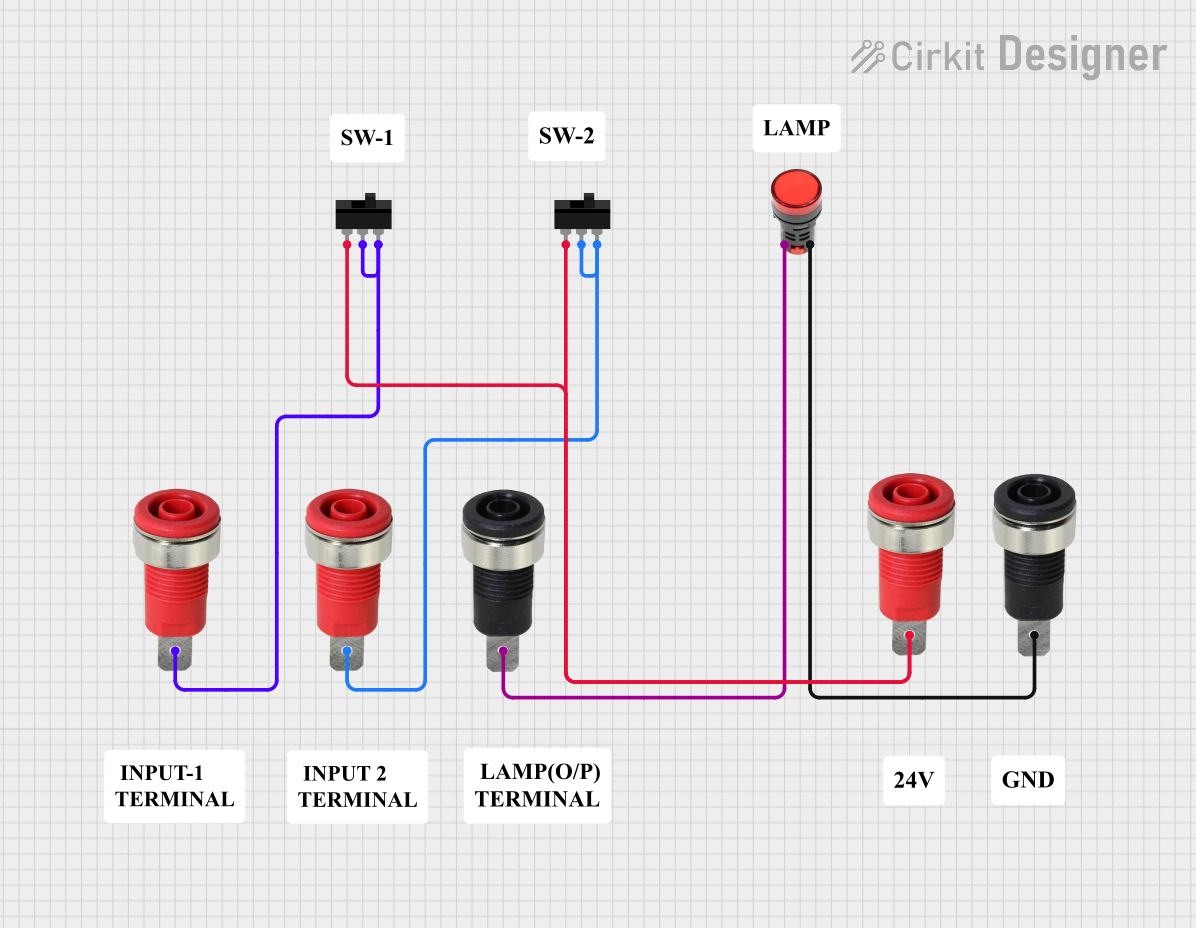 Open Project in Cirkit Designer
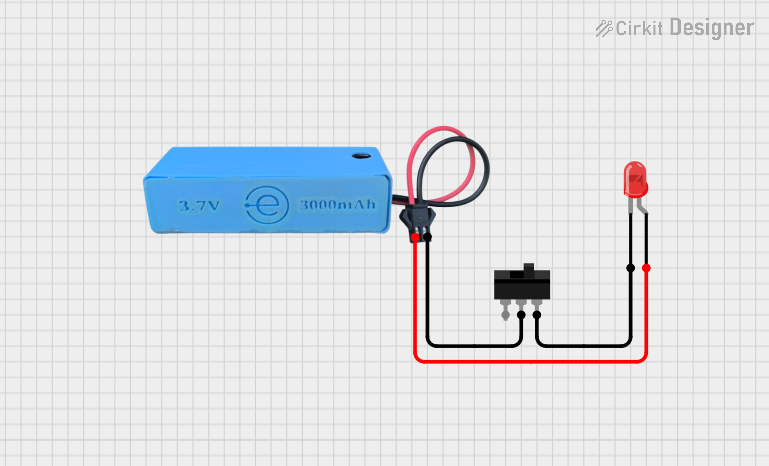 Open Project in Cirkit Designer
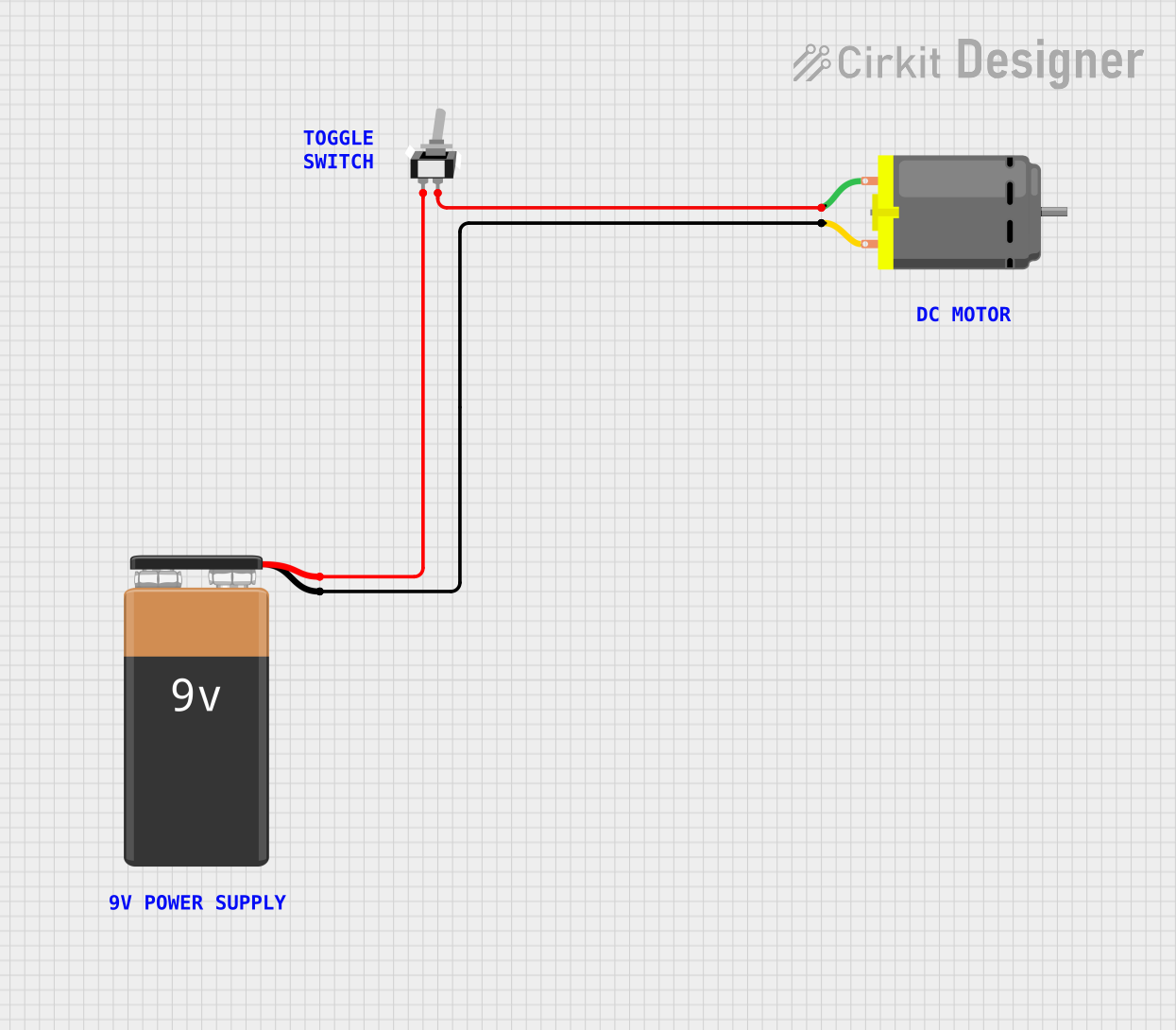 Open Project in Cirkit Designer
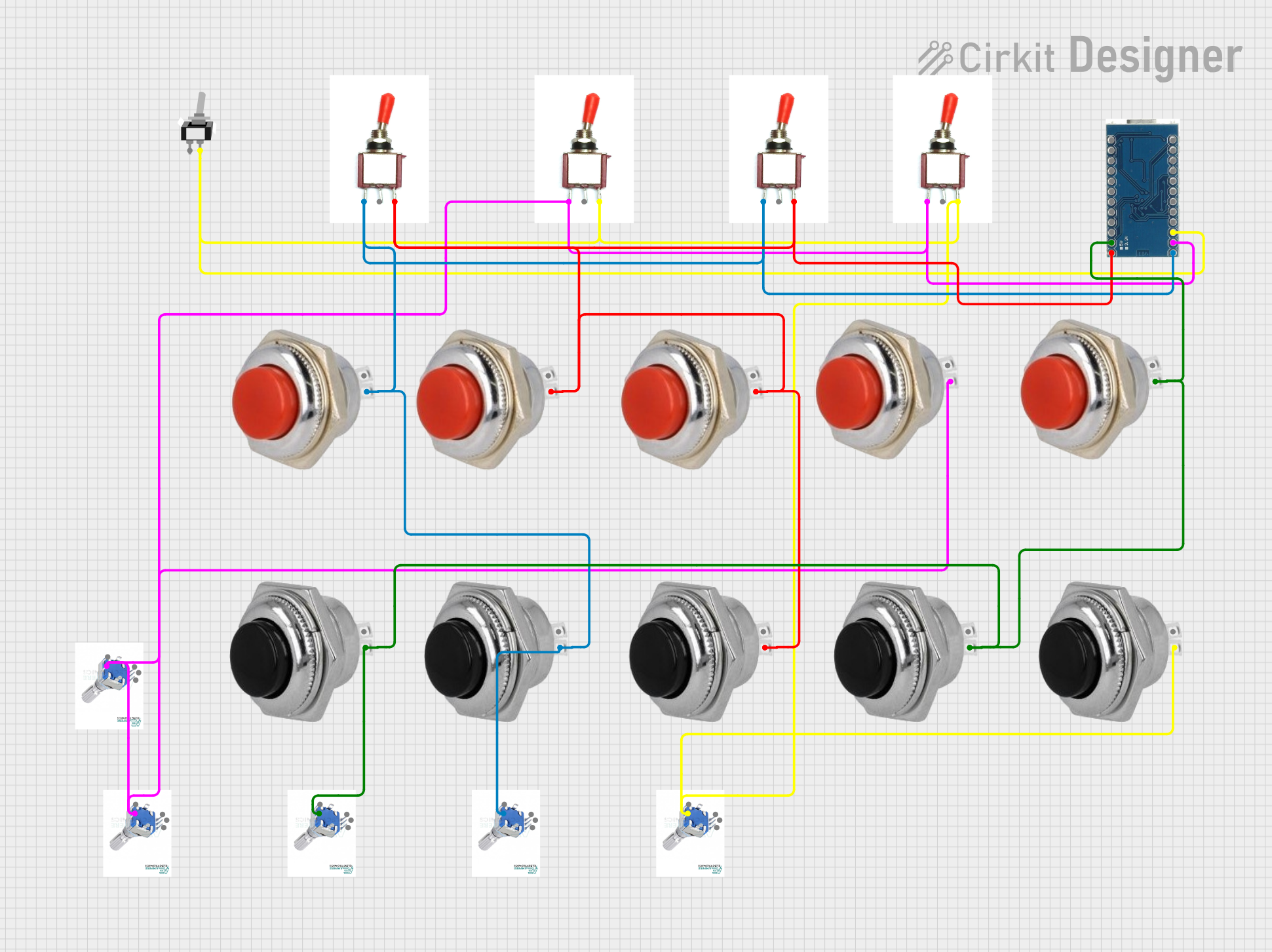 Open Project in Cirkit Designer
Explore Projects Built with toggle swich
Open Project in Cirkit DesignerOpen Project in Cirkit DesignerOpen Project in Cirkit DesignerOpen Project in Cirkit DesignerCommon Applications and Use Cases
- Power control for electronic devices and appliances
- Light switches in residential and industrial settings
- Automotive applications for controlling auxiliary systems
- Audio equipment for signal routing
- Robotics and DIY electronics projects
Technical Specifications
Toggle switches come in various types and configurations. Below are the general specifications for a standard Single Pole Single Throw (SPST) toggle switch:
| Parameter | Specification |
|---|---|
| Voltage Rating | 12V to 250V (AC or DC, depending on model) |
| Current Rating | 2A to 15A (varies by model) |
| Contact Resistance | ≤ 50 mΩ |
| Insulation Resistance | ≥ 100 MΩ |
| Operating Temperature | -20°C to 85°C |
| Mechanical Lifespan | 50,000 to 100,000 toggles |
Pin Configuration and Descriptions
The pin configuration of a toggle switch depends on its type. Below is the pinout for a basic SPST toggle switch:
| Pin | Description |
|---|---|
| Pin 1 | Input terminal (connect to the power source) |
| Pin 2 | Output terminal (connect to the load or circuit) |
For more complex toggle switches, such as Double Pole Double Throw (DPDT), additional pins are present to support multiple circuits or configurations.
Usage Instructions
How to Use a Toggle Switch in a Circuit
- Identify the Pins: For a basic SPST toggle switch, locate the two pins (input and output). For other types, refer to the datasheet or pinout diagram.
- Connect the Input: Attach the input pin to the positive terminal of the power source.
- Connect the Output: Attach the output pin to the load or circuit you wish to control.
- Secure the Connections: Use soldering or screw terminals to ensure a reliable connection.
- Mount the Switch: Install the toggle switch in a suitable enclosure or panel for easy access.
Important Considerations and Best Practices
- Voltage and Current Ratings: Ensure the toggle switch is rated for the voltage and current of your circuit to prevent overheating or failure.
- Debouncing: Mechanical switches may produce noise or "bouncing" when toggled. Use a capacitor or software debounce logic in sensitive circuits.
- Safety: Always disconnect power before wiring or modifying the switch to avoid electric shock or damage.
- Mounting: Use a panel or enclosure to protect the switch from accidental toggling or environmental factors.
Example: Using a Toggle Switch with an Arduino UNO
A toggle switch can be used as a digital input to control an Arduino project. Below is an example circuit and code:
Circuit Diagram
- Connect one pin of the toggle switch to Arduino pin 2 (digital input).
- Connect the other pin of the toggle switch to GND.
- Use a pull-up resistor (10kΩ) between Arduino pin 2 and 5V to ensure a stable signal.
Arduino Code
// Define the pin connected to the toggle switch
const int toggleSwitchPin = 2;

// Variable to store the state of the toggle switch
int switchState = 0;

void setup() {
  // Set the toggle switch pin as input
  pinMode(toggleSwitchPin, INPUT);

  // Initialize serial communication for debugging
  Serial.begin(9600);
}

void loop() {
  // Read the state of the toggle switch
  switchState = digitalRead(toggleSwitchPin);

  // Print the state to the Serial Monitor
  if (switchState == HIGH) {
    Serial.println("Switch is ON");
  } else {
    Serial.println("Switch is OFF");
  }

  // Add a small delay to avoid spamming the Serial Monitor
  delay(500);
}
Troubleshooting and FAQs
Common Issues
- Switch Not Working:
- Check the wiring and ensure the connections are secure.
- Verify that the switch is rated for the voltage and current of your circuit.
- Flickering or Unstable Output:
- This may be caused by switch bouncing. Add a capacitor or debounce logic in your circuit.
- Overheating:
- Ensure the switch is not overloaded. Use a switch with a higher current rating if necessary.
FAQs
Q: Can I use a toggle switch to control AC devices?
A: Yes, but ensure the switch is rated for the AC voltage and current of your device.
Q: What is the difference between SPST and DPDT toggle switches?
A: SPST (Single Pole Single Throw) switches control a single circuit, while DPDT (Double Pole Double Throw) switches can control two circuits and offer more configuration options.
Q: How do I debounce a toggle switch in software?
A: Use a delay or a state-checking algorithm in your code to filter out rapid changes caused by mechanical bouncing.
By following this documentation, you can effectively use a toggle switch in your projects and troubleshoot common issues.