
How to Use Capacitive button: Examples, Pinouts, and Specs
 Design with Capacitive button in Cirkit Designer
Introduction
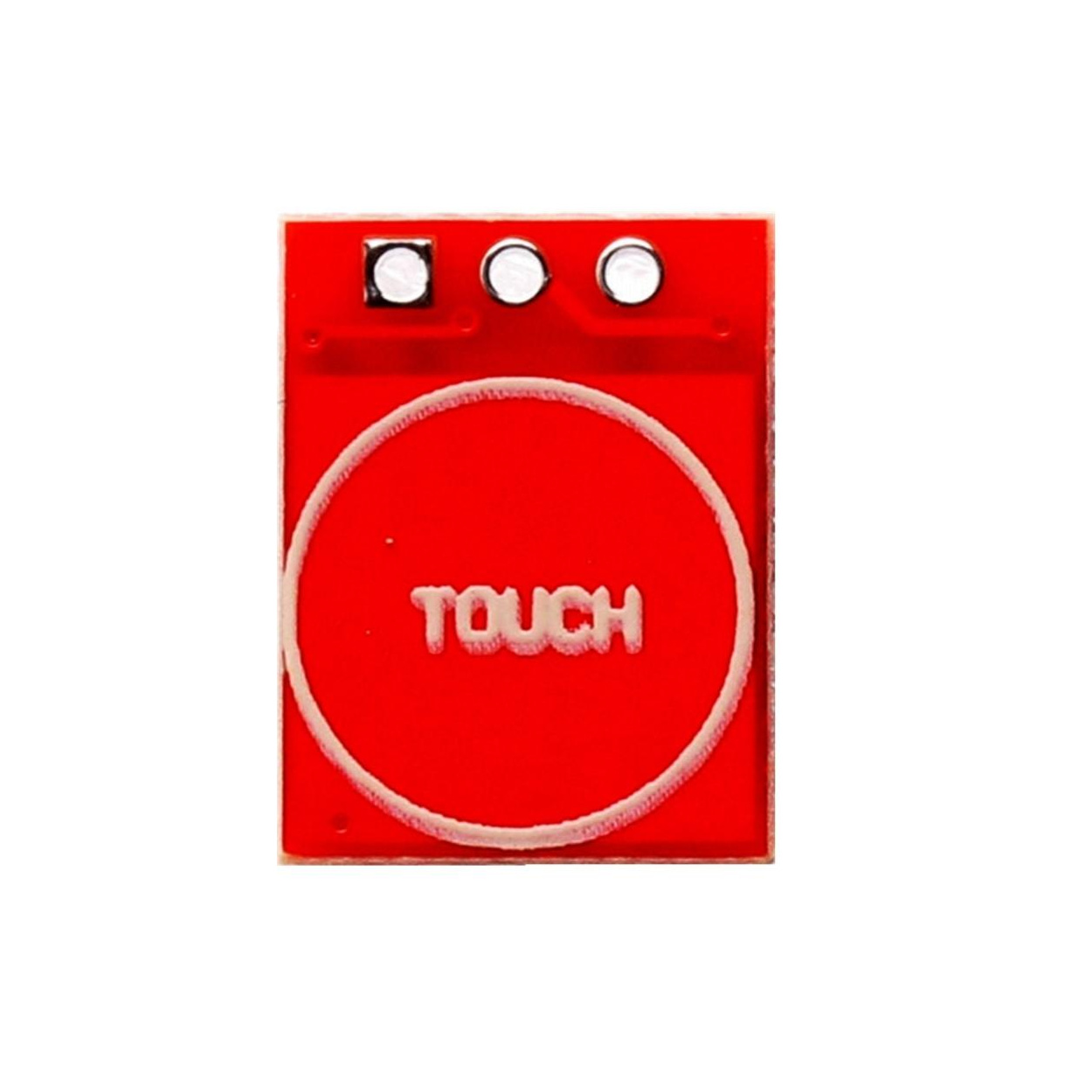
The TTP223 capacitive button, manufactured by Arduino, is a touch-sensitive switch that detects the presence of a finger or conductive object. This component enables user input without requiring mechanical movement, making it ideal for sleek, modern designs. It is widely used in touch-based interfaces, replacing traditional mechanical buttons for enhanced durability and aesthetic appeal.
Explore Projects Built with Capacitive button
 Open Project in Cirkit Designer
 Open Project in Cirkit Designer
 Open Project in Cirkit Designer
 Open Project in Cirkit Designer
Explore Projects Built with Capacitive button
Open Project in Cirkit DesignerOpen Project in Cirkit DesignerOpen Project in Cirkit DesignerOpen Project in Cirkit DesignerCommon Applications and Use Cases
- Touch-sensitive control panels
- Home automation systems
- Wearable devices
- Consumer electronics (e.g., lamps, appliances)
- Interactive kiosks and displays
Technical Specifications
The TTP223 capacitive button is a compact and efficient touch sensor module. Below are its key technical details:
Key Technical Details
- Operating Voltage: 2.0V to 5.5V DC
- Operating Current: 1.5µA (low power mode), 3mA (active mode)
- Response Time: ~60ms (fast mode), ~220ms (low power mode)
- Output Type: Digital (active high or active low, configurable)
- Touch Sensitivity: Adjustable via onboard capacitor
- Operating Temperature: -30°C to +85°C
- Dimensions: 11mm x 15mm (module size)
Pin Configuration and Descriptions
The TTP223 module typically has 3 pins. Below is the pinout and description:
| Pin | Name | Description |
|---|---|---|
| 1 | VCC | Power supply input (2.0V to 5.5V DC). |
| 2 | GND | Ground connection. |
| 3 | OUT | Digital output pin. Outputs HIGH or LOW based on touch detection. |
Usage Instructions
How to Use the TTP223 in a Circuit
- Power the Module: Connect the
VCCpin to a 3.3V or 5V power source and theGNDpin to ground. - Connect the Output: Connect the
OUTpin to a microcontroller input pin (e.g., Arduino UNO digital pin) or directly to a circuit that requires a digital signal. - Adjust Sensitivity (Optional): If needed, adjust the touch sensitivity by changing the onboard capacitor (default is 0.1µF).
- Configure Output Mode (Optional): The TTP223 supports two modes:
- Active High: The
OUTpin goes HIGH when touched. - Active Low: The
OUTpin goes LOW when touched. This can be configured by soldering the appropriate jumper pads on the module.
- Active High: The
Important Considerations and Best Practices
- Avoid Noise Interference: Place the module away from high-frequency components to prevent false triggering.
- Stable Power Supply: Use a decoupling capacitor (e.g., 0.1µF) near the
VCCpin to ensure stable operation. - Touch Surface: For optimal performance, ensure the touch surface is clean and free of debris.
- Output Pull-Up/Down Resistor: If the output is connected to a microcontroller, ensure the pin is configured with the appropriate pull-up or pull-down resistor.
Example: Connecting to an Arduino UNO
Below is an example of how to connect and use the TTP223 with an Arduino UNO:
Circuit Connections
VCC→ 5V on ArduinoGND→ GND on ArduinoOUT→ Digital Pin 2 on Arduino
Arduino Code
// Define the pin connected to the TTP223 OUT pin
const int touchPin = 2;
const int ledPin = 13; // Built-in LED on Arduino UNO

void setup() {
  pinMode(touchPin, INPUT); // Set touchPin as input
  pinMode(ledPin, OUTPUT);  // Set ledPin as output
  Serial.begin(9600);       // Initialize serial communication
}

void loop() {
  int touchState = digitalRead(touchPin); // Read the state of the touch sensor

  if (touchState == HIGH) {
    // If touch is detected, turn on the LED
    digitalWrite(ledPin, HIGH);
    Serial.println("Touch detected!");
  } else {
    // If no touch is detected, turn off the LED
    digitalWrite(ledPin, LOW);
  }

  delay(100); // Small delay to debounce the touch input
}
Troubleshooting and FAQs
Common Issues and Solutions
False Triggering or Unstable Output
- Cause: Electrical noise or unstable power supply.
- Solution: Add a decoupling capacitor (e.g., 0.1µF) near the
VCCpin and ensure proper grounding.
No Response to Touch
- Cause: Incorrect wiring or insufficient sensitivity.
- Solution: Double-check the connections and ensure the
VCCandGNDpins are properly connected. If needed, increase the sensitivity by replacing the onboard capacitor with a higher value.
Output Always HIGH or LOW
- Cause: Incorrect configuration of the output mode.
- Solution: Verify the jumper pad configuration on the module and ensure it matches the desired output mode (active high or active low).
FAQs
Q: Can the TTP223 detect touch through non-conductive materials?
A: Yes, the TTP223 can detect touch through thin non-conductive materials like plastic or glass. However, the thickness and material type may affect sensitivity.
Q: How do I increase the touch sensitivity?
A: Increase the value of the onboard capacitor (default is 0.1µF). For example, replacing it with a 0.22µF capacitor will increase sensitivity.
Q: Can I use multiple TTP223 modules in the same circuit?
A: Yes, multiple modules can be used. Ensure each module has a stable power supply and is placed away from sources of interference.
Q: Is the TTP223 compatible with 3.3V systems?
A: Yes, the TTP223 operates within a voltage range of 2.0V to 5.5V, making it compatible with both 3.3V and 5V systems.