The ELEGOO 2.8 Inches TFT Touch Screen is a versatile and colorful display module designed for interfacing with microcontrollers such as the Arduino UNO. It features a resistive touch panel which allows for user input, making it suitable for a wide range of interactive projects. The inclusion of an SD card slot provides additional storage for images, data logs, or other files, enhancing the module's capability for projects that require external data storage.
Explore Projects Built with ELEGOO 2.8 Inches TFT Touch Screen with SD Card
Use Cirkit Designer to design, explore, and prototype these projects online. Some projects support real-time simulation. Click "Open Project" to start designing instantly!
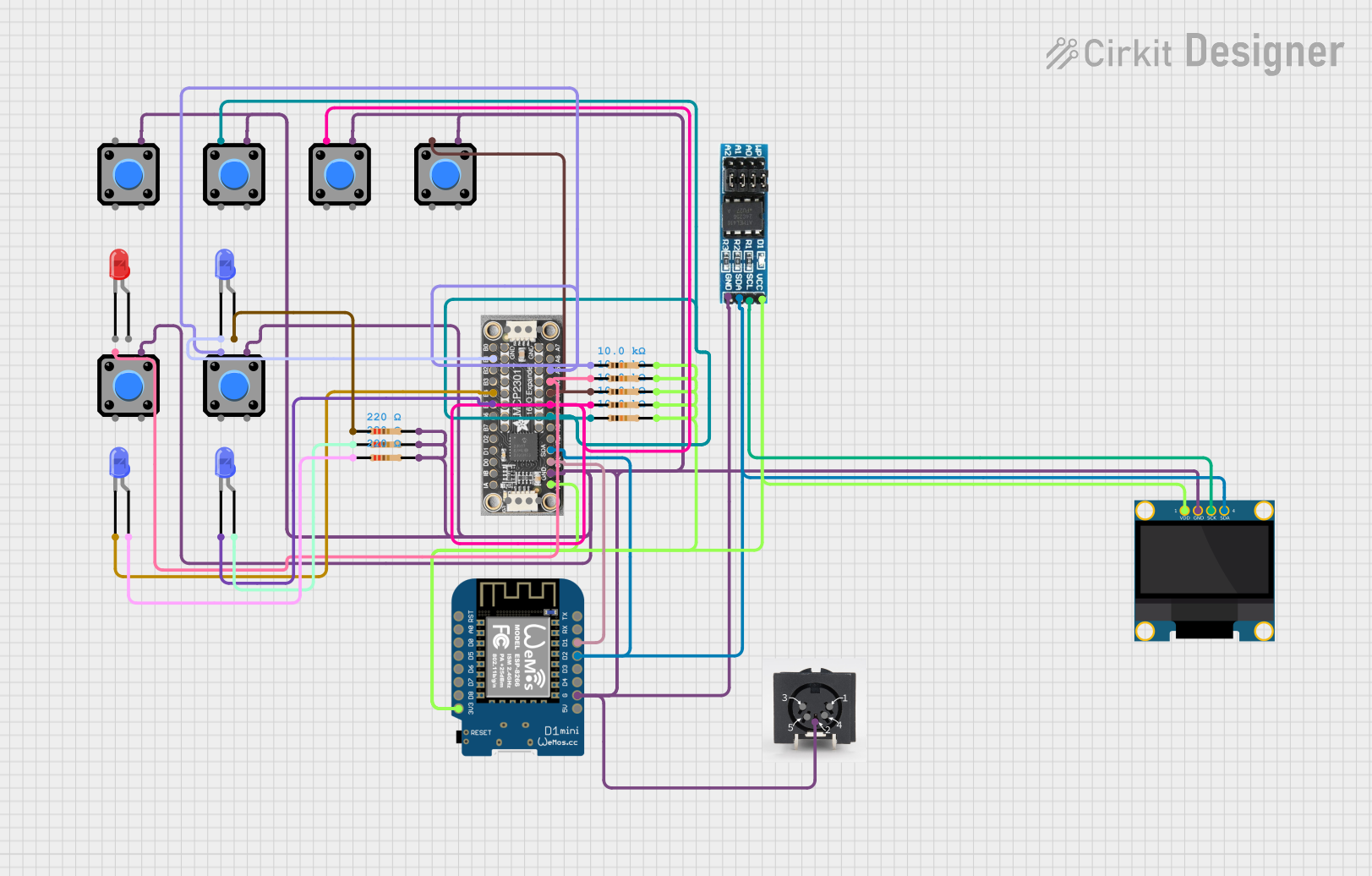
This is a microcontroller-based interactive device featuring a Wemos D1 Mini, an OLED display, external EEPROM, and an I/O expander. It includes user input buttons and status LEDs, with potential MIDI interface capabilities.
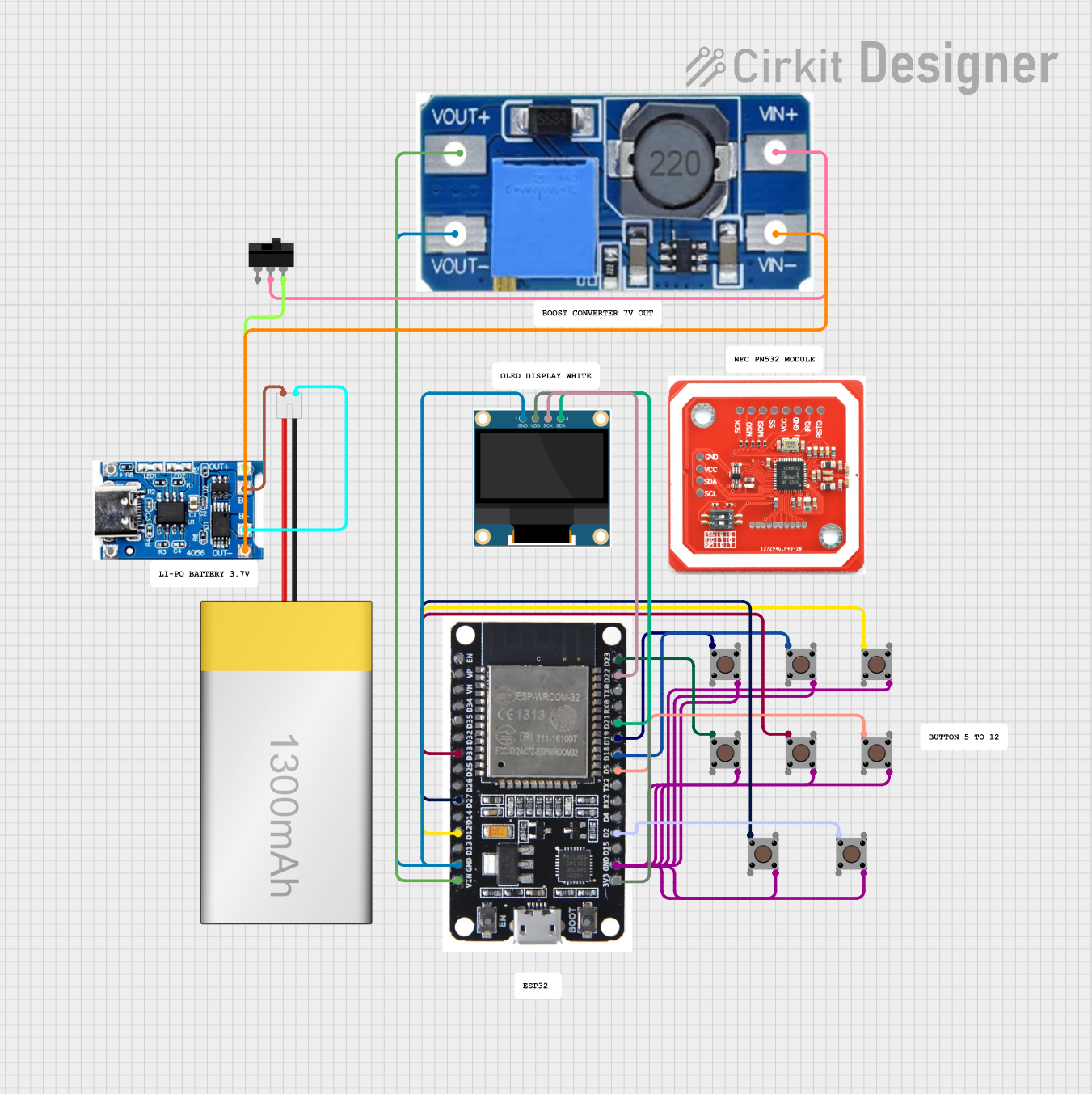
This circuit features an ESP32 microcontroller connected to a 0.96" OLED display via I2C (SCK and SDA lines), multiple pushbuttons interfaced to various GPIO pins for input, and a LiPoly battery connected through a TP4056 charging/protection module to power the system. A step-up boost power converter adjusts the battery voltage to supply the ESP32 and OLED display. The toggle switch controls the power flow from the battery to the converter, enabling an on/off functionality for the circuit.
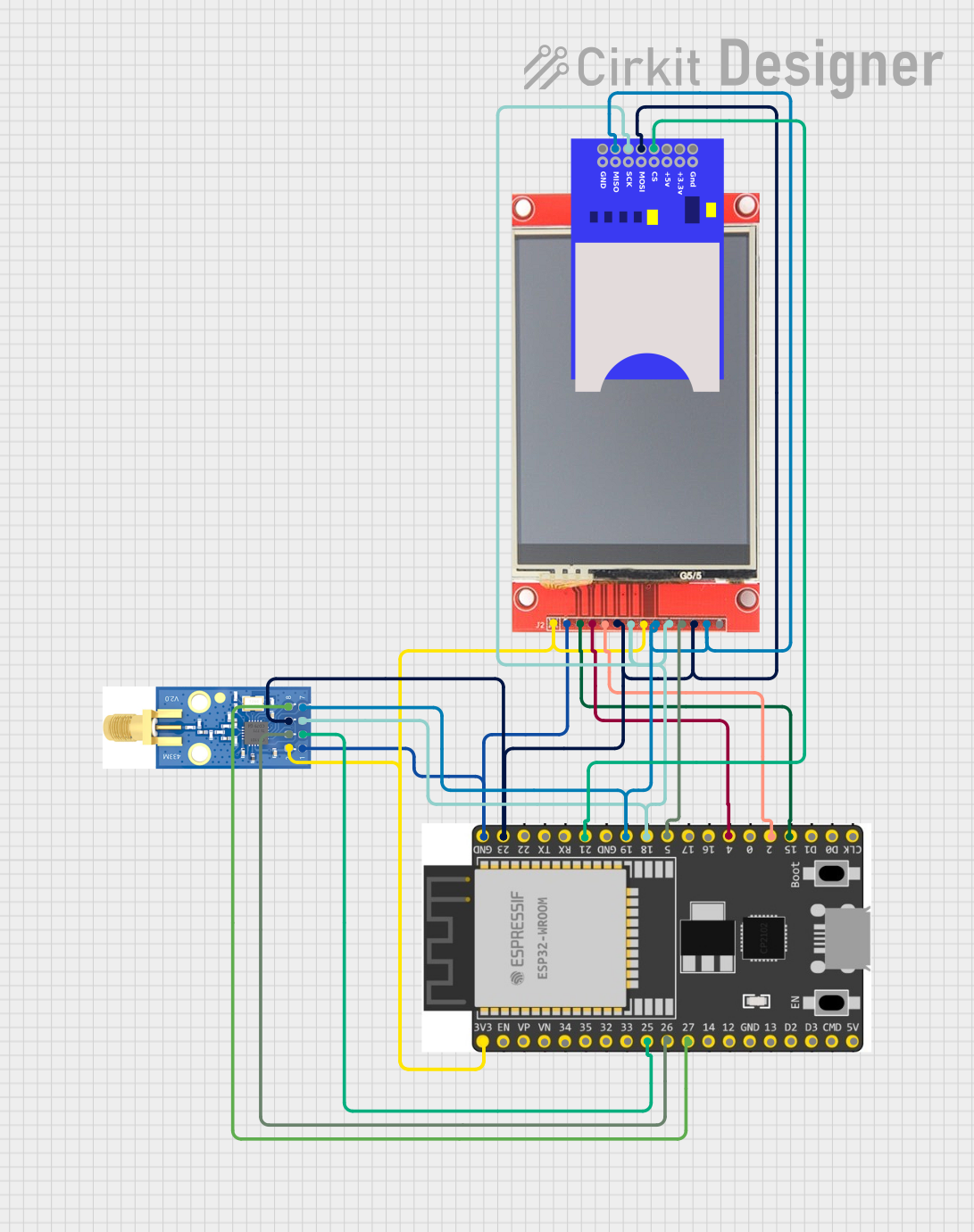
This circuit features an ESP32 microcontroller connected to an ili9341 TFT display, an SD card module, and an E07-M1101D RF transceiver module. The ESP32 controls the display via GPIO pins and communicates with both the SD card and the RF module using SPI communication. The circuit is likely designed for applications requiring a user interface, data storage, and wireless communication capabilities.
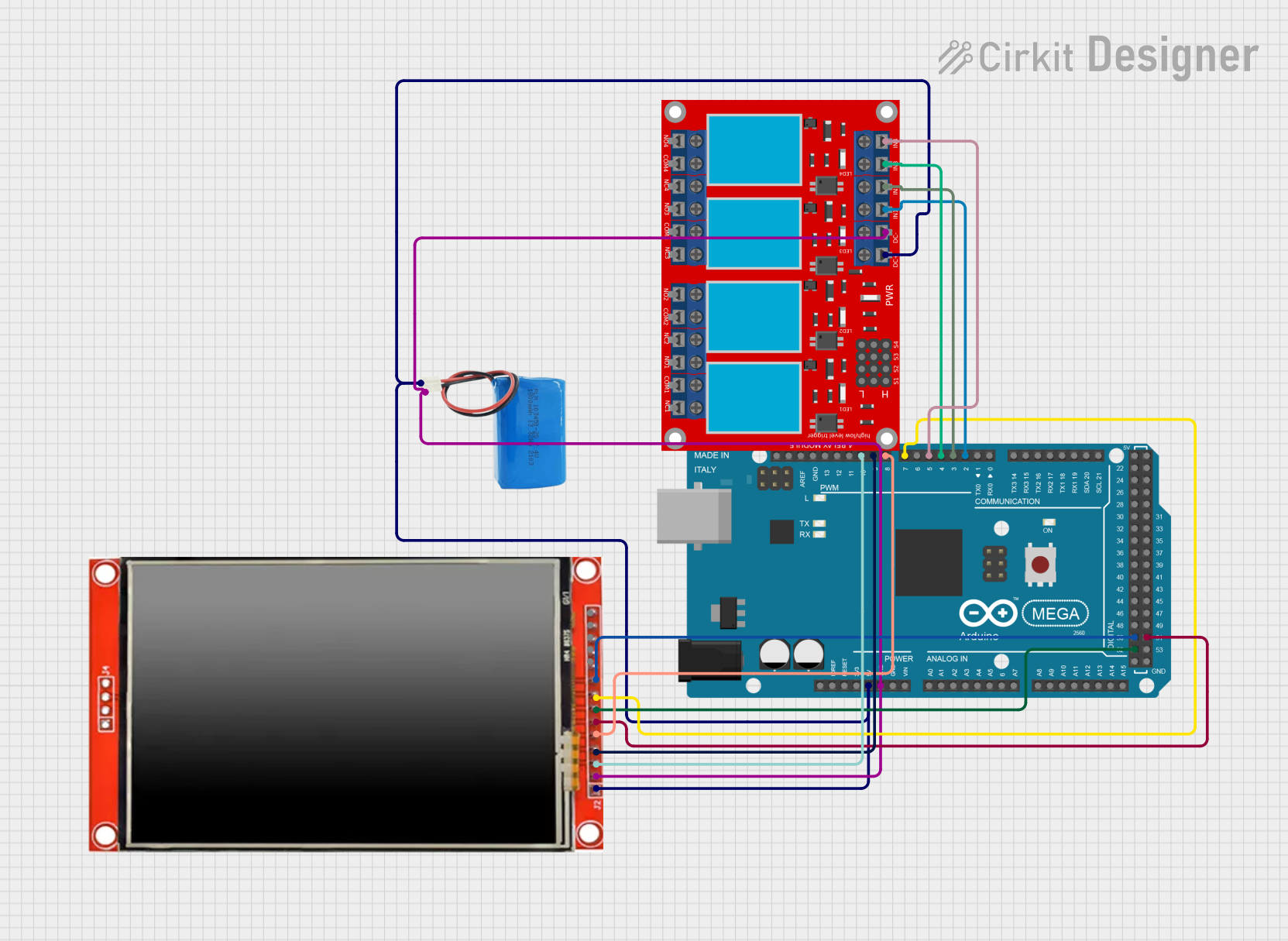
This circuit features an Arduino Mega 2560 microcontroller connected to an ILI9488 HD TFT LCD screen and a 4-channel relay module, powered by a 5V battery. The Arduino controls the LCD to display interactive buttons and uses digital output pins to toggle the state of the relays based on touch input. The code provided facilitates a user interface on the LCD for controlling devices connected to the relays, making it suitable for home automation or similar applications.
Power Connections: Connect the VCC pin to the 5V output on the Arduino and the GND pin to one of the Arduino's ground pins.
SPI Connections: Connect the SCK, MOSI, and MISO pins to the corresponding SPI pins on the Arduino.
Control Pins: Connect the CS, RESET, and D/C pins to digital pins on the Arduino (these can be defined in software).
Touch Pins: Connect T_CLK, T_CS, T_DIN, T_DO, and T_IRQ to digital pins on the Arduino.
Backlight: The LED pin can be connected to a PWM-capable pin for backlight control or directly to 3.3V for constant backlight.
Important Considerations and Best Practices
Use a level shifter or logic level converter if you are interfacing with a 5V microcontroller to protect the 3.3V logic of the TFT display.
Ensure that the touch screen and SD card SPI lines are not in conflict; they may need to be selectively enabled/disabled in your code.
For optimal performance, use a library that supports this specific TFT model and test the touch screen calibration before implementing it in your project.
Example Arduino Code
#include <Elegoo_TFTLCD.h> // Include the Elegoo TFT library
#include <TouchScreen.h>    // Include the touch screen library

// Pin definitions
#define LCD_CS A3 // Chip Select
#define LCD_CD A2 // Command/Data
#define LCD_WR A1 // LCD Write
#define LCD_RD A0 // LCD Read
#define LCD_RESET A4 // LCD reset

// Initialize the TFT library
Elegoo_TFTLCD tft(LCD_CS, LCD_CD, LCD_WR, LCD_RD, LCD_RESET);

void setup() {
  tft.reset();
  tft.begin(0x9341); // Pass the driver chip type to the library
  tft.setRotation(1); // Set rotation
  tft.fillScreen(BLACK); // Clear the screen to black
}

void loop() {
  // Your code to interact with the touch screen goes here
}
Troubleshooting and FAQs
Common Issues Users Might Face
Display not powering on: Check the power connections and ensure that the voltage is within the specified range.
Touch not responsive: Verify the touch screen connections and calibrate the touch screen using the library's calibration sketch.
SD card not reading: Ensure that the SD card is formatted correctly and the SD_CS pin is properly connected and configured in your code.
Solutions and Tips for Troubleshooting
Double-check all wiring against the pin configuration table.
Use example sketches provided by the TFT and touch screen libraries to test each function separately.
Update to the latest version of the libraries used for the TFT display and touch screen.
Consult the Arduino forums and the ELEGOO community for help if you encounter issues that are not covered in this documentation.
FAQs
Q: Can I use this screen with other microcontrollers besides Arduino?
A: Yes, as long as the microcontroller supports SPI communication and operates at a compatible voltage level.
Q: How do I adjust the screen brightness?
A: The screen brightness can be adjusted by applying a PWM signal to the LED pin.
Q: What should I do if I see white spots or lines on the display?
A: White spots or lines can indicate a hardware issue. Check the display connections and contact the manufacturer if the problem persists.
Q: How can I extend the life of the touch screen?
A: Avoid applying excessive force to the touch screen and protect it from sharp objects that could scratch or damage the surface.

 Open Project in Cirkit Designer