
How to Use IR SENSOR: Examples, Pinouts, and Specs
 Design with IR SENSOR in Cirkit Designer
Introduction
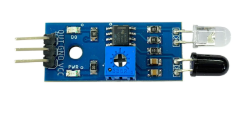
An IR (Infrared) sensor is an electronic device that detects infrared radiation emitted by objects. It is widely used in applications such as motion detection, proximity sensing, and remote control systems. IR sensors are versatile and can be found in devices like automatic doors, burglar alarms, and even TV remote controls. They are valued for their ability to detect objects or measure distances without physical contact.
Explore Projects Built with IR SENSOR
 Open Project in Cirkit Designer
 Open Project in Cirkit Designer
 Open Project in Cirkit Designer
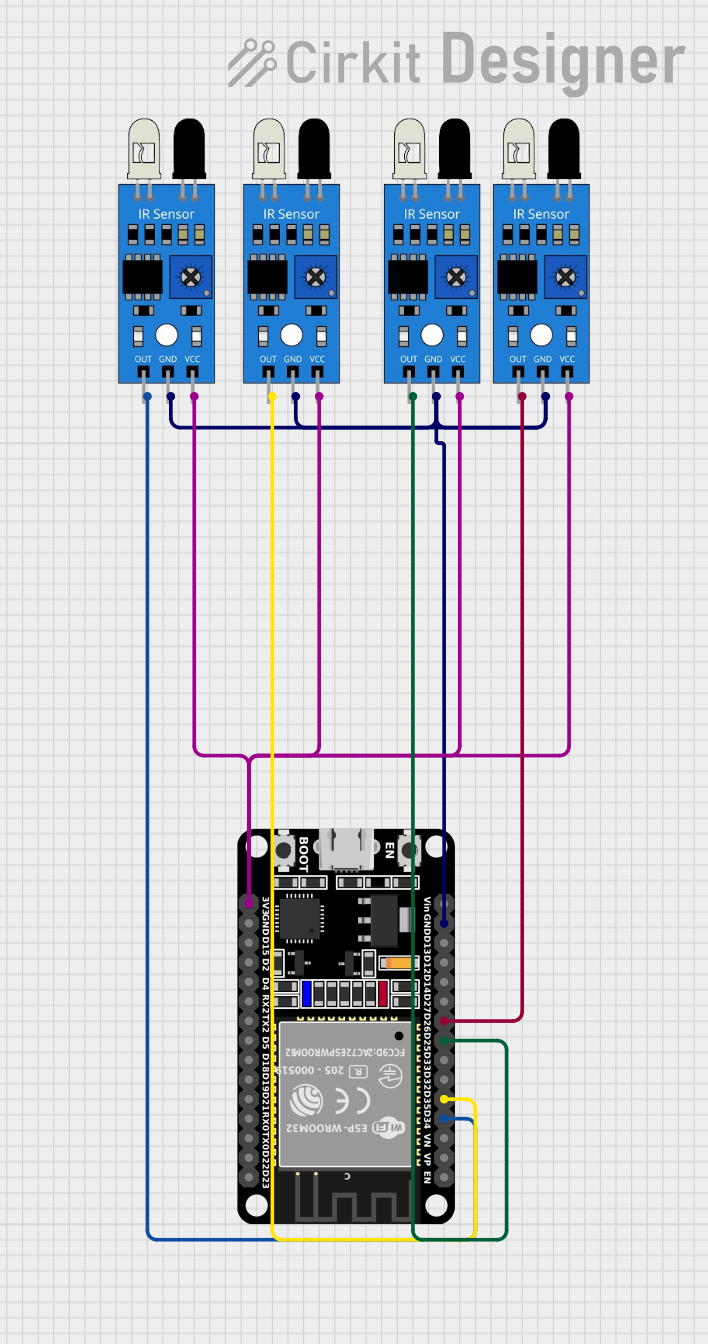 Open Project in Cirkit Designer
Explore Projects Built with IR SENSOR
Open Project in Cirkit DesignerOpen Project in Cirkit DesignerOpen Project in Cirkit DesignerOpen Project in Cirkit DesignerTechnical Specifications
Below are the key technical details of a typical IR sensor:
- Operating Voltage: 3.3V to 5V DC
- Current Consumption: 20mA (typical)
- Detection Range: 2cm to 30cm (varies by model)
- Output Type: Digital (High/Low) or Analog (depending on the model)
- Wavelength: 700nm to 1mm (infrared spectrum)
- Operating Temperature: -25°C to 85°C
Pin Configuration and Descriptions
The IR sensor typically has three pins. The table below describes each pin:
| Pin Number | Pin Name | Description |
|---|---|---|
| 1 | VCC | Power supply pin (3.3V to 5V DC) |
| 2 | GND | Ground pin |
| 3 | OUT | Output pin (Digital or Analog signal) |
Note: Some IR sensors may have additional pins for sensitivity adjustment or mode selection. Refer to the specific datasheet for your sensor model.
Usage Instructions
How to Use the IR Sensor in a Circuit
- Power the Sensor: Connect the VCC pin to a 3.3V or 5V power source and the GND pin to the ground.
- Connect the Output: Attach the OUT pin to a microcontroller's input pin (e.g., Arduino) or directly to an LED/buzzer for basic applications.
- Adjust Sensitivity: If your IR sensor has a potentiometer, adjust it to set the detection range.
- Test the Sensor: Place an object within the detection range and observe the output signal.
Important Considerations and Best Practices
- Avoid Ambient Light Interference: IR sensors can be affected by sunlight or other strong light sources. Use them in controlled lighting conditions or shield the sensor.
- Maintain Proper Distance: Ensure the object is within the sensor's specified detection range for accurate readings.
- Use Pull-Up Resistors: For digital output sensors, use a pull-up resistor if the output pin is open-drain.
- Power Supply Stability: Use a stable power source to avoid erratic behavior.
Example: Connecting an IR Sensor to Arduino UNO
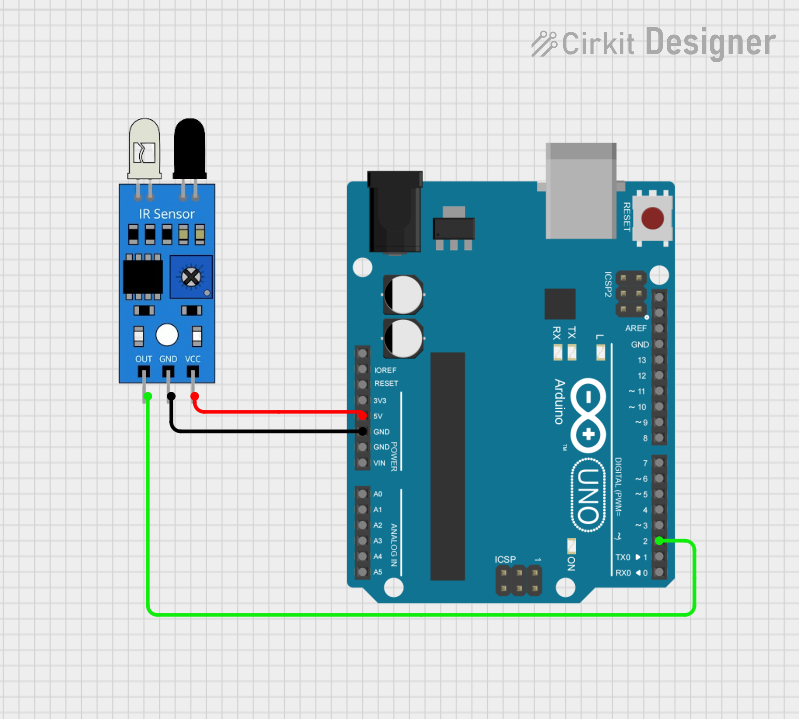
Below is an example of how to connect and use an IR sensor with an Arduino UNO:
Circuit Connections
- VCC: Connect to Arduino's 5V pin.
- GND: Connect to Arduino's GND pin.
- OUT: Connect to Arduino's digital pin 2.
Arduino Code
// IR Sensor Example Code for Arduino UNO
// This code reads the digital output of the IR sensor and turns on an LED
// when an object is detected.

const int irSensorPin = 2;  // IR sensor output pin connected to digital pin 2
const int ledPin = 13;      // Built-in LED pin on Arduino

void setup() {
  pinMode(irSensorPin, INPUT);  // Set IR sensor pin as input
  pinMode(ledPin, OUTPUT);      // Set LED pin as output
  Serial.begin(9600);           // Initialize serial communication
}

void loop() {
  int sensorValue = digitalRead(irSensorPin);  // Read the IR sensor output

  if (sensorValue == LOW) {
    // Object detected (LOW signal from IR sensor)
    digitalWrite(ledPin, HIGH);  // Turn on the LED
    Serial.println("Object detected!");
  } else {
    // No object detected (HIGH signal from IR sensor)
    digitalWrite(ledPin, LOW);   // Turn off the LED
    Serial.println("No object detected.");
  }

  delay(100);  // Small delay for stability
}
Troubleshooting and FAQs
Common Issues and Solutions
The sensor is not detecting objects:
- Ensure the object is within the detection range.
- Check the power supply connections and voltage levels.
- Adjust the sensitivity potentiometer (if available).
False triggers or erratic behavior:
- Reduce ambient light interference by shielding the sensor.
- Use a decoupling capacitor (e.g., 0.1µF) across the power supply pins.
Output signal is always HIGH or LOW:
- Verify the wiring and ensure the OUT pin is connected correctly.
- Test the sensor with a multimeter to confirm it is functioning.
FAQs
Q: Can the IR sensor detect transparent objects?
A: IR sensors may struggle to detect transparent or reflective objects. Use specialized sensors for such applications.
Q: What is the difference between digital and analog IR sensors?
A: Digital IR sensors provide a HIGH/LOW output, while analog IR sensors output a voltage proportional to the detected object's distance.
Q: Can I use an IR sensor outdoors?
A: Yes, but you must account for sunlight interference, which can affect performance. Use an IR sensor with ambient light filtering for better results.