
How to Use mcudev_tft1.44: Examples, Pinouts, and Specs
 Design with mcudev_tft1.44 in Cirkit Designer
Introduction
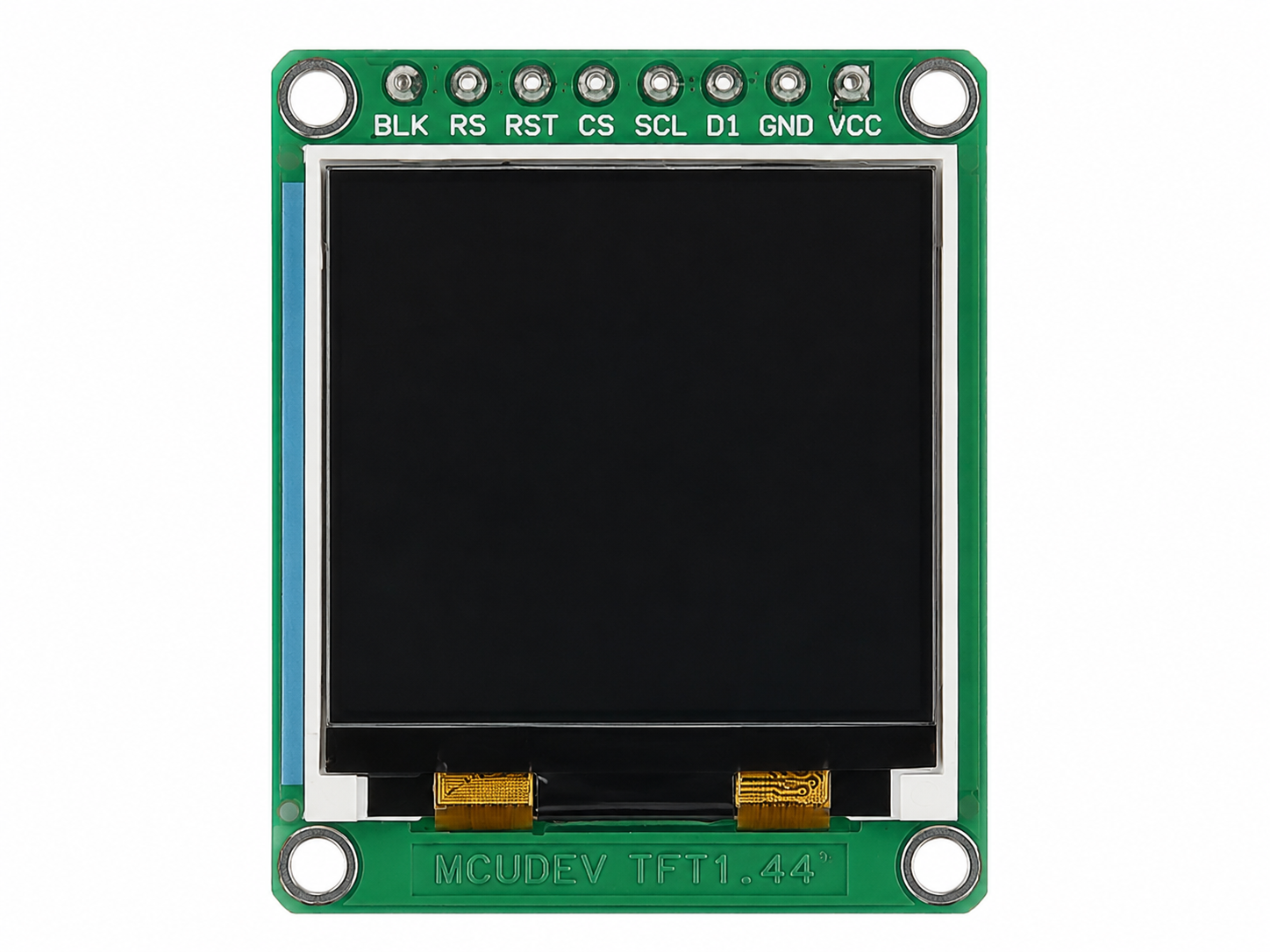
The MCUDEV_TFT1.44 is a compact 1.44-inch TFT display module designed for use in microcontroller-based applications. With a resolution of 128x128 pixels, this module is ideal for displaying graphics, text, and simple animations in embedded systems. It features a vibrant color display and is commonly used in projects requiring a small, low-power graphical interface.
Explore Projects Built with mcudev_tft1.44
 Open Project in Cirkit Designer
 Open Project in Cirkit Designer
 Open Project in Cirkit Designer
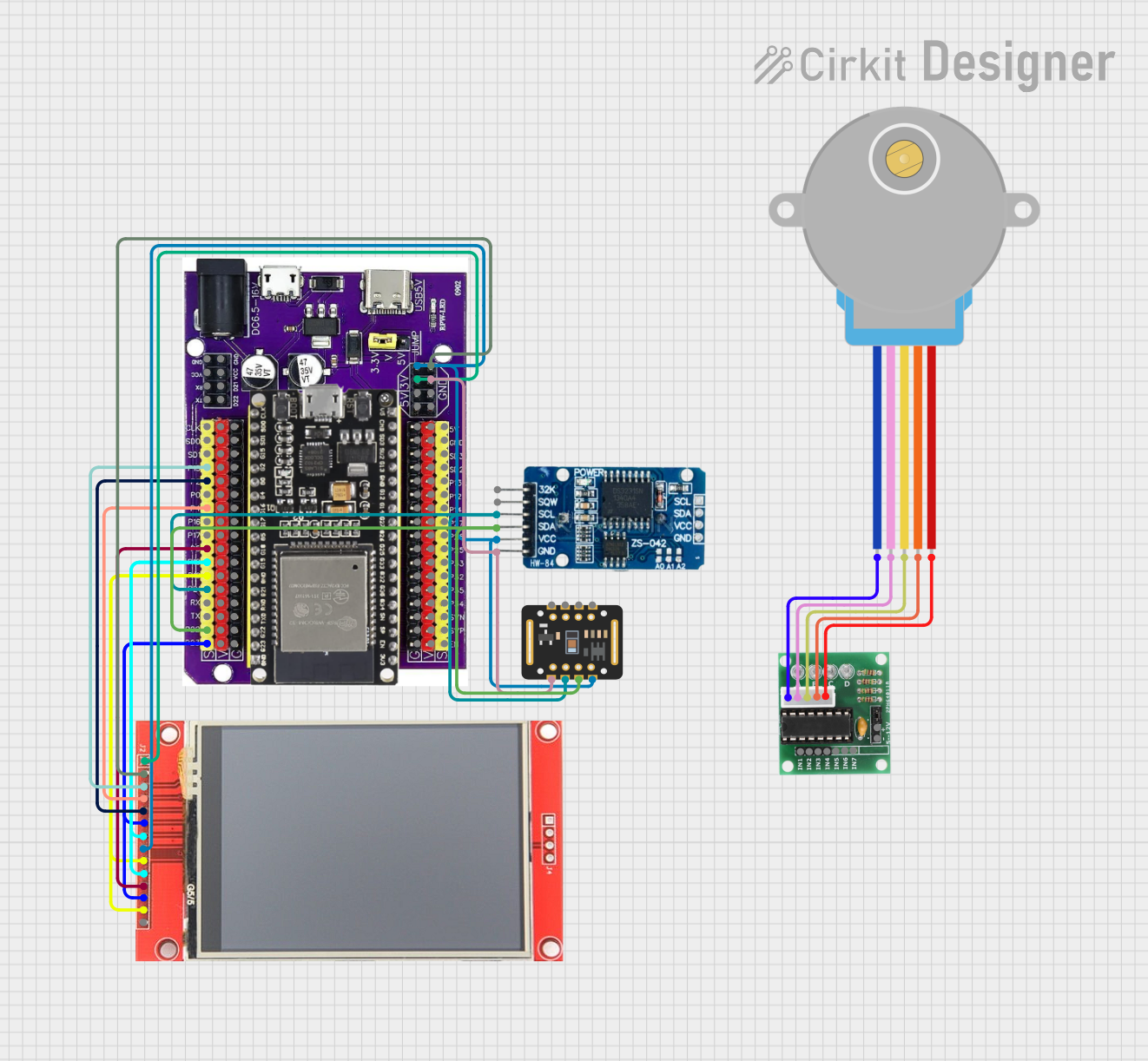 Open Project in Cirkit Designer
Explore Projects Built with mcudev_tft1.44
Open Project in Cirkit DesignerOpen Project in Cirkit DesignerOpen Project in Cirkit DesignerOpen Project in Cirkit DesignerCommon Applications
- Wearable devices
- IoT dashboards
- Portable measurement tools
- Educational and hobbyist projects
- Small graphical user interfaces (GUIs) for embedded systems
Technical Specifications
The following table outlines the key technical details of the MCUDEV_TFT1.44 module:
| Parameter | Value |
|---|---|
| Display Type | TFT (Thin Film Transistor) |
| Screen Size | 1.44 inches |
| Resolution | 128x128 pixels |
| Color Depth | 65K colors (16-bit RGB) |
| Interface Type | SPI (Serial Peripheral Interface) |
| Operating Voltage | 3.3V (logic level) |
| Backlight Voltage | 3.3V |
| Current Consumption | ~20mA (typical) |
| Controller IC | ST7735 |
| Dimensions | 27mm x 27mm x 4.5mm |
Pin Configuration
The MCUDEV_TFT1.44 module has an 8-pin interface. The table below describes each pin:
| Pin | Name | Description |
|---|---|---|
| 1 | GND | Ground connection |
| 2 | VCC | Power supply (3.3V) |
| 3 | SCL | Serial Clock (SPI clock input) |
| 4 | SDA | Serial Data (SPI data input) |
| 5 | RES | Reset pin (active low) |
| 6 | DC | Data/Command control pin |
| 7 | CS | Chip Select (active low) |
| 8 | BLK | Backlight control (connect to 3.3V for always on) |
Usage Instructions
Connecting the MCUDEV_TFT1.44 to a Microcontroller
To use the MCUDEV_TFT1.44 module, connect it to a microcontroller such as an Arduino UNO. Below is a typical wiring configuration:
| TFT Pin | Arduino UNO Pin |
|---|---|
| GND | GND |
| VCC | 3.3V |
| SCL | D13 (SCK) |
| SDA | D11 (MOSI) |
| RES | D8 |
| DC | D9 |
| CS | D10 |
| BLK | 3.3V |
Example Code for Arduino UNO
The following Arduino sketch demonstrates how to initialize and display basic graphics on the MCUDEV_TFT1.44 module using the Adafruit GFX and Adafruit ST7735 libraries.
#include <Adafruit_GFX.h>    // Core graphics library
#include <Adafruit_ST7735.h> // Library for ST7735 controller
#include <SPI.h>             // SPI library

// Define TFT pins
#define TFT_CS   10  // Chip Select pin
#define TFT_RST  8   // Reset pin
#define TFT_DC   9   // Data/Command pin

// Initialize the display object
Adafruit_ST7735 tft = Adafruit_ST7735(TFT_CS, TFT_DC, TFT_RST);

void setup() {
  // Initialize the TFT display
  tft.initR(INITR_144GREENTAB); // Use the 1.44" green tab initialization
  tft.fillScreen(ST77XX_BLACK); // Clear the screen with black color

  // Display a message
  tft.setTextColor(ST77XX_WHITE); // Set text color to white
  tft.setTextSize(1);             // Set text size to 1
  tft.setCursor(10, 10);          // Set cursor position
  tft.println("Hello, World!");   // Print text to the screen

  // Draw a red rectangle
  tft.fillRect(20, 30, 50, 50, ST77XX_RED);
}

void loop() {
  // Nothing to do here
}
Important Considerations
- Voltage Levels: Ensure that the logic level of your microcontroller matches the 3.3V requirement of the display. If using a 5V microcontroller (e.g., Arduino UNO), use level shifters or voltage dividers for the SPI pins.
- Backlight Control: The backlight pin (BLK) can be connected to a PWM pin on the microcontroller for brightness control.
- Library Compatibility: Use the Adafruit GFX and Adafruit ST7735 libraries for easy integration and access to advanced graphics functions.
Troubleshooting and FAQs
Common Issues
- No Display Output
- Solution: Verify all connections, especially the SPI pins (SCL, SDA, CS, DC, RES). Ensure the power supply is stable and at 3.3V.
- Flickering or Unstable Display
- Solution: Check for loose connections or poor solder joints. Ensure the SPI clock speed is not too high (try reducing it in the library settings).
- Incorrect Colors or Graphics
- Solution: Confirm that the correct initialization code (
INITR_144GREENTAB) is used for the display.
- Solution: Confirm that the correct initialization code (
FAQs
- Can I use this display with a 5V microcontroller?
- Yes, but you must use level shifters or voltage dividers to step down the 5V logic signals to 3.3V.
- What is the maximum SPI clock speed supported?
- The ST7735 controller typically supports SPI clock speeds up to 15 MHz. However, for stability, it is recommended to use a lower speed (e.g., 4 MHz).
- Can I control the backlight brightness?
- Yes, connect the BLK pin to a PWM-capable pin on your microcontroller and use analogWrite() to adjust brightness.
This concludes the documentation for the MCUDEV_TFT1.44 module.