
How to Use FAN: Examples, Pinouts, and Specs
 Design with FAN in Cirkit Designer
Introduction
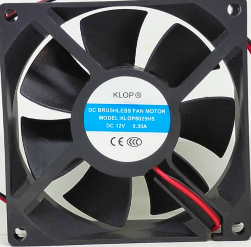
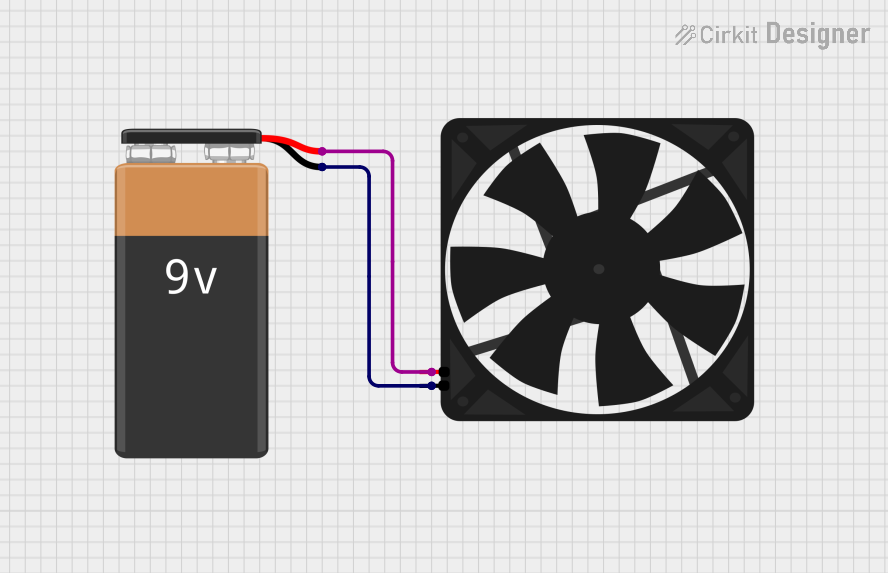
The FAN 12 V, manufactured by Arduino, is an electromechanical device designed to create airflow for cooling or ventilation purposes. It is commonly used in electronic devices to dissipate heat generated by components such as processors, power supplies, and other heat-sensitive parts. By maintaining optimal operating temperatures, the FAN 12 V ensures the longevity and reliability of electronic systems.
Explore Projects Built with FAN
 Open Project in Cirkit Designer
 Open Project in Cirkit Designer
 Open Project in Cirkit Designer
 Open Project in Cirkit Designer
Explore Projects Built with FAN
Open Project in Cirkit DesignerOpen Project in Cirkit DesignerOpen Project in Cirkit DesignerOpen Project in Cirkit DesignerCommon Applications and Use Cases
- Cooling microcontrollers, processors, and power supplies in electronic circuits.
- Ventilation in enclosures or cases to prevent overheating.
- Heat dissipation in 3D printers, robotics, and industrial equipment.
- General-purpose airflow management in DIY electronics projects.
Technical Specifications
The following table outlines the key technical details of the FAN 12 V:
| Parameter | Specification |
|---|---|
| Manufacturer | Arduino |
| Part ID | FAN 12 V |
| Operating Voltage | 12 V DC |
| Operating Current | 0.15 A (typical) |
| Power Consumption | 1.8 W |
| Airflow | 25 CFM (Cubic Feet per Minute) |
| Noise Level | 25 dBA |
| Dimensions | 40 mm x 40 mm x 10 mm |
| Connector Type | 2-pin or 3-pin (depending on model) |
| Bearing Type | Sleeve or Ball Bearing |
| Operating Temperature | -10°C to 70°C |
| Lifespan | 30,000 hours (typical) |
Pin Configuration and Descriptions
The FAN 12 V typically comes with a 2-pin or 3-pin connector. The pin configuration is as follows:
2-Pin Connector
| Pin Number | Name | Description |
|---|---|---|
| 1 | VCC | Positive power supply (12 V DC) |
| 2 | GND | Ground connection |
3-Pin Connector
| Pin Number | Name | Description |
|---|---|---|
| 1 | VCC | Positive power supply (12 V DC) |
| 2 | GND | Ground connection |
| 3 | Tachometer | Provides RPM feedback (optional) |
Usage Instructions
How to Use the FAN 12 V in a Circuit
- Power Supply: Connect the VCC pin to a 12 V DC power source and the GND pin to the ground. Ensure the power supply can provide sufficient current (at least 0.15 A).
- Mounting: Secure the fan to the desired location using screws or adhesive mounts. Ensure the airflow direction aligns with your cooling requirements (airflow direction is typically indicated by an arrow on the fan housing).
- Optional Tachometer: If using the 3-pin version, connect the tachometer pin to a microcontroller or monitoring circuit to measure the fan's RPM.
Important Considerations and Best Practices
- Voltage Compatibility: Ensure the power supply voltage matches the fan's rated 12 V DC. Overvoltage can damage the fan.
- Current Rating: Verify that the power supply can handle the fan's current draw (0.15 A typical).
- Airflow Direction: Check the airflow direction before installation. The fan typically blows air in the direction of the arrow on its housing.
- Noise Reduction: Use rubber mounts or grommets to minimize vibration and noise.
- Dust and Maintenance: Periodically clean the fan blades to prevent dust buildup, which can reduce efficiency and increase noise.
Example: Connecting the FAN 12 V to an Arduino UNO
The FAN 12 V can be controlled using an Arduino UNO and a transistor for switching. Below is an example circuit and code to control the fan speed using PWM (Pulse Width Modulation):
Circuit Diagram
- Connect the VCC pin of the fan to a 12 V power supply.
- Connect the GND pin of the fan to the collector of an NPN transistor (e.g., 2N2222).
- Connect the emitter of the transistor to the ground.
- Connect a 1 kΩ resistor between the base of the transistor and a PWM-capable pin on the Arduino (e.g., Pin 9).
- Connect the Arduino's GND to the power supply's ground.
Arduino Code
// FAN 12 V Speed Control using PWM
// Connect the fan's control circuit to Arduino Pin 9

const int fanPin = 9; // PWM pin connected to the transistor base

void setup() {
  pinMode(fanPin, OUTPUT); // Set the fan pin as an output
}

void loop() {
  // Gradually increase fan speed
  for (int speed = 0; speed <= 255; speed += 5) {
    analogWrite(fanPin, speed); // Set PWM duty cycle
    delay(50); // Wait for 50 ms
  }

  // Gradually decrease fan speed
  for (int speed = 255; speed >= 0; speed -= 5) {
    analogWrite(fanPin, speed); // Set PWM duty cycle
    delay(50); // Wait for 50 ms
  }
}
Troubleshooting and FAQs
Common Issues and Solutions
Fan Does Not Spin
- Cause: Insufficient power supply or incorrect wiring.
- Solution: Verify the power supply voltage and current. Check the wiring connections.
Fan Spins Slowly
- Cause: Low voltage or excessive dust buildup.
- Solution: Ensure the power supply provides 12 V. Clean the fan blades.
Excessive Noise
- Cause: Vibration or worn-out bearings.
- Solution: Use rubber mounts to reduce vibration. Replace the fan if bearings are worn.
Tachometer Signal Not Working
- Cause: Incorrect connection or incompatible microcontroller.
- Solution: Verify the tachometer pin connection. Ensure the microcontroller supports RPM measurement.
FAQs
Can I use the FAN 12 V with a 5 V power supply?
- No, the FAN 12 V requires a 12 V DC power supply for proper operation.
How do I determine the airflow direction?
- The airflow direction is indicated by an arrow on the fan housing.
Can I control the fan speed without an Arduino?
- Yes, you can use a variable resistor or a dedicated fan controller to adjust the speed.
What is the lifespan of the FAN 12 V?
- The typical lifespan is 30,000 hours under normal operating conditions.
By following this documentation, you can effectively integrate the FAN 12 V into your projects and ensure optimal performance.