
How to Use Led Module Blue: Examples, Pinouts, and Specs
 Design with Led Module Blue in Cirkit Designer
Introduction
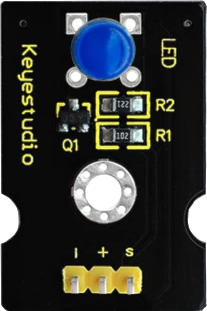
The Keyestudio LED Module Blue (Part ID: KS0232) is a compact and versatile module featuring a blue LED. It emits bright blue light when powered, making it ideal for a variety of applications. This module is commonly used as an indicator, in displays, or for decorative lighting in electronic projects. Its simple design and ease of use make it suitable for both beginners and experienced users.
Explore Projects Built with Led Module Blue
 Open Project in Cirkit Designer
 Open Project in Cirkit Designer
 Open Project in Cirkit Designer
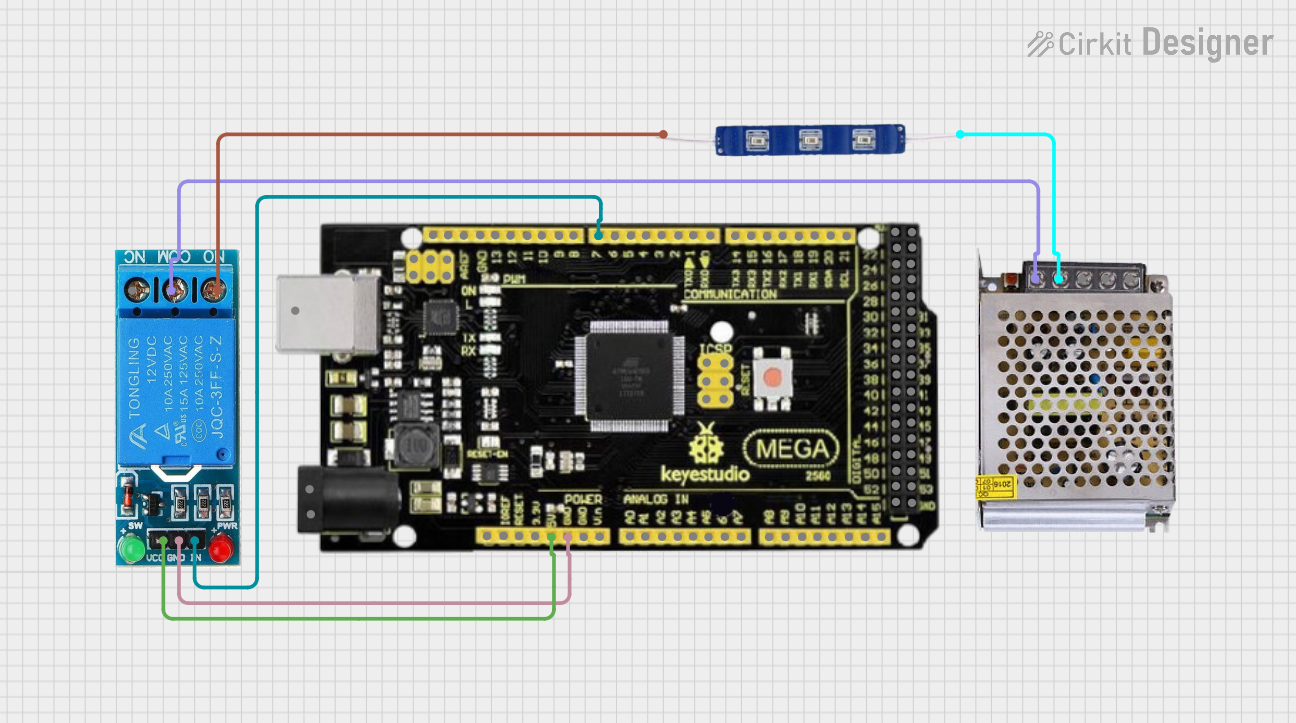 Open Project in Cirkit Designer
Explore Projects Built with Led Module Blue
Open Project in Cirkit DesignerOpen Project in Cirkit DesignerOpen Project in Cirkit DesignerOpen Project in Cirkit DesignerTechnical Specifications
The Keyestudio LED Module Blue is designed for low-power applications and is compatible with most microcontrollers, including Arduino boards. Below are the key technical details:
General Specifications
- Manufacturer: Keyestudio
- Part ID: KS0232
- LED Color: Blue
- Operating Voltage: 3.3V to 5V
- Current Consumption: ~20mA
- Dimensions: 18mm x 15mm x 8mm
- Mounting Hole Diameter: 3mm
Pin Configuration and Descriptions
The module has three pins, as detailed in the table below:
| Pin | Label | Description |
|---|---|---|
| 1 | S (Signal) | Connects to the control signal (e.g., GPIO pin). |
| 2 | VCC | Power supply pin (3.3V or 5V). |
| 3 | GND | Ground connection. |
Usage Instructions
How to Use the Component in a Circuit
Powering the Module:
Connect theVCCpin to a 3.3V or 5V power source and theGNDpin to the ground of your circuit.Controlling the LED:
Use theS(Signal) pin to control the LED. This pin can be connected to a GPIO pin of a microcontroller or directly to a power source for constant illumination. When the signal pin is HIGH, the LED will light up.Resistor Consideration:
The module includes an onboard current-limiting resistor, so no external resistor is required when connecting it to a 5V source.
Example: Connecting to an Arduino UNO
Below is an example of how to connect and control the LED Module Blue using an Arduino UNO:
Circuit Connections
- Connect the
Spin of the module to digital pin 9 on the Arduino. - Connect the
VCCpin to the 5V pin on the Arduino. - Connect the
GNDpin to the GND pin on the Arduino.
Arduino Code
// Example code to control the Keyestudio LED Module Blue (KS0232)

// Define the pin connected to the LED module
const int ledPin = 9;

void setup() {
  // Set the LED pin as an output
  pinMode(ledPin, OUTPUT);
}

void loop() {
  // Turn the LED on
  digitalWrite(ledPin, HIGH);
  delay(1000); // Wait for 1 second

  // Turn the LED off
  digitalWrite(ledPin, LOW);
  delay(1000); // Wait for 1 second
}
Important Considerations and Best Practices
- Ensure the power supply voltage does not exceed 5V to avoid damaging the module.
- Avoid connecting the
Spin directly to a high-current source without a microcontroller or proper current-limiting circuitry. - For longer-lasting performance, avoid operating the LED at maximum brightness for extended periods.
Troubleshooting and FAQs
Common Issues and Solutions
LED Does Not Light Up:
- Cause: Incorrect wiring or insufficient power supply.
- Solution: Double-check the connections and ensure the
VCCandGNDpins are properly connected to the power source.
LED Flickers or Is Dim:
- Cause: Insufficient current or loose connections.
- Solution: Ensure the power supply can provide at least 20mA of current and check for secure connections.
Module Overheats:
- Cause: Excessive voltage or current.
- Solution: Verify that the input voltage is within the 3.3V to 5V range.
FAQs
Q: Can I use this module with a 3.3V microcontroller?
A: Yes, the module is compatible with both 3.3V and 5V systems.Q: Do I need an external resistor for this module?
A: No, the module includes an onboard current-limiting resistor.Q: Can I use this module for PWM dimming?
A: Yes, you can use a PWM signal on theSpin to control the brightness of the LED.
By following this documentation, you can effectively integrate the Keyestudio LED Module Blue (KS0232) into your projects and troubleshoot any issues that may arise.