
How to Use UNO Q: Examples, Pinouts, and Specs
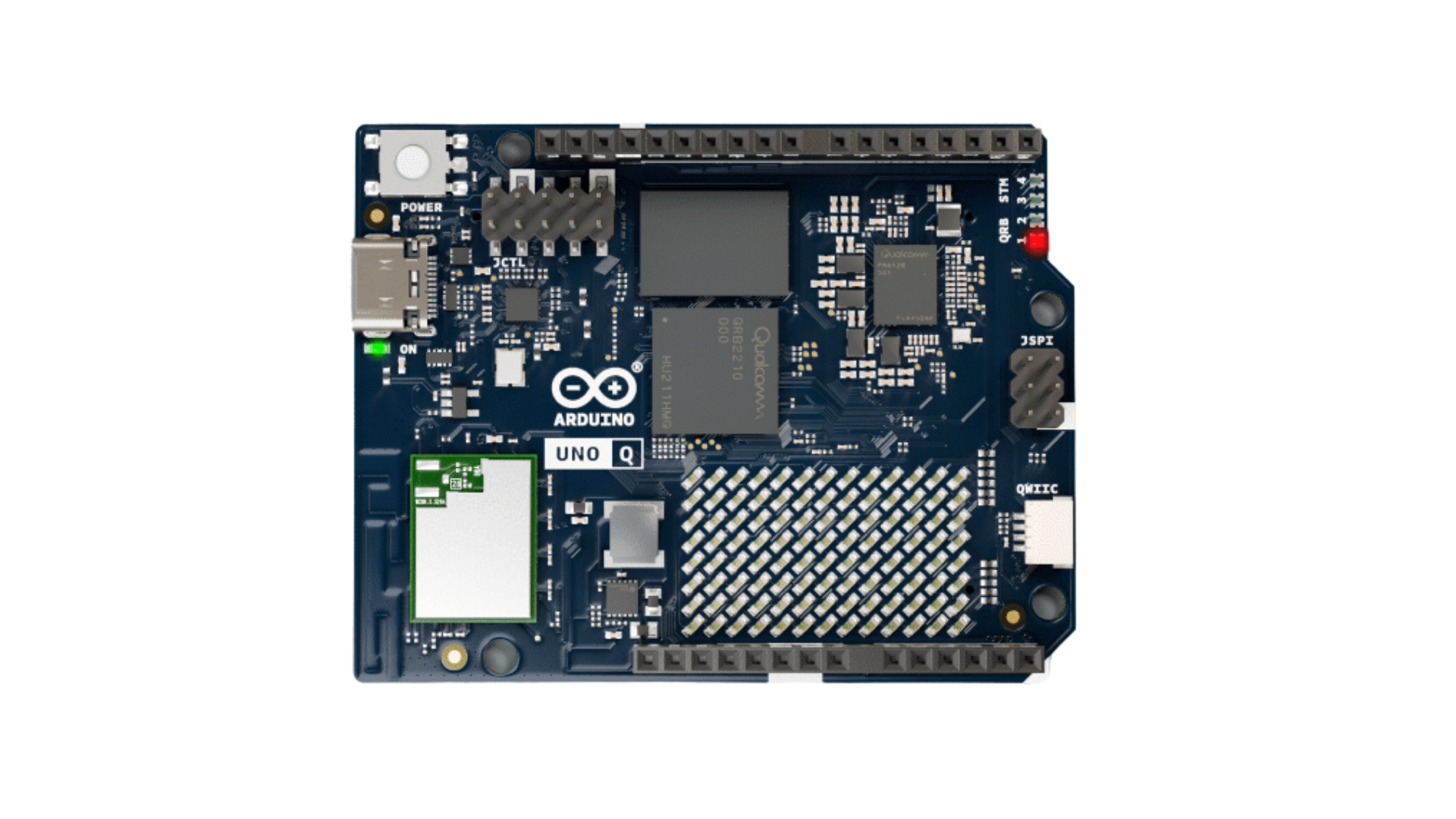
 Design with UNO Q in Cirkit Designer
Introduction
The UNO Q is a microcontroller board developed by Arduino, based on the ATmega328P microcontroller. It is designed to simplify programming and prototyping for both beginners and experienced developers. The board features a range of digital and analog input/output pins, USB connectivity for programming, and compatibility with a wide variety of sensors, modules, and shields. Its versatility makes it an excellent choice for projects in robotics, IoT, home automation, and more.
Explore Projects Built with UNO Q
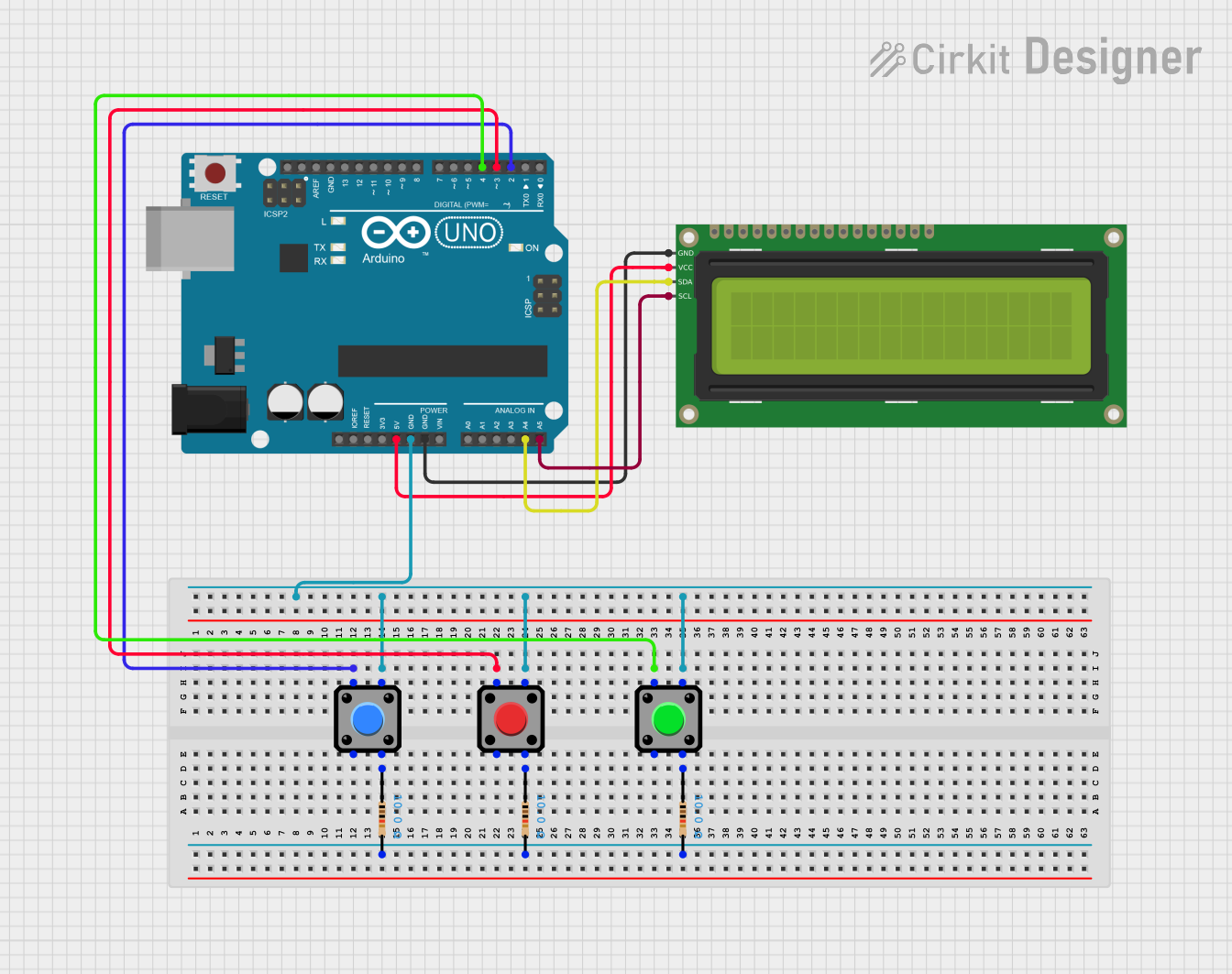 Open Project in Cirkit Designer
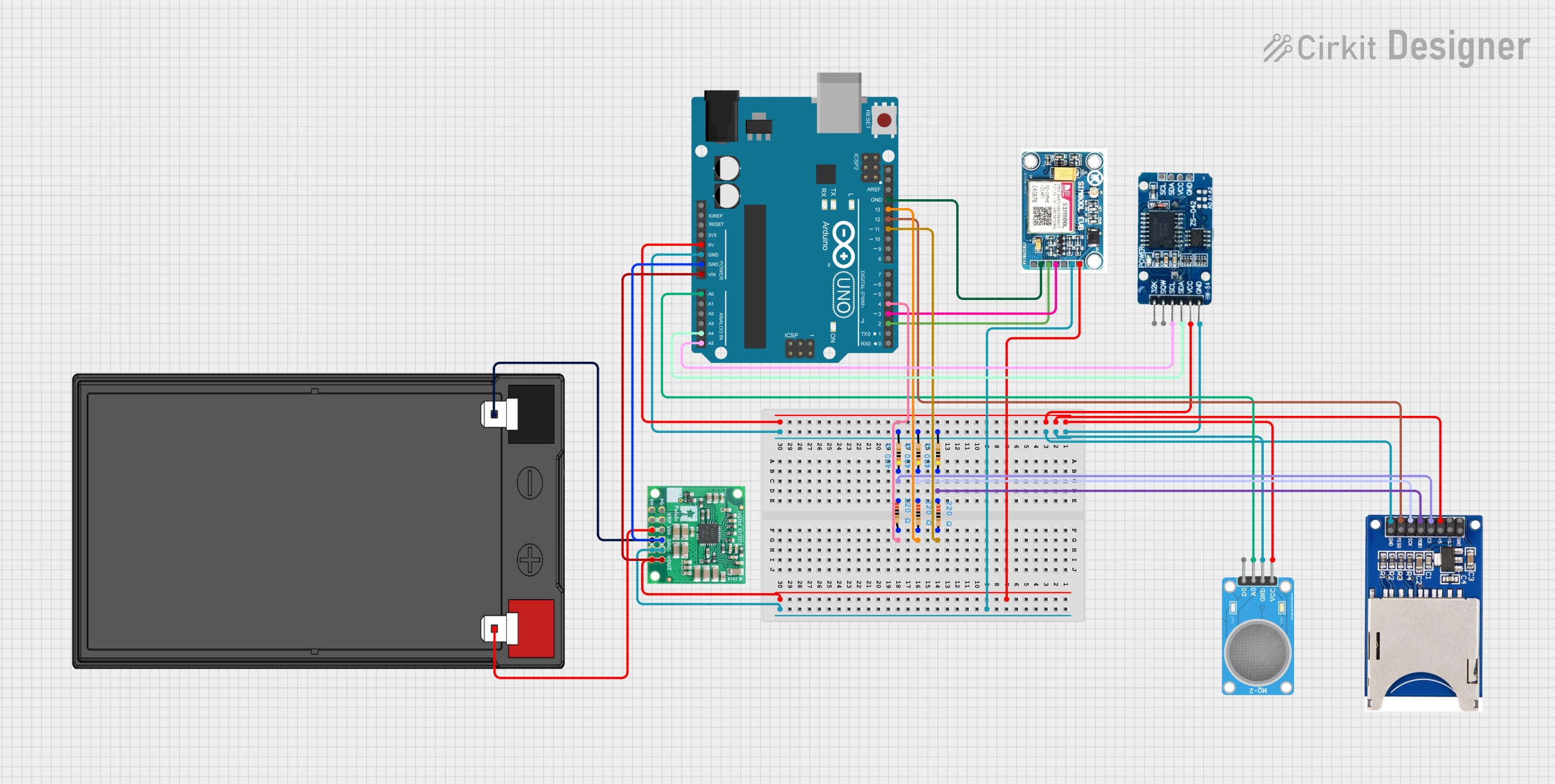 Open Project in Cirkit Designer
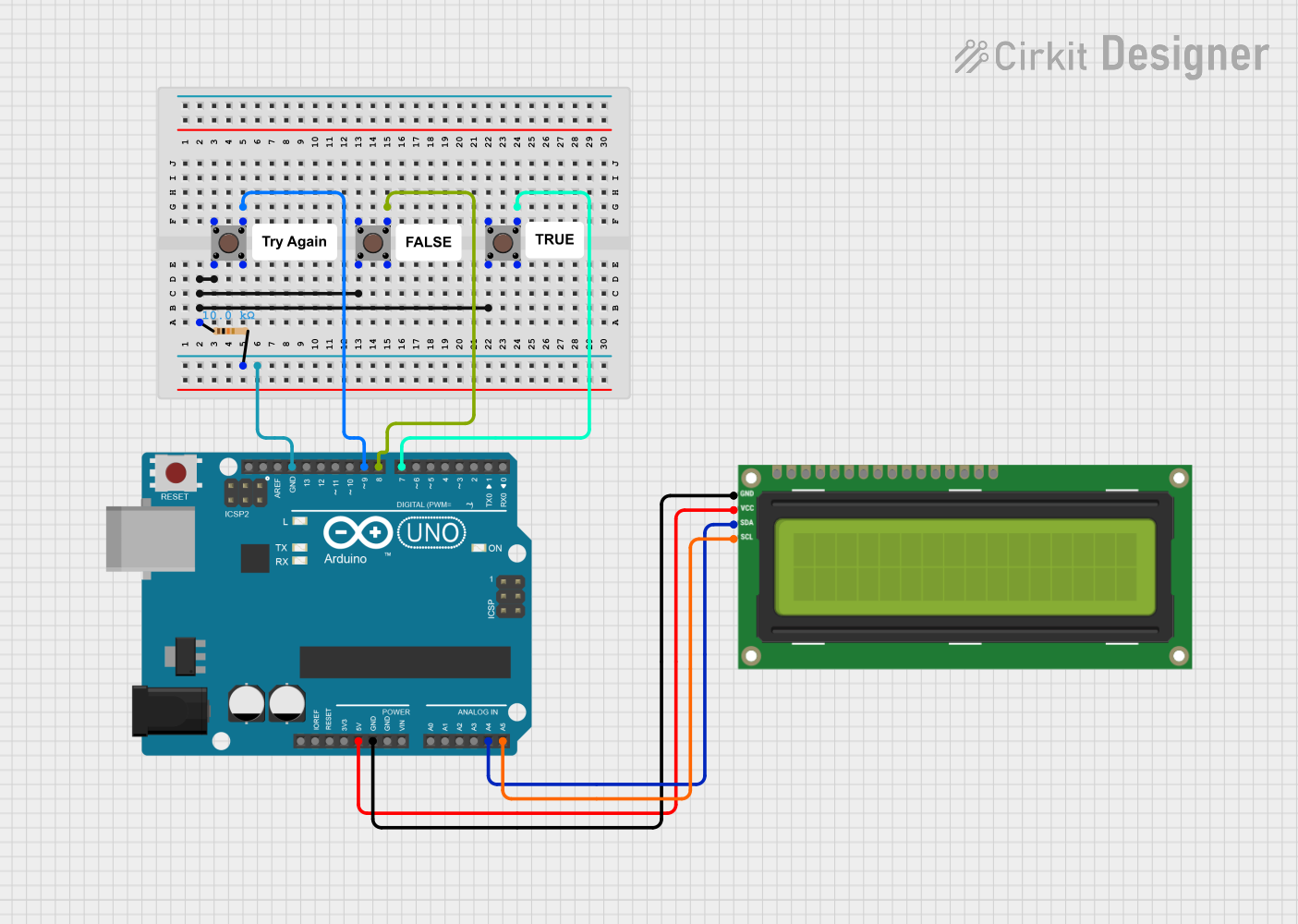 Open Project in Cirkit Designer
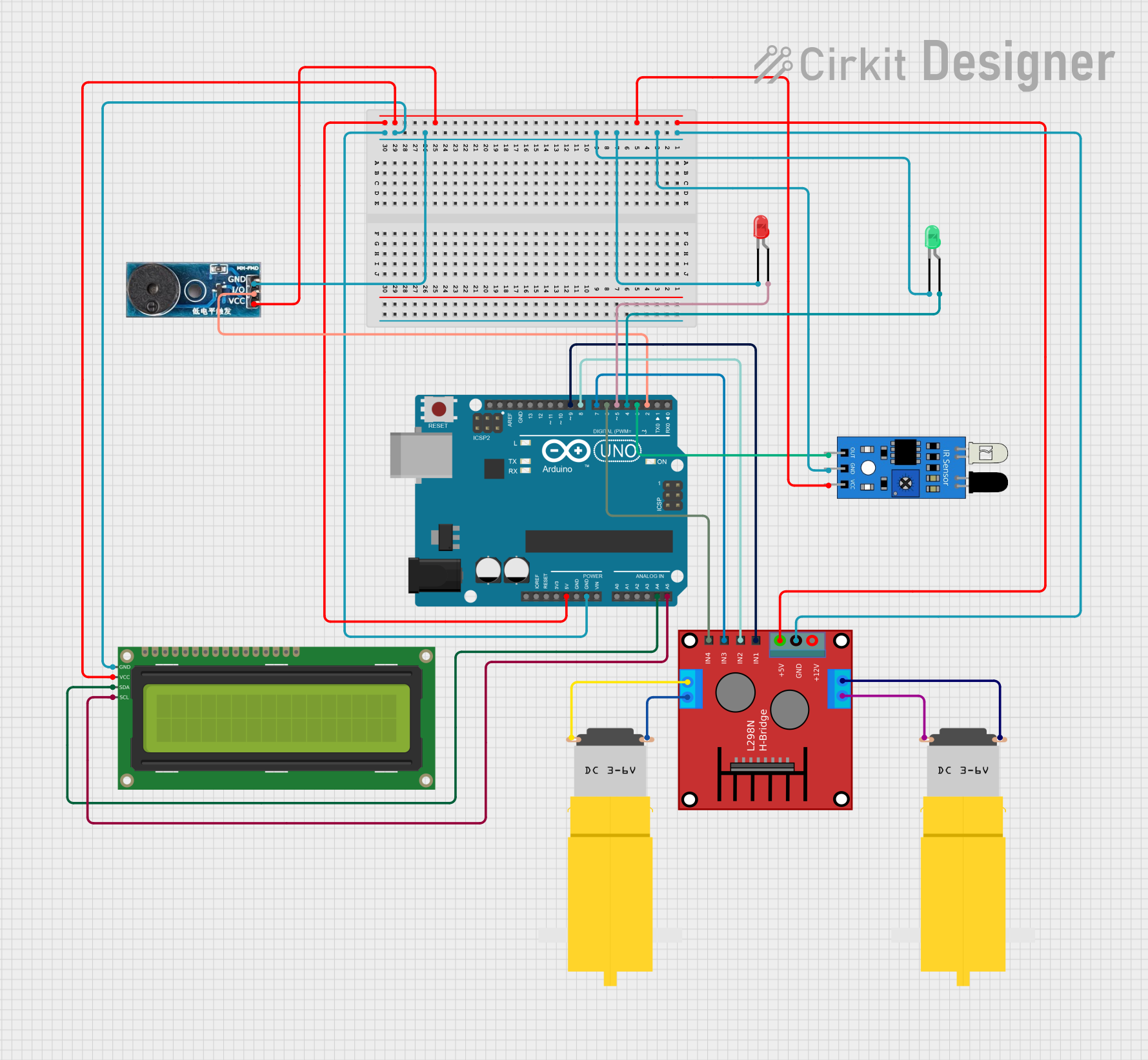 Open Project in Cirkit Designer
Explore Projects Built with UNO Q
Open Project in Cirkit DesignerOpen Project in Cirkit DesignerOpen Project in Cirkit DesignerOpen Project in Cirkit DesignerCommon Applications and Use Cases
- Robotics: Control motors, servos, and sensors for robotic systems.
- IoT Projects: Connect sensors and actuators to build smart devices.
- Home Automation: Automate lighting, temperature control, and other household systems.
- Educational Projects: Learn programming and electronics through hands-on experimentation.
- Prototyping: Quickly test and develop ideas for new electronic devices.
Technical Specifications
The following table outlines the key technical details of the UNO Q:
| Specification | Details |
|---|---|
| Microcontroller | ATmega328P |
| Operating Voltage | 5V |
| Input Voltage (recommended) | 7-12V |
| Input Voltage (limit) | 6-20V |
| Digital I/O Pins | 14 (6 PWM outputs) |
| Analog Input Pins | 6 |
| DC Current per I/O Pin | 20 mA |
| Flash Memory | 32 KB (0.5 KB used by bootloader) |
| SRAM | 2 KB |
| EEPROM | 1 KB |
| Clock Speed | 16 MHz |
| USB Connectivity | USB Type-B |
| Dimensions | 68.6 mm x 53.4 mm |
| Weight | 25 g |
Pin Configuration and Descriptions
The UNO Q features a total of 20 pins, including digital, analog, and power pins. Below is a detailed description of the pin configuration:
Digital Pins
| Pin Number | Function | Description |
|---|---|---|
| D0 - D1 | RX, TX | Serial communication pins for UART. |
| D2 - D13 | Digital I/O | General-purpose digital input/output pins. |
| D3, D5, D6, D9, D10, D11 | PWM Output | Pulse Width Modulation for motor control, LEDs. |
Analog Pins
| Pin Number | Function | Description |
|---|---|---|
| A0 - A5 | Analog Input | Read analog signals (0-5V) from sensors. |
Power Pins
| Pin Name | Function | Description |
|---|---|---|
| VIN | Input Voltage | External power input (7-12V recommended). |
| 5V | Regulated 5V Output | Powers external components. |
| 3.3V | Regulated 3.3V Output | Powers low-voltage components. |
| GND | Ground | Common ground for the circuit. |
| RESET | Reset | Resets the microcontroller. |
Usage Instructions
How to Use the UNO Q in a Circuit
Powering the Board:
- Connect the UNO Q to your computer using a USB Type-B cable for programming and power.
- Alternatively, use an external power supply (7-12V) via the VIN pin or DC barrel jack.
Programming the Board:
- Install the Arduino IDE from the official Arduino website.
- Select "Arduino UNO" as the board type in the IDE.
- Write your code in the IDE and upload it to the board via the USB connection.
Connecting Components:
- Use the digital and analog pins to connect sensors, actuators, and other components.
- Ensure that the current and voltage requirements of connected components do not exceed the board's limits.
Using Shields and Modules:
- The UNO Q is compatible with a wide range of Arduino shields and modules.
- Stack shields directly onto the board or connect modules using jumper wires.
Important Considerations and Best Practices
- Power Supply: Avoid exceeding the recommended input voltage range (7-12V) to prevent damage.
- Pin Current Limits: Do not draw more than 20 mA from any I/O pin. Use external drivers for high-current loads.
- Static Protection: Handle the board carefully to avoid damage from electrostatic discharge (ESD).
- Code Optimization: Optimize your code to make efficient use of the limited memory and processing power.
Example Code for Arduino UNO Q
The following example demonstrates how to blink an LED connected to pin 13:
// Blink an LED connected to digital pin 13
// This code toggles the LED on and off every second.

void setup() {
  pinMode(13, OUTPUT); // Set pin 13 as an output
}

void loop() {
  digitalWrite(13, HIGH); // Turn the LED on
  delay(1000);            // Wait for 1 second
  digitalWrite(13, LOW);  // Turn the LED off
  delay(1000);            // Wait for 1 second
}
Troubleshooting and FAQs
Common Issues and Solutions
Board Not Detected by Computer:
- Ensure the USB cable is properly connected and functional.
- Install the necessary drivers for the UNO Q from the Arduino website.
- Check that the correct COM port is selected in the Arduino IDE.
Code Upload Fails:
- Verify that "Arduino UNO" is selected as the board type in the IDE.
- Press the RESET button on the board before uploading the code.
- Ensure no other program is using the COM port.
Components Not Working as Expected:
- Double-check the wiring and connections.
- Ensure the components are compatible with the UNO Q's voltage and current ratings.
- Test the components individually to rule out hardware issues.
Board Overheating:
- Check for short circuits or excessive current draw from connected components.
- Use an external power supply if the USB port cannot provide sufficient power.
FAQs
Q: Can I power the UNO Q with a battery?
A: Yes, you can use a 9V battery connected to the VIN pin or DC barrel jack.Q: Is the UNO Q compatible with Arduino shields?
A: Yes, the UNO Q is fully compatible with standard Arduino shields.Q: How do I reset the board?
A: Press the RESET button on the board or connect the RESET pin to GND momentarily.Q: Can I use the UNO Q for wireless communication?
A: Yes, you can connect wireless modules like Bluetooth, Wi-Fi, or LoRa to the board.
By following this documentation, you can effectively use the Arduino UNO Q for a wide range of projects and applications.