
How to Use oled: Examples, Pinouts, and Specs
 Design with oled in Cirkit Designer
Introduction
An Organic Light Emitting Diode (OLED) is a display technology that uses organic compounds to emit light when an electric current is applied. Unlike traditional LCDs, OLEDs do not require a backlight, allowing for thinner, more energy-efficient displays with superior image quality. OLEDs are known for their high contrast ratios, vibrant colors, and ability to produce deep blacks, making them ideal for applications requiring high visual fidelity.
Explore Projects Built with oled
 Open Project in Cirkit Designer
 Open Project in Cirkit Designer
 Open Project in Cirkit Designer
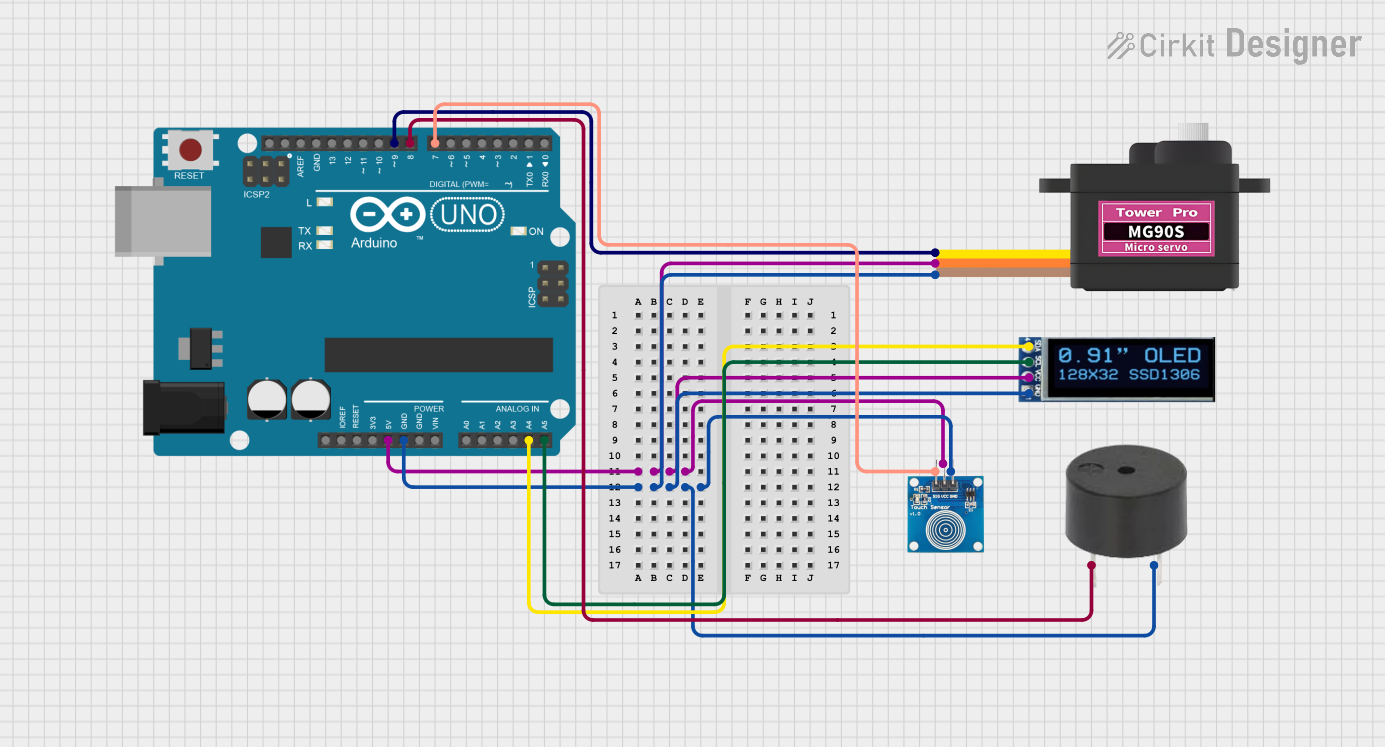 Open Project in Cirkit Designer
Explore Projects Built with oled
Open Project in Cirkit DesignerOpen Project in Cirkit DesignerOpen Project in Cirkit DesignerOpen Project in Cirkit DesignerCommon Applications and Use Cases
- Displays for smartphones, tablets, and televisions
- Wearable devices and smartwatches
- Industrial and medical equipment displays
- Arduino-based projects for visual output
- Compact, low-power display solutions for IoT devices
Technical Specifications
Below are the general technical specifications for an OLED display module compatible with the Arduino UNO:
| Parameter | Specification |
|---|---|
| Manufacturer | Arduino |
| Part ID | UNO |
| Display Type | OLED (Organic Light Emitting Diode) |
| Resolution | 128 x 64 pixels |
| Interface | I2C or SPI |
| Operating Voltage | 3.3V to 5V |
| Current Consumption | ~20mA (varies with brightness) |
| Viewing Angle | ~160° |
| Operating Temperature | -40°C to 85°C |
| Dimensions | Varies (e.g., 0.96", 1.3", etc.) |
Pin Configuration and Descriptions
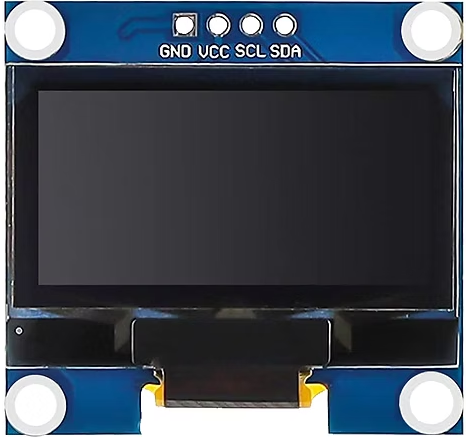
The pinout for a typical I2C-based OLED module is as follows:
| Pin Name | Description |
|---|---|
| VCC | Power supply (3.3V or 5V) |
| GND | Ground |
| SCL | Serial Clock Line (I2C communication) |
| SDA | Serial Data Line (I2C communication) |
For SPI-based OLED modules, the pinout may include additional pins such as CS (Chip Select), DC (Data/Command), and RST (Reset).
Usage Instructions
Connecting the OLED to an Arduino UNO
Wiring the OLED Module:
- Connect the
VCCpin of the OLED to the5Vpin on the Arduino UNO. - Connect the
GNDpin of the OLED to theGNDpin on the Arduino UNO. - Connect the
SCLpin of the OLED to theA5pin on the Arduino UNO (for I2C communication). - Connect the
SDApin of the OLED to theA4pin on the Arduino UNO (for I2C communication).
- Connect the
Installing Required Libraries:
- Install the
Adafruit_GFXandAdafruit_SSD1306libraries from the Arduino Library Manager.
- Install the
Example Code: Below is an example sketch to display "Hello, World!" on the OLED:
// Include necessary libraries
#include <Adafruit_GFX.h>       // Graphics library for OLED
#include <Adafruit_SSD1306.h>  // OLED driver library

// Define OLED display dimensions
#define SCREEN_WIDTH 128
#define SCREEN_HEIGHT 64

// Create an instance of the display object
Adafruit_SSD1306 display(SCREEN_WIDTH, SCREEN_HEIGHT, &Wire, -1);

void setup() {
  // Initialize the display
  if (!display.begin(SSD1306_I2C_ADDRESS, 0x3C)) {
    // Check if the display is connected
    Serial.println(F("SSD1306 allocation failed"));
    for (;;); // Halt execution if initialization fails
  }

  // Clear the display buffer
  display.clearDisplay();

  // Set text size and color
  display.setTextSize(1);         // Text size multiplier
  display.setTextColor(SSD1306_WHITE); // White text

  // Display "Hello, World!" on the screen
  display.setCursor(0, 0);        // Set cursor position
  display.println(F("Hello, World!"));
  display.display();              // Render the text on the screen
}

void loop() {
  // Nothing to do here
}
Important Considerations and Best Practices
- Power Supply: Ensure the OLED module is powered within its specified voltage range (3.3V to 5V).
- I2C Address: The default I2C address for most OLED modules is
0x3C. If the display does not work, verify the address using an I2C scanner sketch. - Contrast and Brightness: Excessive brightness can reduce the lifespan of the OLED. Use moderate brightness settings for prolonged use.
- Library Compatibility: Always use the latest versions of the
Adafruit_GFXandAdafruit_SSD1306libraries to avoid compatibility issues.
Troubleshooting and FAQs
Common Issues and Solutions
The OLED does not display anything:
- Verify the wiring connections, especially the
SCLandSDApins. - Check the I2C address of the OLED module. Use an I2C scanner sketch to confirm the address.
- Ensure the
Adafruit_SSD1306library is correctly installed and initialized.
- Verify the wiring connections, especially the
The display is flickering or unstable:
- Ensure a stable power supply to the OLED module.
- Use shorter wires to reduce noise in the I2C communication.
Text or graphics appear distorted:
- Call
display.clearDisplay()before rendering new content to avoid overlapping graphics. - Verify that the correct resolution (e.g., 128x64) is defined in the code.
- Call
The display is too dim:
- Adjust the contrast or brightness settings in the code.
- Ensure the power supply voltage is sufficient.
FAQs
Q: Can I use the OLED with a 3.3V microcontroller?
A: Yes, most OLED modules are compatible with both 3.3V and 5V logic levels. Check the module's datasheet to confirm.
Q: How do I switch between I2C and SPI modes?
A: Some OLED modules support both I2C and SPI. Refer to the module's documentation for jumper settings or solder pads to switch modes.
Q: Can I display images on the OLED?
A: Yes, you can display bitmap images using the Adafruit_GFX library. Convert the image to a monochrome bitmap format and include it in your sketch.
Q: What is the lifespan of an OLED display?
A: The typical lifespan of an OLED display is around 10,000 to 50,000 hours, depending on usage and brightness settings.