
How to Use arduino mini pro: Examples, Pinouts, and Specs
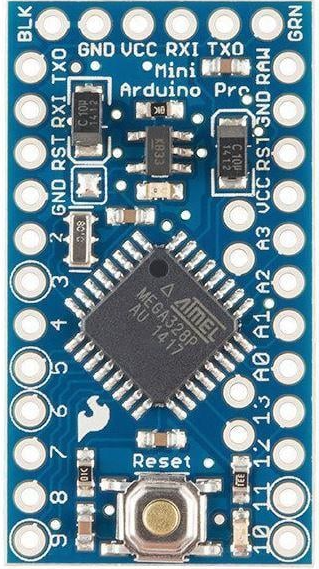
 Design with arduino mini pro in Cirkit Designer
Introduction
The Arduino Mini Pro is a compact microcontroller board developed by Arduino, based on the ATmega328P microcontroller. It is designed for embedded projects and prototyping where space is a constraint. Despite its small form factor, the Arduino Mini Pro offers robust functionality, making it ideal for applications requiring low power consumption and high performance.
Explore Projects Built with arduino mini pro
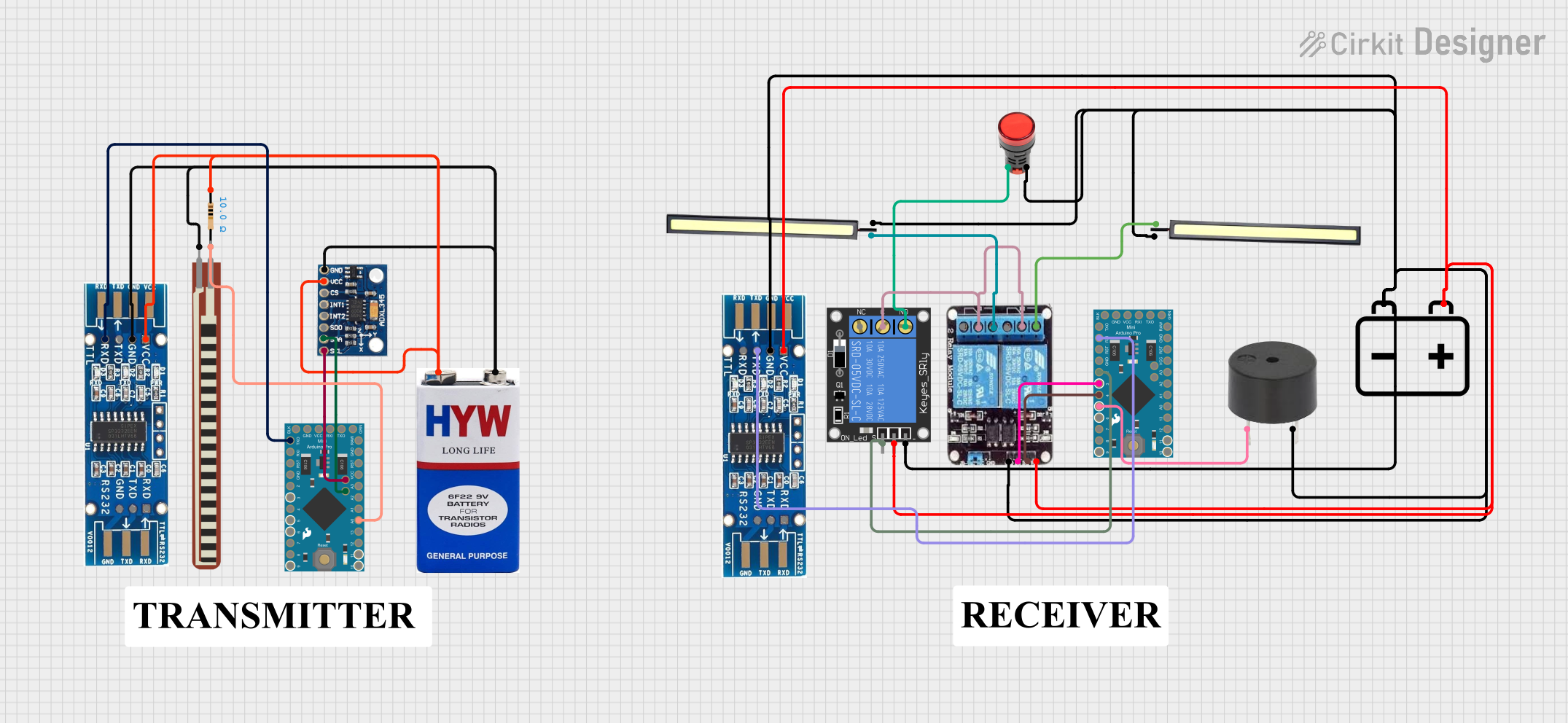 Open Project in Cirkit Designer
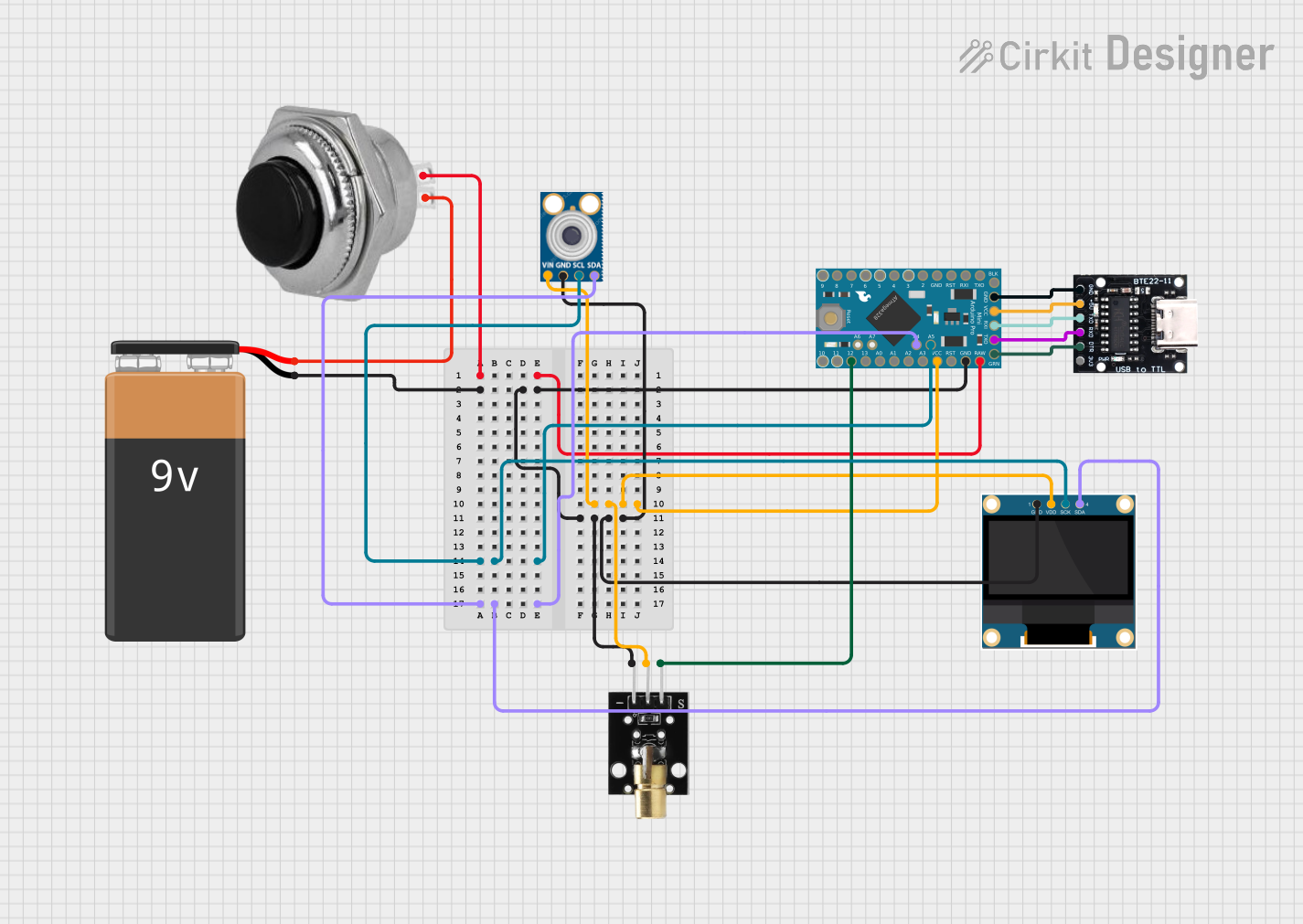 Open Project in Cirkit Designer
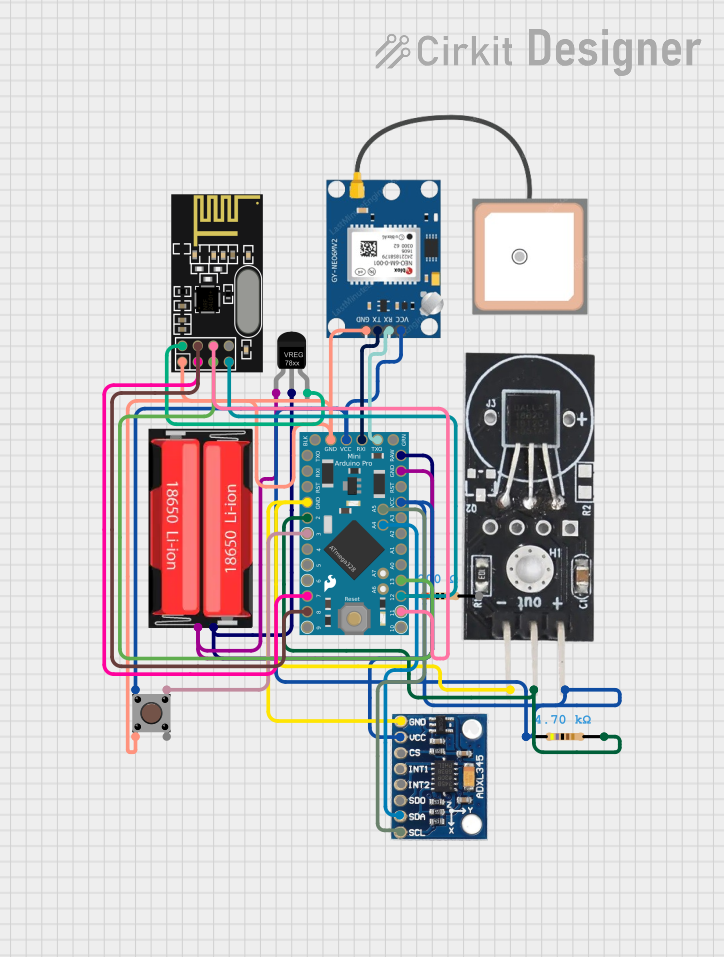 Open Project in Cirkit Designer
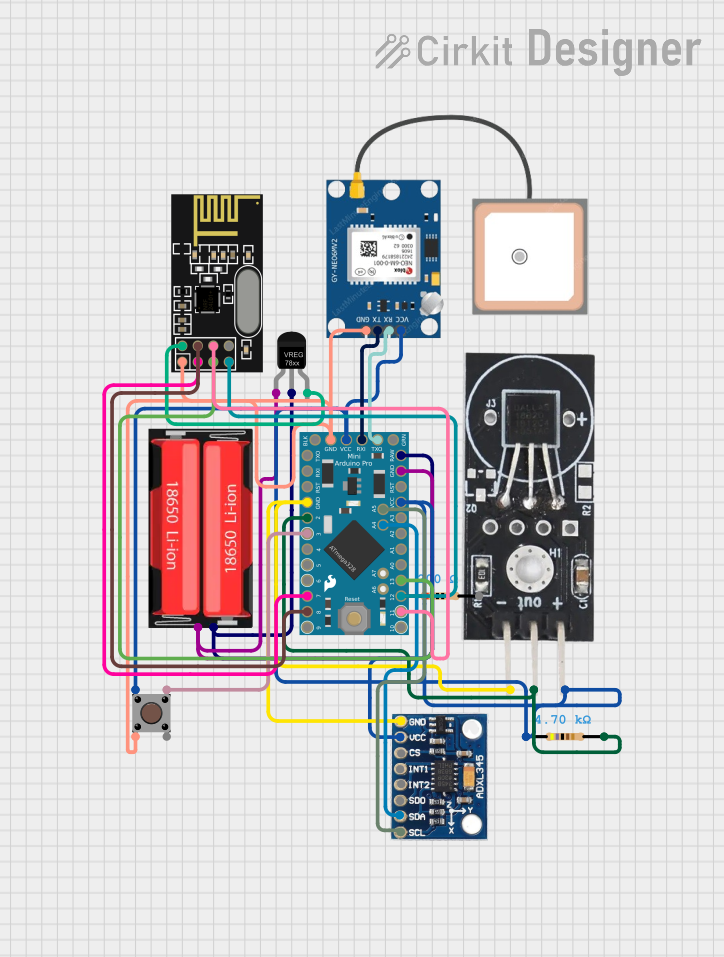 Open Project in Cirkit Designer
Explore Projects Built with arduino mini pro
Open Project in Cirkit DesignerOpen Project in Cirkit DesignerOpen Project in Cirkit DesignerOpen Project in Cirkit DesignerCommon Applications and Use Cases
- Wearable electronics
- IoT (Internet of Things) devices
- Robotics and automation
- Sensor-based systems
- Portable and battery-powered projects
- Prototyping for space-constrained designs
Technical Specifications
The Arduino Mini Pro is available in two voltage variants: 3.3V and 5V, with different clock speeds. Below are the key technical details:
| Specification | Value (3.3V Variant) | Value (5V Variant) |
|---|---|---|
| Microcontroller | ATmega328P | ATmega328P |
| Operating Voltage | 3.3V | 5V |
| Input Voltage (recommended) | 3.3V - 12V | 5V - 12V |
| Clock Speed | 8 MHz | 16 MHz |
| Digital I/O Pins | 14 (6 PWM capable) | 14 (6 PWM capable) |
| Analog Input Pins | 6 | 6 |
| Flash Memory | 32 KB (0.5 KB used by bootloader) | 32 KB (0.5 KB used by bootloader) |
| SRAM | 2 KB | 2 KB |
| EEPROM | 1 KB | 1 KB |
| Dimensions | 18 mm x 33 mm | 18 mm x 33 mm |
Pin Configuration and Descriptions
The Arduino Mini Pro has a total of 24 pins, including digital, analog, power, and communication pins. Below is the pinout description:
| Pin Name | Description |
|---|---|
| RAW | Input voltage pin (unregulated). Accepts 3.3V-12V (3.3V variant) or 5V-12V (5V variant). |
| VCC | Regulated 3.3V or 5V output, depending on the board variant. |
| GND | Ground pin. |
| TX (D1) | Transmit pin for serial communication (UART). |
| RX (D0) | Receive pin for serial communication (UART). |
| D2-D13 | Digital I/O pins. Pins D3, D5, D6, D9, D10, and D11 support PWM output. |
| A0-A5 | Analog input pins. Can also be used as digital I/O pins. |
| RST | Reset pin. Pull low to reset the microcontroller. |
Usage Instructions
How to Use the Arduino Mini Pro in a Circuit
Powering the Board:
- Use the RAW pin to supply unregulated voltage (3.3V-12V for the 3.3V variant or 5V-12V for the 5V variant).
- Alternatively, supply regulated voltage directly to the VCC pin (3.3V or 5V, depending on the variant).
Programming the Board:
- The Arduino Mini Pro does not have an onboard USB interface. Use an FTDI USB-to-Serial adapter or similar device to program the board.
- Connect the FTDI adapter to the TX, RX, VCC, GND, and DTR pins of the Mini Pro.
Connecting Components:
- Use the digital pins (D2-D13) for digital input/output operations.
- Use the analog pins (A0-A5) for reading analog signals or as additional digital I/O pins.
- For PWM output, use pins D3, D5, D6, D9, D10, or D11.
Uploading Code:
- Select the correct board and processor in the Arduino IDE:
Arduino Pro or Pro MiniandATmega328P (3.3V, 8 MHz)orATmega328P (5V, 16 MHz). - Choose the appropriate COM port for the FTDI adapter.
- Write or load your sketch and click the upload button.
- Select the correct board and processor in the Arduino IDE:
Important Considerations and Best Practices
- Ensure the voltage supplied to the board matches its variant (3.3V or 5V) to avoid damage.
- Use a decoupling capacitor (e.g., 0.1 µF) near the power pins for stable operation.
- Avoid connecting high-current loads directly to the I/O pins; use transistors or relays if needed.
- For battery-powered projects, consider using the 3.3V variant for lower power consumption.
Example Code for Arduino Mini Pro
Below is an example code to blink an LED connected to pin D13:
// Blink an LED connected to pin D13
// This example demonstrates basic digital output functionality.

void setup() {
  pinMode(13, OUTPUT); // Set pin D13 as an output
}

void loop() {
  digitalWrite(13, HIGH); // Turn the LED on
  delay(1000);            // Wait for 1 second
  digitalWrite(13, LOW);  // Turn the LED off
  delay(1000);            // Wait for 1 second
}
Troubleshooting and FAQs
Common Issues and Solutions
The board is not detected by the Arduino IDE:
- Ensure the FTDI adapter is properly connected to the Mini Pro.
- Install the correct drivers for the FTDI adapter.
- Verify that the correct COM port is selected in the Arduino IDE.
Code upload fails with a timeout error:
- Check the connection between the FTDI adapter and the Mini Pro.
- Ensure the correct board and processor are selected in the Arduino IDE.
- Press the RESET button on the Mini Pro just before uploading the code.
The board does not power on:
- Verify the input voltage is within the recommended range.
- Check for loose or incorrect connections to the power pins.
Analog readings are unstable:
- Use a decoupling capacitor between the analog input pin and ground.
- Ensure the sensor or input device is properly grounded.
FAQs
Q: Can I use the Arduino Mini Pro for battery-powered projects?
A: Yes, the Mini Pro is well-suited for battery-powered applications. The 3.3V variant is particularly efficient for low-power designs.
Q: How do I connect the Mini Pro to an external sensor?
A: Connect the sensor's power and ground pins to the Mini Pro's VCC and GND pins, respectively. Use the appropriate digital or analog input pins to read data from the sensor.
Q: Can I use the Arduino Mini Pro without an FTDI adapter?
A: Yes, you can use other USB-to-Serial adapters or an Arduino board with a USB interface as a programmer.
Q: What is the difference between the 3.3V and 5V variants?
A: The 3.3V variant operates at a lower voltage and clock speed (8 MHz), making it more power-efficient. The 5V variant operates at 16 MHz and is compatible with 5V logic devices.