
How to Use Set battery (7v): Examples, Pinouts, and Specs
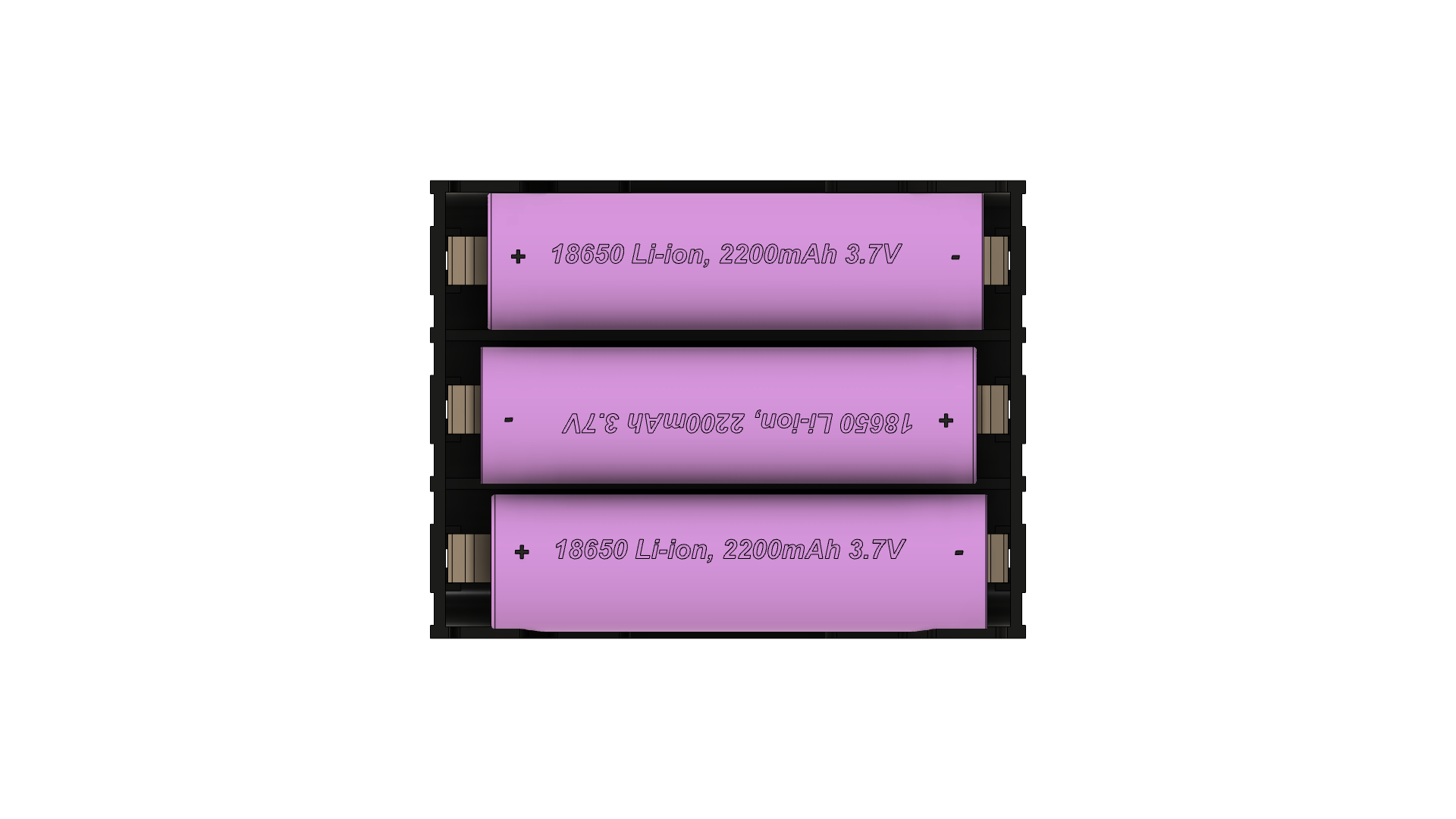
 Design with Set battery (7v) in Cirkit Designer
Introduction
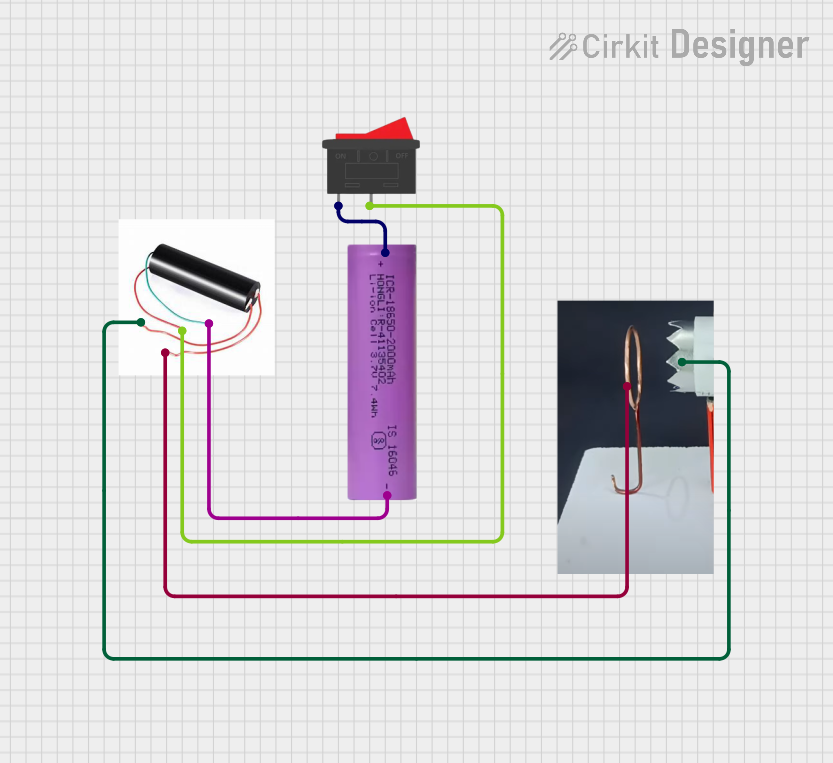
A set battery with a voltage output of 7 volts is a portable energy source commonly used in various electronic projects and applications. These batteries are designed to provide a consistent voltage level, making them ideal for powering devices that require a stable power supply. Common applications include portable electronics, hobbyist projects such as remote-controlled vehicles, and as a power source for development boards like the Arduino UNO.
Explore Projects Built with Set battery (7v)
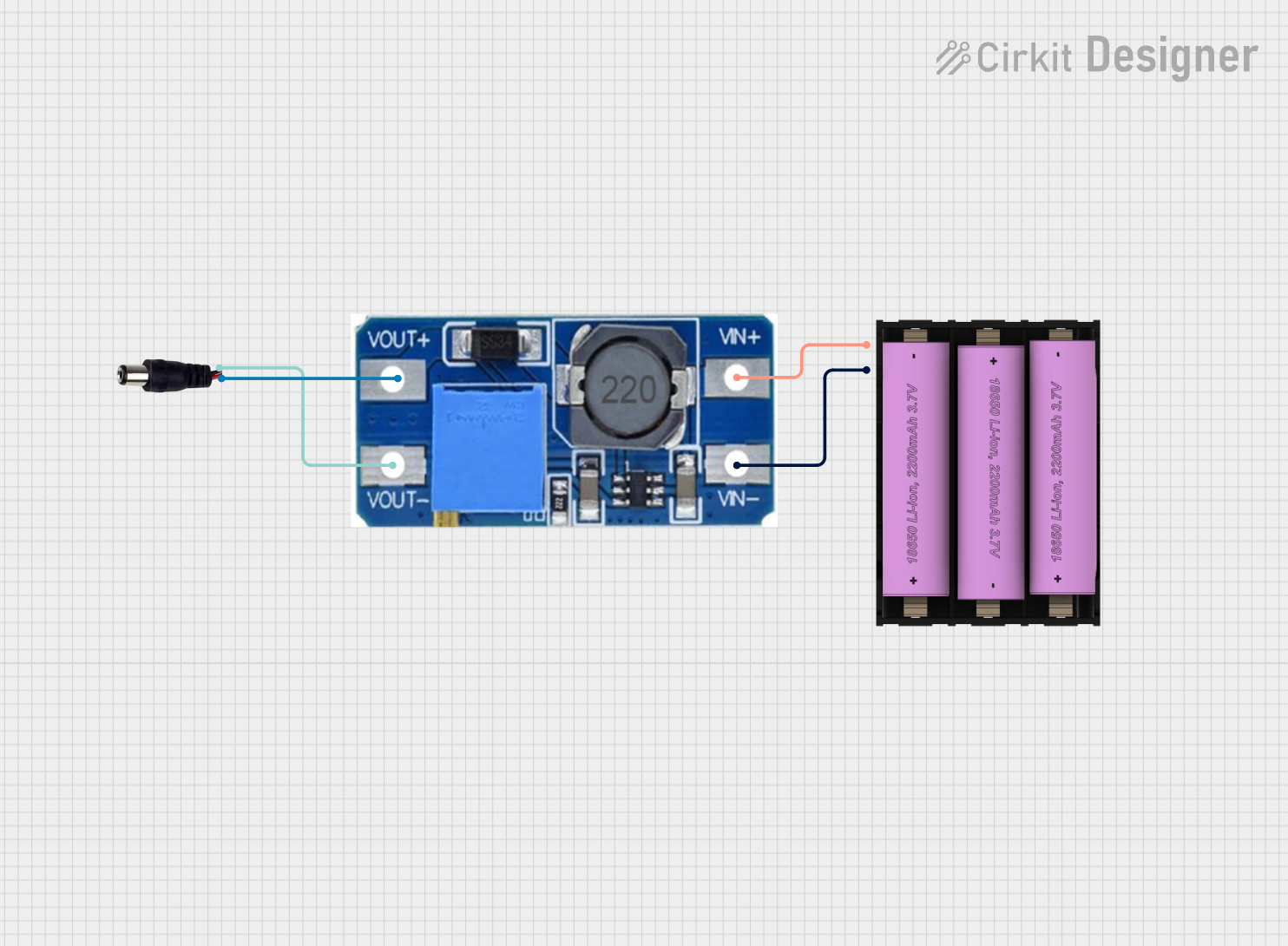 Open Project in Cirkit Designer
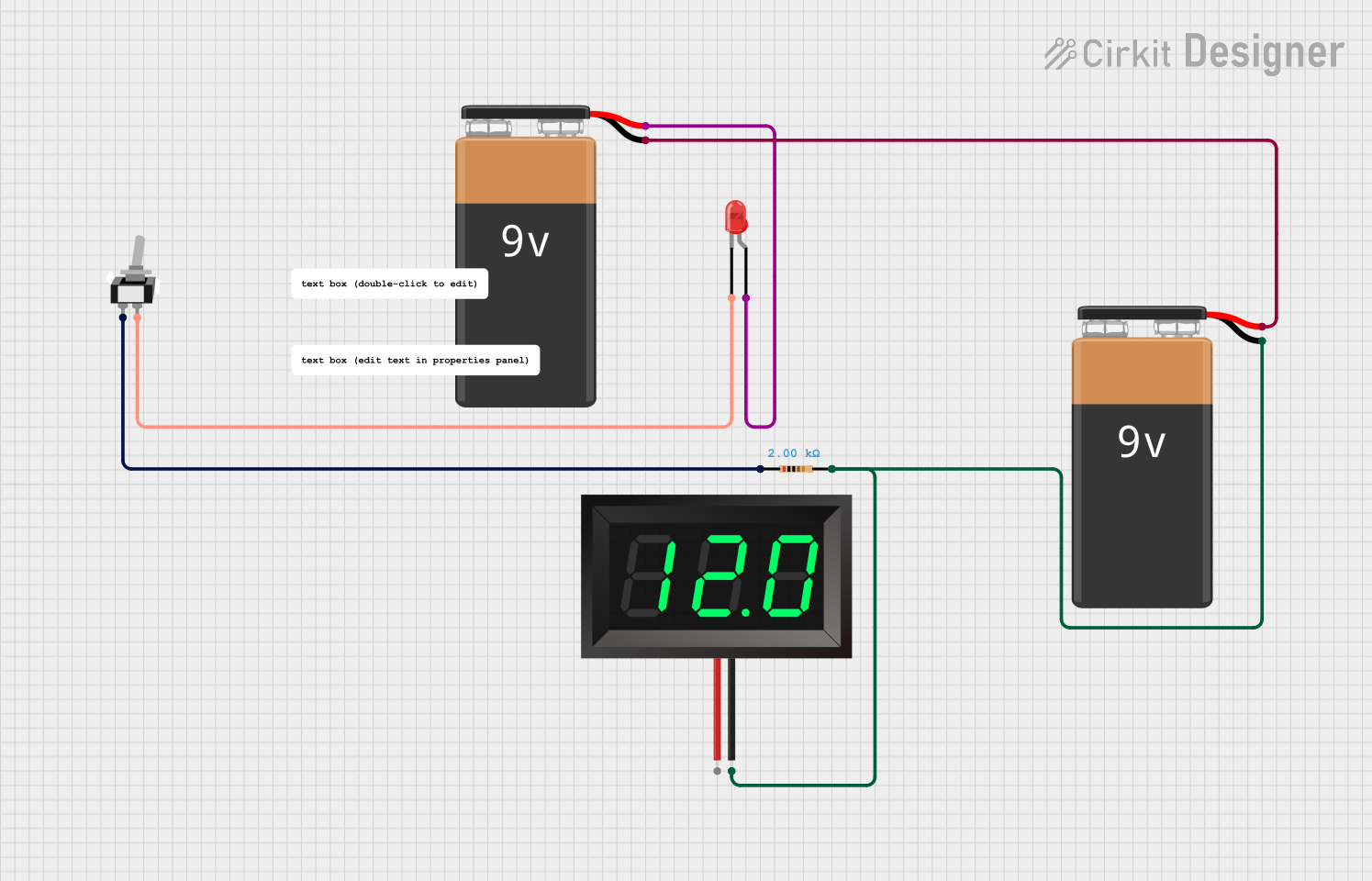 Open Project in Cirkit Designer
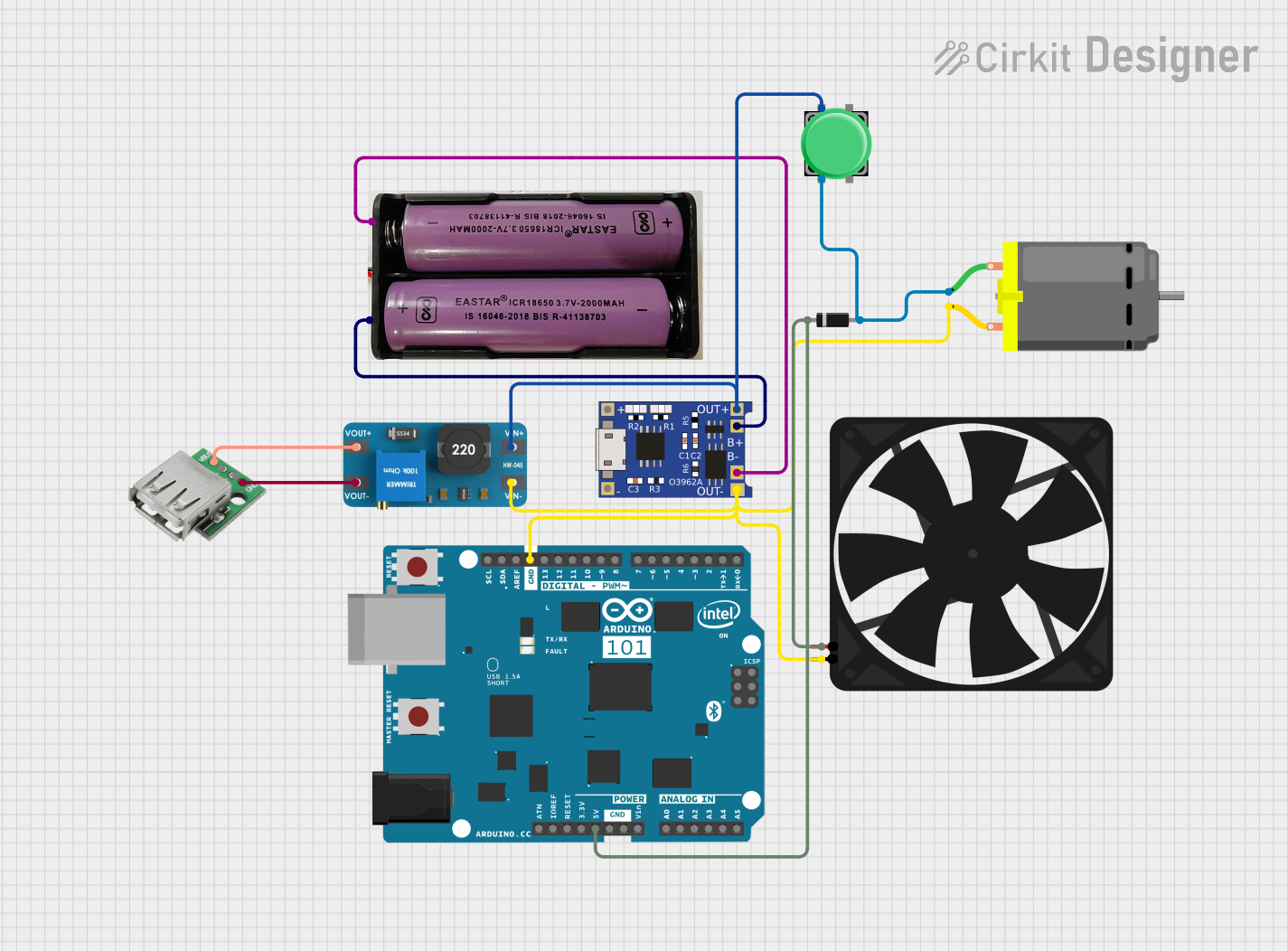 Open Project in Cirkit Designer
 Open Project in Cirkit Designer
Explore Projects Built with Set battery (7v)
Open Project in Cirkit DesignerOpen Project in Cirkit DesignerOpen Project in Cirkit DesignerOpen Project in Cirkit DesignerTechnical Specifications
General Characteristics
- Nominal Voltage: 7V
- Chemistry: [Chemistry type, e.g., Li-ion, NiMH]
- Capacity: [Capacity in mAh]
- Rechargeable: [Yes/No]
- Cycle Life: [Number of charge/discharge cycles]
- Operating Temperature Range: [Min] - [Max] °C
Physical Attributes
- Dimensions: [Length x Width x Height in mm]
- Weight: [Weight in grams]
- Connector Type: [Connector type, e.g., JST, barrel plug]
Electrical Specifications
| Parameter | Specification |
|---|---|
| Nominal Voltage | 7V |
| Maximum Continuous Discharge Current | [Current in A] |
| Peak Discharge Current | [Current in A] |
| Charge Current | [Current in A] |
| Overcharge Protection Voltage | [Voltage in V] |
| Discharge Cut-off Voltage | [Voltage in V] |
| Internal Resistance | [Resistance in mΩ] |
Usage Instructions
Integrating with a Circuit
- Connection: Ensure the battery connector is compatible with the power input connector of your device. If not, you may need an adapter or to modify the connectors.
- Voltage Regulation: If your device requires a voltage lower than 7V, use a voltage regulator to prevent damage.
- Charging: Use a charger that matches the battery's chemistry and specifications. Overcharging can lead to battery damage or failure.
- Discharging: Do not over-discharge the battery below its cut-off voltage to avoid damaging the battery.
- Storage: Store the battery at room temperature in a dry environment. Long-term storage at full charge or high temperatures can reduce battery life.
Best Practices
- Always follow the manufacturer's guidelines for charging and discharging.
- Monitor battery temperature during high-current applications.
- Use a battery management system (BMS) for rechargeable batteries to ensure safety and longevity.
- Avoid mechanical stress and puncture to prevent battery damage and potential hazards.
Troubleshooting and FAQs
Common Issues
- Battery won't charge: Ensure the charger is functioning and compatible. Check for damaged connectors or wiring.
- Reduced capacity: Batteries degrade over time. If the battery doesn't hold a charge as it used to, it may be time to replace it.
- Device not powering on: Verify the battery voltage with a multimeter. Check if the battery is properly connected and the polarity is correct.
FAQs
Q: Can I use this battery with an Arduino UNO? A: Yes, but you will need a voltage regulator as the Arduino UNO typically operates at 5V.
Q: How do I dispose of the battery? A: Follow local regulations for battery disposal. Do not throw it in the trash. Recycle if possible.
Q: Is it safe to leave the battery charging overnight? A: Only if the charger is designed to prevent overcharging. Otherwise, it's best to monitor the charging process.
Q: How long will the battery last in my project? A: This depends on the current draw of your project. Calculate the expected runtime by dividing the battery capacity by the current draw.
Example Code for Arduino UNO
// Example code to monitor battery voltage with an Arduino UNO
int batteryPin = A0; // Analog pin connected to battery voltage divider

void setup() {
  Serial.begin(9600);
}

void loop() {
  int sensorValue = analogRead(batteryPin); // Read the analog value
  float voltage = sensorValue * (7.0 / 1023.0); // Convert to battery voltage
  Serial.print("Battery Voltage: ");
  Serial.println(voltage);
  delay(1000); // Wait for 1 second before reading again
}
Note: The above code assumes a direct connection to the battery. If you use a voltage divider or a module to step down the voltage to a safe level for the Arduino's analog input, adjust the conversion factor (7.0 / 1023.0) accordingly.
Remember to follow all safety precautions when working with batteries, and always consult the datasheet for specific details related to the battery you are using.