
How to Use 7 Segment display: Examples, Pinouts, and Specs
 Design with 7 Segment display in Cirkit Designer
Introduction
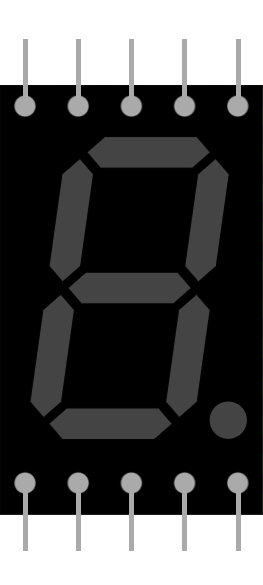
A 7 Segment display is an electronic display device used to represent decimal numbers and some letters. It consists of seven individual segments (labeled A through G) that can be illuminated in different combinations to display digits from 0 to 9. Some advanced displays also include a decimal point (DP) for additional functionality.
7 Segment displays are widely used in digital clocks, calculators, electronic meters, and other devices where numerical data needs to be displayed in a simple and readable format.
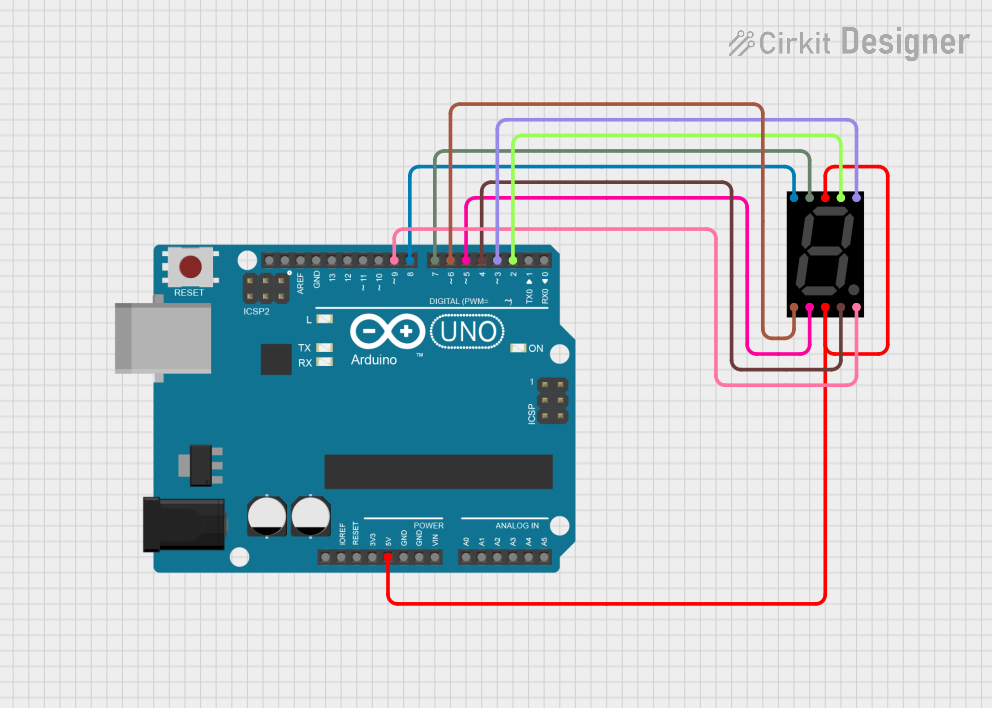
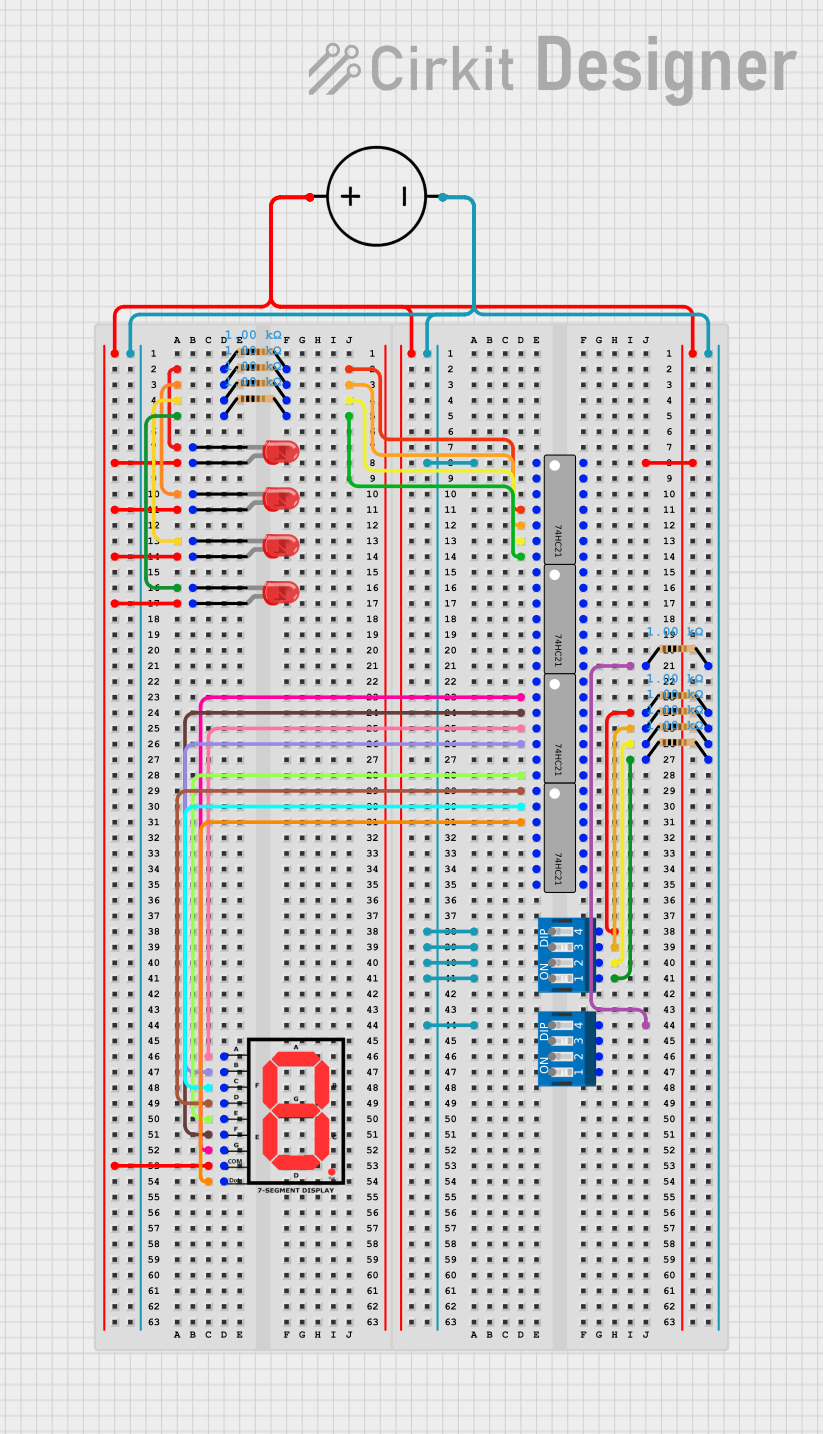
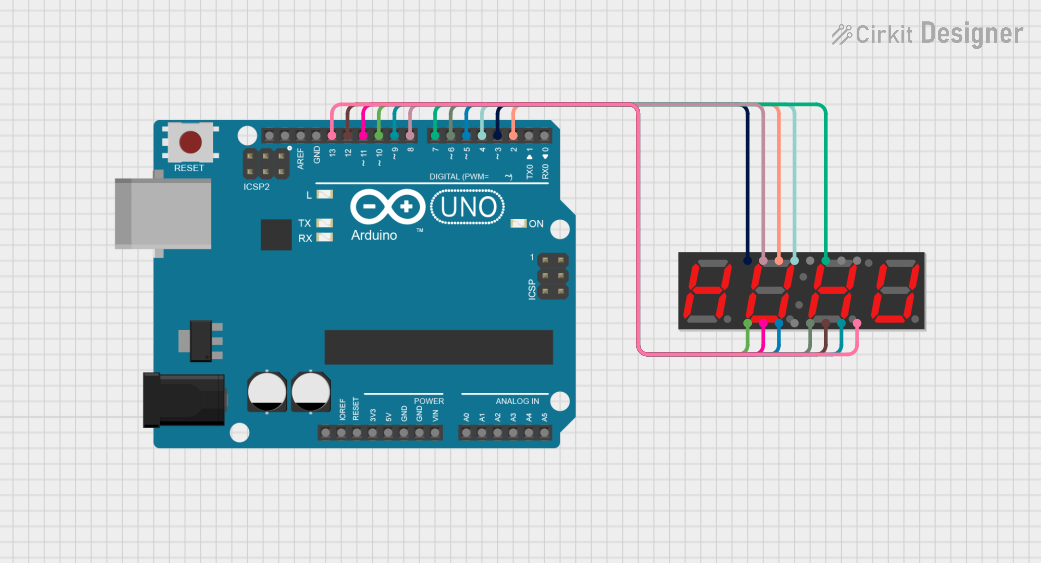
Explore Projects Built with 7 Segment display
 Open Project in Cirkit Designer
 Open Project in Cirkit Designer
 Open Project in Cirkit Designer
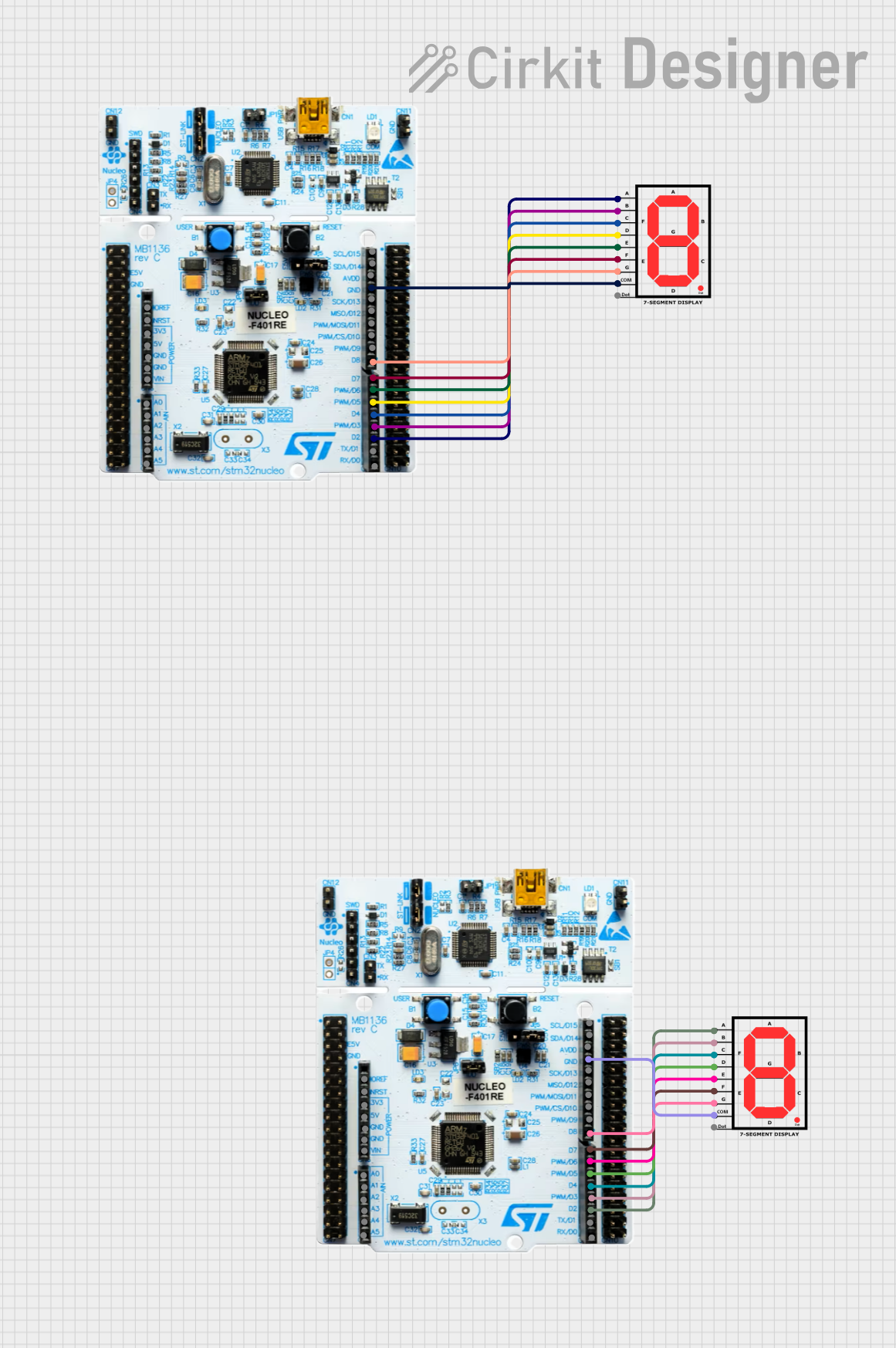 Open Project in Cirkit Designer
Explore Projects Built with 7 Segment display
Open Project in Cirkit DesignerOpen Project in Cirkit DesignerOpen Project in Cirkit DesignerOpen Project in Cirkit DesignerTechnical Specifications
- Type: Common Anode or Common Cathode
- Operating Voltage: Typically 2V to 3V per segment
- Forward Current: 10mA to 20mA per segment
- Power Consumption: Depends on the number of active segments
- Number of Pins: 8 or 10 (depending on the inclusion of the decimal point)
- Segment Material: LED (Light Emitting Diode)
Pin Configuration and Descriptions
The pin configuration of a 7 Segment display depends on whether it is a Common Anode or Common Cathode type. Below is a general pinout for a standard 7 Segment display:
| Pin Number | Label | Description |
|---|---|---|
| 1 | E | Controls segment E |
| 2 | D | Controls segment D |
| 3 | Common | Common pin (Anode or Cathode, depending on the type) |
| 4 | C | Controls segment C |
| 5 | DP | Controls the decimal point (optional, not present in all displays) |
| 6 | B | Controls segment B |
| 7 | A | Controls segment A |
| 8 | F | Controls segment F |
| 9 | Common | Common pin (Anode or Cathode, depending on the type) |
| 10 | G | Controls segment G |
Segment Layout
The segments are labeled as follows for reference:
  --A--
 |     |
 F     B
 |     |
  --G--
 |     |
 E     C
 |     |
  --D--   (DP)
Usage Instructions
How to Use the Component in a Circuit
- Determine the Type: Identify whether your 7 Segment display is a Common Anode or Common Cathode type. This information is crucial for proper wiring.
- Common Anode: Connect the common pin(s) to the positive voltage (Vcc).
- Common Cathode: Connect the common pin(s) to ground (GND).
- Connect Resistors: Use current-limiting resistors (typically 220Ω to 1kΩ) in series with each segment to prevent damage to the LEDs.
- Control the Segments: Use a microcontroller (e.g., Arduino UNO) or a driver IC (e.g., 74HC595) to control the individual segments by toggling their respective pins HIGH or LOW.
Example Circuit with Arduino UNO
Below is an example of how to connect a Common Cathode 7 Segment display to an Arduino UNO:
Circuit Connections
| 7 Segment Pin | Arduino Pin | Description |
|---|---|---|
| A | 2 | Controls segment A |
| B | 3 | Controls segment B |
| C | 4 | Controls segment C |
| D | 5 | Controls segment D |
| E | 6 | Controls segment E |
| F | 7 | Controls segment F |
| G | 8 | Controls segment G |
| Common | GND | Connect to ground (Common Cathode) |
Arduino Code Example
// Arduino code to display numbers 0-9 on a 7 Segment display
// Common Cathode configuration assumed

// Define segment pins
const int segmentPins[] = {2, 3, 4, 5, 6, 7, 8};

// Digit to segment mapping (0-9)
// Each array element represents the state of segments A-G
const byte digitMap[10] = {
  0b00111111, // 0
  0b00000110, // 1
  0b01011011, // 2
  0b01001111, // 3
  0b01100110, // 4
  0b01101101, // 5
  0b01111101, // 6
  0b00000111, // 7
  0b01111111, // 8
  0b01101111  // 9
};

void setup() {
  // Set all segment pins as OUTPUT
  for (int i = 0; i < 7; i++) {
    pinMode(segmentPins[i], OUTPUT);
  }
}

void loop() {
  // Display digits 0-9 with a 1-second delay
  for (int digit = 0; digit < 10; digit++) {
    displayDigit(digit);
    delay(1000); // Wait for 1 second
  }
}

// Function to display a digit on the 7 Segment display
void displayDigit(int digit) {
  byte segments = digitMap[digit];
  for (int i = 0; i < 7; i++) {
    // Write HIGH or LOW to each segment pin
    digitalWrite(segmentPins[i], (segments >> i) & 0x01);
  }
}
Important Considerations and Best Practices
- Always use current-limiting resistors to protect the LEDs from excessive current.
- Verify the type of 7 Segment display (Common Anode or Common Cathode) before wiring.
- Avoid exceeding the maximum forward current and voltage ratings for the LEDs.
- If controlling multiple displays, consider using a driver IC or multiplexing to reduce the number of required microcontroller pins.
Troubleshooting and FAQs
Common Issues
Segments Not Lighting Up:
- Check the wiring and ensure all connections are secure.
- Verify that the common pin is connected to the correct voltage (Vcc for Common Anode, GND for Common Cathode).
- Ensure the current-limiting resistors are not too high, which could prevent sufficient current flow.
Incorrect Digits Displayed:
- Double-check the segment-to-pin mapping in your code.
- Ensure the digitMap array matches the wiring of your 7 Segment display.
Flickering Display:
- This may occur if the microcontroller is not updating the segments fast enough. Optimize your code or use a driver IC for smoother operation.
FAQs
Q: Can I control a 7 Segment display without a microcontroller?
A: Yes, you can use switches or a driver IC like the 74HC595 shift register to control the segments manually or with fewer pins.
Q: What is the difference between Common Anode and Common Cathode?
A: In a Common Anode display, all anodes are connected together and must be connected to Vcc. In a Common Cathode display, all cathodes are connected together and must be connected to GND.
Q: Can I display letters on a 7 Segment display?
A: Yes, some letters (e.g., A, b, C, d, E, F) can be displayed by illuminating specific segments, but the display is limited to characters that fit the 7-segment layout.