
How to Use Schematic I2C LCD 16x2: Examples, Pinouts, and Specs
 Design with Schematic I2C LCD 16x2 in Cirkit Designer
Introduction
The Schematic I2C LCD 16x2 is a 16-character by 2-line alphanumeric display module that uses I2C (Inter-Integrated Circuit) communication. This module simplifies the process of interfacing with microcontrollers by reducing the number of required pins, making it ideal for projects with limited GPIO availability. It is commonly used in applications such as DIY electronics, embedded systems, and prototyping where text or simple visual feedback is needed.
Explore Projects Built with Schematic I2C LCD 16x2
 Open Project in Cirkit Designer
 Open Project in Cirkit Designer
 Open Project in Cirkit Designer
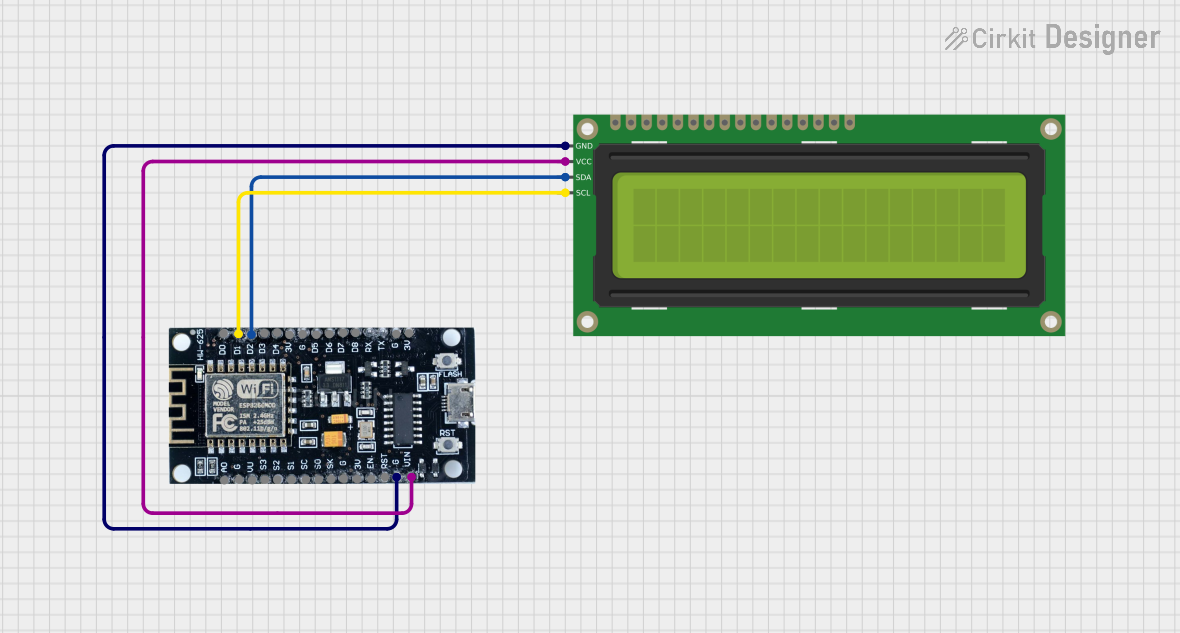 Open Project in Cirkit Designer
Explore Projects Built with Schematic I2C LCD 16x2
Open Project in Cirkit DesignerOpen Project in Cirkit DesignerOpen Project in Cirkit DesignerOpen Project in Cirkit DesignerCommon Applications:
- Displaying sensor data in real-time
- User interfaces for embedded systems
- Menu systems for microcontroller-based projects
- Debugging and status monitoring in prototypes
Technical Specifications
Key Technical Details:
- Display Type: 16x2 character LCD
- Communication Protocol: I2C
- Operating Voltage: 5V DC
- Backlight: LED (controllable via software)
- I2C Address: Typically 0x27 or 0x3F (configurable via solder jumpers)
- Current Consumption: ~20mA (with backlight on)
- Character Size: 5x8 dot matrix
- Operating Temperature: -20°C to 70°C
Pin Configuration:
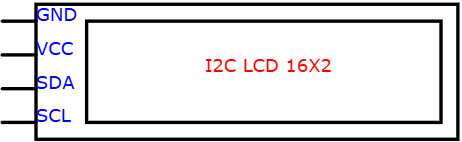
The Schematic I2C LCD 16x2 has a 4-pin interface for I2C communication. Below is the pinout:
| Pin Name | Description | Notes |
|---|---|---|
| VCC | Power Supply (5V) | Connect to 5V on the microcontroller |
| GND | Ground | Connect to GND on the microcontroller |
| SDA | Serial Data Line | Connect to the SDA pin of the microcontroller |
| SCL | Serial Clock Line | Connect to the SCL pin of the microcontroller |
Usage Instructions
How to Use the Component in a Circuit:
Wiring the LCD:
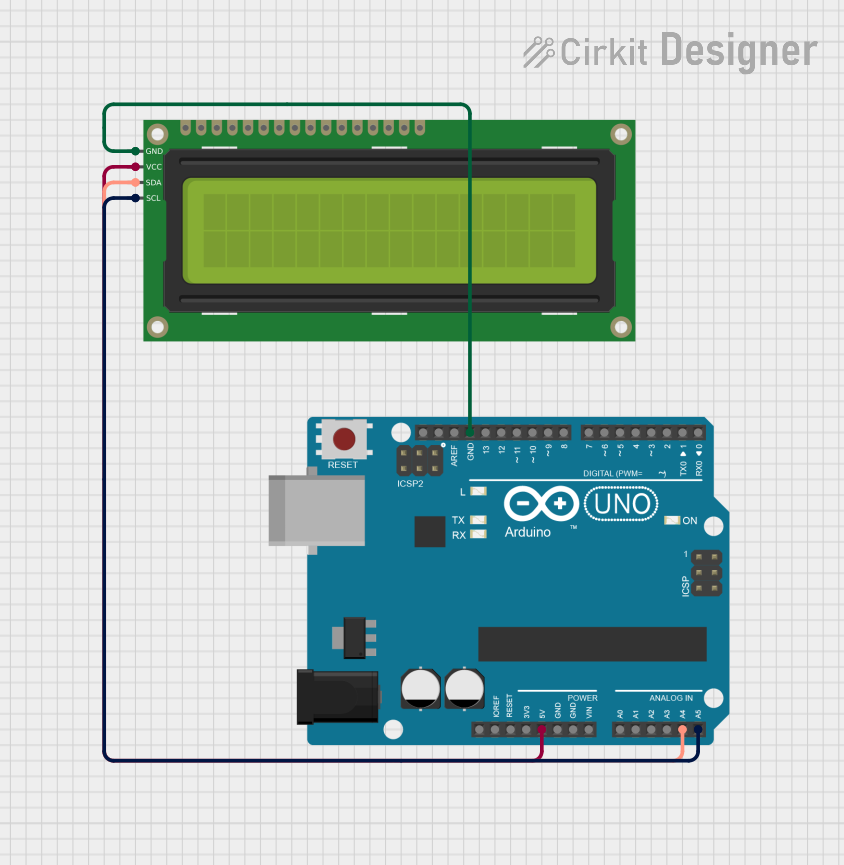
- Connect the
VCCpin of the LCD to the 5V pin of your microcontroller. - Connect the
GNDpin of the LCD to the ground (GND) of your microcontroller. - Connect the
SDApin of the LCD to the SDA pin of your microcontroller (e.g., A4 on Arduino UNO). - Connect the
SCLpin of the LCD to the SCL pin of your microcontroller (e.g., A5 on Arduino UNO).
- Connect the
Install Required Libraries:
- For Arduino, install the
LiquidCrystal_I2Clibrary via the Library Manager in the Arduino IDE.
- For Arduino, install the
Write and Upload Code:
- Use the example code below to initialize and display text on the LCD.
Example Code for Arduino UNO:
#include <Wire.h>
#include <LiquidCrystal_I2C.h>

// Initialize the LCD with I2C address 0x27 and 16x2 dimensions
LiquidCrystal_I2C lcd(0x27, 16, 2);

void setup() {
  lcd.begin(); // Initialize the LCD
  lcd.backlight(); // Turn on the backlight
  lcd.setCursor(0, 0); // Set cursor to the first row, first column
  lcd.print("Hello, World!"); // Display text on the first row
  lcd.setCursor(0, 1); // Set cursor to the second row, first column
  lcd.print("I2C LCD 16x2"); // Display text on the second row
}

void loop() {
  // No actions in the loop for this example
}
Important Considerations and Best Practices:
- I2C Address: Ensure the correct I2C address (e.g., 0x27 or 0x3F) is used in your code. If unsure, use an I2C scanner sketch to detect the address.
- Power Supply: Use a stable 5V power source to avoid flickering or malfunction.
- Contrast Adjustment: Some modules have a potentiometer for adjusting the contrast. Turn it to achieve optimal text visibility.
- Backlight Control: Use
lcd.backlight()andlcd.noBacklight()to control the backlight programmatically.
Troubleshooting and FAQs
Common Issues and Solutions:
LCD Not Displaying Text:
- Cause: Incorrect I2C address.
- Solution: Run an I2C scanner sketch to find the correct address and update your code.
Flickering or Dim Display:
- Cause: Insufficient power supply.
- Solution: Ensure the LCD is connected to a stable 5V source.
Text Appears Garbled or Misaligned:
- Cause: Incorrect initialization or cursor settings.
- Solution: Verify the
lcd.begin()andlcd.setCursor()calls in your code.
Backlight Not Working:
- Cause: Backlight control not enabled in the code.
- Solution: Add
lcd.backlight()in thesetup()function.
FAQs:
Q: Can I use this LCD with a 3.3V microcontroller?
A: Yes, but you will need a logic level shifter for the I2C lines or ensure the module supports 3.3V logic.Q: How do I change the I2C address?
A: Modify the solder jumpers on the back of the module to set a new address. Refer to the module's datasheet for details.Q: Can I display custom characters?
A: Yes, theLiquidCrystal_I2Clibrary supports custom characters. Refer to the library documentation for examples.
By following this documentation, you can effectively integrate the Schematic I2C LCD 16x2 into your projects and troubleshoot common issues with ease.