
How to Use AC PLUG: Examples, Pinouts, and Specs
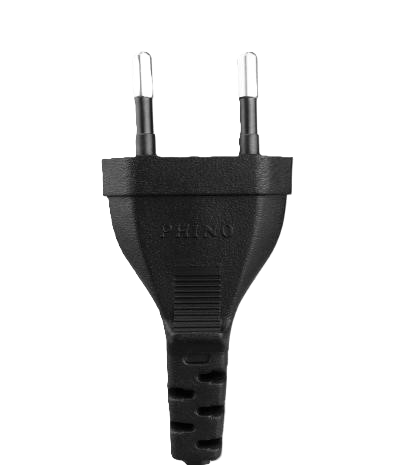
 Design with AC PLUG in Cirkit Designer
Introduction
An AC plug, manufactured by AC with the part ID "plug," is a device designed to connect electrical appliances to an alternating current (AC) power supply. It typically features prongs that fit into a corresponding socket, enabling the transfer of electrical power. AC plugs are essential components in household, industrial, and commercial electrical systems, ensuring a safe and reliable connection to the power grid.
Explore Projects Built with AC PLUG
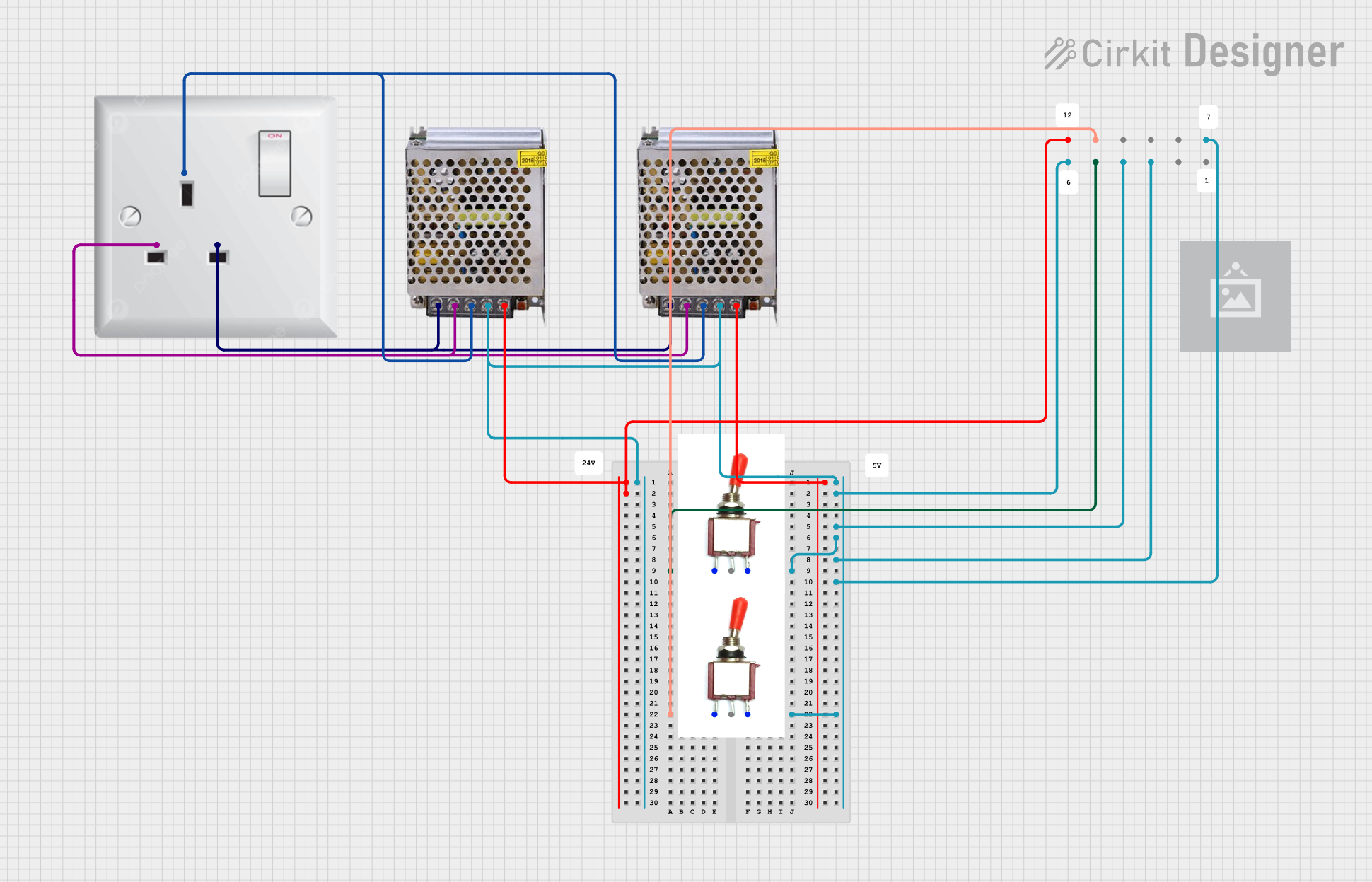 Open Project in Cirkit Designer
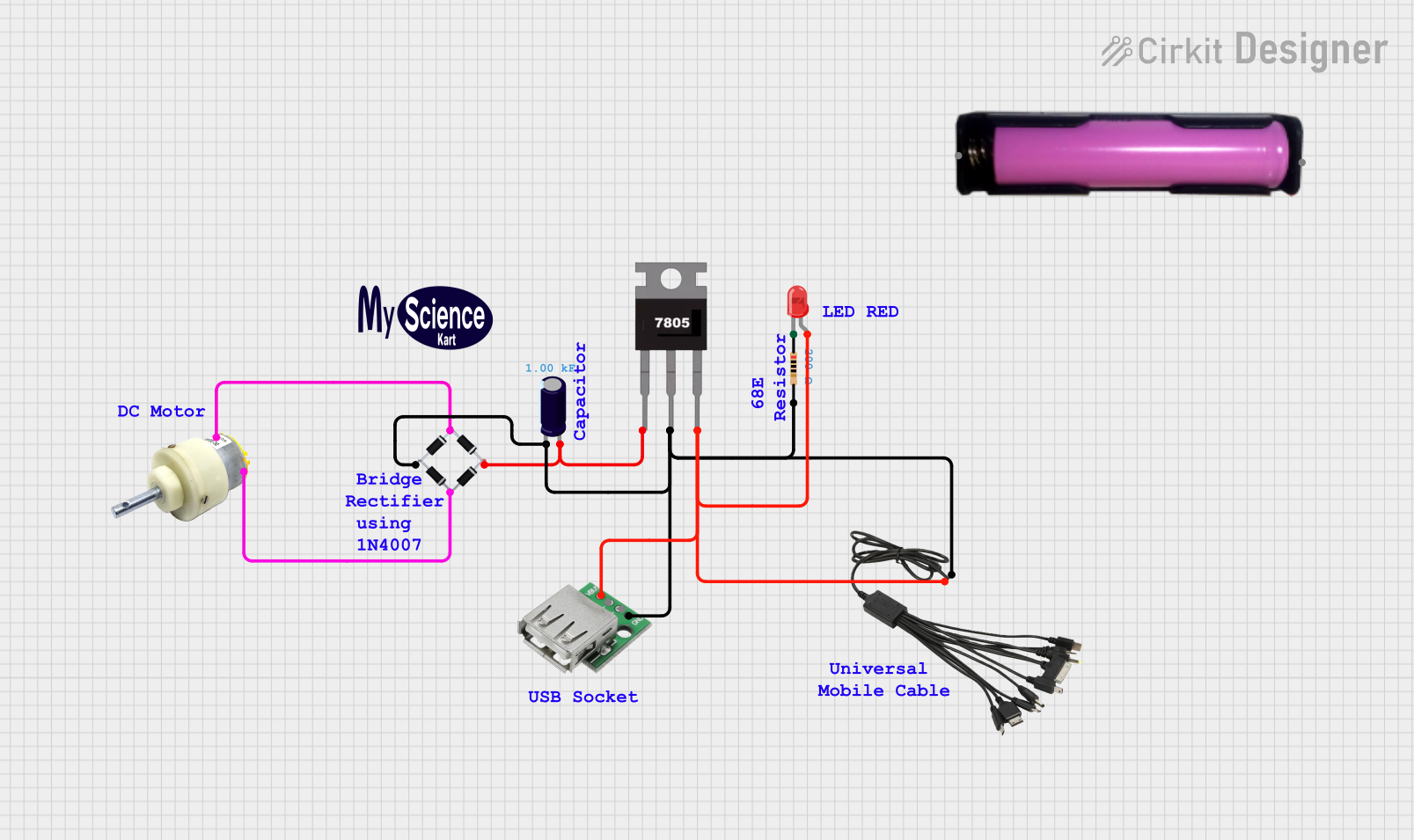 Open Project in Cirkit Designer
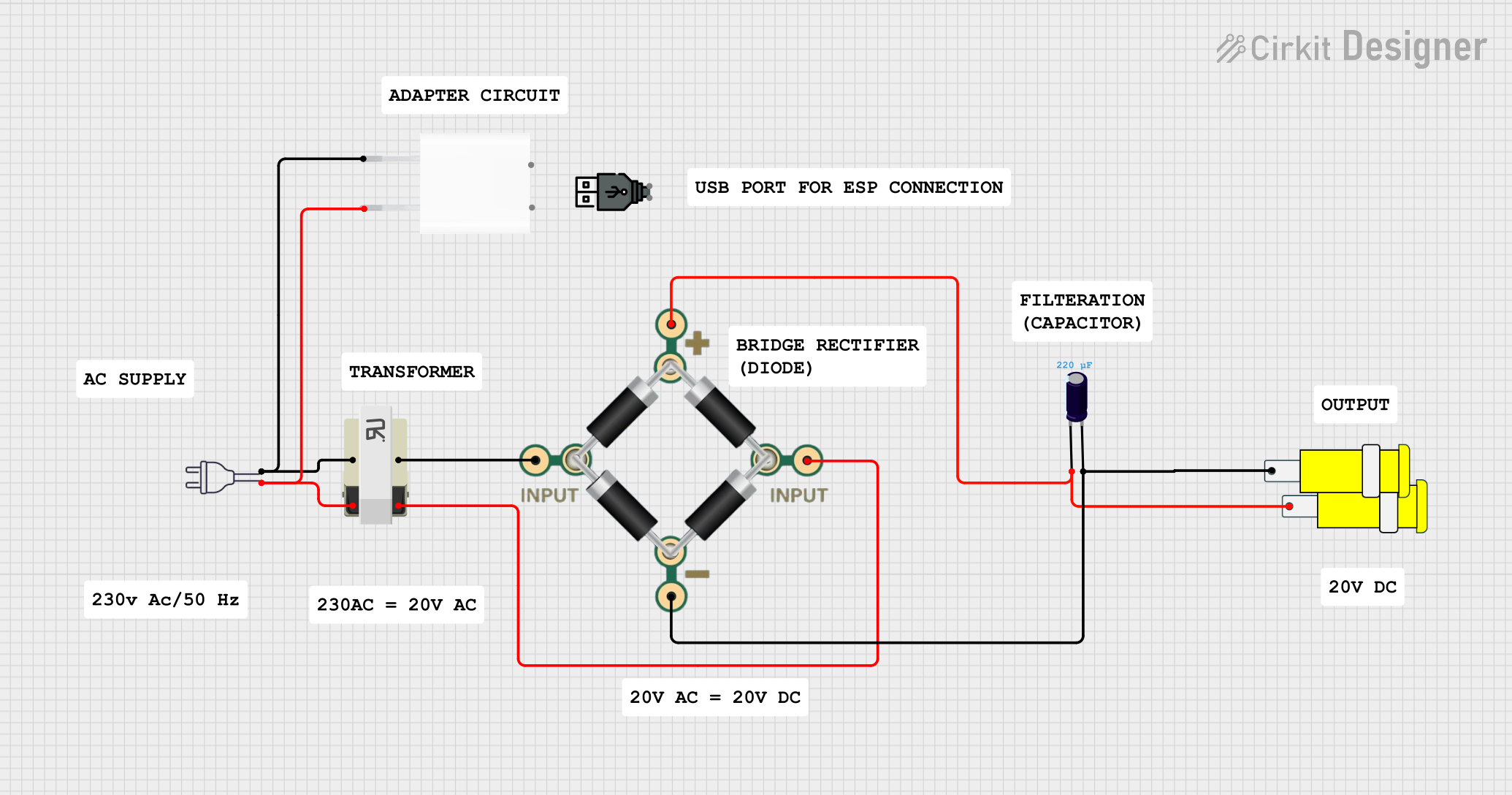 Open Project in Cirkit Designer
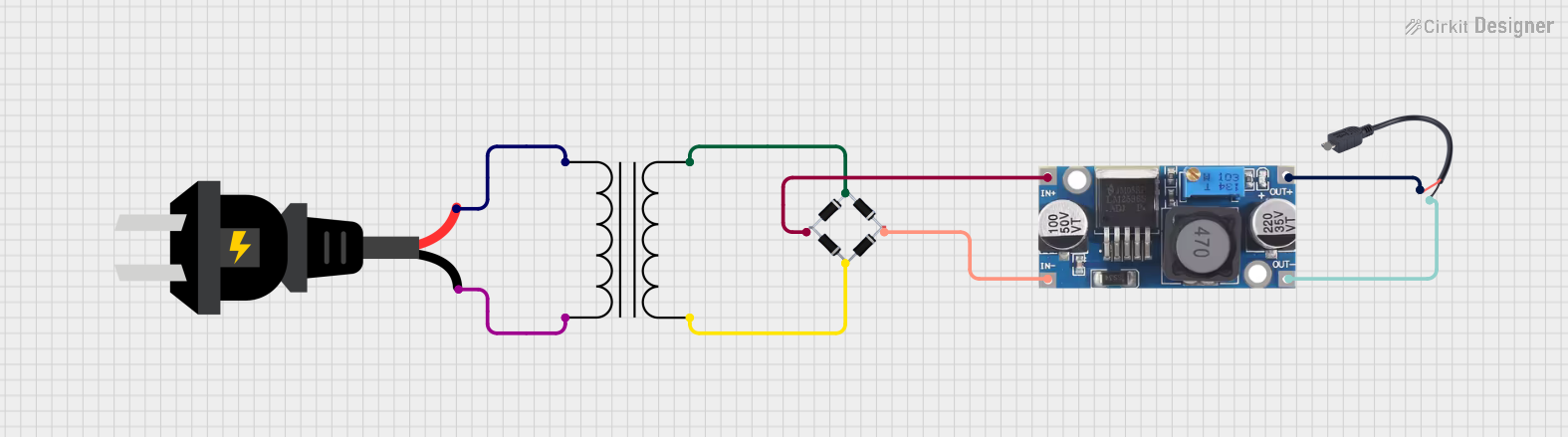 Open Project in Cirkit Designer
Explore Projects Built with AC PLUG
Open Project in Cirkit DesignerOpen Project in Cirkit DesignerOpen Project in Cirkit DesignerOpen Project in Cirkit DesignerCommon Applications and Use Cases
- Powering household appliances such as lamps, televisions, and kitchen devices.
- Connecting industrial equipment to AC power sources.
- Use in extension cords and power strips for distributing electricity.
- Temporary or permanent connections in commercial settings.
Technical Specifications
Key Technical Details
| Parameter | Value/Description |
|---|---|
| Manufacturer | AC |
| Part ID | plug |
| Voltage Rating | 110V - 250V AC (varies by region) |
| Current Rating | 10A - 16A (depending on plug type) |
| Frequency | 50Hz / 60Hz |
| Material | High-grade thermoplastic or thermoset |
| Safety Standards | Compliant with IEC, UL, or regional norms |
| Operating Temperature | -20°C to 70°C |
Pin Configuration and Descriptions
The pin configuration of an AC plug varies depending on the regional standard (e.g., Type A, Type B, Type C). Below is an example of a Type B plug configuration:
| Pin Number | Name | Description |
|---|---|---|
| 1 | Live (Hot) | Carries the current from the power source. |
| 2 | Neutral | Completes the circuit back to the power source. |
| 3 | Ground (Earth) | Provides a safety path for fault currents. |
Usage Instructions
How to Use the AC Plug in a Circuit
- Inspect the Plug: Ensure the AC plug is free from damage, such as cracks or exposed wires.
- Connect to Appliance: Attach the plug to the appliance's power cord, ensuring proper wiring:
- Live (Hot) wire to the live pin.
- Neutral wire to the neutral pin.
- Ground wire to the ground pin (if applicable).
- Insert into Socket: Plug the AC plug into a compatible AC socket that matches the voltage and current rating.
- Power On: Turn on the appliance or device to begin operation.
Important Considerations and Best Practices
- Voltage Compatibility: Verify that the plug's voltage rating matches the power supply.
- Grounding: Always use a grounded plug for devices requiring additional safety.
- Overloading: Avoid exceeding the current rating of the plug to prevent overheating or damage.
- Regional Standards: Ensure the plug type is compatible with the socket standard in your region.
- Safety First: Disconnect the plug from the socket before performing any maintenance or wiring.
Example: Connecting to an Arduino UNO
While an AC plug is not directly connected to an Arduino UNO, it can be used to power an external power supply that provides DC voltage to the Arduino. Below is an example of how to use an AC plug with a 12V DC adapter to power an Arduino UNO:
/* Example: Blinking an LED with Arduino UNO powered via AC plug and adapter */

// Connect the AC plug to a 12V DC adapter.
// Ensure the adapter's output is connected to the Arduino UNO's barrel jack.
// The Arduino UNO will regulate the voltage to 5V for its operation.

int ledPin = 13; // Pin 13 is connected to the onboard LED

void setup() {
  pinMode(ledPin, OUTPUT); // Set pin 13 as an output
}

void loop() {
  digitalWrite(ledPin, HIGH); // Turn the LED on
  delay(1000);               // Wait for 1 second
  digitalWrite(ledPin, LOW);  // Turn the LED off
  delay(1000);               // Wait for 1 second
}
Troubleshooting and FAQs
Common Issues Users Might Face
- Loose Connection: The plug does not fit securely into the socket.
- Solution: Ensure the plug and socket are of the same standard and inspect for damage.
- Overheating: The plug becomes warm or hot during use.
- Solution: Check for overloading or loose connections. Replace the plug if necessary.
- No Power: The connected appliance does not turn on.
- Solution: Verify the wiring inside the plug and ensure the socket is functional.
- Sparking: Sparks appear when inserting or removing the plug.
- Solution: Ensure the socket is in good condition and avoid plugging/unplugging under load.
Tips for Troubleshooting
- Use a multimeter to check continuity and voltage levels.
- Inspect the plug for visible damage, such as frayed wires or melted plastic.
- Replace the plug if it shows signs of wear or fails to meet safety standards.
By following this documentation, users can safely and effectively utilize the AC plug in various applications.