
How to Use vdc board: Examples, Pinouts, and Specs
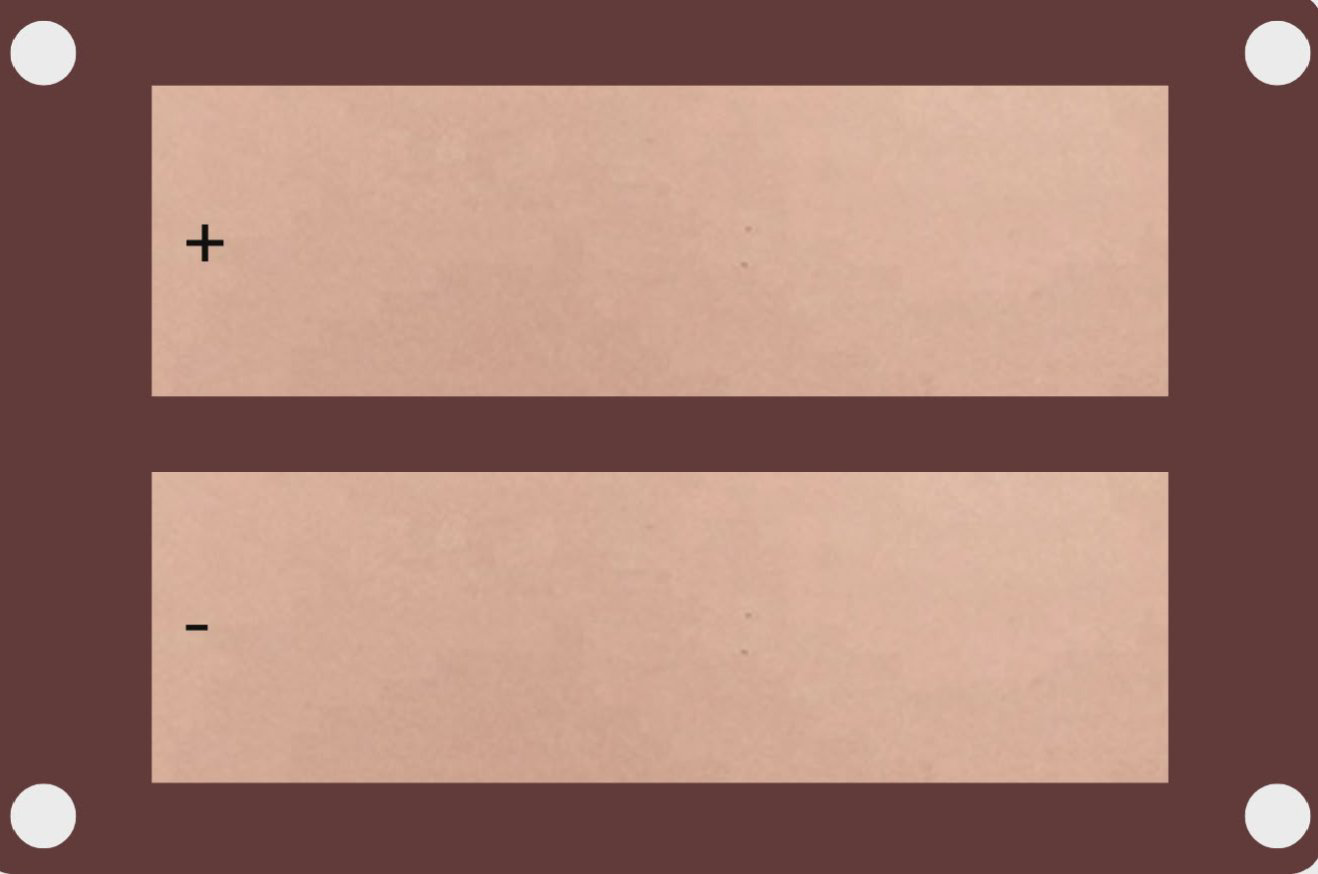
 Design with vdc board in Cirkit Designer
Introduction
The VDC Board (Manufacturer: Ardui, Part ID: 12345) is a circuit board designed to manage and distribute direct current (DC) voltage to various components in an electronic system. It ensures a stable power supply and efficient operation, making it an essential component in many electronic designs. The board is versatile and can be used in a wide range of applications, from powering microcontrollers to driving motors and sensors.
Explore Projects Built with vdc board
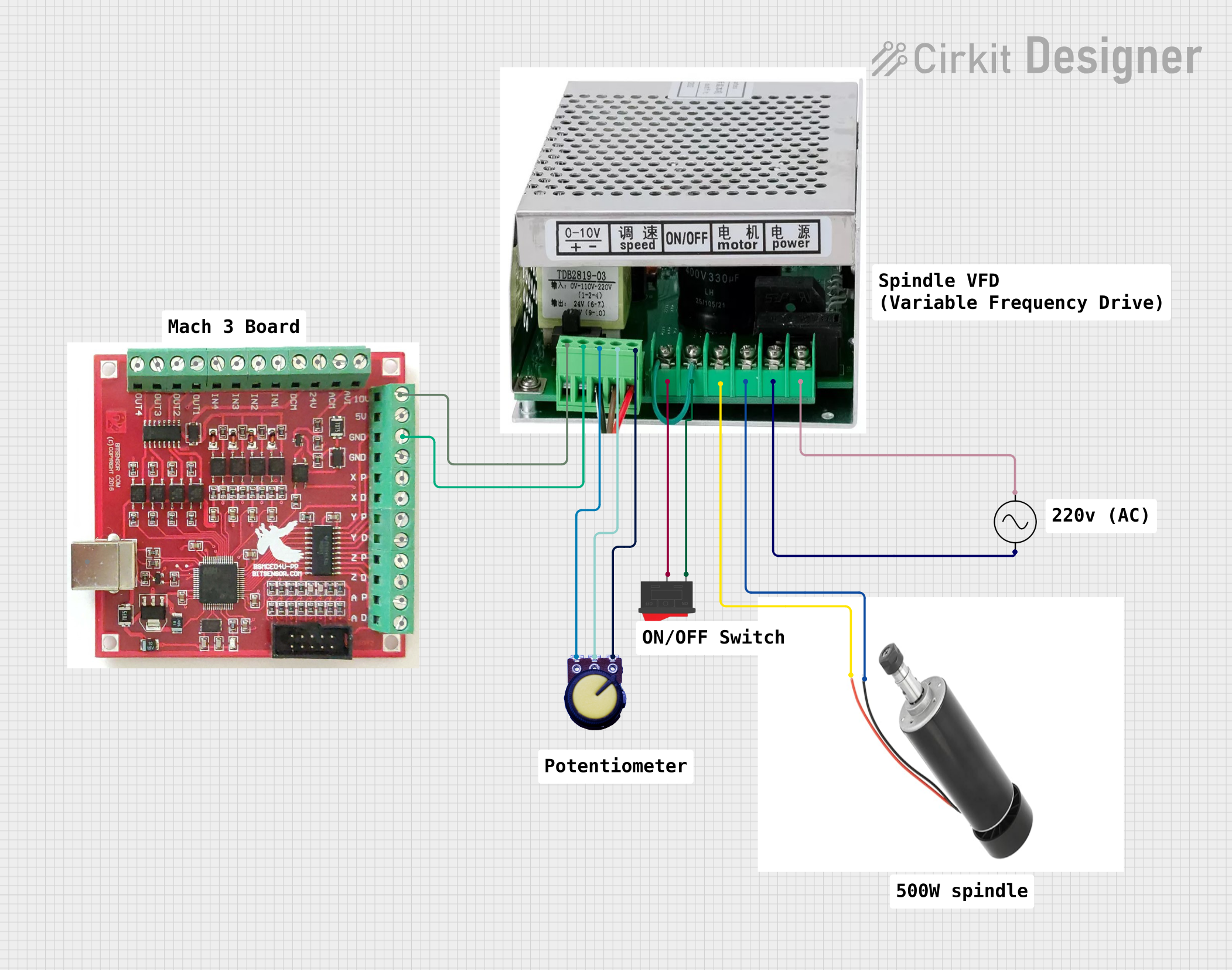 Open Project in Cirkit Designer
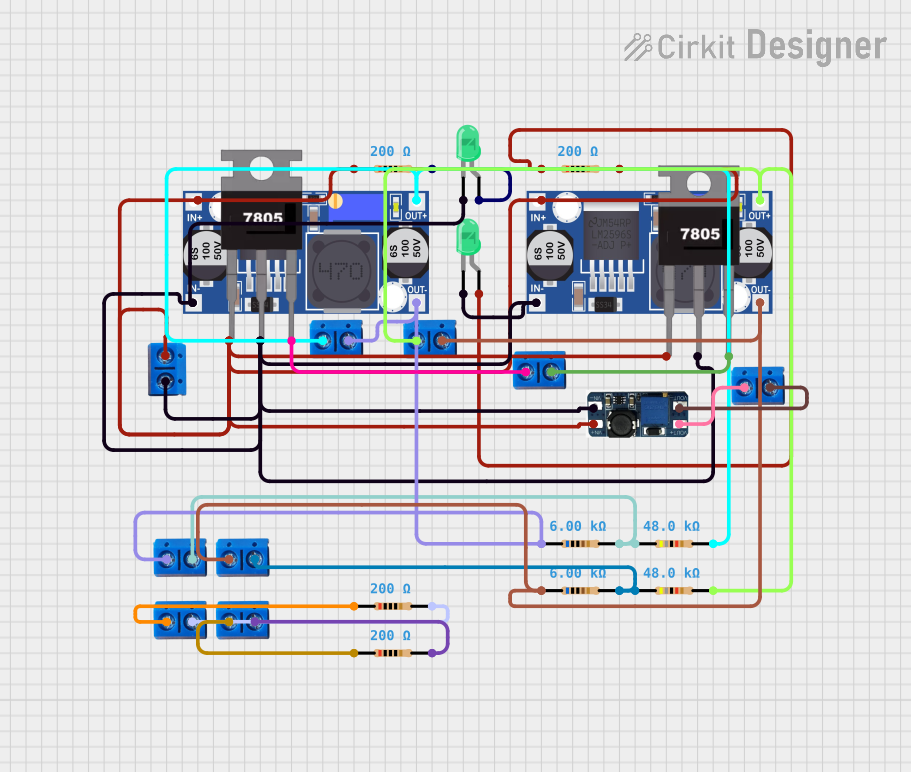 Open Project in Cirkit Designer
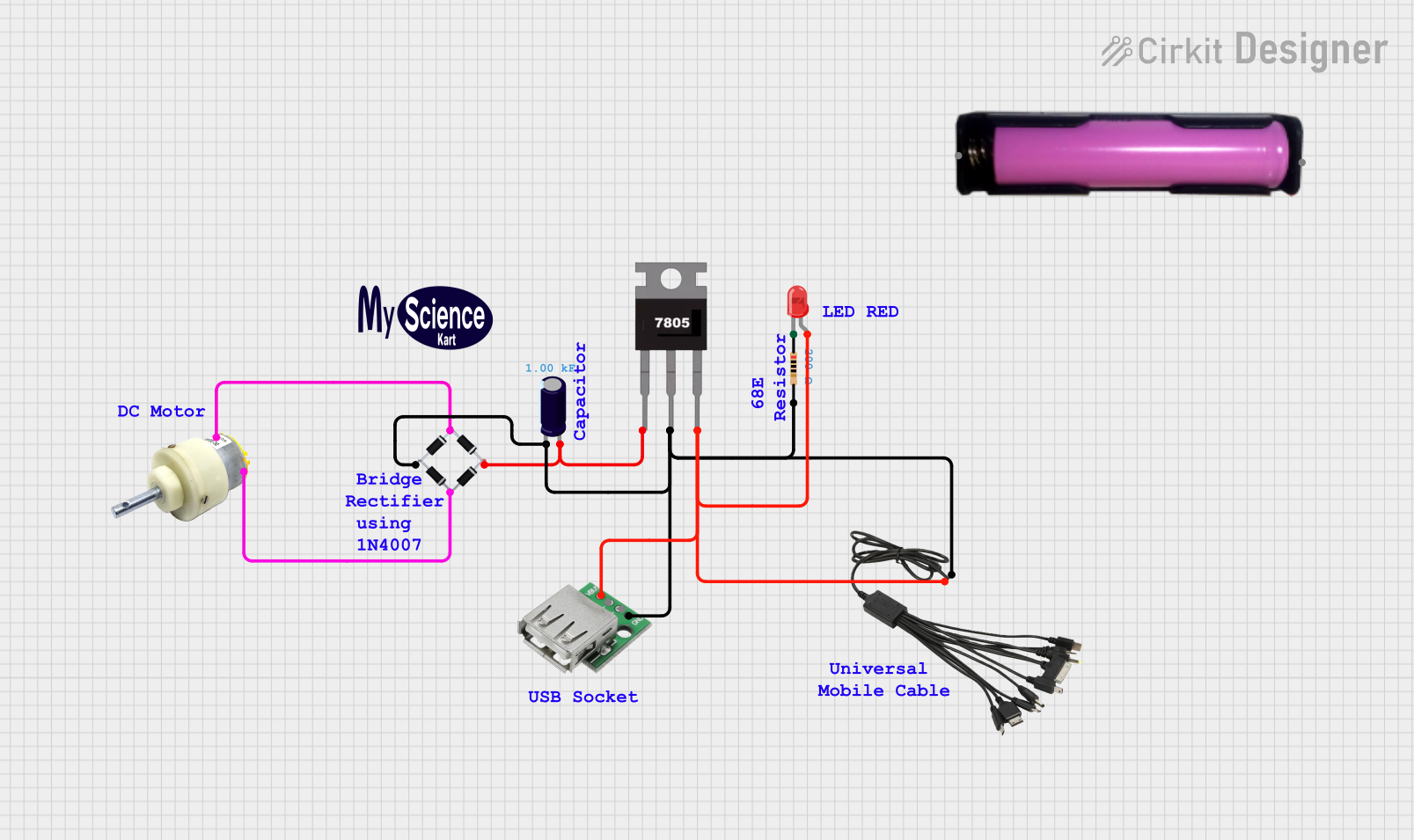 Open Project in Cirkit Designer
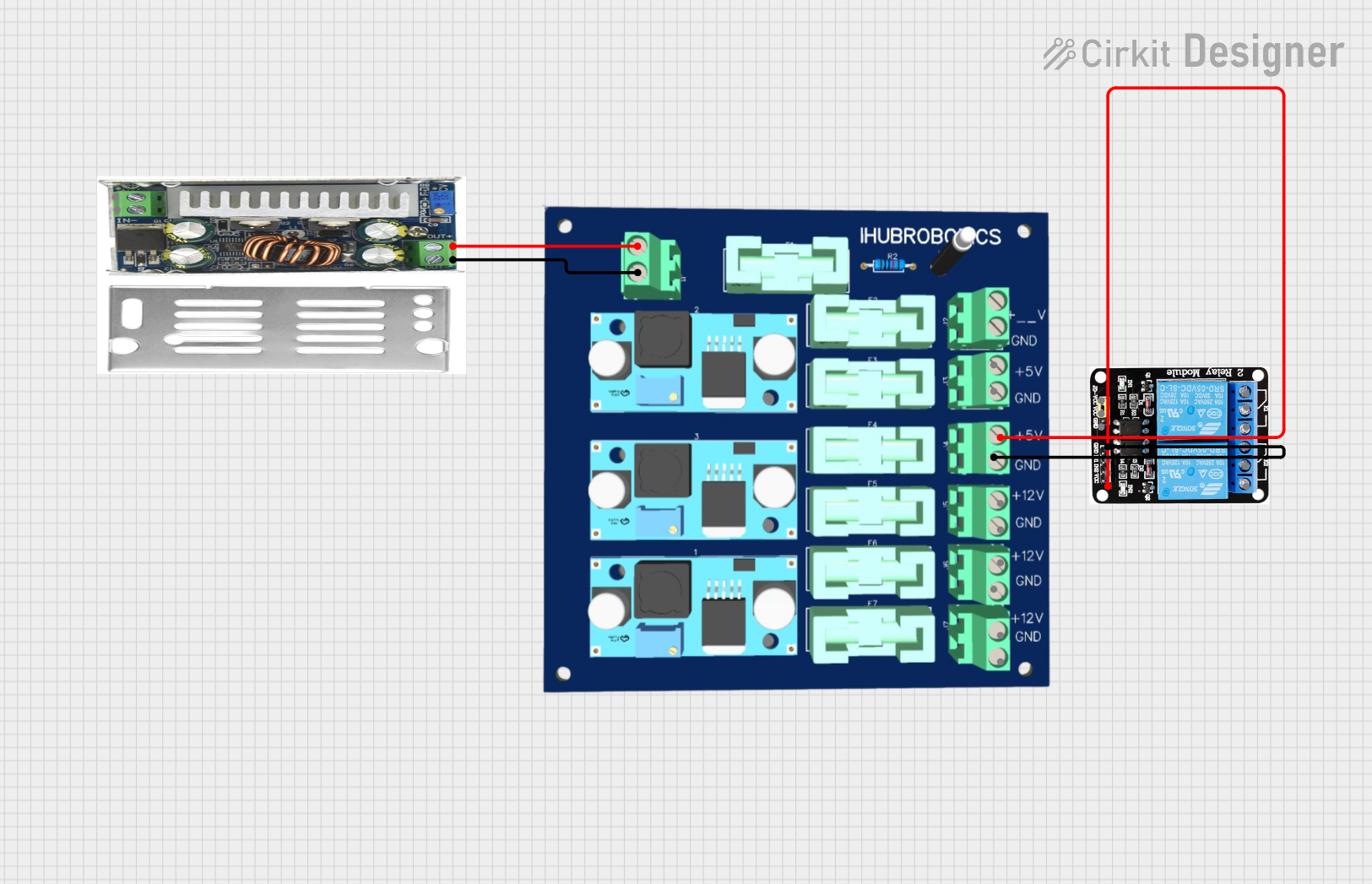 Open Project in Cirkit Designer
Explore Projects Built with vdc board
Open Project in Cirkit DesignerOpen Project in Cirkit DesignerOpen Project in Cirkit DesignerOpen Project in Cirkit DesignerCommon Applications and Use Cases
- Power distribution in embedded systems
- Voltage regulation for microcontrollers (e.g., Arduino, Raspberry Pi)
- Supplying stable DC voltage to sensors, actuators, and other peripherals
- Battery-powered systems requiring efficient voltage management
- Robotics and IoT devices
Technical Specifications
The VDC Board is designed to handle a variety of voltage and current requirements, making it suitable for both low-power and high-power applications.
Key Technical Details
| Parameter | Specification |
|---|---|
| Input Voltage Range | 5V to 24V DC |
| Output Voltage Options | 3.3V, 5V, 12V DC (selectable) |
| Maximum Output Current | 2A per output channel |
| Efficiency | Up to 90% |
| Operating Temperature | -20°C to 85°C |
| Dimensions | 50mm x 30mm x 10mm |
| Protection Features | Overcurrent, Overvoltage, Thermal Shutdown |
Pin Configuration and Descriptions
The VDC Board features a simple pinout for easy integration into your circuit.
| Pin Name | Description |
|---|---|
| VIN | Input voltage (5V to 24V DC) |
| GND | Ground connection |
| VOUT_3.3V | 3.3V regulated output |
| VOUT_5V | 5V regulated output |
| VOUT_12V | 12V regulated output |
| EN | Enable pin (active HIGH to enable outputs) |
| NC | No connection (reserved for future use) |
Usage Instructions
How to Use the VDC Board in a Circuit
- Connect the Input Voltage:
- Connect the positive terminal of your DC power source to the
VINpin. - Connect the negative terminal of your power source to the
GNDpin.
- Connect the positive terminal of your DC power source to the
- Select the Desired Output Voltage:
- Use the onboard jumper or switch to select the desired output voltage (3.3V, 5V, or 12V).
- Connect the Load:
- Connect your load (e.g., microcontroller, sensor, or motor) to the appropriate output pin (
VOUT_3.3V,VOUT_5V, orVOUT_12V).
- Connect your load (e.g., microcontroller, sensor, or motor) to the appropriate output pin (
- Enable the Board:
- If the
ENpin is available, ensure it is set to HIGH to enable the outputs.
- If the
- Power On:
- Turn on your DC power source. The board will regulate and distribute the voltage to the connected components.
Important Considerations and Best Practices
- Input Voltage: Ensure the input voltage is within the specified range (5V to 24V DC). Exceeding this range may damage the board.
- Current Limits: Do not exceed the maximum output current of 2A per channel. Use a heatsink or active cooling if operating near the maximum current for extended periods.
- Connections: Double-check all connections before powering on the board to avoid short circuits or incorrect wiring.
- Enable Pin: If the
ENpin is not connected, the board may remain disabled. Connect it to a HIGH signal to activate the outputs.
Example: Using the VDC Board with an Arduino UNO
Below is an example of how to use the VDC Board to power an Arduino UNO and an LED.
Circuit Connections
- Connect a 12V DC power supply to the
VINandGNDpins of the VDC Board. - Set the output voltage to 5V using the onboard jumper.
- Connect the
VOUT_5Vpin to the 5V pin of the Arduino UNO. - Connect the
GNDpin of the VDC Board to the GND pin of the Arduino UNO. - Connect an LED (with a 220-ohm resistor) to a digital pin on the Arduino UNO.
Arduino Code
// Example code to blink an LED connected to an Arduino UNO
// Ensure the VDC Board is providing 5V to the Arduino UNO

const int ledPin = 13; // Pin where the LED is connected

void setup() {
  pinMode(ledPin, OUTPUT); // Set the LED pin as an output
}

void loop() {
  digitalWrite(ledPin, HIGH); // Turn the LED on
  delay(1000);               // Wait for 1 second
  digitalWrite(ledPin, LOW);  // Turn the LED off
  delay(1000);               // Wait for 1 second
}
Troubleshooting and FAQs
Common Issues and Solutions
No Output Voltage:
- Ensure the
ENpin is set to HIGH. - Verify the input voltage is within the specified range (5V to 24V DC).
- Check for loose or incorrect connections.
- Ensure the
Overheating:
- Ensure the load does not exceed the maximum current rating (2A per channel).
- Use a heatsink or active cooling if necessary.
Voltage Drop:
- Check for long or thin wires that may cause resistance and voltage drop.
- Use thicker wires for high-current applications.
Board Not Powering On:
- Verify the polarity of the input voltage. Reversing the polarity may damage the board.
FAQs
Q: Can I use the VDC Board with a battery?
A: Yes, the VDC Board can be used with a DC battery as long as the voltage is within the 5V to 24V range.
Q: Can I power multiple devices simultaneously?
A: Yes, you can power multiple devices as long as the total current does not exceed 2A per output channel.
Q: Is the board compatible with 24V industrial systems?
A: Yes, the board supports input voltages up to 24V, making it suitable for industrial applications.
Q: What happens if I exceed the current limit?
A: The board includes overcurrent protection, which will shut down the output to prevent damage. Reduce the load and restart the board.
This concludes the documentation for the Ardui VDC Board (Part ID: 12345). For further assistance, refer to the manufacturer's support resources.