
How to Use BME680 Temperature, Humidity, Pressure and Gas Sensor: Examples, Pinouts, and Specs
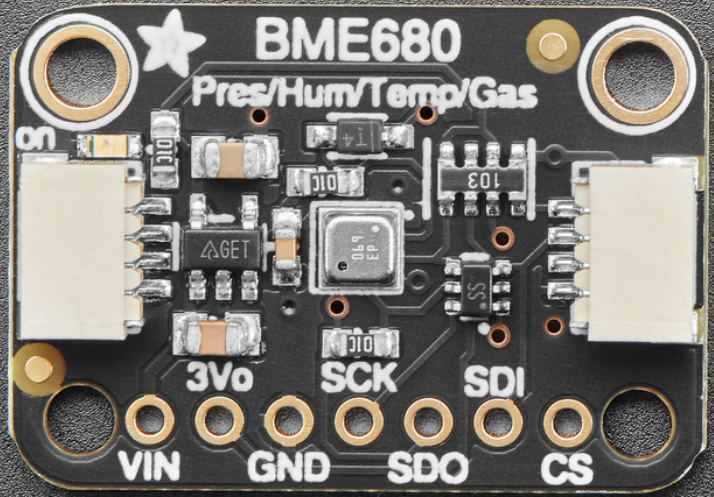
 Design with BME680 Temperature, Humidity, Pressure and Gas Sensor in Cirkit Designer
Introduction
The BME680 is a highly versatile environmental sensor manufactured by Adafruit. It integrates four key sensing capabilities: temperature, humidity, barometric pressure, and gas concentration (e.g., volatile organic compounds or VOCs). This makes it an ideal choice for applications requiring comprehensive air quality monitoring.
The BME680 is widely used in:
- Indoor air quality monitoring systems
- Weather stations
- IoT (Internet of Things) devices
- Smart home automation
- Wearable devices for environmental sensing
- HVAC (Heating, Ventilation, and Air Conditioning) systems
Its compact design and low power consumption make it suitable for both portable and stationary applications.
Explore Projects Built with BME680 Temperature, Humidity, Pressure and Gas Sensor
 Open Project in Cirkit Designer
 Open Project in Cirkit Designer
 Open Project in Cirkit Designer
 Open Project in Cirkit Designer
Explore Projects Built with BME680 Temperature, Humidity, Pressure and Gas Sensor
Open Project in Cirkit DesignerOpen Project in Cirkit DesignerOpen Project in Cirkit DesignerOpen Project in Cirkit DesignerTechnical Specifications
Key Specifications
| Parameter | Value |
|---|---|
| Operating Voltage | 1.7V to 3.6V |
| Interface | I2C, SPI |
| Temperature Range | -40°C to +85°C |
| Humidity Range | 0% to 100% RH |
| Pressure Range | 300 hPa to 1100 hPa |
| Gas Measurement | VOCs (Volatile Organic Compounds) |
| Power Consumption (typical) | 0.15mA (in low-power mode) |
| Dimensions | 3.0mm x 3.0mm x 0.93mm |
Pin Configuration
The BME680 sensor has 8 pins. Below is the pinout description:
| Pin Number | Pin Name | Description |
|---|---|---|
| 1 | VDD | Power supply (1.7V to 3.6V) |
| 2 | GND | Ground |
| 3 | SCL | I2C Clock Line / SPI Clock |
| 4 | SDA | I2C Data Line / SPI Data Input |
| 5 | CS | Chip Select (used in SPI mode) |
| 6 | SDO | SPI Data Output / I2C Address Selection |
| 7 | NC | Not Connected |
| 8 | NC | Not Connected |
Usage Instructions
Connecting the BME680 to an Arduino UNO
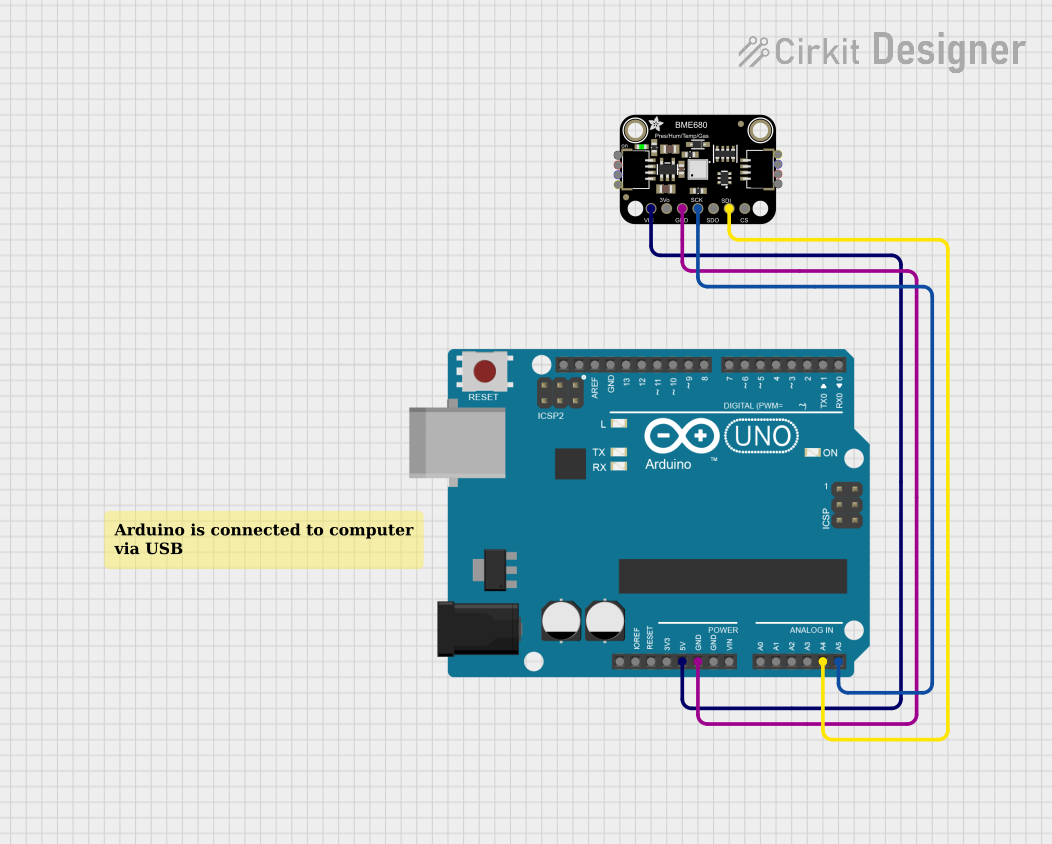
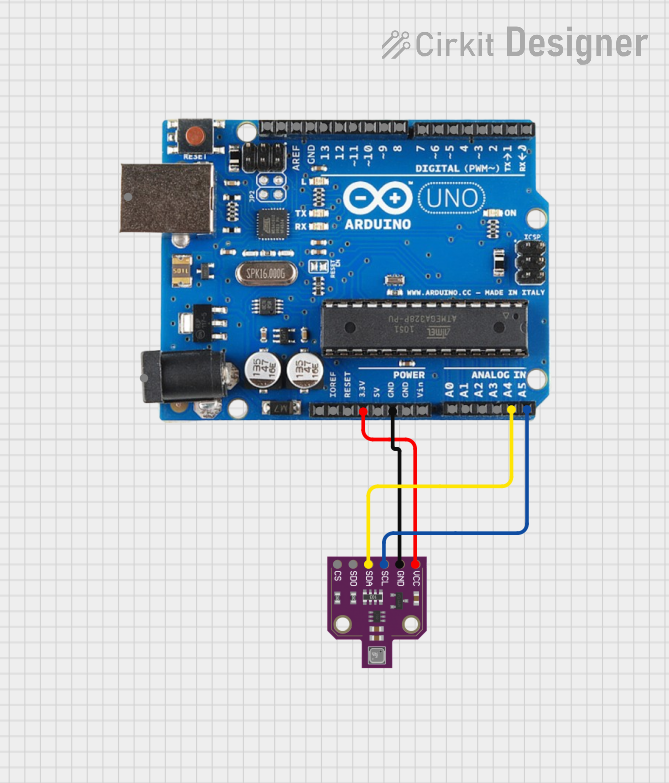
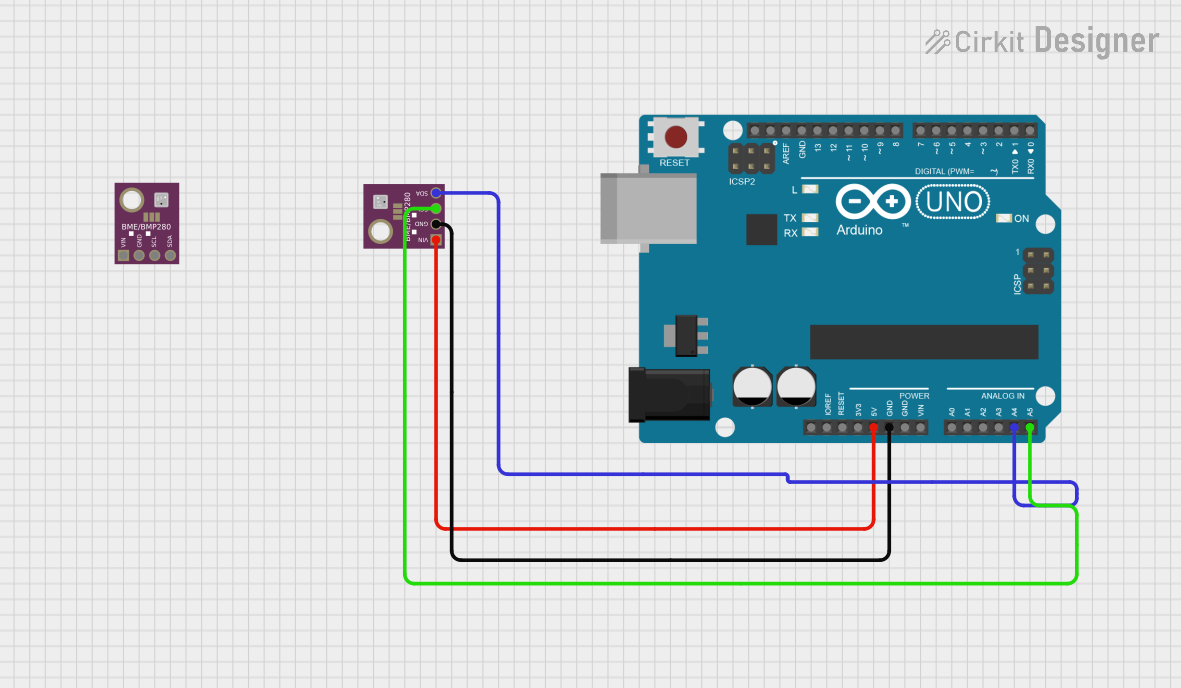
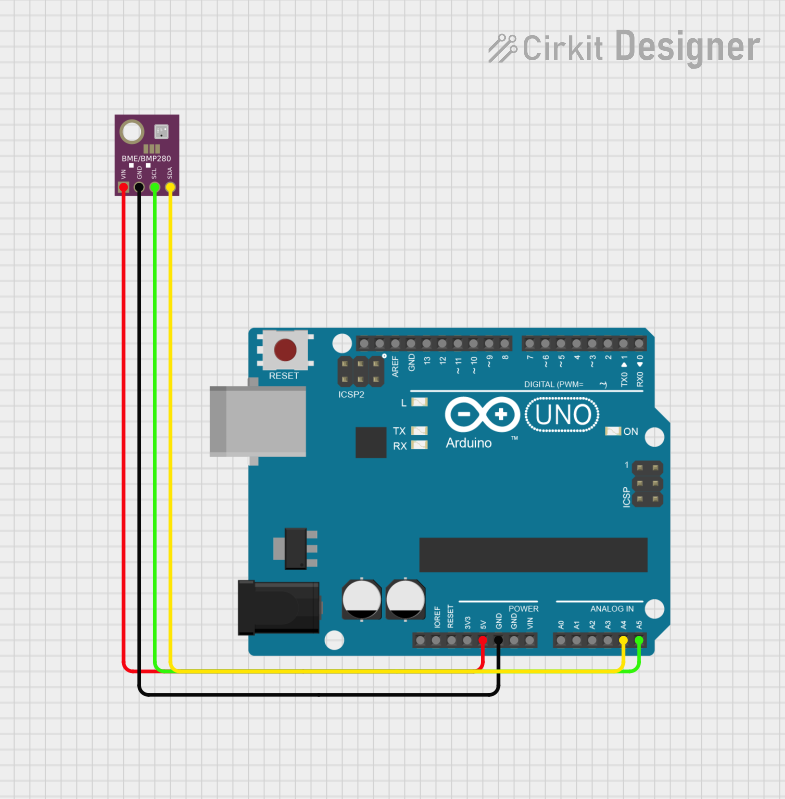
The BME680 can be easily interfaced with an Arduino UNO using the I2C protocol. Below is the wiring guide:
| BME680 Pin | Arduino UNO Pin |
|---|---|
| VDD | 3.3V |
| GND | GND |
| SCL | A5 (I2C Clock) |
| SDA | A4 (I2C Data) |
Installing the Required Library
- Open the Arduino IDE.
- Go to Sketch > Include Library > Manage Libraries.
- Search for "Adafruit BME680" in the Library Manager.
- Install the library by Adafruit.
Example Code
The following code demonstrates how to read temperature, humidity, pressure, and gas data from the BME680:
#include <Wire.h>
#include <Adafruit_Sensor.h>
#include "Adafruit_BME680.h"

// Create an instance of the BME680 sensor
Adafruit_BME680 bme;

void setup() {
  Serial.begin(9600);
  while (!Serial); // Wait for the serial monitor to open

  // Initialize the BME680 sensor
  if (!bme.begin()) {
    Serial.println("Could not find a valid BME680 sensor, check wiring!");
    while (1);
  }

  // Configure the sensor settings
  bme.setTemperatureOversampling(BME680_OS_8X);
  bme.setHumidityOversampling(BME680_OS_2X);
  bme.setPressureOversampling(BME680_OS_4X);
  bme.setIIRFilterSize(BME680_FILTER_SIZE_3);
  bme.setGasHeater(320, 150); // 320°C for 150 ms
}

void loop() {
  // Perform a measurement
  if (!bme.performReading()) {
    Serial.println("Failed to perform reading!");
    return;
  }

  // Print sensor data to the serial monitor
  Serial.print("Temperature = ");
  Serial.print(bme.temperature);
  Serial.println(" °C");

  Serial.print("Humidity = ");
  Serial.print(bme.humidity);
  Serial.println(" %");

  Serial.print("Pressure = ");
  Serial.print(bme.pressure / 100.0);
  Serial.println(" hPa");

  Serial.print("Gas = ");
  Serial.print(bme.gas_resistance / 1000.0);
  Serial.println(" KOhms");

  Serial.println();
  delay(2000); // Wait 2 seconds before the next reading
}
Important Considerations
- Ensure the BME680 is powered with 3.3V. Connecting it to 5V may damage the sensor.
- Use pull-up resistors (typically 4.7kΩ) on the I2C lines (SCL and SDA) if they are not already present on your board.
- Avoid exposing the sensor to water or high humidity for prolonged periods, as this may affect its accuracy.
Troubleshooting and FAQs
Common Issues
The sensor is not detected by the Arduino.
- Solution: Double-check the wiring and ensure the I2C address matches the default (0x76 or 0x77). Use an I2C scanner sketch to confirm the address.
Incorrect or fluctuating readings.
- Solution: Ensure the sensor is not exposed to sudden temperature or humidity changes. Allow the sensor to stabilize after powering it on.
Gas resistance readings are zero.
- Solution: Verify that the gas heater is enabled in the code using
bme.setGasHeater().
- Solution: Verify that the gas heater is enabled in the code using
The sensor heats up excessively.
- Solution: Check the power supply voltage and ensure it does not exceed 3.6V.
FAQs
Q: Can the BME680 measure CO2 levels?
A: No, the BME680 does not directly measure CO2. It measures VOCs, which can be used as an indicator of air quality.Q: Can I use the BME680 with a Raspberry Pi?
A: Yes, the BME680 is compatible with Raspberry Pi via I2C or SPI. Adafruit provides Python libraries for easy integration.Q: How accurate are the measurements?
A: The typical accuracy is ±1°C for temperature, ±3% for humidity, and ±1 hPa for pressure.Q: What is the lifespan of the BME680 sensor?
A: The sensor is designed for long-term use, but its gas sensing capabilities may degrade over time depending on environmental conditions.
This concludes the documentation for the Adafruit BME680 sensor. For further details, refer to the official datasheet or Adafruit's product page.