
How to Use ir sensor: Examples, Pinouts, and Specs
 Design with ir sensor in Cirkit Designer
Introduction
An infrared (IR) sensor detects infrared radiation, which is electromagnetic radiation with wavelengths longer than visible light. IR sensors are widely used in various applications, including proximity sensing, motion detection, and remote control systems. These sensors are versatile, cost-effective, and easy to integrate into electronic circuits, making them a popular choice for hobbyists and professionals alike.
Common applications of IR sensors include:
- Obstacle detection in robotics
- Line-following robots
- Motion detection for security systems
- Remote control signal reception
- Automatic door systems
Explore Projects Built with ir sensor
 Open Project in Cirkit Designer
 Open Project in Cirkit Designer
 Open Project in Cirkit Designer
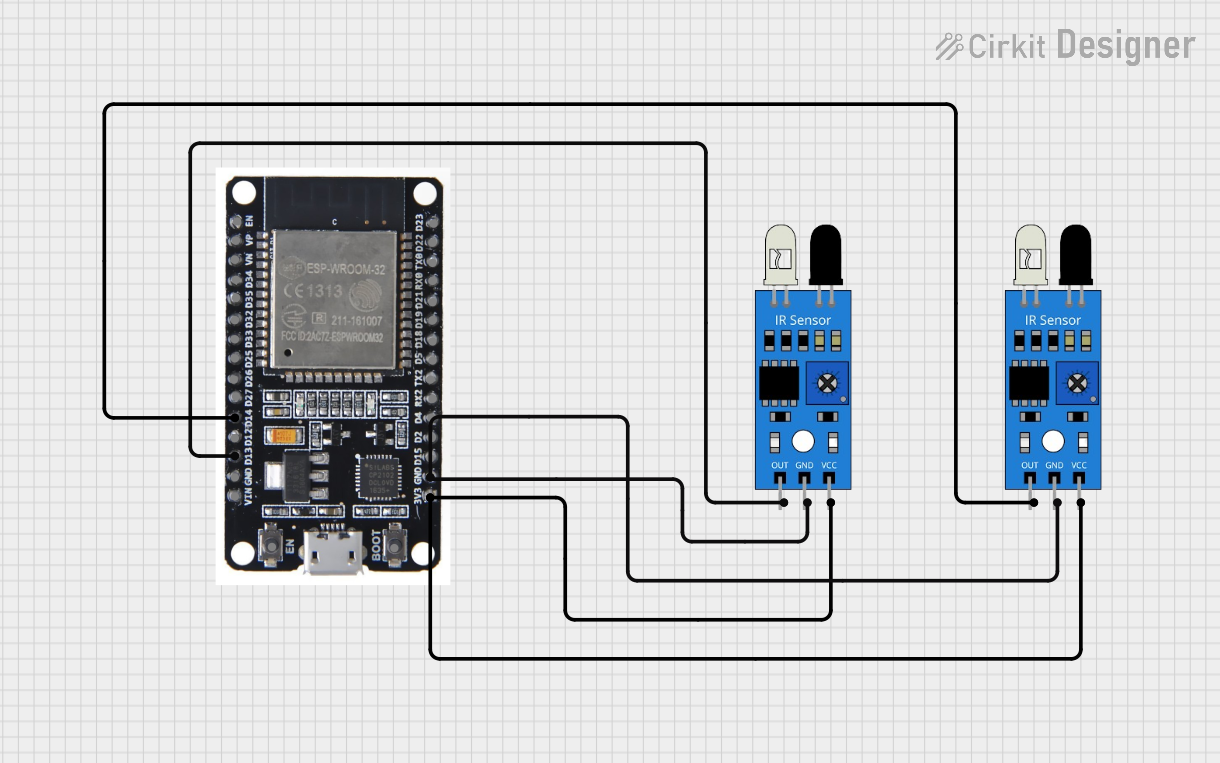 Open Project in Cirkit Designer
Explore Projects Built with ir sensor
Open Project in Cirkit DesignerOpen Project in Cirkit DesignerOpen Project in Cirkit DesignerOpen Project in Cirkit DesignerTechnical Specifications
Below are the general technical specifications for a typical IR sensor module:
- Operating Voltage: 3.3V to 5V DC
- Current Consumption: 20mA (typical)
- Detection Range: 2cm to 30cm (varies by model)
- Output Type: Digital (High/Low) or Analog (depending on the model)
- Wavelength: 760nm to 950nm (infrared spectrum)
- Response Time: < 2ms
- Operating Temperature: -25°C to 85°C
Pin Configuration and Descriptions
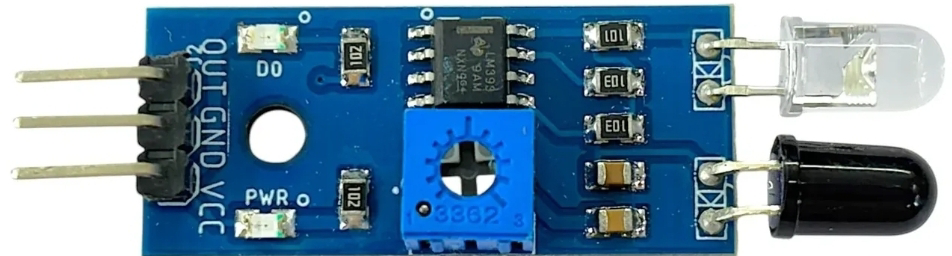
The IR sensor module typically has three or more pins. Below is the pin configuration for a common 3-pin IR sensor module:
| Pin | Name | Description |
|---|---|---|
| 1 | VCC | Power supply pin. Connect to 3.3V or 5V DC. |
| 2 | GND | Ground pin. Connect to the ground of the circuit. |
| 3 | OUT | Output pin. Provides a digital signal (HIGH or LOW) based on the detection state. |
For IR sensors with an analog output, an additional pin labeled AOUT may be present, which provides an analog voltage proportional to the detected IR intensity.
Usage Instructions
How to Use the IR Sensor in a Circuit
- Power the Sensor: Connect the
VCCpin to a 3.3V or 5V power source and theGNDpin to the ground of your circuit. - Connect the Output: Connect the
OUTpin to a digital input pin of your microcontroller (e.g., Arduino UNO) or to another circuit component. - Adjust Sensitivity (if applicable): Some IR sensor modules have a potentiometer to adjust the detection range or sensitivity. Turn the potentiometer clockwise or counterclockwise to fine-tune the sensor's performance.
- Test the Sensor: Place an object within the detection range of the sensor. The
OUTpin will output a HIGH signal when an object is detected and a LOW signal otherwise.
Important Considerations and Best Practices
- Ambient Light Interference: IR sensors can be affected by ambient light or sunlight. Use the sensor in controlled lighting conditions or shield it from direct light sources.
- Reflective Surfaces: The detection range may vary depending on the reflectivity of the object. Highly reflective surfaces (e.g., white or shiny objects) are easier to detect.
- Power Supply Stability: Ensure a stable power supply to avoid erratic behavior.
- Avoid Overvoltage: Do not exceed the recommended operating voltage to prevent damage to the sensor.
Example: Connecting an IR Sensor to an Arduino UNO
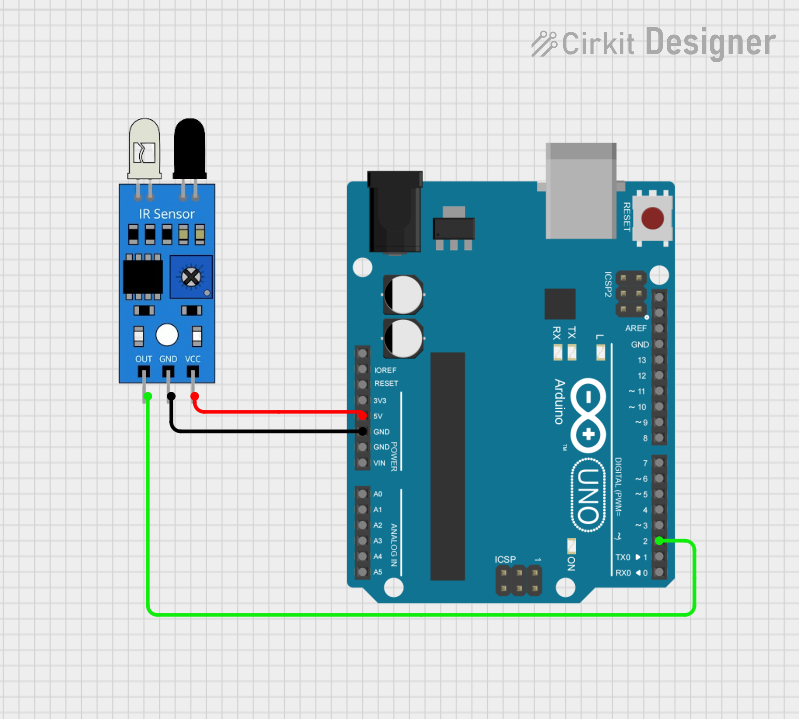
Below is an example of how to connect and use an IR sensor with an Arduino UNO:
Circuit Connections
- Connect the
VCCpin of the IR sensor to the 5V pin of the Arduino. - Connect the
GNDpin of the IR sensor to the GND pin of the Arduino. - Connect the
OUTpin of the IR sensor to digital pin 2 of the Arduino.
Arduino Code
// IR Sensor Example Code
// This code reads the digital output of the IR sensor and turns on an LED
// when an object is detected.

const int irSensorPin = 2;  // IR sensor output pin connected to digital pin 2
const int ledPin = 13;      // Built-in LED pin on Arduino

void setup() {
  pinMode(irSensorPin, INPUT);  // Set IR sensor pin as input
  pinMode(ledPin, OUTPUT);      // Set LED pin as output
  Serial.begin(9600);           // Initialize serial communication for debugging
}

void loop() {
  int sensorValue = digitalRead(irSensorPin);  // Read the IR sensor output

  if (sensorValue == HIGH) {
    // Object detected
    digitalWrite(ledPin, HIGH);  // Turn on the LED
    Serial.println("Object detected!");
  } else {
    // No object detected
    digitalWrite(ledPin, LOW);   // Turn off the LED
    Serial.println("No object detected.");
  }

  delay(100);  // Small delay for stability
}
Troubleshooting and FAQs
Common Issues and Solutions
The sensor is not detecting objects:
- Ensure the sensor is powered correctly (check the voltage and ground connections).
- Adjust the sensitivity using the onboard potentiometer (if available).
- Verify that the object is within the detection range and is reflective enough for the IR sensor to detect.
False detections or erratic behavior:
- Check for interference from ambient light or other IR sources.
- Use a stable power supply to avoid fluctuations.
- Ensure proper grounding in the circuit.
Output signal is always HIGH or LOW:
- Verify the connections between the sensor and the microcontroller.
- Test the sensor with a multimeter to ensure it is functioning correctly.
FAQs
Q: Can the IR sensor detect transparent objects?
A: IR sensors may struggle to detect transparent objects like glass, as they allow most IR light to pass through. Use a different type of sensor, such as an ultrasonic sensor, for such applications.
Q: What is the maximum range of an IR sensor?
A: The detection range varies by model, typically between 2cm and 30cm. Some high-performance IR sensors can detect objects up to several meters away.
Q: Can I use an IR sensor outdoors?
A: While IR sensors can be used outdoors, they may be affected by sunlight and other environmental factors. Consider using an IR sensor with ambient light filtering or shielding it from direct sunlight.
Q: How do I clean the IR sensor?
A: Use a soft, lint-free cloth to gently clean the sensor lens. Avoid using abrasive materials or liquids that could damage the sensor.
By following this documentation, you can effectively integrate and troubleshoot an IR sensor in your projects.