
How to Use Fan: Examples, Pinouts, and Specs
 Design with Fan in Cirkit Designer
Introduction
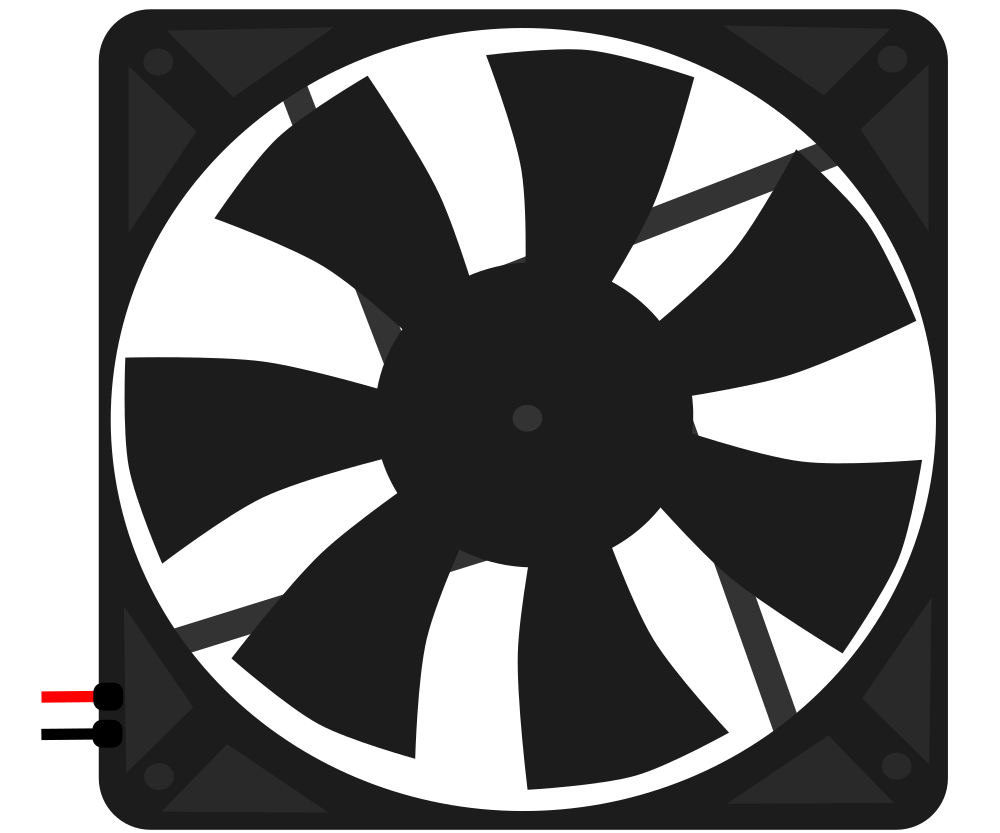
A fan is an electromechanical device that creates airflow to cool or ventilate an area. It is commonly used in electronic equipment to dissipate heat generated by components such as processors, power supplies, and other heat-sensitive devices. By maintaining proper airflow, fans help ensure the longevity and reliability of electronic systems.
Explore Projects Built with Fan
 Open Project in Cirkit Designer
 Open Project in Cirkit Designer
 Open Project in Cirkit Designer
 Open Project in Cirkit Designer
Explore Projects Built with Fan
Open Project in Cirkit DesignerOpen Project in Cirkit DesignerOpen Project in Cirkit DesignerOpen Project in Cirkit DesignerCommon Applications and Use Cases
- Cooling computer processors, GPUs, and power supplies
- Ventilating enclosures for electronic devices
- Heat dissipation in industrial equipment
- Air circulation in home appliances
- Temperature regulation in robotics and IoT devices
Technical Specifications
The specifications of a fan can vary depending on its size, type, and intended application. Below are the general technical details for a standard DC brushless fan:
| Parameter | Value |
|---|---|
| Operating Voltage | 5V, 12V, or 24V (common options) |
| Current Consumption | 0.1A to 0.5A |
| Power Rating | 0.5W to 5W |
| Speed | 1000 to 5000 RPM |
| Airflow | 10 to 100 CFM (Cubic Feet/Minute) |
| Noise Level | 20 to 40 dBA |
| Bearing Type | Sleeve or Ball Bearing |
| Connector Type | 2-pin, 3-pin, or 4-pin |
Pin Configuration and Descriptions
Below is the pin configuration for a standard 3-pin fan:
| Pin Number | Name | Description |
|---|---|---|
| 1 | VCC | Power supply input (e.g., 5V or 12V) |
| 2 | GND | Ground connection |
| 3 | Tachometer | Provides a signal for monitoring fan speed (optional, not present in 2-pin fans) |
For 4-pin fans, an additional pin is included:
| Pin Number | Name | Description |
|---|---|---|
| 4 | PWM | Pulse Width Modulation input for speed control |
Usage Instructions
How to Use the Fan in a Circuit
- Power Connection: Connect the VCC pin to the appropriate voltage source (e.g., 5V or 12V) and the GND pin to the ground of the circuit.
- Speed Monitoring (Optional): If using a 3-pin fan, connect the tachometer pin to a microcontroller or monitoring circuit to measure the fan's speed.
- Speed Control (Optional): For 4-pin fans, connect the PWM pin to a microcontroller or PWM signal generator to control the fan speed.
Important Considerations and Best Practices
- Voltage Compatibility: Ensure the fan's operating voltage matches the power supply to avoid damage.
- Current Rating: Verify that the power supply can provide sufficient current for the fan.
- Orientation: Install the fan in the correct orientation to ensure proper airflow direction.
- Noise Reduction: Use rubber mounts or grommets to minimize vibration and noise.
- Dust Management: Periodically clean the fan to prevent dust buildup, which can reduce efficiency.
Example: Connecting a 3-Pin Fan to an Arduino UNO
Below is an example of how to control a 3-pin fan using an Arduino UNO. The tachometer pin is used to monitor the fan speed.
// Example: Reading fan speed using the tachometer pin on a 3-pin fan
// Connect the fan's VCC to 5V, GND to GND, and Tachometer to pin 2 on Arduino

const int tachPin = 2;  // Tachometer pin connected to Arduino digital pin 2
volatile int fanPulseCount = 0;  // Variable to store pulse count

void setup() {
  pinMode(tachPin, INPUT_PULLUP);  // Set tachometer pin as input with pull-up
  attachInterrupt(digitalPinToInterrupt(tachPin), countFanPulses, FALLING);
  Serial.begin(9600);  // Initialize serial communication
}

void loop() {
  delay(1000);  // Wait for 1 second
  int rpm = (fanPulseCount / 2) * 60;  // Calculate RPM (2 pulses per revolution)
  fanPulseCount = 0;  // Reset pulse count
  Serial.print("Fan Speed: ");
  Serial.print(rpm);
  Serial.println(" RPM");
}

// Interrupt service routine to count fan pulses
void countFanPulses() {
  fanPulseCount++;
}
Notes:
- The tachometer pin outputs two pulses per revolution, so the RPM is calculated accordingly.
- Ensure the fan's operating voltage matches the Arduino's power supply.
Troubleshooting and FAQs
Common Issues and Solutions
Fan Does Not Spin
- Cause: Incorrect voltage or loose connections.
- Solution: Verify the power supply voltage and ensure all connections are secure.
Fan Spins Slowly
- Cause: Insufficient current or high resistance in the circuit.
- Solution: Check the power supply's current rating and reduce resistance in the wiring.
Excessive Noise
- Cause: Dust buildup or worn-out bearings.
- Solution: Clean the fan and consider replacing it if the bearings are damaged.
Tachometer Signal Not Detected
- Cause: Incorrect connection or incompatible microcontroller pin.
- Solution: Ensure the tachometer pin is connected to a digital input pin with interrupt capability.
FAQs
Q: Can I use a 12V fan with a 5V power supply?
A: No, a 12V fan requires a 12V power supply to operate correctly. Using a lower voltage will result in reduced performance or failure to spin.
Q: How do I control the speed of a 4-pin fan?
A: Use a PWM signal (typically 25 kHz) on the PWM pin to adjust the fan speed. The duty cycle of the PWM signal determines the speed.
Q: What is the difference between sleeve and ball bearings?
A: Sleeve bearings are quieter but have a shorter lifespan, while ball bearings are more durable and suitable for high-temperature environments.
Q: Can I connect multiple fans to a single power supply?
A: Yes, as long as the power supply can provide sufficient current for all fans combined.