
How to Use USB 6009: Examples, Pinouts, and Specs
 Design with USB 6009 in Cirkit Designer
Introduction
The USB 6009, manufactured by National Instruments (Part ID: USB609), is a multifunction data acquisition (DAQ) device designed for seamless integration with computers via USB. It provides a versatile solution for measurement and control applications, offering analog input, analog output, digital I/O, and counter/timer functionalities. Its compact design and plug-and-play capability make it ideal for both laboratory and field use.
Explore Projects Built with USB 6009
 Open Project in Cirkit Designer
 Open Project in Cirkit Designer
 Open Project in Cirkit Designer
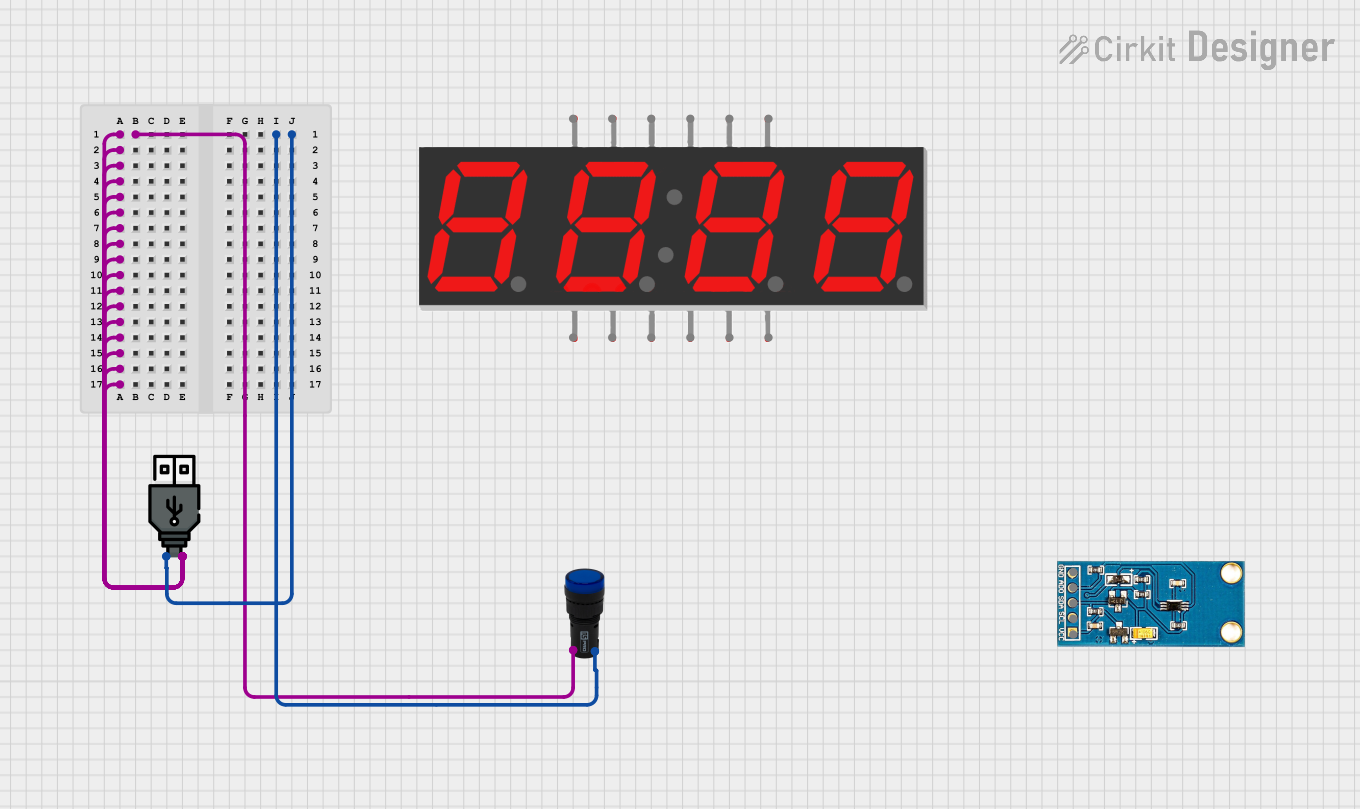 Open Project in Cirkit Designer
Explore Projects Built with USB 6009
Open Project in Cirkit DesignerOpen Project in Cirkit DesignerOpen Project in Cirkit DesignerOpen Project in Cirkit DesignerCommon Applications and Use Cases
- Sensor data acquisition (e.g., temperature, pressure, or voltage sensors)
- Signal generation and waveform output
- Digital control and monitoring of devices
- Prototyping and educational experiments
- Industrial automation and process control
Technical Specifications
Key Technical Details
| Parameter | Specification |
|---|---|
| Analog Input Channels | 8 single-ended or 4 differential |
| Analog Input Resolution | 14 bits |
| Analog Input Range | ±10 V, ±5 V, ±2 V, ±1 V |
| Analog Output Channels | 2 |
| Analog Output Resolution | 12 bits |
| Analog Output Range | 0–5 V |
| Digital I/O Channels | 12 (TTL logic levels) |
| Counter/Timer Channels | 1 (32-bit resolution) |
| Maximum Sampling Rate | 48 kS/s (aggregate for AI channels) |
| USB Interface | USB 2.0 |
| Power Supply | USB-powered |
| Operating Temperature Range | 0 °C to 55 °C |
| Dimensions | 88.9 mm × 63.5 mm × 20.32 mm |
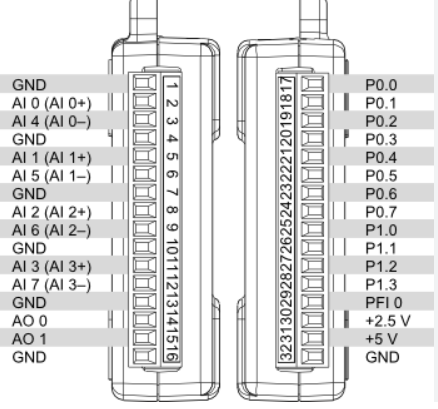
Pin Configuration and Descriptions
Analog Input Channels
| Pin Number | Signal Name | Description |
|---|---|---|
| AI0 | Analog In 0 | Single-ended or differential input |
| AI1 | Analog In 1 | Single-ended or differential input |
| AI2 | Analog In 2 | Single-ended or differential input |
| AI3 | Analog In 3 | Single-ended or differential input |
| AI4 | Analog In 4 | Single-ended input |
| AI5 | Analog In 5 | Single-ended input |
| AI6 | Analog In 6 | Single-ended input |
| AI7 | Analog In 7 | Single-ended input |
Analog Output Channels
| Pin Number | Signal Name | Description |
|---|---|---|
| AO0 | Analog Out 0 | Voltage output channel |
| AO1 | Analog Out 1 | Voltage output channel |
Digital I/O Channels
| Pin Number | Signal Name | Description |
|---|---|---|
| DIO0 | Digital I/O 0 | Configurable as input or output |
| DIO1 | Digital I/O 1 | Configurable as input or output |
| DIO2 | Digital I/O 2 | Configurable as input or output |
| DIO3 | Digital I/O 3 | Configurable as input or output |
| DIO4 | Digital I/O 4 | Configurable as input or output |
| DIO5 | Digital I/O 5 | Configurable as input or output |
| DIO6 | Digital I/O 6 | Configurable as input or output |
| DIO7 | Digital I/O 7 | Configurable as input or output |
| DIO8 | Digital I/O 8 | Configurable as input or output |
| DIO9 | Digital I/O 9 | Configurable as input or output |
| DIO10 | Digital I/O 10 | Configurable as input or output |
| DIO11 | Digital I/O 11 | Configurable as input or output |
Counter/Timer
| Pin Number | Signal Name | Description |
|---|---|---|
| CTR0 | Counter 0 | 32-bit counter/timer input |
Usage Instructions
How to Use the USB 6009 in a Circuit
- Connect the Device to a Computer: Plug the USB 6009 into a USB port on your computer. Ensure the appropriate drivers (NI-DAQmx) are installed.
- Configure the Device: Use National Instruments' software (e.g., LabVIEW or NI MAX) to configure the device, set up channels, and define input/output ranges.
- Connect Signals:
- For analog inputs, connect the signal source to the appropriate AI pins.
- For analog outputs, connect the load to the AO pins.
- For digital I/O, connect the device to the DIO pins as needed.
- Write and Execute Code: Use LabVIEW, Python (with NI-DAQmx library), or other supported programming environments to control the device and acquire data.
Important Considerations and Best Practices
- Grounding: Ensure proper grounding to avoid noise and signal interference.
- Input Voltage Limits: Do not exceed the specified input voltage range to prevent damage.
- Sampling Rate: Be mindful of the aggregate sampling rate when using multiple analog input channels.
- Cable Length: Use short, shielded cables to minimize noise and signal degradation.
- Power Supply: The device is USB-powered; ensure the USB port provides sufficient power.
Example Code for Arduino UNO Integration
While the USB 6009 is typically used with a computer, it can interface with an Arduino UNO via digital I/O. Below is an example of controlling a digital output pin on the USB 6009 using an Arduino:
// Example: Controlling a digital output pin on the USB 6009
// This code toggles a digital pin on the USB 6009 using an Arduino UNO.

const int usb6009Pin = 7; // Connect Arduino pin 7 to USB 6009 DIO0

void setup() {
  pinMode(usb6009Pin, OUTPUT); // Set pin as output
}

void loop() {
  digitalWrite(usb6009Pin, HIGH); // Set USB 6009 DIO0 to HIGH
  delay(1000); // Wait for 1 second
  digitalWrite(usb6009Pin, LOW);  // Set USB 6009 DIO0 to LOW
  delay(1000); // Wait for 1 second
}
Troubleshooting and FAQs
Common Issues and Solutions
Device Not Recognized by Computer:
- Ensure the USB cable is securely connected.
- Verify that the NI-DAQmx driver is installed and up to date.
- Try connecting to a different USB port or computer.
No Signal on Analog Output:
- Check the configuration in NI MAX or LabVIEW.
- Verify that the load is properly connected to the AO pins.
- Ensure the output range is correctly set.
Noise in Analog Input Signals:
- Use shielded cables and proper grounding.
- Reduce the sampling rate if high-frequency noise is present.
- Place the device away from sources of electromagnetic interference.
Digital I/O Not Responding:
- Confirm the pin direction (input/output) is correctly configured.
- Check the wiring and connections to external devices.
FAQs
Q: Can the USB 6009 be used with operating systems other than Windows?
A: Yes, the USB 6009 is compatible with Linux and macOS, but ensure the appropriate drivers and software are installed.
Q: What is the maximum cable length for USB connectivity?
A: The maximum recommended USB cable length is 5 meters to maintain reliable communication.
Q: Can the USB 6009 be powered externally?
A: No, the USB 6009 is designed to be powered solely through the USB connection.
Q: Is the USB 6009 suitable for high-speed data acquisition?
A: The USB 6009 is best suited for low- to medium-speed applications due to its 48 kS/s maximum sampling rate. For high-speed applications, consider other NI DAQ devices.