
How to Use cảm biến : Examples, Pinouts, and Specs
 Design with cảm biến in Cirkit Designer
Introduction
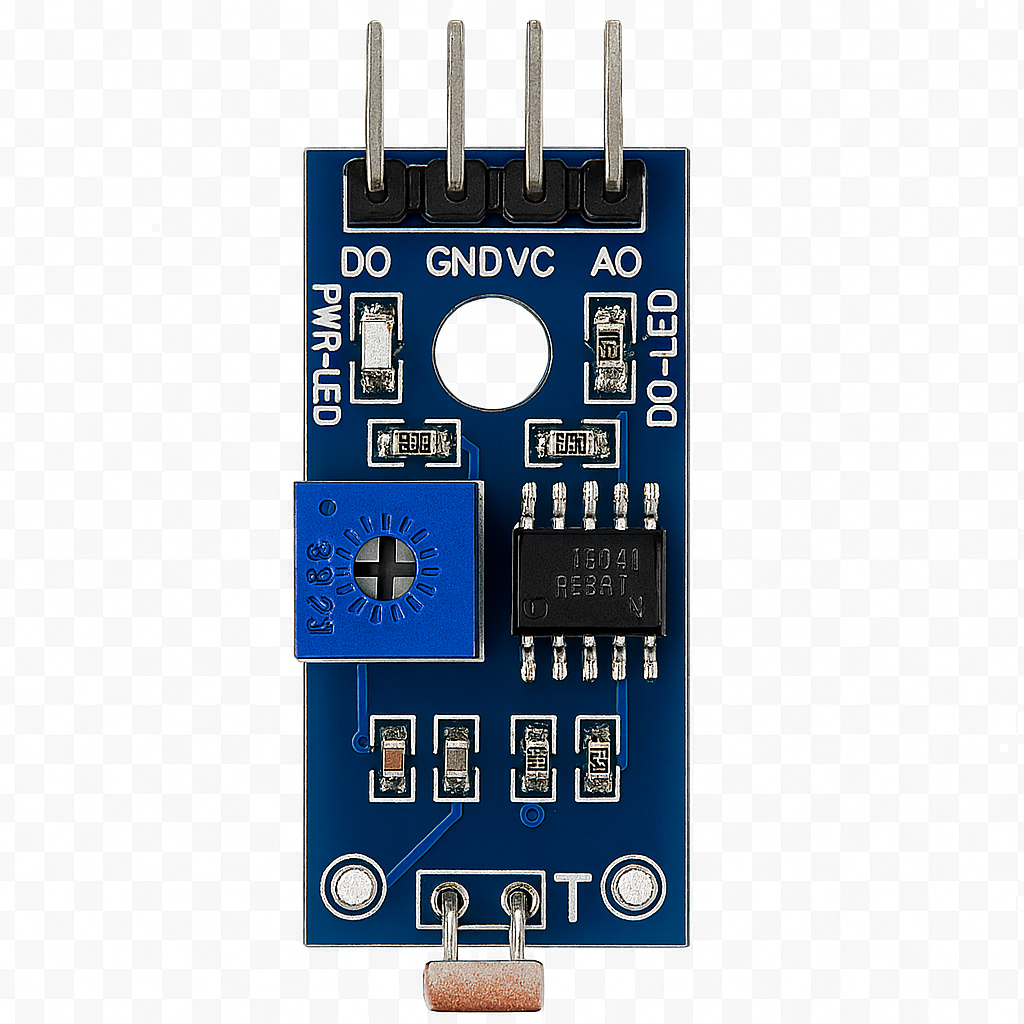
The cảm biến (sensor), manufactured by ASD with part ID QWE, is a versatile device designed to detect and respond to various physical stimuli such as light, heat, motion, moisture, pressure, or other environmental conditions. It converts these stimuli into electrical signals that can be processed by microcontrollers, computers, or other electronic systems.
Common applications of this sensor include:
- Environmental monitoring (e.g., temperature, humidity, or light levels)
- Motion detection in security systems
- Industrial automation and control
- Smart home devices
- Wearable technology and health monitoring
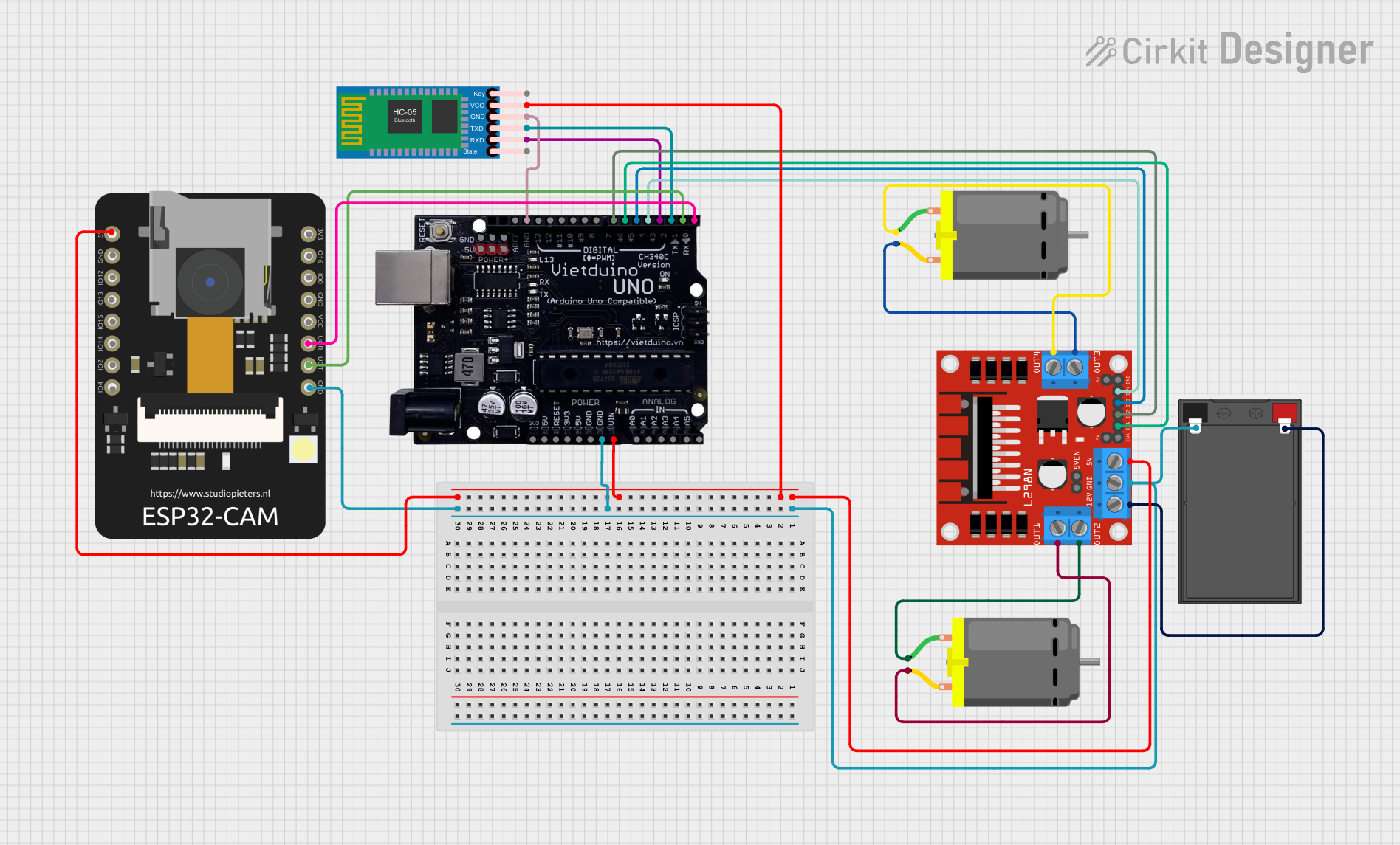
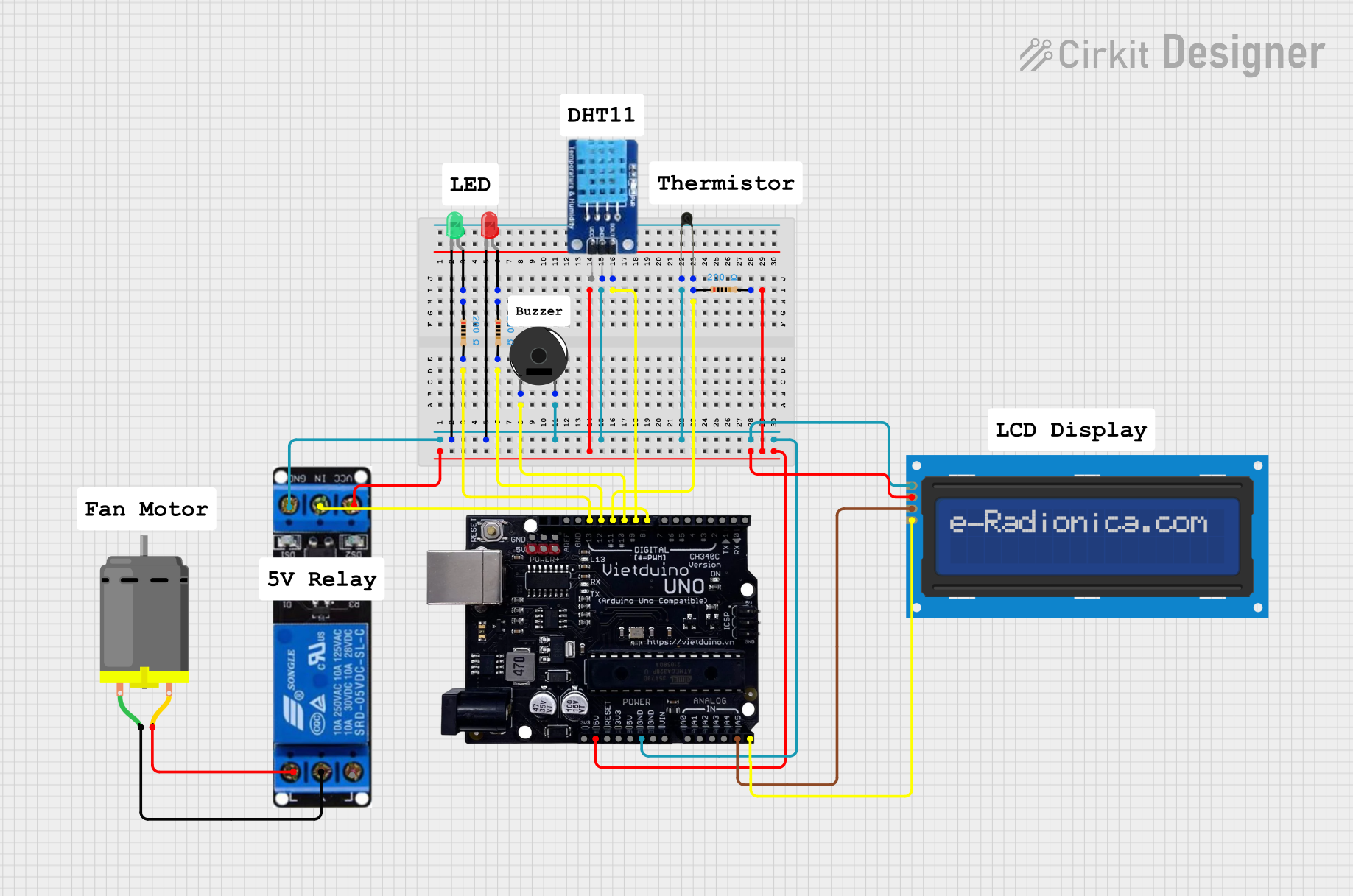
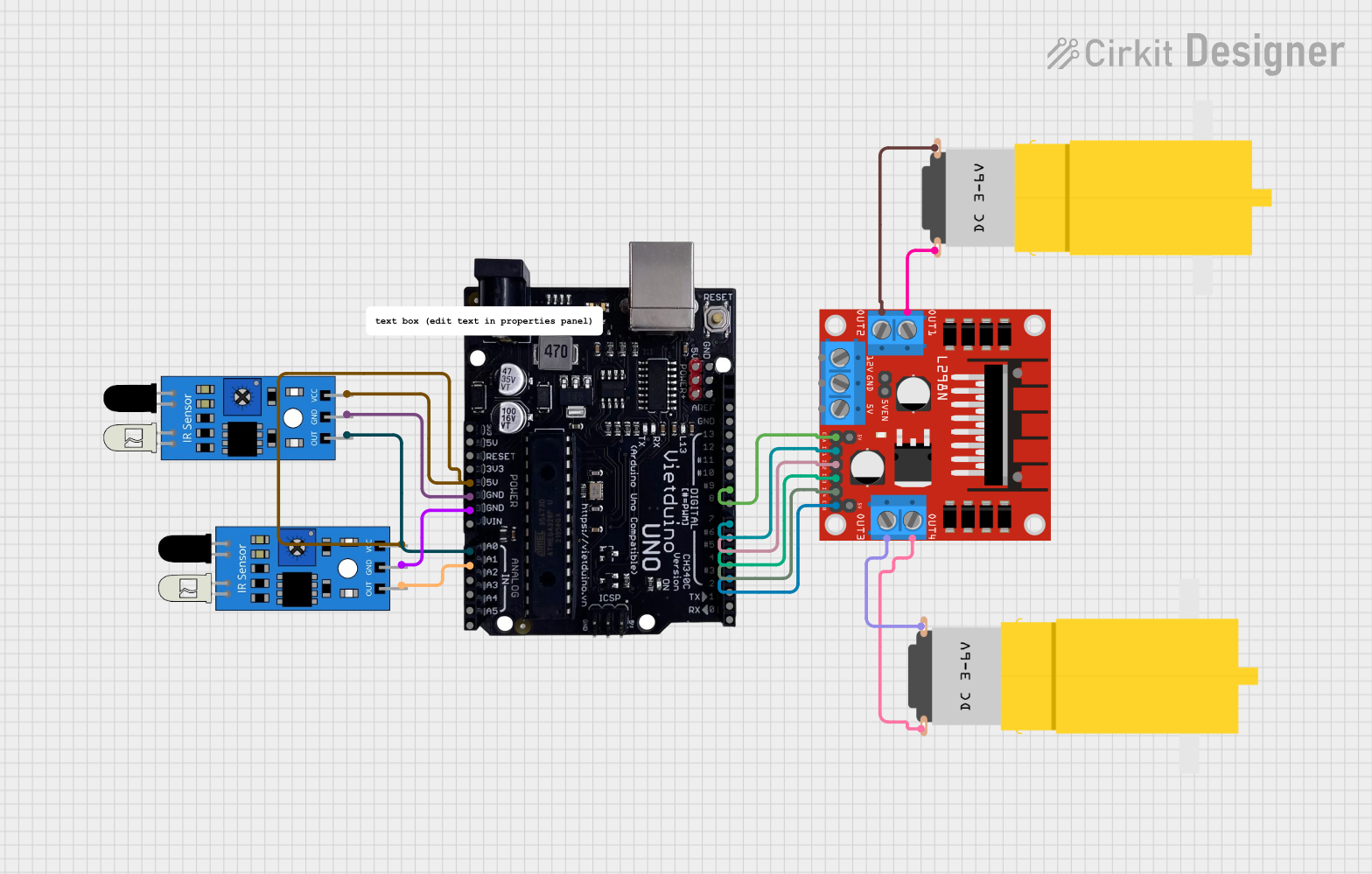
Explore Projects Built with cảm biến
 Open Project in Cirkit Designer
 Open Project in Cirkit Designer
 Open Project in Cirkit Designer
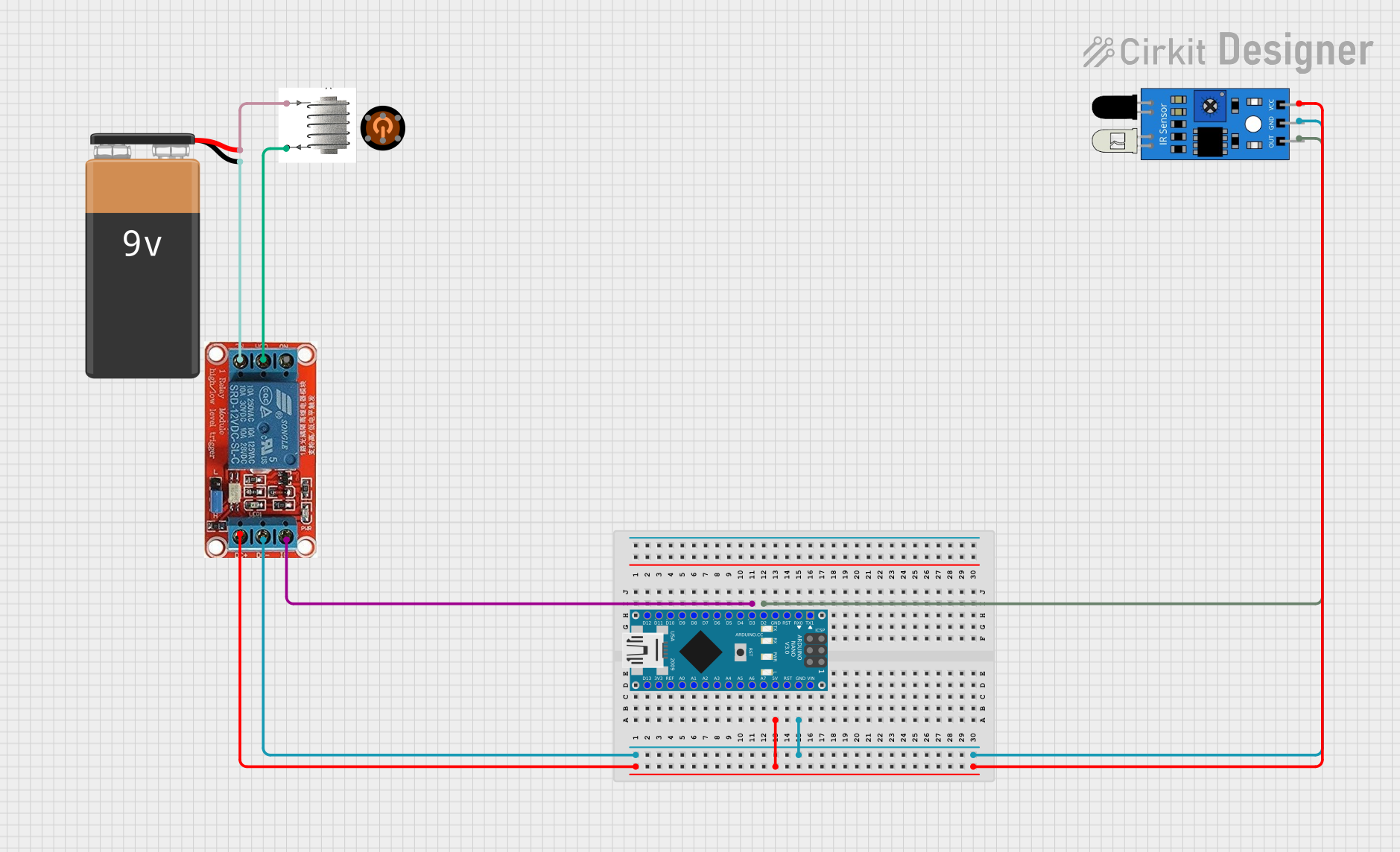 Open Project in Cirkit Designer
Explore Projects Built with cảm biến
Open Project in Cirkit DesignerOpen Project in Cirkit DesignerOpen Project in Cirkit DesignerOpen Project in Cirkit DesignerTechnical Specifications
Below are the key technical details for the cảm biến (sensor):
| Parameter | Value |
|---|---|
| Manufacturer | ASD |
| Part ID | QWE |
| Operating Voltage | 3.3V - 5V |
| Output Signal Type | Analog or Digital (depending on model) |
| Operating Temperature | -20°C to 85°C |
| Response Time | < 10 ms |
| Dimensions | 25mm x 15mm x 5mm |
Pin Configuration and Descriptions
The cảm biến typically has the following pin configuration:
| Pin | Name | Description |
|---|---|---|
| 1 | VCC | Power supply input (3.3V - 5V) |
| 2 | GND | Ground connection |
| 3 | OUT | Output signal (analog or digital, depending on model) |
Usage Instructions
How to Use the Cảm Biến in a Circuit
- Power the Sensor: Connect the VCC pin to a 3.3V or 5V power source and the GND pin to the ground of your circuit.
- Read the Output: Connect the OUT pin to an analog or digital input pin of your microcontroller (e.g., Arduino UNO). The type of signal (analog or digital) depends on the specific model of the cảm biến.
- Process the Signal: Use the microcontroller to read and process the output signal. For analog sensors, use an ADC (Analog-to-Digital Converter) to interpret the signal.
Important Considerations and Best Practices
- Power Supply: Ensure the power supply voltage matches the sensor's operating range (3.3V - 5V).
- Signal Noise: Use appropriate filtering techniques (e.g., capacitors) to reduce noise in the output signal.
- Environmental Factors: Protect the sensor from extreme conditions (e.g., water, dust) if it is not rated for such environments.
- Calibration: Some sensors may require calibration for accurate readings. Refer to the specific model's datasheet for calibration instructions.
Example Code for Arduino UNO
Below is an example of how to use the cảm biến with an Arduino UNO:
// Example code for reading an analog signal from the cảm biến (sensor)
// Connect the OUT pin of the sensor to A0 on the Arduino UNO

const int sensorPin = A0; // Define the analog pin connected to the sensor
int sensorValue = 0;      // Variable to store the sensor reading

void setup() {
  Serial.begin(9600); // Initialize serial communication at 9600 baud
}

void loop() {
  sensorValue = analogRead(sensorPin); // Read the analog value from the sensor
  Serial.print("Sensor Value: ");      // Print the sensor value to the Serial Monitor
  Serial.println(sensorValue);         // Print the value on a new line
  delay(500);                          // Wait for 500ms before the next reading
}
Troubleshooting and FAQs
Common Issues and Solutions
No Output Signal:
- Cause: Incorrect wiring or insufficient power supply.
- Solution: Double-check the wiring and ensure the power supply voltage is within the specified range (3.3V - 5V).
Inconsistent Readings:
- Cause: Electrical noise or environmental interference.
- Solution: Add a capacitor between the VCC and GND pins to filter noise. Ensure the sensor is not exposed to extreme environmental conditions.
Sensor Not Responding:
- Cause: Faulty sensor or incorrect pin connections.
- Solution: Test the sensor with a multimeter to verify functionality. Ensure the pins are connected correctly.
FAQs
Q: Can this sensor be used with a 3.3V microcontroller?
A: Yes, the cảm biến is compatible with both 3.3V and 5V systems.
Q: How do I know if the sensor outputs an analog or digital signal?
A: Refer to the specific model's datasheet or documentation. Some models may have a mode selection pin to switch between analog and digital output.
Q: Can I use this sensor outdoors?
A: Only if the sensor is rated for outdoor use. Otherwise, you will need to protect it from water, dust, and extreme temperatures.
By following this documentation, you can effectively integrate the cảm biến into your projects and troubleshoot common issues.