
How to Use tft 1.8" st7735: Examples, Pinouts, and Specs
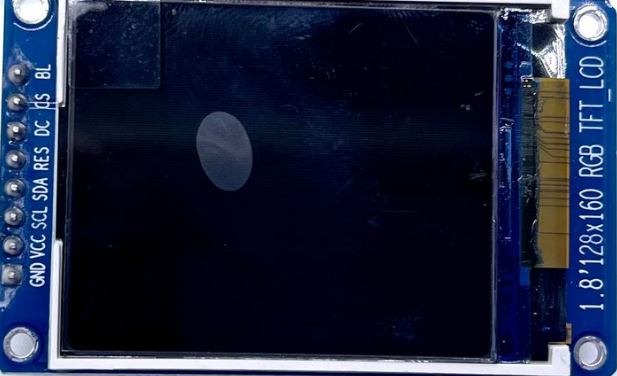
 Design with tft 1.8" st7735 in Cirkit Designer
Introduction
The TFT 1.8" ST7735 is a compact and versatile display module manufactured by me with the part ID ST7735 128x160. It features a 1.8-inch screen with a resolution of 128x160 pixels and supports 16-bit color depth, making it ideal for displaying vibrant graphics and text. This module is powered by the ST7735 driver IC, which provides efficient control over the display.
Explore Projects Built with tft 1.8" st7735
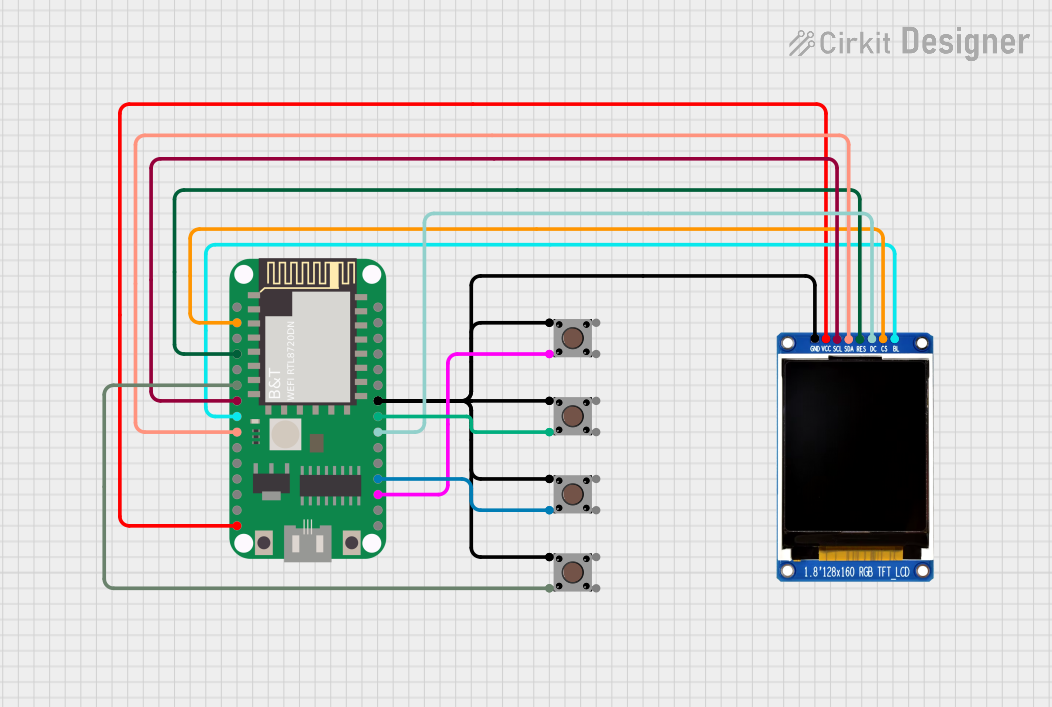 Open Project in Cirkit Designer
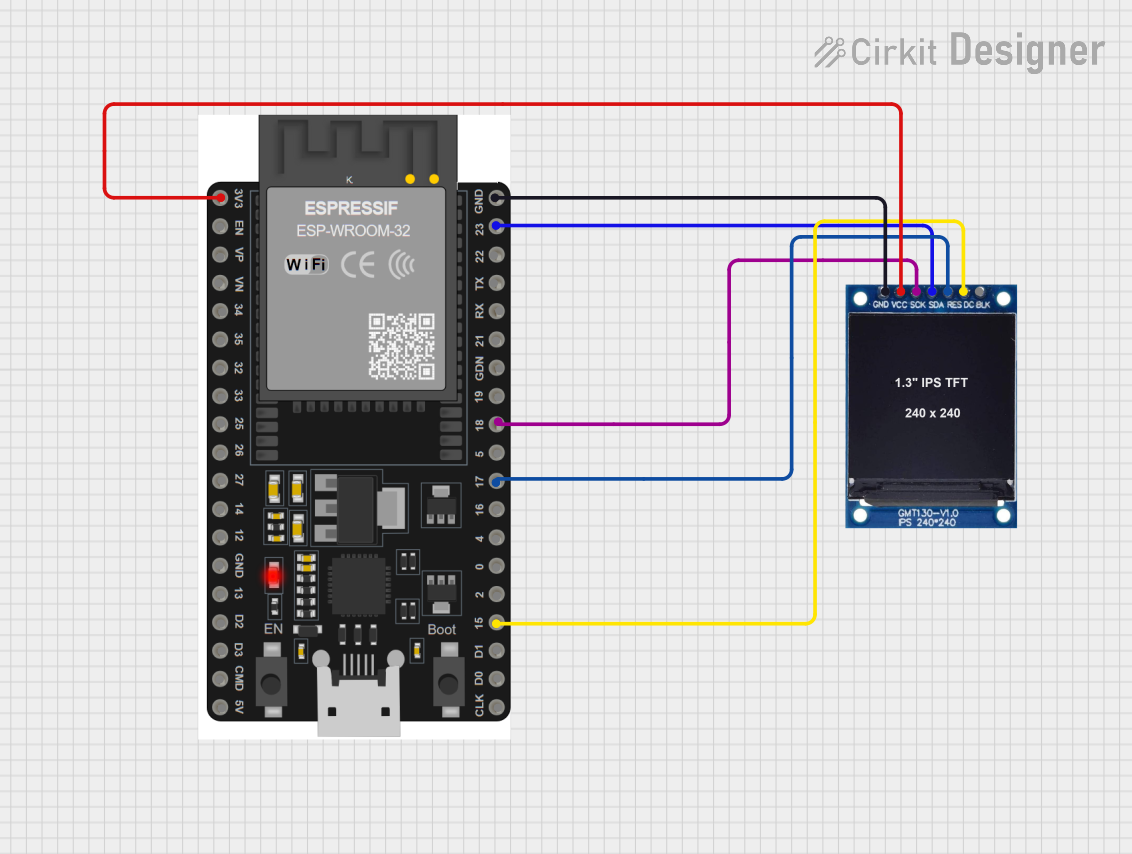 Open Project in Cirkit Designer
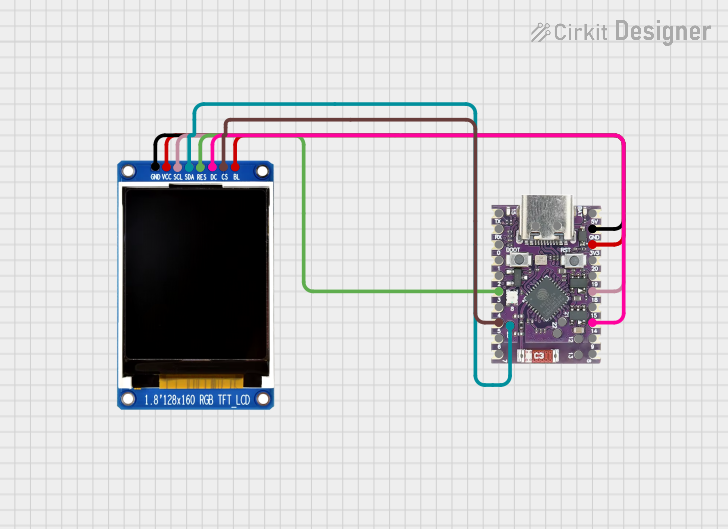 Open Project in Cirkit Designer
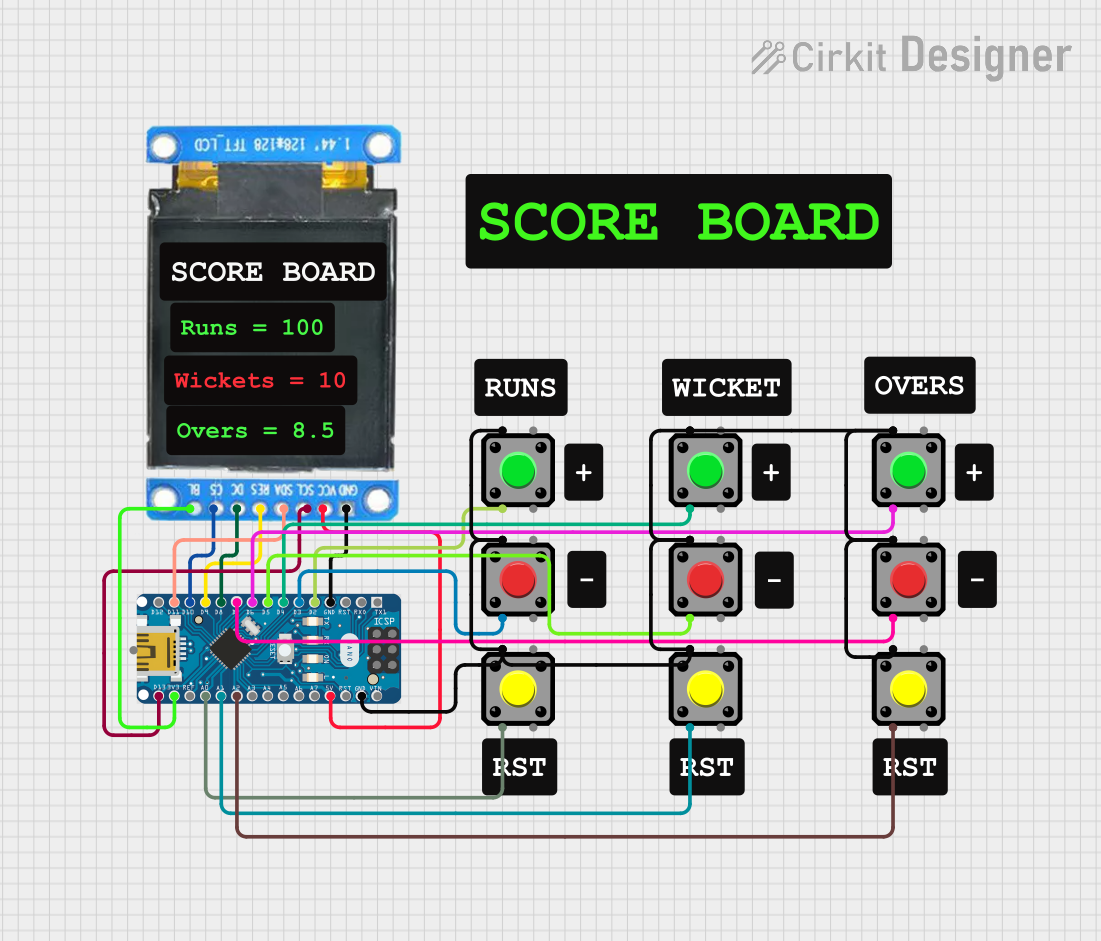 Open Project in Cirkit Designer
Explore Projects Built with tft 1.8" st7735
Open Project in Cirkit DesignerOpen Project in Cirkit DesignerOpen Project in Cirkit DesignerOpen Project in Cirkit DesignerCommon Applications and Use Cases
- Handheld devices and portable electronics
- Embedded systems and microcontroller projects
- Wearable devices
- DIY projects requiring graphical interfaces
- Educational tools for learning display interfacing
Technical Specifications
Below are the key technical details of the TFT 1.8" ST7735 module:
| Parameter | Specification |
|---|---|
| Display Type | TFT LCD |
| Screen Size | 1.8 inches |
| Resolution | 128x160 pixels |
| Color Depth | 16-bit (65,536 colors) |
| Driver IC | ST7735 |
| Interface | SPI (Serial Peripheral Interface) |
| Operating Voltage | 3.3V (logic level) |
| Backlight Voltage | 3.3V to 5V |
| Current Consumption | ~50mA (with backlight on) |
| Dimensions | 34.5mm x 47.5mm x 4.5mm |
Pin Configuration and Descriptions
The module has an 8-pin interface for connecting to a microcontroller. Below is the pinout:
| Pin | Name | Description |
|---|---|---|
| 1 | GND | Ground connection |
| 2 | VCC | Power supply (3.3V to 5V) |
| 3 | SCL (CLK) | SPI clock signal |
| 4 | SDA (MOSI) | SPI data input (Master Out Slave In) |
| 5 | RES | Reset pin (active low) |
| 6 | DC (A0) | Data/Command control pin (High = Data, Low = Command) |
| 7 | CS | Chip Select (active low) |
| 8 | BLK | Backlight control (connect to VCC for always-on backlight or PWM for dimming) |
Usage Instructions
How to Use the Component in a Circuit
- Power Supply: Connect the VCC pin to a 3.3V or 5V power source and the GND pin to ground.
- SPI Interface: Connect the SCL (CLK) and SDA (MOSI) pins to the corresponding SPI pins on your microcontroller.
- Control Pins:
- Connect the RES pin to a GPIO pin for resetting the display.
- Connect the DC pin to a GPIO pin to toggle between data and command modes.
- Connect the CS pin to a GPIO pin to enable or disable the display.
- Backlight: Connect the BLK pin to VCC for a constant backlight or to a PWM-capable pin for brightness control.
Important Considerations and Best Practices
- Voltage Levels: Ensure that the logic level of your microcontroller matches the display's operating voltage (3.3V). Use a level shifter if your microcontroller operates at 5V logic.
- SPI Speed: Use an appropriate SPI clock speed (typically up to 15 MHz) to ensure reliable communication.
- Initialization: The display requires specific initialization commands to configure the ST7735 driver. Use a compatible library or refer to the datasheet for details.
- Backlight Control: If using PWM for backlight control, ensure the frequency is high enough to avoid visible flickering.
Example Code for Arduino UNO
Below is an example of how to interface the TFT 1.8" ST7735 with an Arduino UNO using the Adafruit ST7735 library:
#include <Adafruit_GFX.h>    // Core graphics library
#include <Adafruit_ST7735.h> // ST7735 driver library
#include <SPI.h>

// Define pin connections
#define TFT_CS     10  // Chip Select pin
#define TFT_RST    9   // Reset pin
#define TFT_DC     8   // Data/Command pin

// Initialize the display object
Adafruit_ST7735 tft = Adafruit_ST7735(TFT_CS, TFT_DC, TFT_RST);

void setup() {
  // Initialize the display
  tft.initR(INITR_BLACKTAB); // Use INITR_BLACKTAB for this display variant
  tft.fillScreen(ST77XX_BLACK); // Clear the screen with black color

  // Display a message
  tft.setTextColor(ST77XX_WHITE); // Set text color to white
  tft.setTextSize(2);             // Set text size
  tft.setCursor(10, 10);          // Set cursor position
  tft.println("Hello, World!");   // Print text
}

void loop() {
  // Add your code here
}
Troubleshooting and FAQs
Common Issues and Solutions
No Display Output:
- Verify all connections, especially the SPI pins and power supply.
- Ensure the display is properly initialized in the code.
- Check if the backlight (BLK pin) is connected to VCC or a PWM signal.
Flickering or Unstable Display:
- Reduce the SPI clock speed in your code.
- Ensure proper grounding between the display and the microcontroller.
Incorrect Colors or Graphics:
- Verify that the correct initialization sequence is used for the ST7735 driver.
- Ensure the color format (16-bit) is correctly implemented in your code.
Backlight Not Working:
- Check the BLK pin connection. If using PWM, ensure the signal is within the correct range.
FAQs
Q: Can I use this display with a 5V microcontroller?
A: Yes, but you must use level shifters for the SPI and control pins to avoid damaging the display.
Q: What is the maximum SPI clock speed supported?
A: The ST7735 driver typically supports SPI clock speeds up to 15 MHz, but this may vary depending on your setup.
Q: Can I use this display with platforms other than Arduino?
A: Yes, the display can be used with other platforms like Raspberry Pi, ESP32, and STM32, provided you configure the SPI interface and initialization sequence correctly.
Q: How do I display images on the screen?
A: You can use libraries like Adafruit ST7735 to load bitmap images from an SD card or generate graphics programmatically.
This concludes the documentation for the TFT 1.8" ST7735 module.