
How to Use Piezo Speaker 2: Examples, Pinouts, and Specs

 Design with Piezo Speaker 2 in Cirkit Designer
Introduction
A piezo speaker is a type of loudspeaker that uses the piezoelectric effect to produce sound. It converts electrical energy into mechanical energy, creating sound waves. These speakers are known for their compact size, low power consumption, and ability to produce a range of frequencies.
The Piezo Speaker 2 is a versatile component commonly used in various applications, including:
- Alarm systems and buzzers
- Timers and notifications
- Musical tones in electronic devices
- Sound effects in toys and gadgets
Its simplicity and efficiency make it a popular choice for hobbyists and professionals alike.
Explore Projects Built with Piezo Speaker 2
 Open Project in Cirkit Designer
 Open Project in Cirkit Designer
 Open Project in Cirkit Designer
 Open Project in Cirkit Designer
Explore Projects Built with Piezo Speaker 2
Open Project in Cirkit DesignerOpen Project in Cirkit DesignerOpen Project in Cirkit DesignerOpen Project in Cirkit DesignerTechnical Specifications
Below are the key technical details for the Piezo Speaker 2:
| Parameter | Value |
|---|---|
| Operating Voltage | 3V to 12V |
| Operating Current | < 20mA |
| Resonant Frequency | 2 kHz to 4 kHz |
| Sound Pressure Level | 85 dB (at 10 cm, 5V input) |
| Dimensions | 20 mm diameter, 10 mm height |
| Weight | ~5 grams |
Pin Configuration
The Piezo Speaker 2 typically has two pins for connection:
| Pin | Description |
|---|---|
| Positive (+) | Connect to the positive voltage supply or signal output. |
| Negative (-) | Connect to ground (GND). |
Usage Instructions
How to Use the Piezo Speaker 2 in a Circuit
- Power Supply: Connect the positive pin of the piezo speaker to a signal source or a microcontroller pin capable of generating a PWM (Pulse Width Modulation) signal. Connect the negative pin to the ground (GND).
- Signal Generation: Use a microcontroller (e.g., Arduino UNO) or an oscillator circuit to generate a square wave signal. The frequency of the signal determines the pitch of the sound produced.
- Resistor (Optional): For safety, you can add a current-limiting resistor (e.g., 220Ω) in series with the positive pin to prevent excessive current flow.
Example Circuit with Arduino UNO
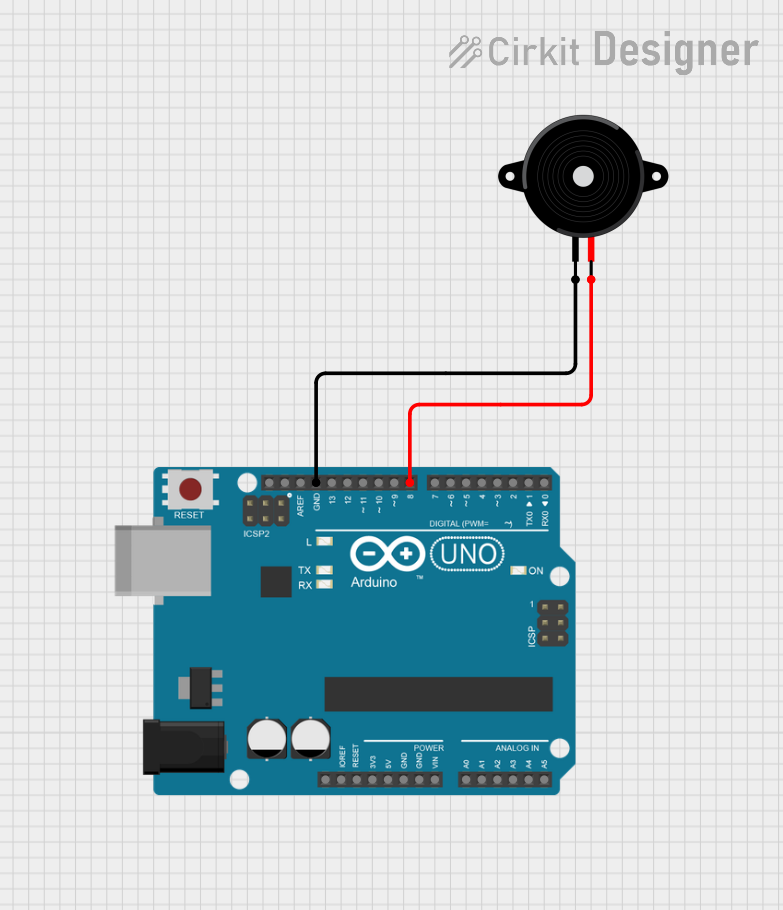
Below is an example of how to connect and program the Piezo Speaker 2 with an Arduino UNO to produce a simple tone:
Circuit Diagram
- Connect the positive pin of the piezo speaker to Arduino pin 9.
- Connect the negative pin of the piezo speaker to GND.
Arduino Code
// Piezo Speaker Example with Arduino UNO
// This code generates a tone on pin 9 using the tone() function.

#define PIEZO_PIN 9  // Define the pin connected to the piezo speaker

void setup() {
  // No setup required for tone() function
}

void loop() {
  tone(PIEZO_PIN, 1000); // Generate a 1 kHz tone on the piezo speaker
  delay(500);            // Wait for 500 milliseconds
  noTone(PIEZO_PIN);     // Stop the tone
  delay(500);            // Wait for 500 milliseconds
}
Important Considerations and Best Practices
- Voltage Range: Ensure the input voltage does not exceed the specified range (3V to 12V) to avoid damaging the speaker.
- Frequency Range: Operate the speaker within its resonant frequency range (2 kHz to 4 kHz) for optimal sound output.
- Mounting: Secure the speaker in place to prevent vibrations from affecting sound quality.
- Avoid Continuous High Voltage: Prolonged exposure to high voltage may degrade the piezoelectric material.
Troubleshooting and FAQs
Common Issues and Solutions
No Sound Output:
- Cause: Incorrect wiring or insufficient voltage.
- Solution: Verify the connections and ensure the input voltage is within the operating range.
Distorted Sound:
- Cause: Signal frequency is outside the resonant range.
- Solution: Adjust the signal frequency to fall within 2 kHz to 4 kHz.
Low Volume:
- Cause: Insufficient input voltage or improper mounting.
- Solution: Increase the input voltage (within the safe range) and ensure the speaker is securely mounted.
Overheating:
- Cause: Excessive current or prolonged high voltage.
- Solution: Add a current-limiting resistor and avoid continuous high-voltage operation.
FAQs
Q: Can I use the Piezo Speaker 2 with a 3.3V microcontroller?
A: Yes, the Piezo Speaker 2 can operate at 3.3V, but the sound output may be quieter compared to 5V operation.
Q: How do I produce different tones?
A: Vary the frequency of the input signal. For example, in Arduino, you can use the tone() function with different frequency values.
Q: Can I use the Piezo Speaker 2 for playing music?
A: Yes, you can generate musical notes by programming a sequence of frequencies and durations.
Q: Is the Piezo Speaker 2 waterproof?
A: No, the Piezo Speaker 2 is not waterproof. Avoid exposing it to moisture or water.
By following this documentation, you can effectively integrate the Piezo Speaker 2 into your projects and troubleshoot any issues that arise.