
How to Use NVIDIA Jetson Nano: Examples, Pinouts, and Specs
 Design with NVIDIA Jetson Nano in Cirkit Designer
Introduction
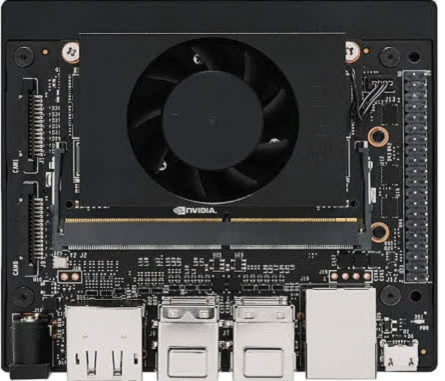
The NVIDIA Jetson Nano (Part ID: 945-13450-0000-100) is a compact yet powerful computer designed specifically for artificial intelligence (AI) and machine learning (ML) applications. It features a quad-core ARM Cortex-A57 CPU and a 128-core Maxwell GPU, making it an excellent choice for robotics, embedded systems, and edge computing. The Jetson Nano provides developers with the computational power needed to run AI frameworks and process data in real-time, all within a small form factor and at an affordable price.
Explore Projects Built with NVIDIA Jetson Nano
 Open Project in Cirkit Designer
 Open Project in Cirkit Designer
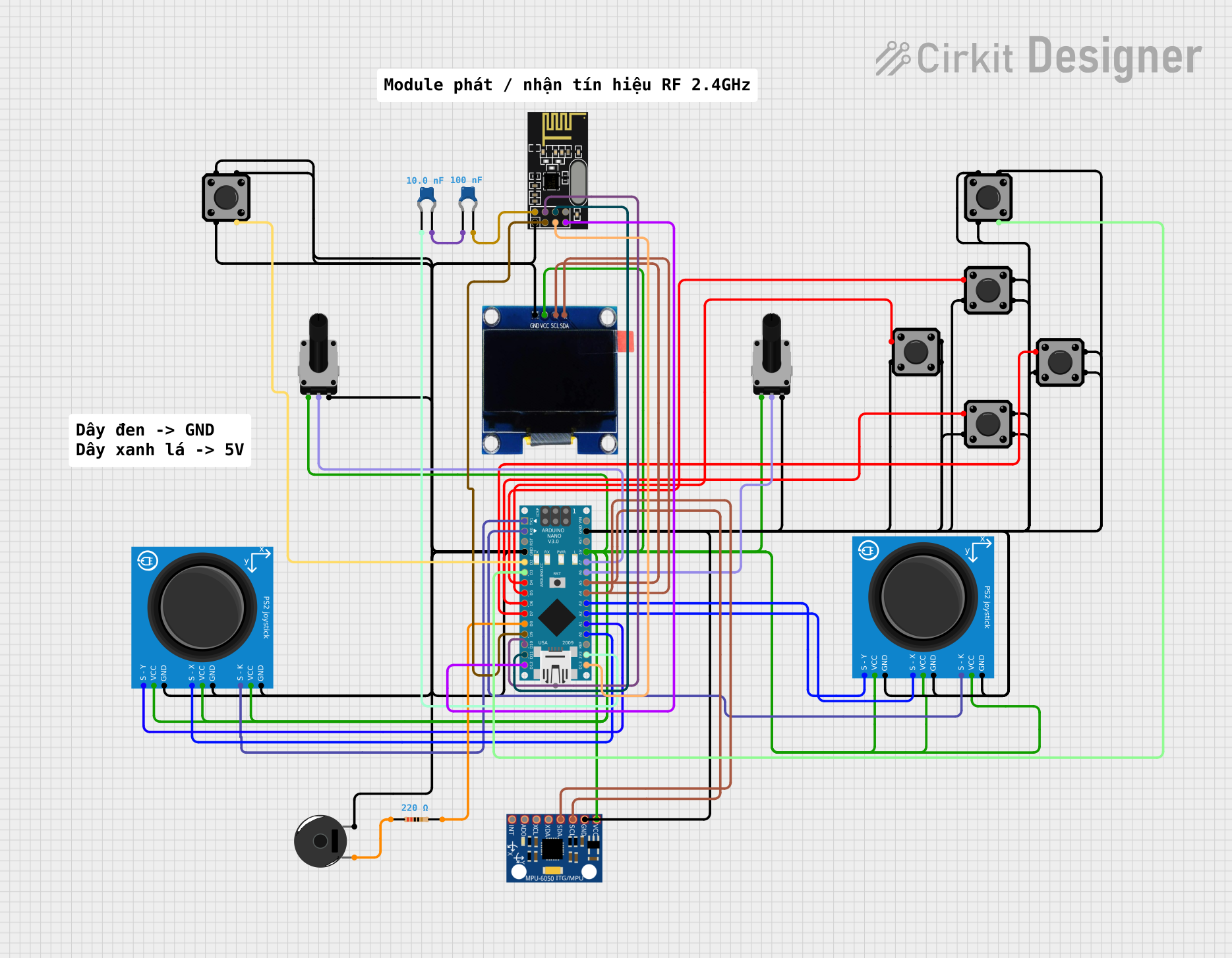 Open Project in Cirkit Designer
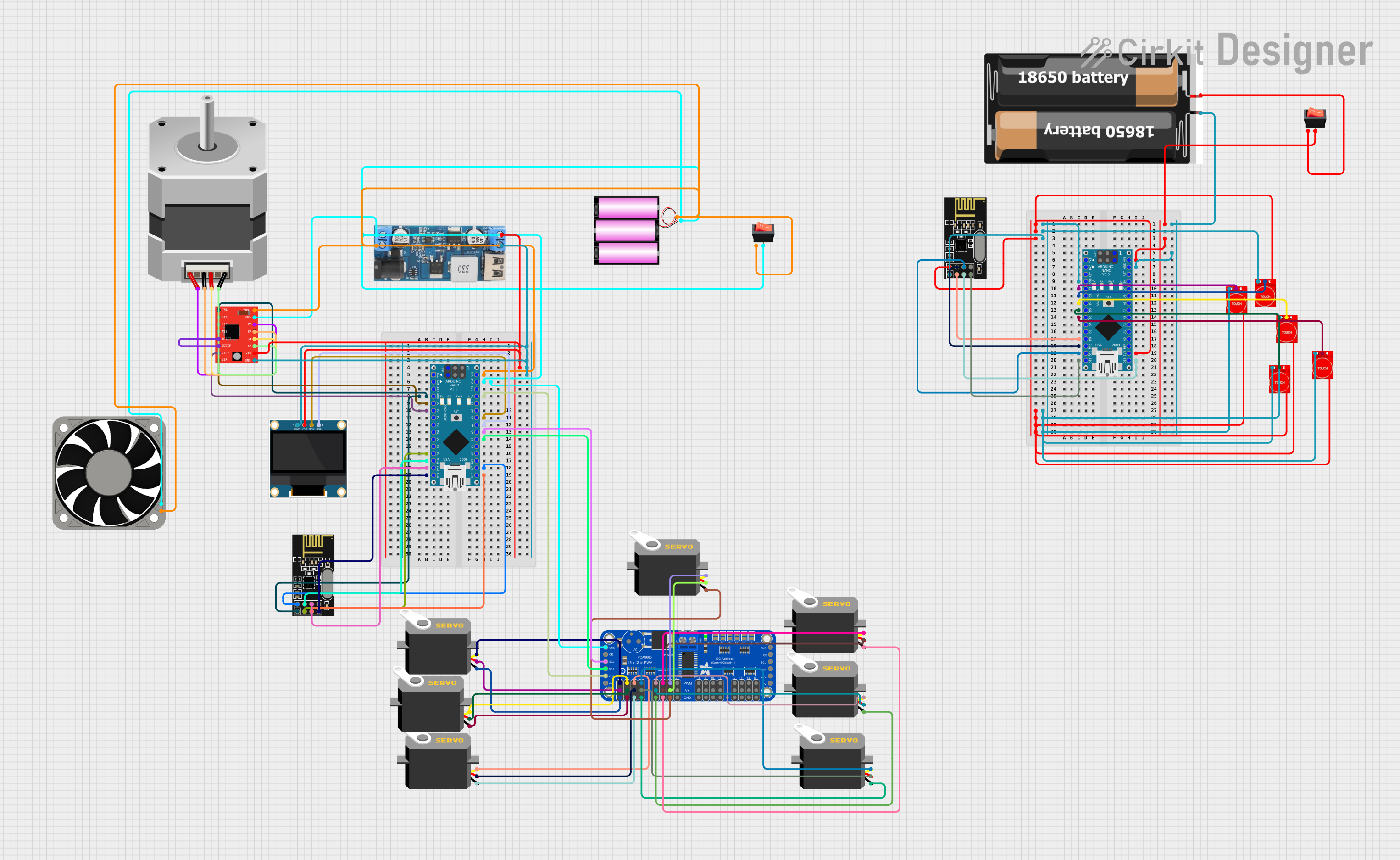 Open Project in Cirkit Designer
Explore Projects Built with NVIDIA Jetson Nano
Open Project in Cirkit DesignerOpen Project in Cirkit DesignerOpen Project in Cirkit DesignerOpen Project in Cirkit DesignerCommon Applications and Use Cases
- Robotics and autonomous systems
- Computer vision and image processing
- Natural language processing (NLP)
- Smart home and IoT devices
- Edge AI for real-time data analysis
- Prototyping AI-powered embedded systems
Technical Specifications
The NVIDIA Jetson Nano is packed with features that make it suitable for a wide range of AI and ML applications. Below are its key technical specifications:
Key Technical Details
| Specification | Details |
|---|---|
| CPU | Quad-core ARM Cortex-A57 |
| GPU | 128-core NVIDIA Maxwell architecture |
| Memory | 4 GB LPDDR4 (64-bit) |
| Storage | microSD card slot |
| Connectivity | Gigabit Ethernet |
| I/O Ports | GPIO, I2C, I2S, SPI, UART |
| Video Output | HDMI 2.0 and DisplayPort 1.2 |
| Camera Interface | MIPI CSI-2 (15-pin) |
| Power Input | 5V/4A (via barrel jack or micro-USB) |
| Operating System | Ubuntu-based NVIDIA JetPack SDK |
| Dimensions | 100 mm x 80 mm |
Pin Configuration and Descriptions
The Jetson Nano features a 40-pin GPIO header, similar to the Raspberry Pi, for interfacing with external devices. Below is the pinout description:
| Pin Number | Pin Name | Functionality |
|---|---|---|
| 1 | 3.3V Power | 3.3V power supply |
| 2 | 5V Power | 5V power supply |
| 3 | GPIO2 (I2C SDA) | General-purpose I/O, I2C data line |
| 4 | 5V Power | 5V power supply |
| 5 | GPIO3 (I2C SCL) | General-purpose I/O, I2C clock line |
| 6 | Ground | Ground |
| ... | ... | ... (Refer to official documentation for full pinout) |
Usage Instructions
The NVIDIA Jetson Nano is designed to be user-friendly, but proper setup and usage are essential for optimal performance. Follow the steps below to get started:
Setting Up the Jetson Nano
- Prepare the microSD Card:
- Download the NVIDIA JetPack SDK image from the official NVIDIA website.
- Flash the image onto a microSD card (32 GB or larger) using tools like Balena Etcher.
- Connect Peripherals:
- Attach a keyboard, mouse, and monitor via HDMI or DisplayPort.
- Insert the microSD card into the Jetson Nano's slot.
- Power the Device:
- Connect a 5V/4A power supply via the barrel jack or micro-USB port.
- Turn on the device and follow the on-screen setup instructions.
Using the GPIO Pins
The GPIO pins on the Jetson Nano can be used to interface with sensors, actuators, and other peripherals. Below is an example of controlling an LED using Python:
Import the Jetson.GPIO library
import Jetson.GPIO as GPIO import time
Pin configuration
LED_PIN = 18 # GPIO pin number where the LED is connected
Set up the GPIO mode and pin
GPIO.setmode(GPIO.BOARD) # Use physical pin numbering GPIO.setup(LED_PIN, GPIO.OUT) # Set the pin as an output
try: while True: GPIO.output(LED_PIN, GPIO.HIGH) # Turn the LED on time.sleep(1) # Wait for 1 second GPIO.output(LED_PIN, GPIO.LOW) # Turn the LED off time.sleep(1) # Wait for 1 second except KeyboardInterrupt: print("Exiting program...")
Clean up GPIO settings
GPIO.cleanup()
Best Practices
- Use a high-quality microSD card (Class 10 or UHS-1) for better performance.
- Ensure proper cooling with a heatsink or fan to prevent thermal throttling.
- Use the NVIDIA JetPack SDK for access to pre-installed AI frameworks like TensorFlow and PyTorch.
- Regularly update the JetPack SDK to benefit from the latest features and security patches.
Troubleshooting and FAQs
Common Issues and Solutions
Jetson Nano Does Not Boot:
- Ensure the microSD card is properly flashed with the JetPack SDK image.
- Verify that the power supply provides sufficient current (5V/4A recommended).
Overheating:
- Install a heatsink or fan to improve cooling.
- Avoid placing the device in enclosed spaces without ventilation.
GPIO Pins Not Working:
- Check the pin configuration in your code.
- Ensure the GPIO library (Jetson.GPIO) is installed and up-to-date.
No Display Output:
- Verify the HDMI/DisplayPort cable connection.
- Ensure the monitor supports the resolution output by the Jetson Nano.
FAQs
Q: Can I use the Jetson Nano for robotics projects?
A: Yes, the Jetson Nano is ideal for robotics due to its powerful GPU and support for AI frameworks.
Q: What operating systems are supported?
A: The Jetson Nano runs on an Ubuntu-based OS provided by the NVIDIA JetPack SDK.
Q: Can I power the Jetson Nano via micro-USB?
A: Yes, but it is recommended to use the barrel jack with a 5V/4A power supply for optimal performance.
Q: How do I connect a camera to the Jetson Nano?
A: Use the MIPI CSI-2 interface to connect compatible cameras like the Raspberry Pi Camera Module.
By following this documentation, users can effectively utilize the NVIDIA Jetson Nano for a wide range of AI and embedded system applications.