How to Use Arduino Joystick Shield: Examples, Pinouts, and Specs
 Design with Arduino Joystick Shield in Cirkit Designer
Introduction
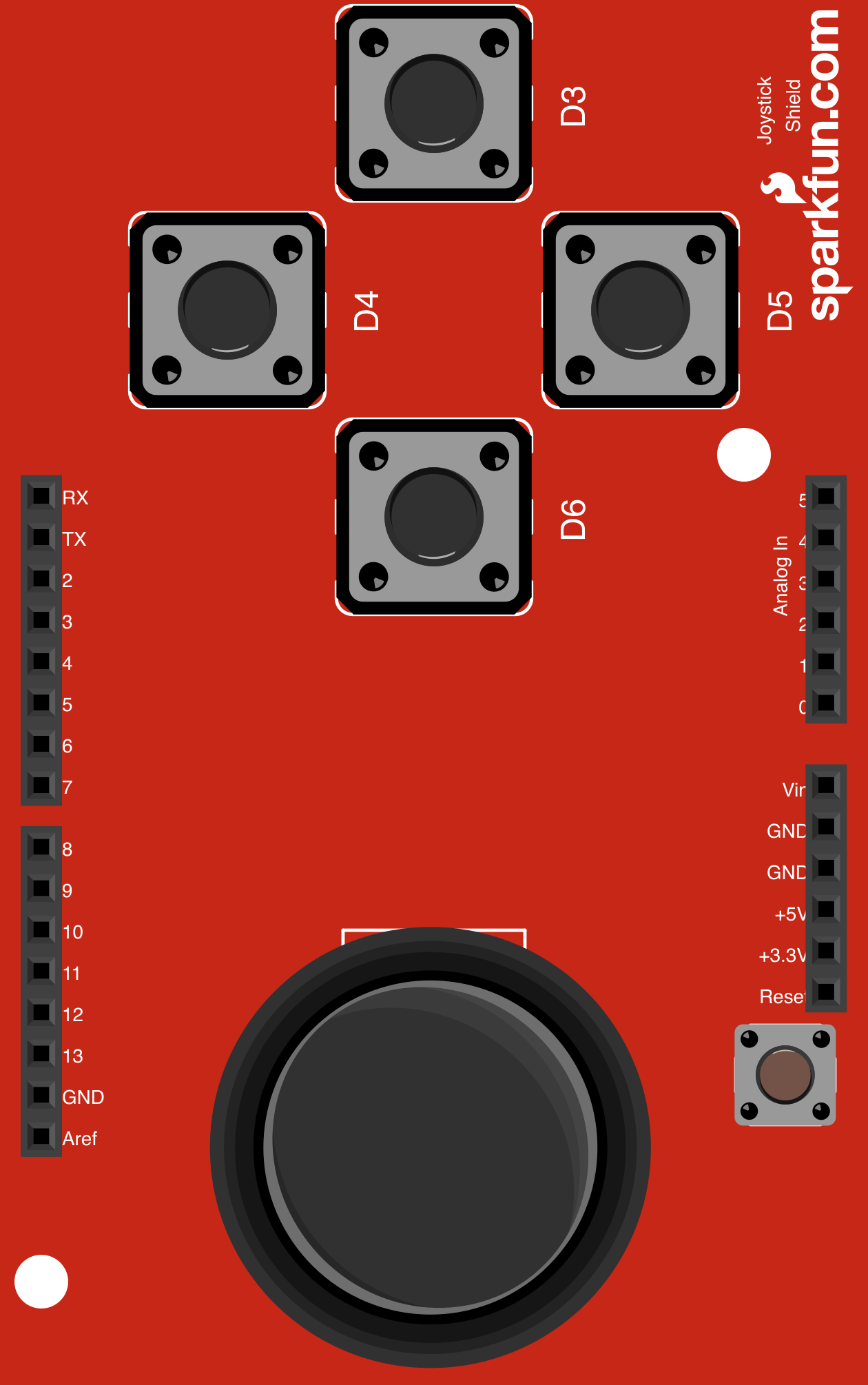
The Arduino Joystick Shield (Manufacturer Part ID: DEV-09490) by SparkFun Electronics is a versatile shield designed to add joystick functionality to Arduino boards. It features an analog joystick and additional buttons, making it ideal for projects requiring user input, such as robotic control, gaming interfaces, or menu navigation.
This shield simplifies the process of integrating joystick-based controls into your projects by providing a plug-and-play solution. It is compatible with most Arduino boards and offers a straightforward way to read analog and digital inputs.
Explore Projects Built with Arduino Joystick Shield
 Open Project in Cirkit Designer
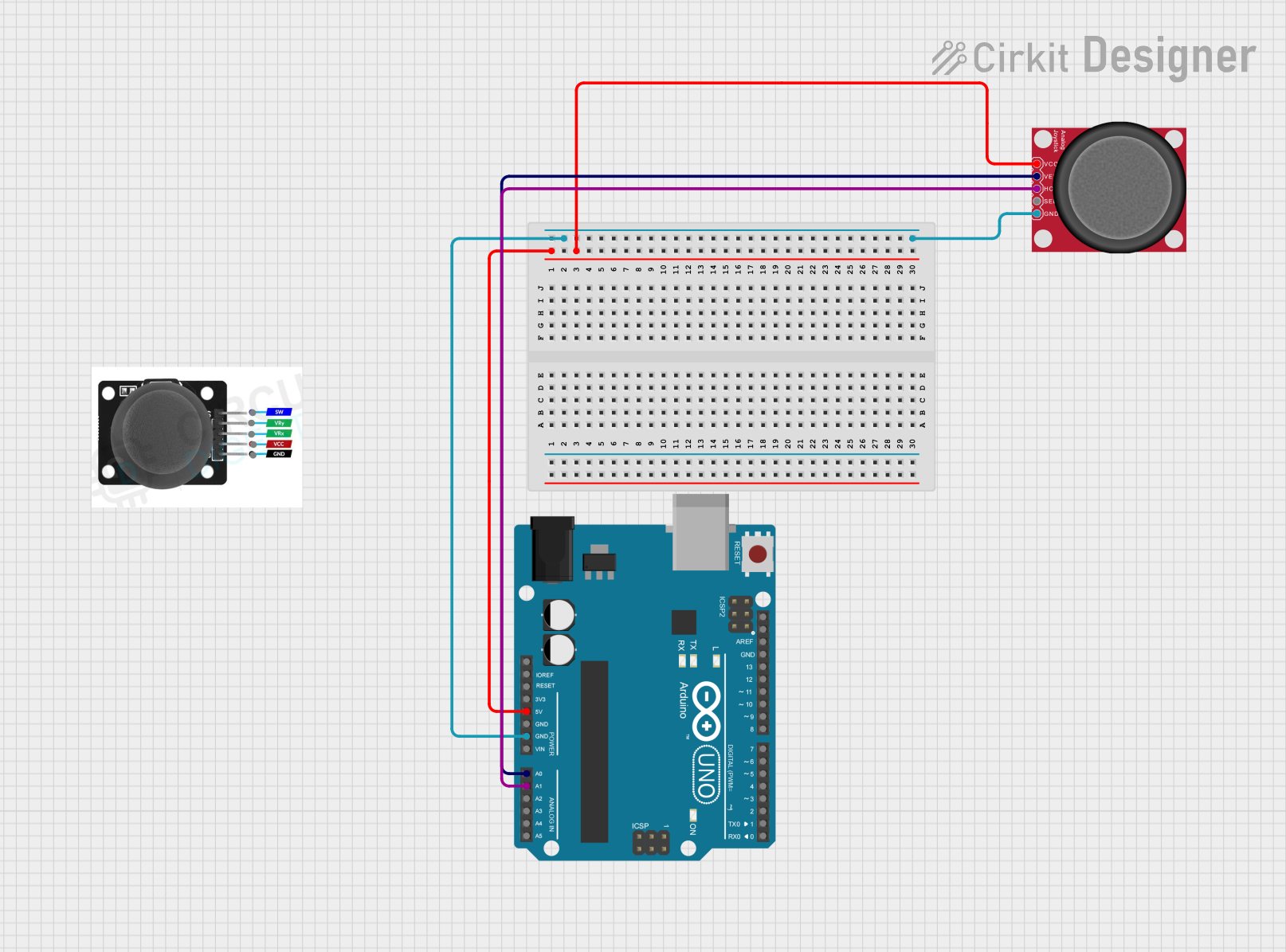 Open Project in Cirkit Designer
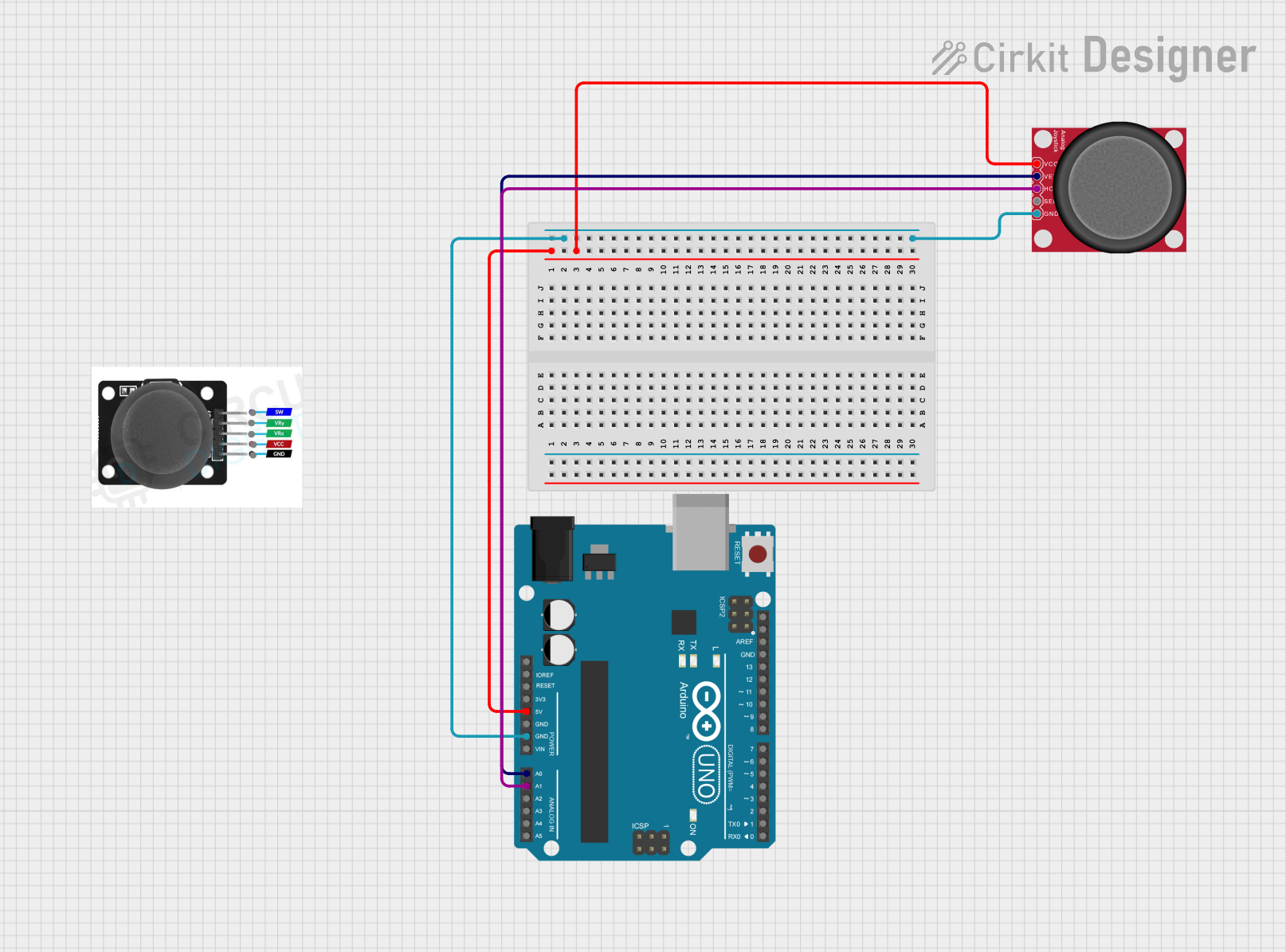 Open Project in Cirkit Designer
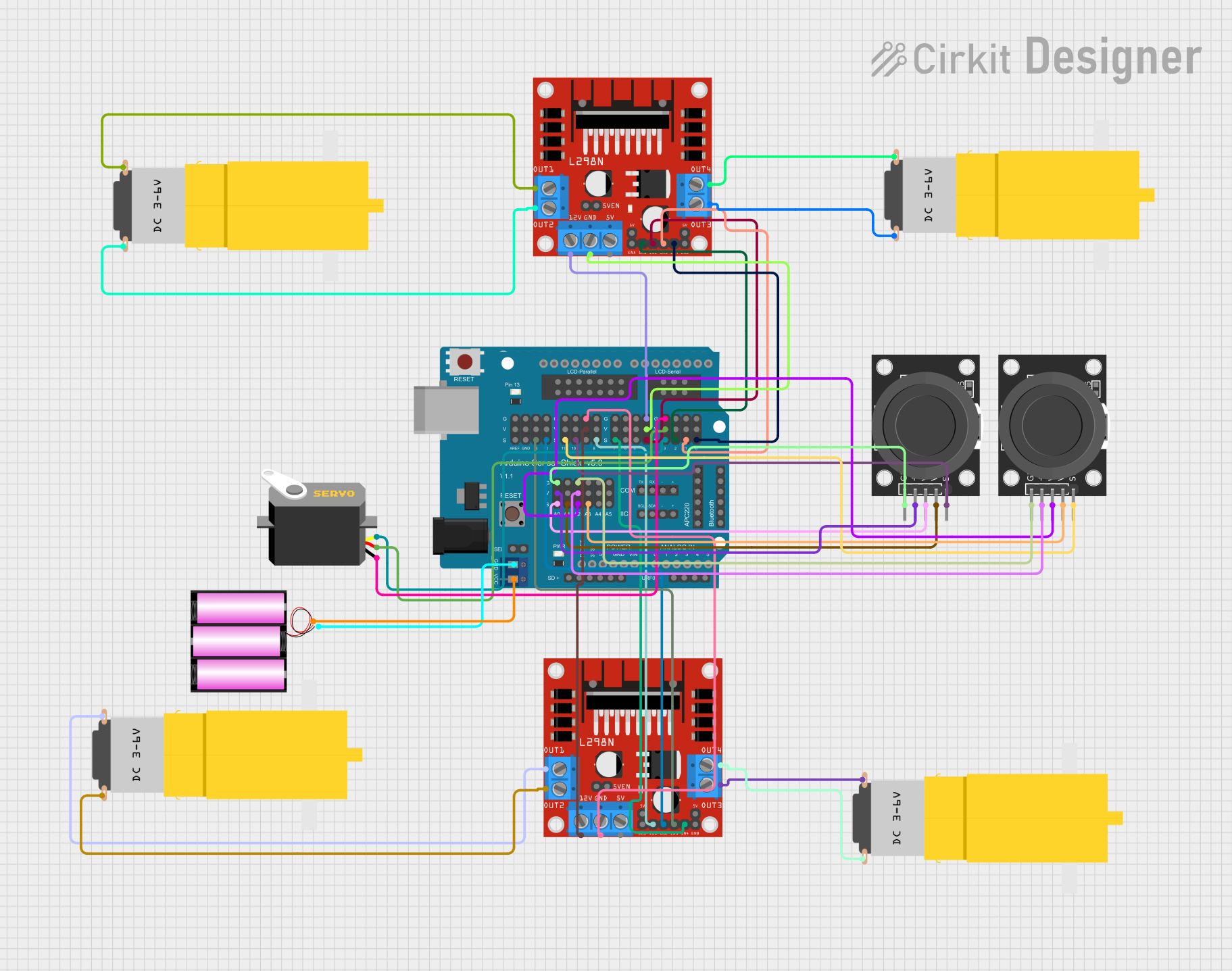 Open Project in Cirkit Designer
Explore Projects Built with Arduino Joystick Shield
Open Project in Cirkit DesignerOpen Project in Cirkit DesignerOpen Project in Cirkit DesignerOpen Project in Cirkit DesignerCommon Applications
- Robotic control systems
- Gaming controllers
- Menu navigation interfaces
- Remote-controlled vehicles
- DIY projects requiring user input
Technical Specifications
Key Technical Details
- Joystick Type: Analog, 2-axis (X and Y)
- Button Count: 5 push buttons (4 directional + 1 select button)
- Voltage: 5V (operates directly from the Arduino board's power supply)
- Interface: Analog (joystick axes) and digital (buttons)
- Dimensions: Standard Arduino shield size
- Compatibility: Arduino UNO, Mega, Leonardo, and other Arduino boards with standard shield headers
Pin Configuration and Descriptions
The Arduino Joystick Shield connects to the Arduino board via its headers. Below is the pin configuration:
| Pin | Function | Description |
|---|---|---|
| A0 | Joystick X-axis | Analog input for horizontal movement of the joystick. |
| A1 | Joystick Y-axis | Analog input for vertical movement of the joystick. |
| D2 | Button 1 (Up) | Digital input for the "Up" button. |
| D3 | Button 2 (Down) | Digital input for the "Down" button. |
| D4 | Button 3 (Left) | Digital input for the "Left" button. |
| D5 | Button 4 (Right) | Digital input for the "Right" button. |
| D6 | Button 5 (Select) | Digital input for the "Select" button (pressing the joystick). |
| 5V | Power Supply | Provides 5V power to the shield from the Arduino board. |
| GND | Ground | Common ground connection. |
Usage Instructions
How to Use the Component in a Circuit
- Attach the Shield: Plug the Arduino Joystick Shield directly onto your Arduino board. Ensure the pins align correctly with the Arduino headers.
- Power the Arduino: Connect the Arduino to your computer or an external power source to power the shield.
- Read Inputs:
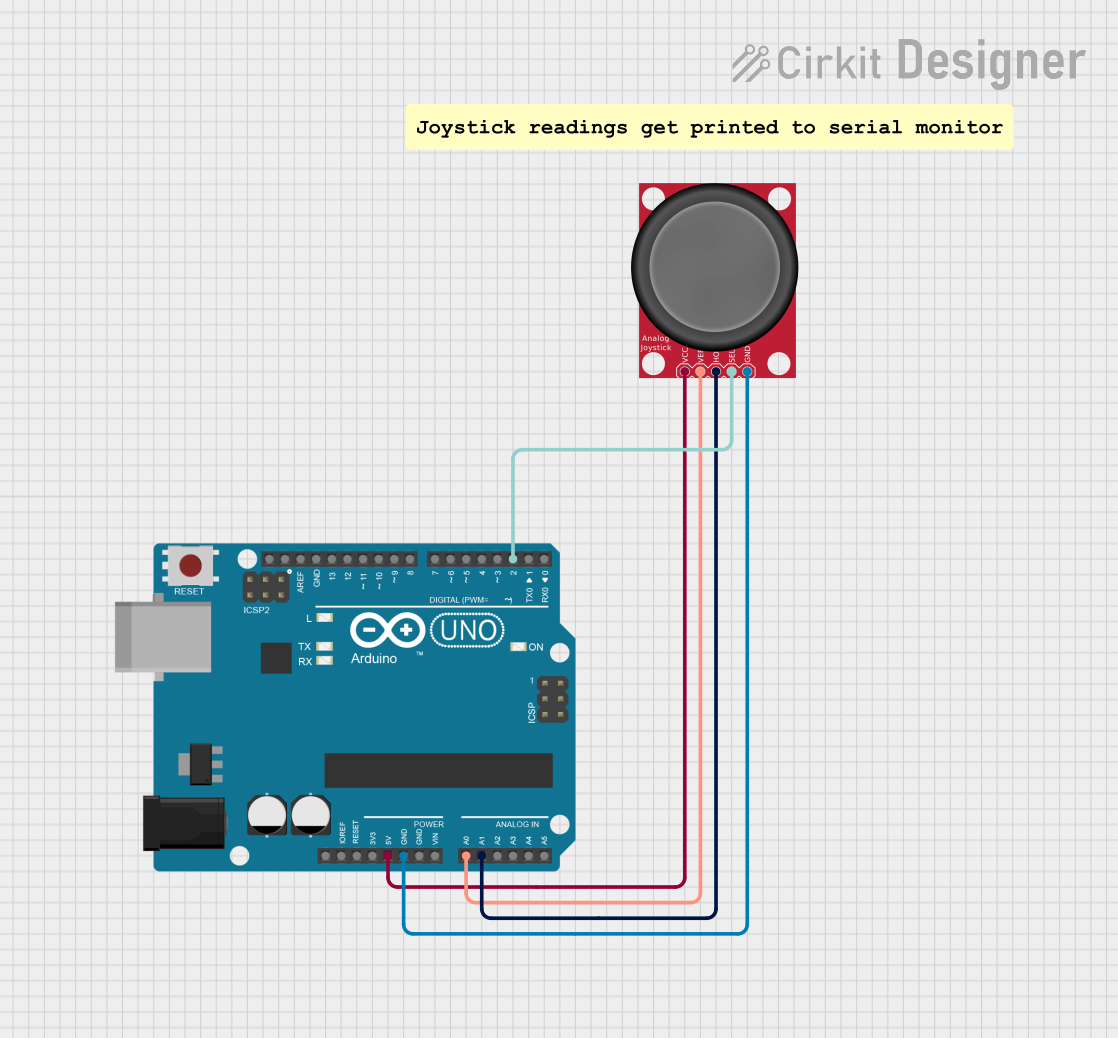
- Use analog pins (A0 and A1) to read the X and Y-axis values of the joystick.
- Use digital pins (D2 to D6) to detect button presses.
Important Considerations and Best Practices
- Debouncing Buttons: When reading button inputs, implement software debouncing to avoid false triggers caused by mechanical noise.
- Analog Calibration: The joystick's analog values may vary slightly due to manufacturing tolerances. Calibrate the joystick in your code to ensure accurate readings.
- Avoid Overloading Pins: Do not connect additional components to the pins used by the shield to prevent conflicts or damage.
- Check Compatibility: Ensure your Arduino board is compatible with the shield's pin layout before use.
Example Code for Arduino UNO
Below is an example sketch to read the joystick's X and Y-axis values and detect button presses:
// Pin definitions for the joystick shield
const int joystickXPin = A0; // Joystick X-axis connected to A0
const int joystickYPin = A1; // Joystick Y-axis connected to A1
const int buttonPins[] = {2, 3, 4, 5, 6}; // Button pins (Up, Down, Left, Right, Select)

// Variables to store joystick and button states
int joystickX = 0;
int joystickY = 0;
bool buttonStates[5] = {false, false, false, false, false};

void setup() {
  // Initialize serial communication for debugging
  Serial.begin(9600);

  // Set button pins as inputs with pull-up resistors
  for (int i = 0; i < 5; i++) {
    pinMode(buttonPins[i], INPUT_PULLUP);
  }
}

void loop() {
  // Read joystick analog values
  joystickX = analogRead(joystickXPin);
  joystickY = analogRead(joystickYPin);

  // Print joystick values to the Serial Monitor
  Serial.print("Joystick X: ");
  Serial.print(joystickX);
  Serial.print(" | Joystick Y: ");
  Serial.println(joystickY);

  // Read button states
  for (int i = 0; i < 5; i++) {
    buttonStates[i] = !digitalRead(buttonPins[i]); // Buttons are active LOW
    if (buttonStates[i]) {
      Serial.print("Button ");
      Serial.print(i + 1);
      Serial.println(" pressed!");
    }
  }

  // Add a small delay to avoid flooding the Serial Monitor
  delay(100);
}
Notes on the Code
- The joystick's analog values typically range from 0 to 1023, with the center position around 512.
- Buttons are active LOW, meaning they read
LOW(0) when pressed andHIGH(1) when released.
Troubleshooting and FAQs
Common Issues
Joystick Not Responding:
- Ensure the shield is properly seated on the Arduino board.
- Verify that the Arduino is powered and the correct pins are being read in the code.
Incorrect Analog Readings:
- Check for loose connections or damaged pins.
- Calibrate the joystick in your code to account for manufacturing tolerances.
Buttons Not Working:
- Ensure the button pins are configured as
INPUT_PULLUPin your code. - Test the buttons with a multimeter to confirm they are functional.
- Ensure the button pins are configured as
Solutions and Tips
- Serial Debugging: Use
Serial.print()statements to debug your code and verify the values being read from the joystick and buttons. - Shield Compatibility: Double-check that your Arduino board is compatible with the shield's pin layout.
- Power Supply: Ensure the Arduino board is receiving sufficient power, especially if additional components are connected.
By following this documentation, you can effectively integrate the Arduino Joystick Shield into your projects and troubleshoot any issues that arise.