
How to Use Mega 2560 Pro: Examples, Pinouts, and Specs
 Design with Mega 2560 Pro in Cirkit Designer
Introduction
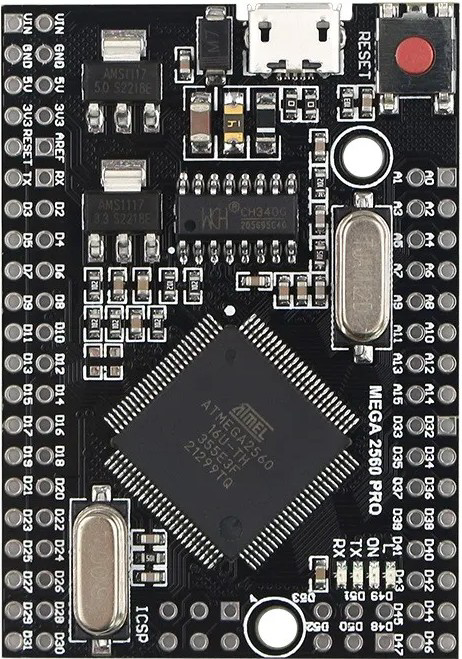
The Mega 2560 Pro is a compact microcontroller board based on the ATmega2560. It is designed for advanced projects that require a large number of input/output pins and significant processing power. With 54 digital input/output pins (15 of which can be used as PWM outputs), 16 analog inputs, and a USB connection for programming and power, the Mega 2560 Pro is ideal for applications involving multiple sensors, actuators, and complex control systems.
Explore Projects Built with Mega 2560 Pro
 Open Project in Cirkit Designer
 Open Project in Cirkit Designer
 Open Project in Cirkit Designer
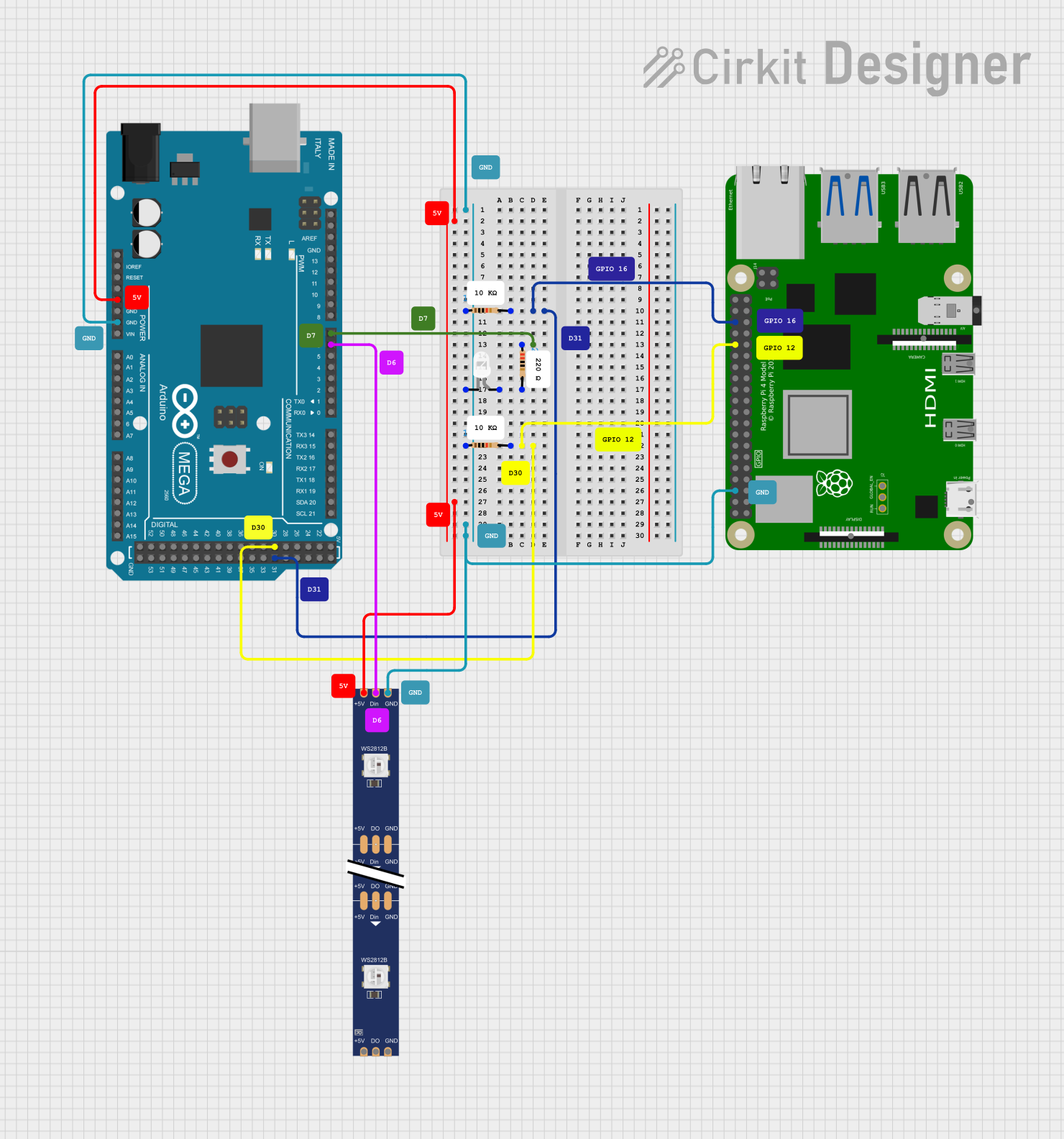 Open Project in Cirkit Designer
Explore Projects Built with Mega 2560 Pro
Open Project in Cirkit DesignerOpen Project in Cirkit DesignerOpen Project in Cirkit DesignerOpen Project in Cirkit DesignerCommon Applications and Use Cases
- Robotics and automation systems
- IoT (Internet of Things) devices
- Data acquisition and logging
- Home automation projects
- Prototyping for industrial control systems
- Projects requiring multiple serial communication interfaces
Technical Specifications
Key Technical Details
- Microcontroller: ATmega2560
- Operating Voltage: 5V
- Input Voltage (recommended): 7-12V
- Input Voltage (limits): 6-20V
- Digital I/O Pins: 54 (15 PWM outputs)
- Analog Input Pins: 16
- DC Current per I/O Pin: 20 mA
- Flash Memory: 256 KB (8 KB used by bootloader)
- SRAM: 8 KB
- EEPROM: 4 KB
- Clock Speed: 16 MHz
- USB Connection: Micro-USB
- Dimensions: 38 x 55 mm (approx.)
Pin Configuration and Descriptions
The Mega 2560 Pro has a variety of pins for different functionalities. Below is a summary of the pin configuration:
Digital Pins
| Pin Number | Functionality |
|---|---|
| 0-1 | Serial communication (RX, TX) |
| 2-13 | General-purpose digital I/O |
| 3, 5, 6, 9, 10, 11 | PWM outputs |
| 20-21 | I2C communication (SDA, SCL) |
| 22-53 | General-purpose digital I/O |
Analog Pins
| Pin Number | Functionality |
|---|---|
| A0-A15 | Analog inputs (10-bit resolution) |
Power Pins
| Pin Name | Functionality |
|---|---|
| VIN | Input voltage (7-12V recommended) |
| 5V | Regulated 5V output |
| 3.3V | Regulated 3.3V output |
| GND | Ground |
| RESET | Reset the microcontroller |
Usage Instructions
How to Use the Mega 2560 Pro in a Circuit
Powering the Board:
- Connect the board to your computer via the micro-USB port for programming and power.
- Alternatively, supply power through the VIN pin (7-12V recommended) or the DC barrel jack.
Programming the Board:
- Use the Arduino IDE to write and upload code to the Mega 2560 Pro.
- Select "Arduino Mega 2560" as the board type in the Arduino IDE.
- Choose the correct COM port for the board.
Connecting Components:
- Use the digital pins for connecting sensors, actuators, or other digital devices.
- Use the analog pins for reading analog signals from sensors.
- For communication, use the UART (Serial), I2C, or SPI interfaces.
Important Considerations and Best Practices
- Avoid exceeding the maximum current rating (20 mA) for each I/O pin to prevent damage.
- Use external pull-up or pull-down resistors for stable digital input signals.
- When using high-current devices (e.g., motors), use external power supplies and appropriate drivers.
- Ensure proper grounding between the Mega 2560 Pro and connected components.
Example Code for Arduino UNO Integration
The following example demonstrates how to read an analog sensor value and control an LED using the Mega 2560 Pro:
// Define pin connections
const int sensorPin = A0; // Analog sensor connected to A0
const int ledPin = 13;    // LED connected to digital pin 13

void setup() {
  pinMode(ledPin, OUTPUT); // Set LED pin as output
  Serial.begin(9600);      // Initialize serial communication
}

void loop() {
  int sensorValue = analogRead(sensorPin); // Read analog value from sensor
  Serial.println(sensorValue);            // Print sensor value to Serial Monitor

  // If sensor value exceeds threshold, turn on LED
  if (sensorValue > 500) {
    digitalWrite(ledPin, HIGH); // Turn on LED
  } else {
    digitalWrite(ledPin, LOW);  // Turn off LED
  }

  delay(100); // Small delay for stability
}
Troubleshooting and FAQs
Common Issues and Solutions
Board Not Recognized by Computer:
- Ensure the USB cable is functional and properly connected.
- Install the necessary drivers for the Mega 2560 Pro.
- Check if the correct COM port is selected in the Arduino IDE.
Code Upload Fails:
- Verify that "Arduino Mega 2560" is selected as the board type in the Arduino IDE.
- Ensure no other application is using the COM port.
- Press the RESET button on the board before uploading.
Unstable Sensor Readings:
- Use proper grounding and shielding for analog sensors.
- Add decoupling capacitors near the sensor connections.
Overheating:
- Check for short circuits or excessive current draw on the I/O pins.
- Use external power supplies for high-power components.
FAQs
Q: Can I power the Mega 2560 Pro with a 9V battery?
A: Yes, you can connect a 9V battery to the VIN pin or the DC barrel jack. Ensure the voltage stays within the recommended range (7-12V).
Q: How do I reset the board?
A: Press the RESET button on the board, or connect the RESET pin to GND momentarily.
Q: Can I use the Mega 2560 Pro for wireless communication?
A: Yes, you can connect wireless modules like Bluetooth (HC-05) or Wi-Fi (ESP8266) to the board using the UART or SPI interfaces.
Q: Is the Mega 2560 Pro compatible with Arduino shields?
A: The Mega 2560 Pro is not directly compatible with standard Arduino shields due to its compact size and pin layout. However, you can use jumper wires to connect shields manually.