
How to Use LCD 16x2 (Wokwi Compatible): Examples, Pinouts, and Specs
 Design with LCD 16x2 (Wokwi Compatible) in Cirkit Designer
Introduction
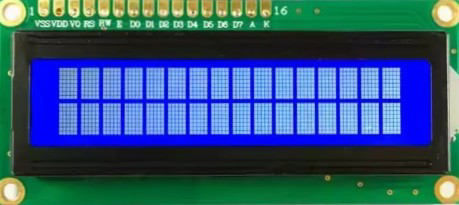
The LCD 16x2 is a character-based Liquid Crystal Display capable of displaying 16 characters per line across 2 lines. It is widely used in electronics projects for displaying text, numbers, and simple symbols. This module is compatible with the Wokwi simulation platform, making it an excellent choice for prototyping and testing projects in a virtual environment.
Explore Projects Built with LCD 16x2 (Wokwi Compatible)
 Open Project in Cirkit Designer
 Open Project in Cirkit Designer
 Open Project in Cirkit Designer
 Open Project in Cirkit Designer
Explore Projects Built with LCD 16x2 (Wokwi Compatible)
Open Project in Cirkit DesignerOpen Project in Cirkit DesignerOpen Project in Cirkit DesignerOpen Project in Cirkit DesignerCommon Applications and Use Cases
- Displaying sensor readings (e.g., temperature, humidity, etc.)
- User interfaces for embedded systems
- Menu systems for microcontroller-based projects
- Debugging and status monitoring in real-time
- Educational and prototyping purposes using platforms like Arduino and Wokwi
Technical Specifications
- Display Type: 16x2 character LCD
- Controller: HD44780 or compatible
- Operating Voltage: 4.7V to 5.3V
- Current Consumption: ~1mA (without backlight), ~15mA (with backlight)
- Interface: Parallel (4-bit or 8-bit mode)
- Backlight: LED backlight with adjustable brightness
- Character Size: 5x8 dot matrix per character
- Operating Temperature: -20°C to 70°C
Pin Configuration and Descriptions
The LCD 16x2 module typically has 16 pins. Below is the pinout and description:
| Pin No. | Name | Description |
|---|---|---|
| 1 | VSS | Ground (0V) |
| 2 | VDD | Power supply (4.7V to 5.3V) |
| 3 | VO | Contrast adjustment (connect to a potentiometer for contrast control) |
| 4 | RS | Register Select (0: Command mode, 1: Data mode) |
| 5 | RW | Read/Write (0: Write to LCD, 1: Read from LCD) |
| 6 | E | Enable pin (used to latch data to the LCD) |
| 7 | D0 | Data pin 0 (used in 8-bit mode only) |
| 8 | D1 | Data pin 1 (used in 8-bit mode only) |
| 9 | D2 | Data pin 2 (used in 8-bit mode only) |
| 10 | D3 | Data pin 3 (used in 8-bit mode only) |
| 11 | D4 | Data pin 4 (used in both 4-bit and 8-bit modes) |
| 12 | D5 | Data pin 5 (used in both 4-bit and 8-bit modes) |
| 13 | D6 | Data pin 6 (used in both 4-bit and 8-bit modes) |
| 14 | D7 | Data pin 7 (used in both 4-bit and 8-bit modes) |
| 15 | A | LED backlight anode (connect to +5V via a resistor for brightness control) |
| 16 | K | LED backlight cathode (connect to ground) |
Usage Instructions
How to Use the LCD 16x2 in a Circuit
- Power the LCD: Connect the VSS pin to ground and the VDD pin to a 5V power supply.
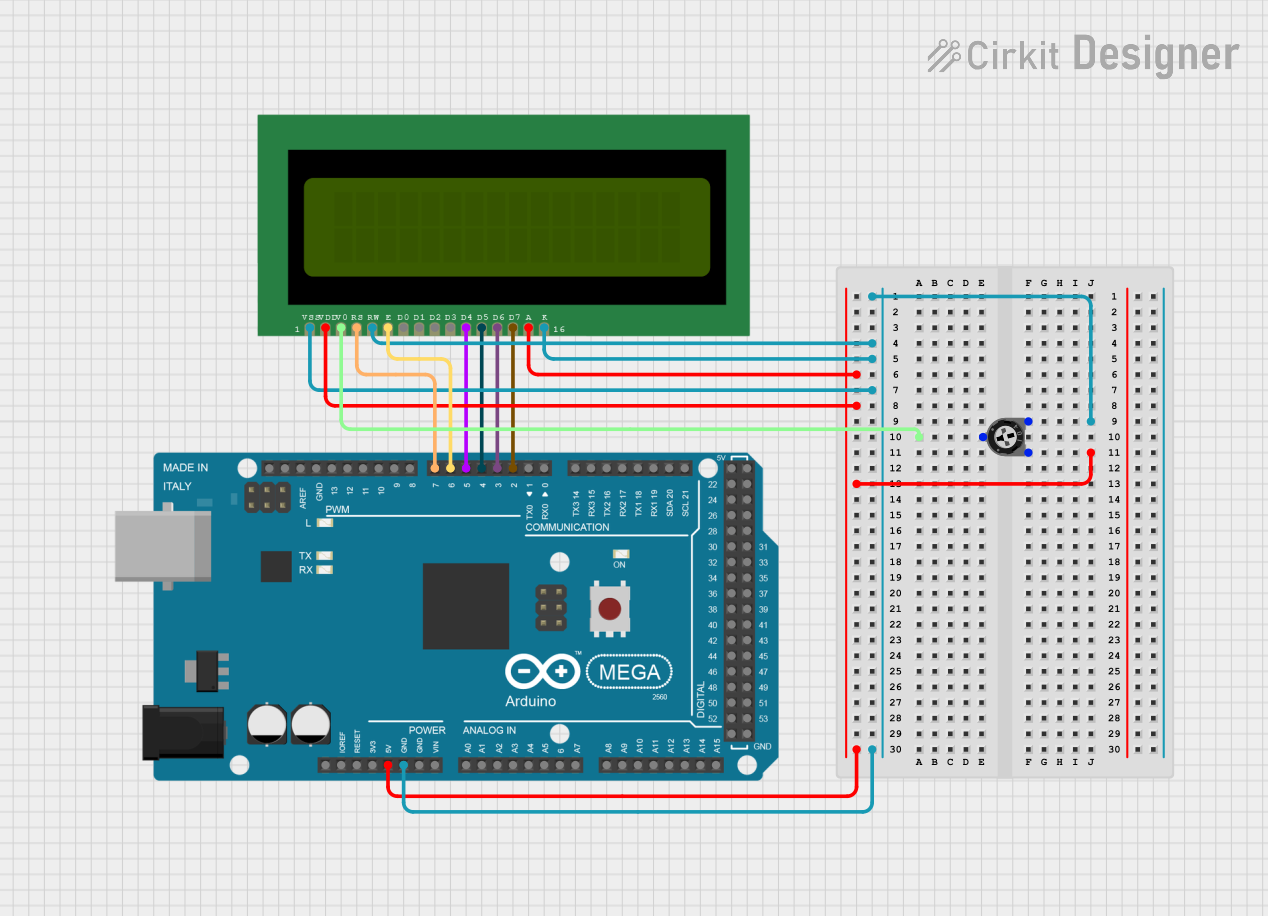
- Adjust Contrast: Connect the VO pin to the wiper of a 10kΩ potentiometer. Connect one end of the potentiometer to ground and the other to 5V. Adjust the potentiometer to set the display contrast.
- Connect Control Pins:
- RS, RW, and E pins should be connected to digital pins of a microcontroller (e.g., Arduino).
- For most applications, connect RW to ground (write mode).
- Connect Data Pins:
- In 4-bit mode, connect D4 to D7 to the microcontroller. Leave D0 to D3 unconnected.
- In 8-bit mode, connect all data pins (D0 to D7) to the microcontroller.
- Backlight: Connect the A pin to 5V through a current-limiting resistor (e.g., 220Ω). Connect the K pin to ground.
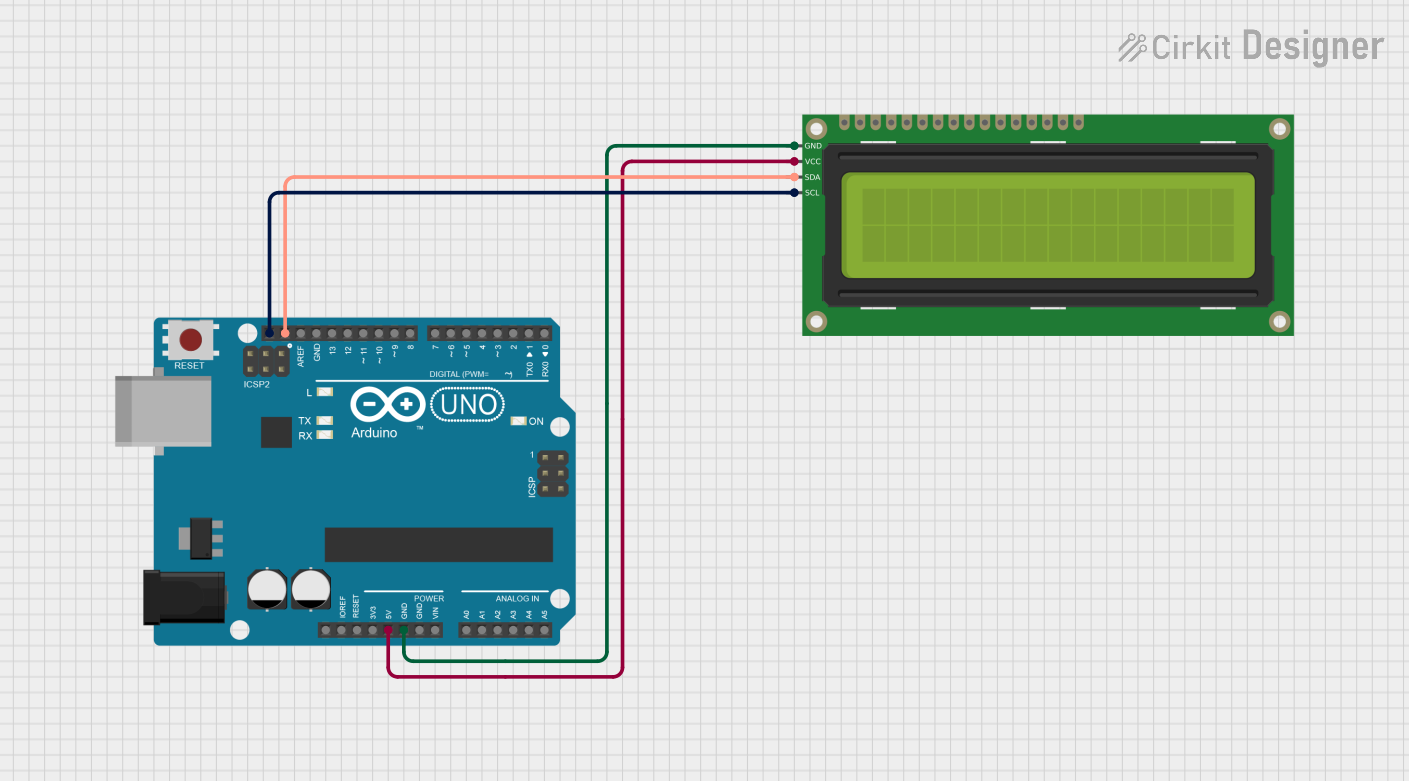
Example: Using LCD 16x2 with Arduino UNO
Below is an example of how to use the LCD 16x2 in 4-bit mode with an Arduino UNO:
Circuit Connections
- RS -> Arduino pin 12
- E -> Arduino pin 11
- D4 -> Arduino pin 5
- D5 -> Arduino pin 4
- D6 -> Arduino pin 3
- D7 -> Arduino pin 2
- VO -> Middle pin of a 10kΩ potentiometer
- VSS -> Ground
- VDD -> 5V
- RW -> Ground
- A -> 5V (via 220Ω resistor)
- K -> Ground
Arduino Code
#include <LiquidCrystal.h>

// Initialize the library with the numbers of the interface pins
LiquidCrystal lcd(12, 11, 5, 4, 3, 2);

void setup() {
  lcd.begin(16, 2); // Set up the LCD's number of columns and rows
  lcd.print("Hello, World!"); // Print a message to the LCD
}

void loop() {
  lcd.setCursor(0, 1); // Move the cursor to the second line
  lcd.print("Wokwi Rocks!"); // Display a message on the second line
  delay(1000); // Wait for 1 second
  lcd.clear(); // Clear the display
  lcd.print("LCD 16x2 Demo"); // Display a new message
  delay(2000); // Wait for 2 seconds
}
Important Considerations and Best Practices
- Always use a current-limiting resistor for the backlight to prevent damage.
- Use a potentiometer to adjust the contrast for optimal visibility.
- Avoid leaving unused data pins floating; tie them to ground if not used.
- For Wokwi simulation, ensure the LCD is properly connected in the virtual environment.
Troubleshooting and FAQs
Common Issues and Solutions
No Display on the LCD:
- Check the power connections (VSS and VDD).
- Adjust the contrast using the potentiometer connected to VO.
- Ensure the backlight is powered (A and K pins).
Garbled or Incorrect Characters:
- Verify the data pin connections (D4 to D7 in 4-bit mode).
- Ensure the RS, RW, and E pins are correctly connected and controlled.
LCD Not Responding to Commands:
- Check the wiring for loose or incorrect connections.
- Ensure the RW pin is grounded for write mode.
- Verify the code and ensure the correct pins are defined in the
LiquidCrystalobject.
Backlight Not Working:
- Check the resistor value connected to the A pin.
- Ensure the K pin is connected to ground.
FAQs
Q: Can I use the LCD 16x2 with a 3.3V microcontroller?
A: The LCD 16x2 is designed for 5V operation. You can use a level shifter or voltage divider to interface it with a 3.3V microcontroller.
Q: How do I display custom characters?
A: The LCD supports custom characters using the createChar() function in the LiquidCrystal library. Refer to the Arduino documentation for details.
Q: Can I use the LCD in 8-bit mode?
A: Yes, connect all data pins (D0 to D7) to the microcontroller and configure the LiquidCrystal object accordingly.
Q: Is the LCD compatible with Wokwi?
A: Yes, the LCD 16x2 is fully compatible with the Wokwi simulation platform, making it easy to prototype and test your projects.