
How to Use Ethernet Pro: Examples, Pinouts, and Specs
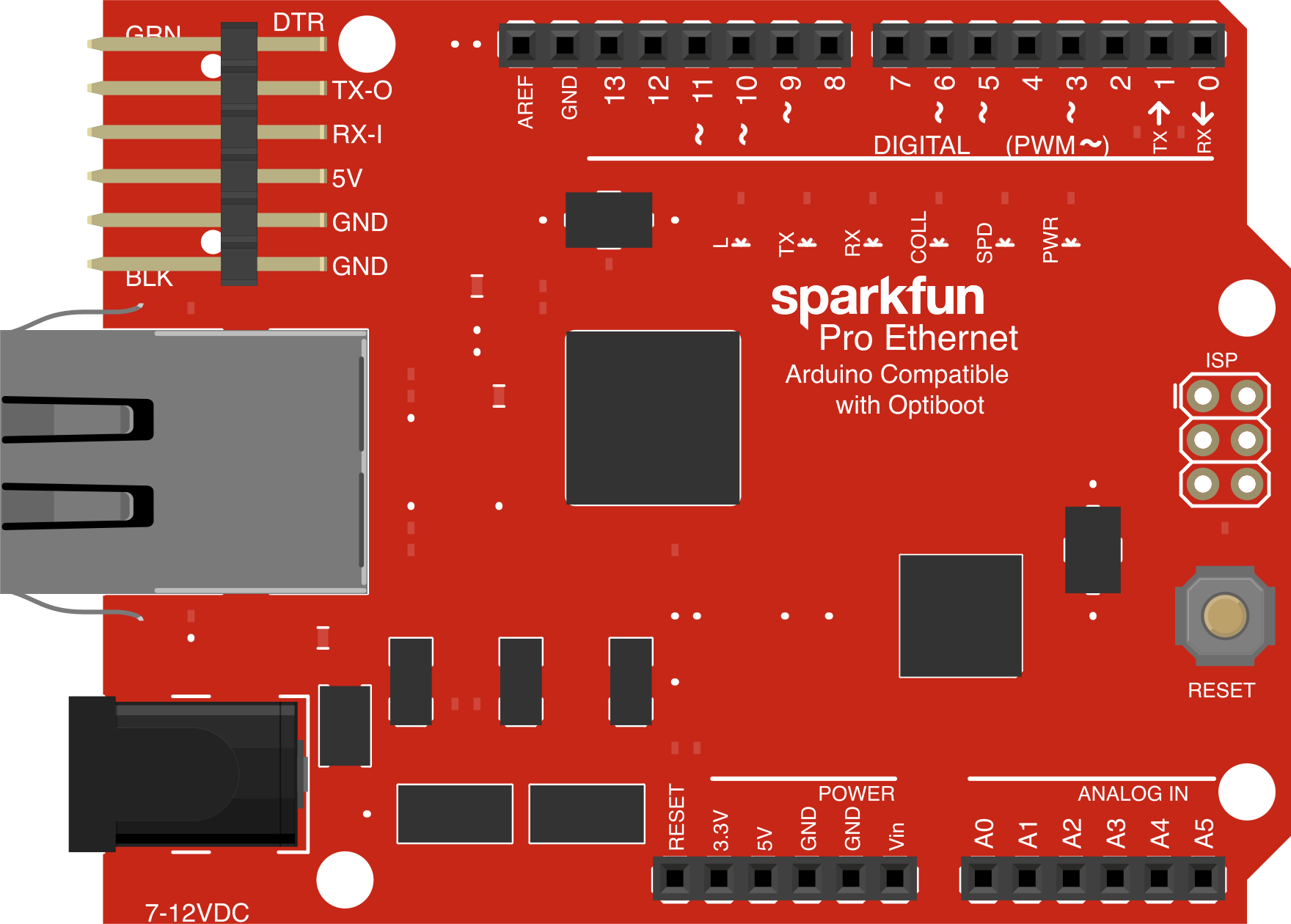
 Design with Ethernet Pro in Cirkit Designer
Introduction
The Ethernet Pro by SparkFun Electronics is a high-performance network interface card designed to provide fast and reliable Ethernet connectivity. It is ideal for professional and enterprise environments where efficient data transmission is critical. This component is particularly suited for applications requiring robust networking capabilities, such as IoT devices, industrial automation, and data logging systems.
Explore Projects Built with Ethernet Pro
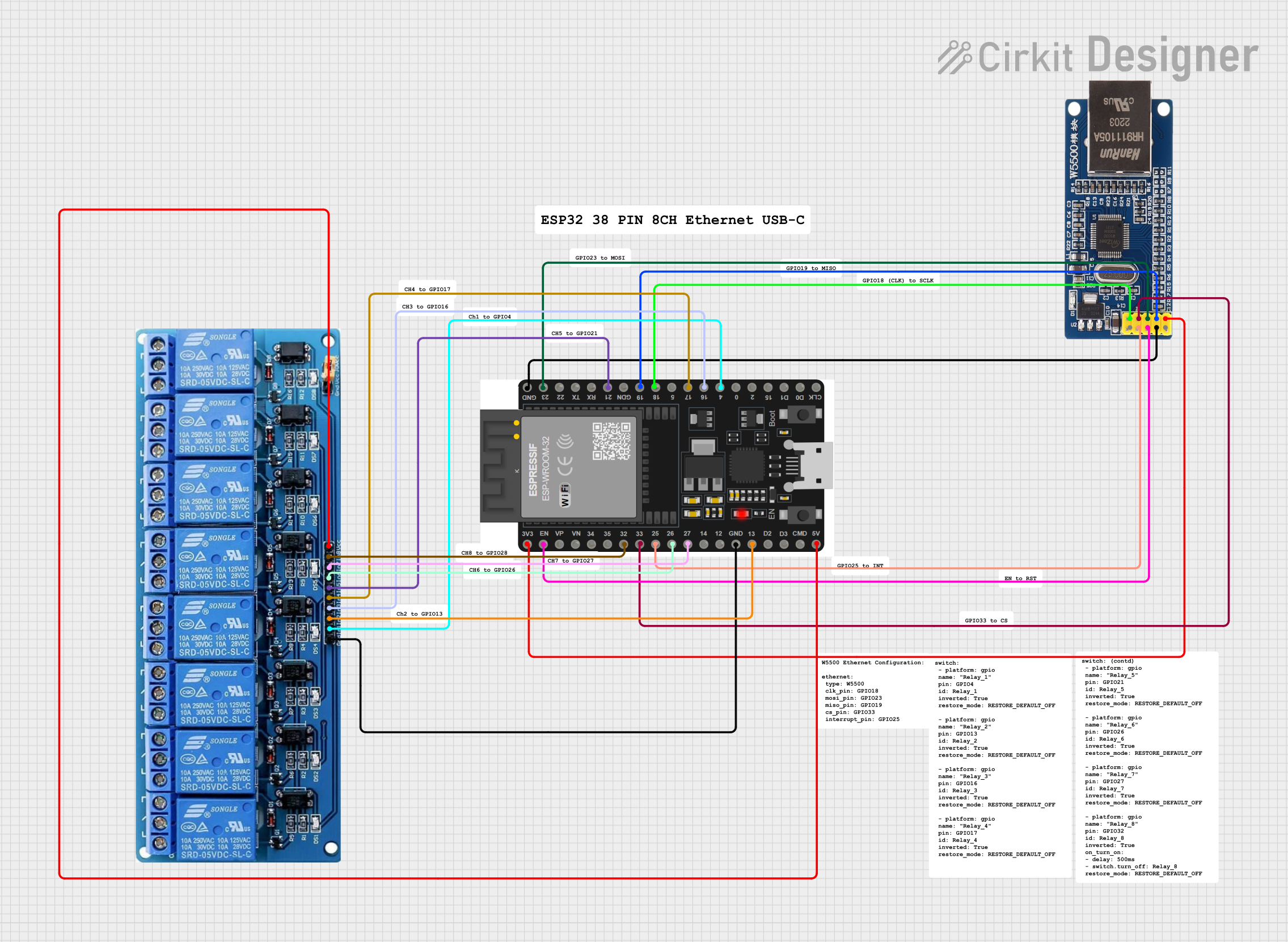 Open Project in Cirkit Designer
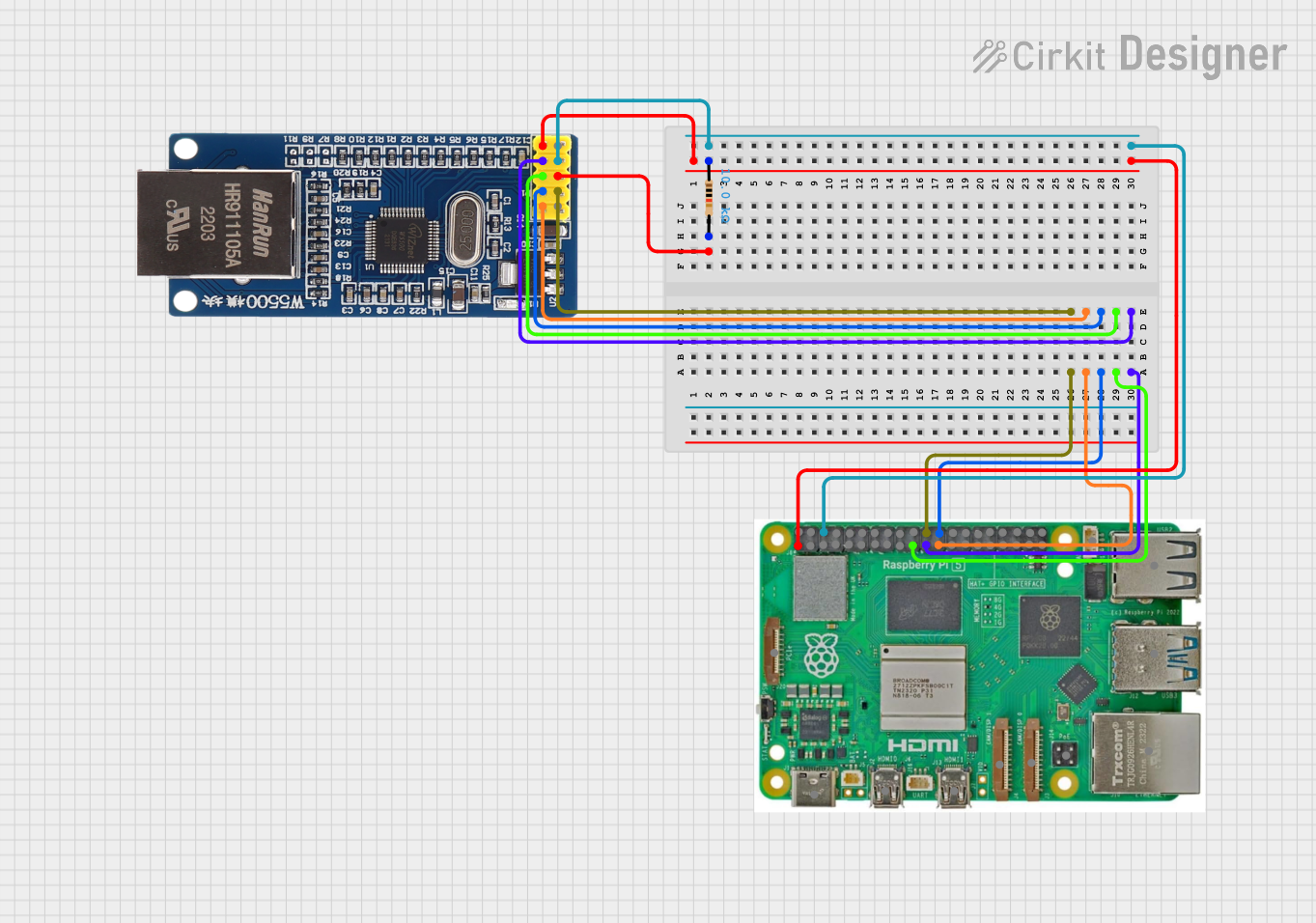 Open Project in Cirkit Designer
 Open Project in Cirkit Designer
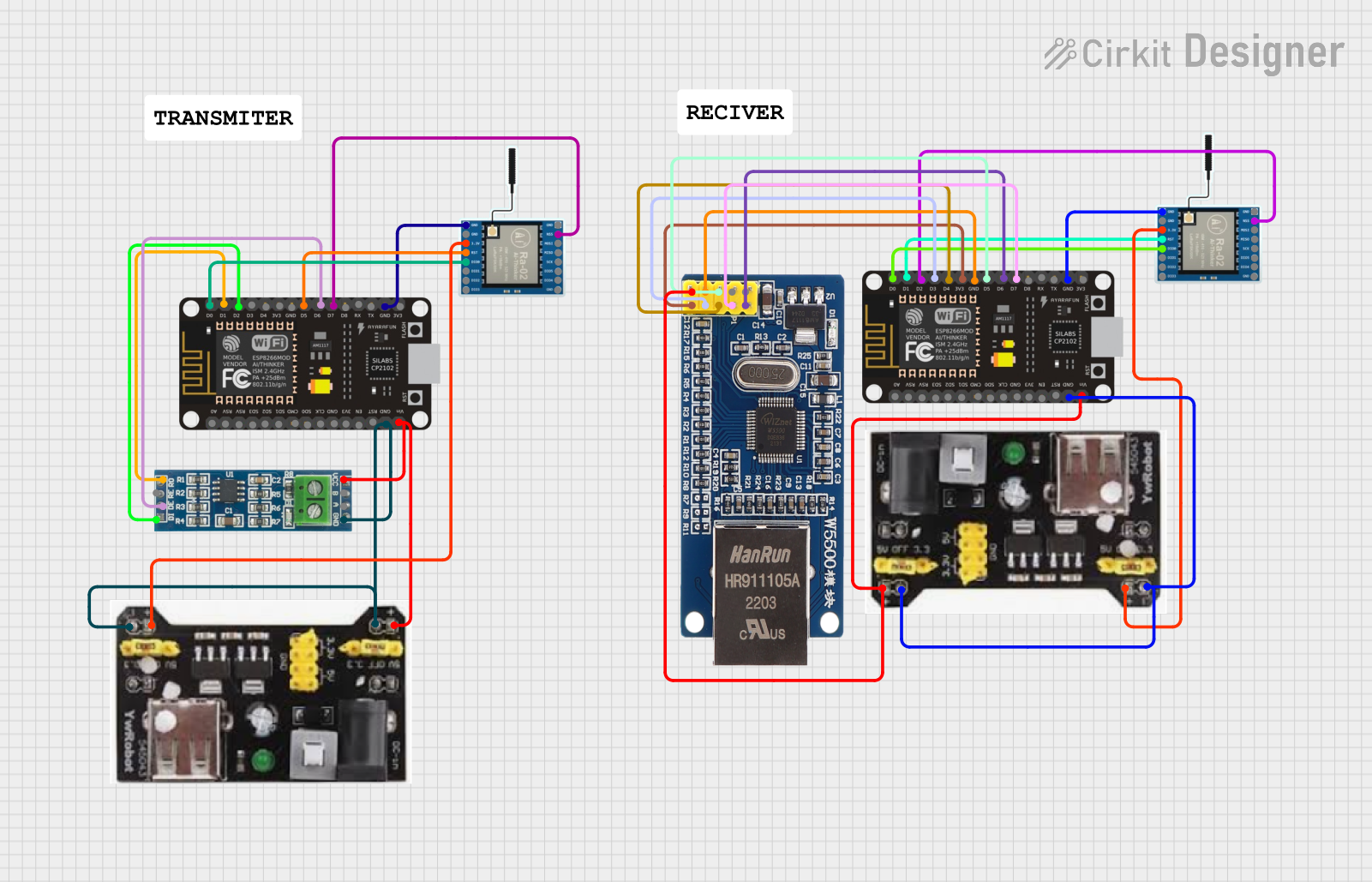 Open Project in Cirkit Designer
Explore Projects Built with Ethernet Pro
Open Project in Cirkit DesignerOpen Project in Cirkit DesignerOpen Project in Cirkit DesignerOpen Project in Cirkit DesignerCommon Applications
- Internet of Things (IoT) devices requiring Ethernet connectivity
- Industrial automation systems
- Data logging and remote monitoring
- Networked embedded systems
- Prototyping Ethernet-enabled projects
Technical Specifications
The Ethernet Pro is built to deliver reliable performance in demanding environments. Below are its key technical specifications:
| Specification | Details |
|---|---|
| Manufacturer | SparkFun Electronics |
| Ethernet Standard | IEEE 802.3 (10/100 Mbps Ethernet) |
| Operating Voltage | 3.3V |
| Input Voltage (VIN) | 5V |
| Current Consumption | ~180mA (typical) |
| Communication Protocol | SPI (Serial Peripheral Interface) |
| Controller Chip | WIZnet W5100 |
| Operating Temperature | -40°C to 85°C |
| Dimensions | 2.7" x 2.1" (68.6mm x 53.3mm) |
Pin Configuration and Descriptions
The Ethernet Pro features a standard pinout for easy integration with microcontrollers like the Arduino UNO. Below is the pin configuration:
| Pin | Name | Description |
|---|---|---|
| 1 | GND | Ground connection |
| 2 | 3.3V | 3.3V power supply |
| 3 | VIN | 5V input voltage |
| 4 | SCK | SPI Clock signal |
| 5 | MISO | SPI Master-In-Slave-Out signal |
| 6 | MOSI | SPI Master-Out-Slave-In signal |
| 7 | CS | Chip Select for SPI communication |
| 8 | RESET | Resets the Ethernet Pro |
| 9 | INT | Interrupt pin for signaling events |
| 10 | RJ45 Connector | Ethernet port for connecting to a network |
Usage Instructions
The Ethernet Pro is straightforward to use and integrates seamlessly with microcontrollers like the Arduino UNO. Below are the steps to get started:
Connecting the Ethernet Pro
- Power Supply: Connect the VIN pin to a 5V power source or use the 3.3V pin if your system operates at 3.3V.
- SPI Communication: Connect the SPI pins (SCK, MISO, MOSI, and CS) to the corresponding SPI pins on your microcontroller.
- Ethernet Cable: Plug an Ethernet cable into the RJ45 connector to establish a network connection.
- Reset Pin: Optionally, connect the RESET pin to your microcontroller for remote resetting.
Example Code for Arduino UNO
Below is an example of how to use the Ethernet Pro with an Arduino UNO to create a simple web server:
#include <SPI.h>
#include <Ethernet.h>

// MAC address and IP address for the Ethernet Pro
byte mac[] = { 0xDE, 0xAD, 0xBE, 0xEF, 0xFE, 0xED };
IPAddress ip(192, 168, 1, 177); // Set a static IP address

// Initialize the Ethernet server on port 80
EthernetServer server(80);

void setup() {
  // Start the Ethernet connection
  Ethernet.begin(mac, ip);

  // Start the server
  server.begin();
  Serial.begin(9600);
  Serial.println("Server is ready at IP: ");
  Serial.println(Ethernet.localIP());
}

void loop() {
  // Listen for incoming clients
  EthernetClient client = server.available();
  if (client) {
    Serial.println("New client connected");
    boolean currentLineIsBlank = true;
    while (client.connected()) {
      if (client.available()) {
        char c = client.read();
        Serial.write(c); // Print received data to Serial Monitor

        // Respond to HTTP GET request
        if (c == '\n' && currentLineIsBlank) {
          client.println("HTTP/1.1 200 OK");
          client.println("Content-Type: text/html");
          client.println("Connection: close");
          client.println();
          client.println("<!DOCTYPE HTML>");
          client.println("<html>");
          client.println("<h1>Welcome to Ethernet Pro Web Server!</h1>");
          client.println("</html>");
          break;
        }
        if (c == '\n') {
          currentLineIsBlank = true;
        } else if (c != '\r') {
          currentLineIsBlank = false;
        }
      }
    }
    // Give the client time to receive the data
    delay(1);
    client.stop();
    Serial.println("Client disconnected");
  }
}
Best Practices
- Use a regulated power supply to avoid damaging the Ethernet Pro.
- Ensure proper grounding to minimize noise and interference.
- Use a static IP address for reliable network communication.
- Avoid long SPI cables to reduce signal degradation.
Troubleshooting and FAQs
Common Issues
No Ethernet Connection
- Cause: Incorrect wiring or configuration.
- Solution: Double-check the SPI connections and ensure the Ethernet cable is securely connected.
Unable to Obtain IP Address
- Cause: DHCP server not available or misconfigured.
- Solution: Use a static IP address in your code.
High Power Consumption
- Cause: Overloading the Ethernet Pro with peripherals.
- Solution: Use an external power supply if the current exceeds the microcontroller's capacity.
Intermittent Connectivity
- Cause: Poor-quality Ethernet cable or network interference.
- Solution: Replace the cable and ensure the network environment is stable.
FAQs
Q: Can the Ethernet Pro be used with 3.3V microcontrollers?
A: Yes, the Ethernet Pro supports 3.3V operation. Ensure the SPI voltage levels are compatible.
Q: Does the Ethernet Pro support PoE (Power over Ethernet)?
A: No, the Ethernet Pro does not support PoE. Use an external power source.
Q: How many simultaneous connections can the Ethernet Pro handle?
A: The WIZnet W5100 chip supports up to 4 simultaneous socket connections.
Q: Can I use the Ethernet Pro with other microcontrollers besides Arduino?
A: Yes, as long as the microcontroller supports SPI communication, the Ethernet Pro can be used.