
How to Use TPS54x60: Examples, Pinouts, and Specs
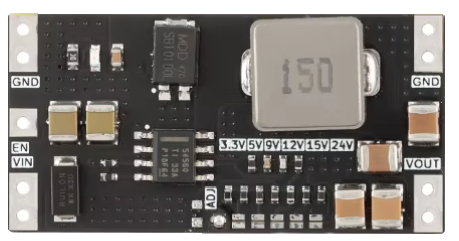
 Design with TPS54x60 in Cirkit Designer
Introduction
The TPS54x60 is a high-efficiency, step-down (buck) DC-DC converter designed for powering processors, FPGAs, ASICs, and other devices requiring a stable power supply. Manufactured by Texas Instruments, this component integrates power MOSFETs and offers a wide input voltage range, adjustable output voltage, and high current capability. Its compact design and robust features make it ideal for portable devices, industrial systems, and telecom applications.
Explore Projects Built with TPS54x60
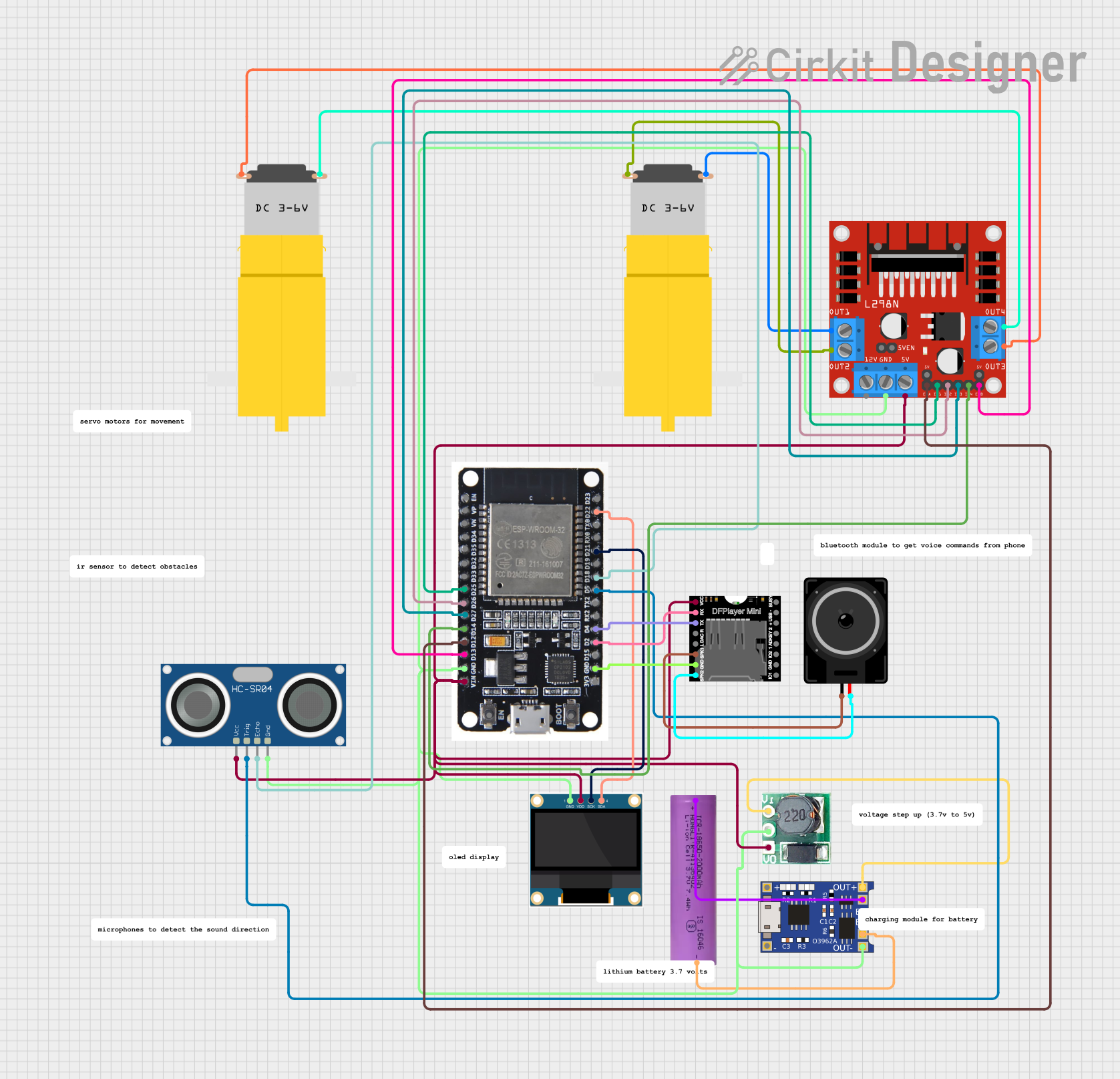 Open Project in Cirkit Designer
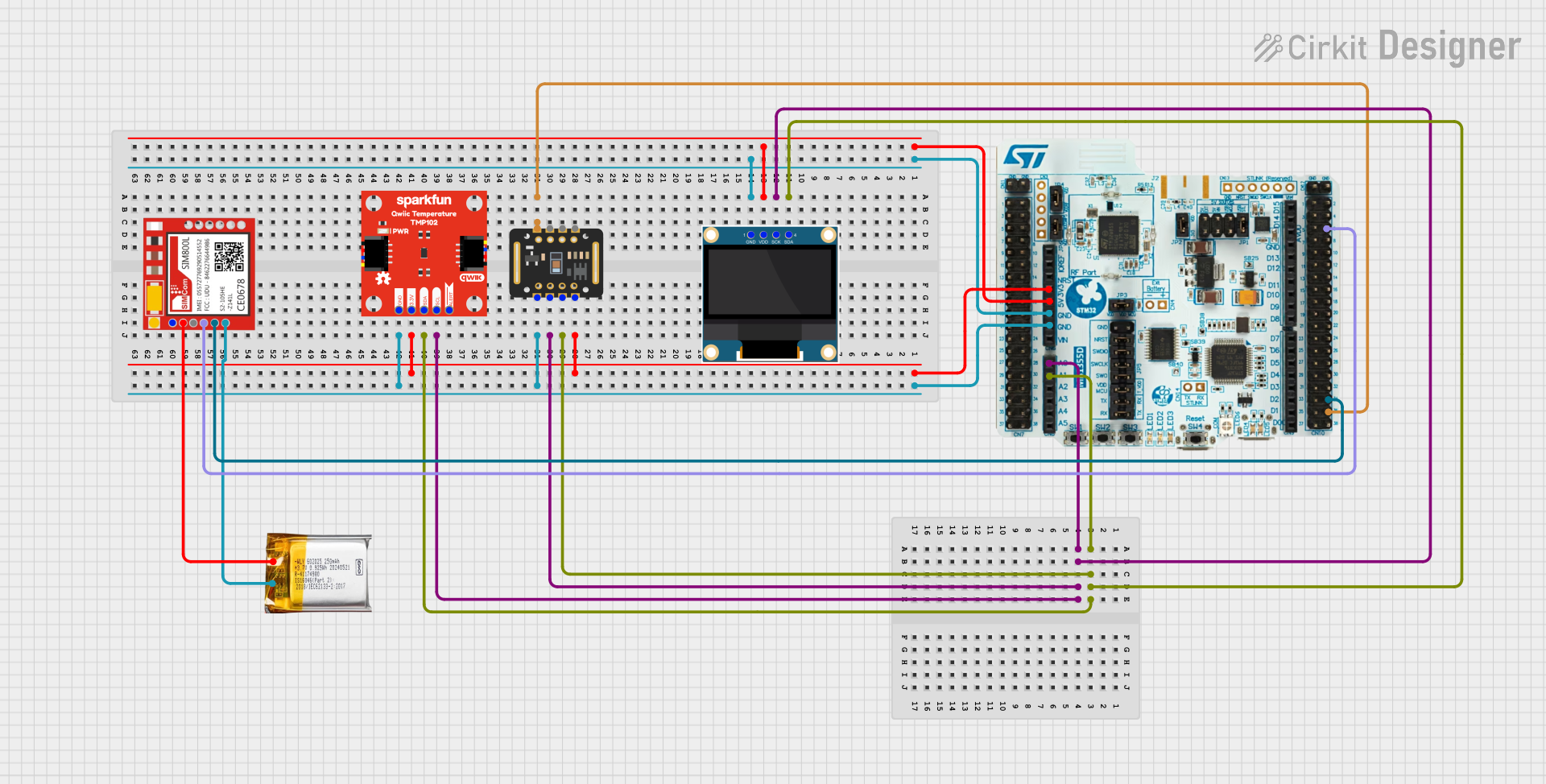 Open Project in Cirkit Designer
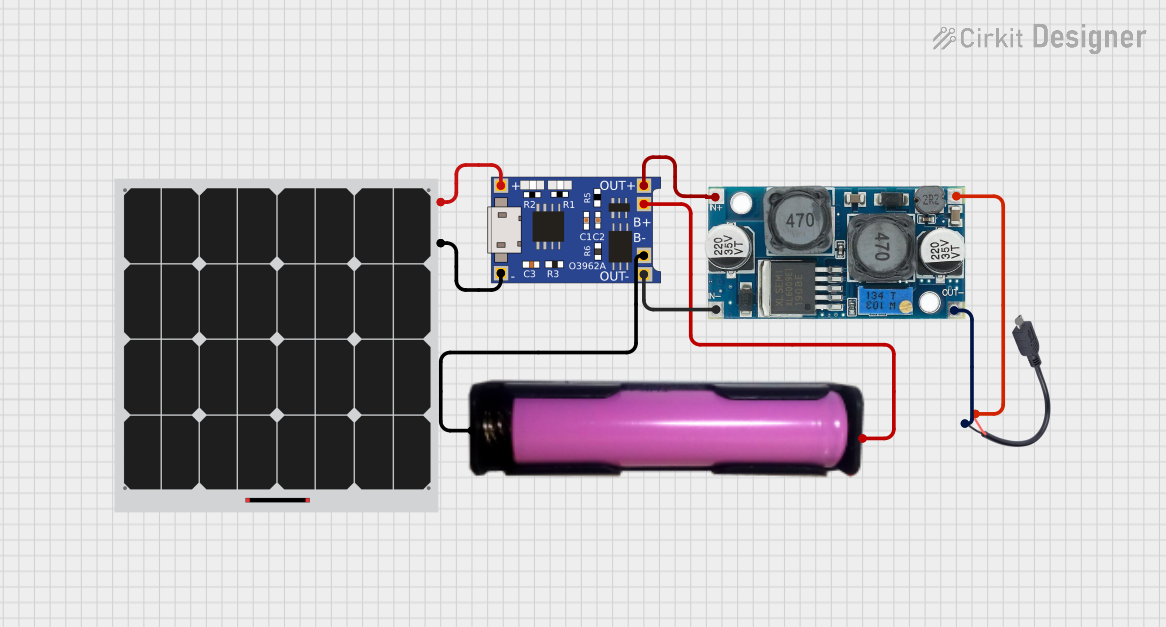 Open Project in Cirkit Designer
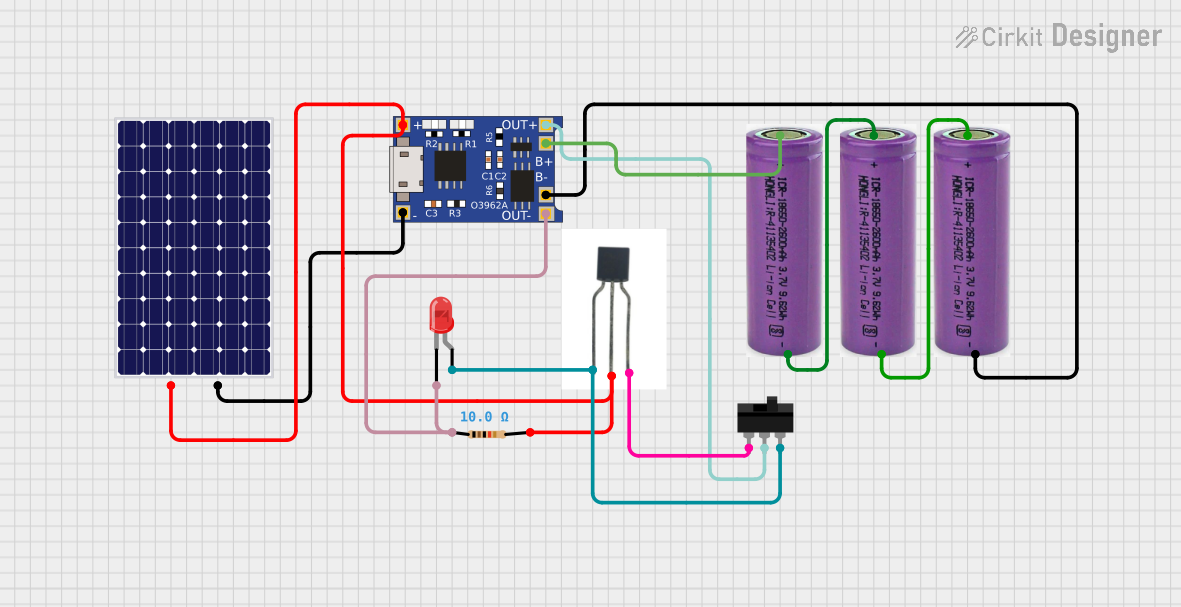 Open Project in Cirkit Designer
Explore Projects Built with TPS54x60
Open Project in Cirkit DesignerOpen Project in Cirkit DesignerOpen Project in Cirkit DesignerOpen Project in Cirkit DesignerCommon Applications
- Powering microprocessors, DSPs, and FPGAs
- Industrial automation systems
- Portable electronics
- Telecom and networking equipment
- Battery-powered devices
Technical Specifications
Key Specifications
| Parameter | Value |
|---|---|
| Input Voltage Range | 4.5 V to 60 V |
| Output Voltage Range | Adjustable, 0.8 V to 58 V |
| Output Current | Up to 6 A (depending on the specific model) |
| Switching Frequency | Adjustable, 100 kHz to 2.5 MHz |
| Efficiency | Up to 95% |
| Operating Temperature Range | -40°C to 150°C (junction temperature) |
| Package Options | HTSSOP, QFN |
Pin Configuration and Descriptions
Below is the pinout for the TPS54x60 in the HTSSOP package:
| Pin Number | Pin Name | Description |
|---|---|---|
| 1 | VIN | Input voltage supply. Connect to the input power source. |
| 2 | EN | Enable pin. Pull high to enable the device, low to disable. |
| 3 | FB | Feedback pin. Connect to a resistor divider to set the output voltage. |
| 4 | COMP | Compensation pin. Connect external components for loop stability. |
| 5 | RT/CLK | Resistor timing or clock input for setting the switching frequency. |
| 6 | GND | Ground pin. Connect to the system ground. |
| 7 | BOOT | Bootstrap pin. Connect a capacitor to the SW pin for high-side MOSFET drive. |
| 8 | SW | Switch node. Connect to the inductor and output capacitor. |
Usage Instructions
How to Use the TPS54x60 in a Circuit
- Input Voltage Supply: Connect the VIN pin to a stable DC power source within the range of 4.5 V to 60 V.
- Output Voltage Configuration: Use a resistor divider network connected to the FB pin to set the desired output voltage. Refer to the formula in the datasheet for precise calculations.
- Inductor and Capacitor Selection: Choose an inductor and output capacitor based on the desired output voltage, current, and ripple requirements. Refer to the datasheet for recommended values.
- Switching Frequency: Connect a resistor to the RT/CLK pin to set the switching frequency. Alternatively, provide an external clock signal for synchronization.
- Enable/Disable: Use the EN pin to enable or disable the device. Pull it high to enable and low to disable.
- Bootstrap Capacitor: Connect a small ceramic capacitor (typically 0.1 µF) between the BOOT and SW pins for proper operation of the high-side MOSFET.
Important Considerations
- Ensure proper thermal management by using a PCB with adequate copper area for heat dissipation.
- Use low-ESR capacitors for input and output filtering to minimize noise and ripple.
- Follow the layout guidelines in the datasheet to reduce EMI and ensure stable operation.
- Avoid exceeding the maximum input voltage and output current ratings to prevent damage.
Example: Using TPS54x60 with Arduino UNO
The TPS54x60 can be used to power an Arduino UNO by stepping down a higher voltage (e.g., 12 V) to 5 V. Below is an example circuit and Arduino code to monitor the output voltage:
Circuit Setup
- Connect a 12 V DC power source to the VIN pin of the TPS54x60.
- Set the output voltage to 5 V using a resistor divider on the FB pin.
- Connect the output of the TPS54x60 to the 5 V pin of the Arduino UNO.
- Use the Arduino's analog input to monitor the output voltage.
Arduino Code
// Define the analog pin connected to the TPS54x60 output
const int voltagePin = A0;

// Define the reference voltage and resistor divider ratio
const float referenceVoltage = 5.0; // Arduino's ADC reference voltage
const float resistorDividerRatio = 1.0; // Adjust based on your resistor divider

void setup() {
  Serial.begin(9600); // Initialize serial communication
}

void loop() {
  // Read the analog value from the voltage pin
  int analogValue = analogRead(voltagePin);

  // Convert the analog value to voltage
  float outputVoltage = (analogValue / 1023.0) * referenceVoltage * resistorDividerRatio;

  // Print the output voltage to the serial monitor
  Serial.print("Output Voltage: ");
  Serial.print(outputVoltage);
  Serial.println(" V");

  delay(1000); // Wait for 1 second before the next reading
}
Troubleshooting and FAQs
Common Issues and Solutions
No Output Voltage:
- Ensure the EN pin is pulled high to enable the device.
- Check the input voltage to confirm it is within the specified range.
- Verify the feedback resistor network is correctly configured.
Excessive Output Ripple:
- Use low-ESR capacitors for input and output filtering.
- Ensure the inductor value is appropriate for the desired output current.
Overheating:
- Check for proper thermal management and adequate PCB copper area.
- Ensure the output current does not exceed the maximum rating.
Device Not Switching:
- Verify the RT/CLK pin configuration for proper switching frequency.
- Check the bootstrap capacitor connection between BOOT and SW pins.
FAQs
Q: Can the TPS54x60 be synchronized with an external clock?
A: Yes, the RT/CLK pin can accept an external clock signal for synchronization.
Q: What is the maximum output current of the TPS54x60?
A: The maximum output current depends on the specific model within the TPS54x60 family, but it can go up to 6 A.
Q: How do I calculate the feedback resistor values?
A: Use the formula provided in the datasheet:
( V_{OUT} = V_{REF} \times (1 + \frac{R1}{R2}) ),
where ( V_{REF} ) is typically 0.8 V.
Q: Can I use the TPS54x60 for battery-powered applications?
A: Yes, its high efficiency and wide input voltage range make it suitable for battery-powered systems.