
How to Use iBIT: Examples, Pinouts, and Specs
 Design with iBIT in Cirkit Designer
Introduction
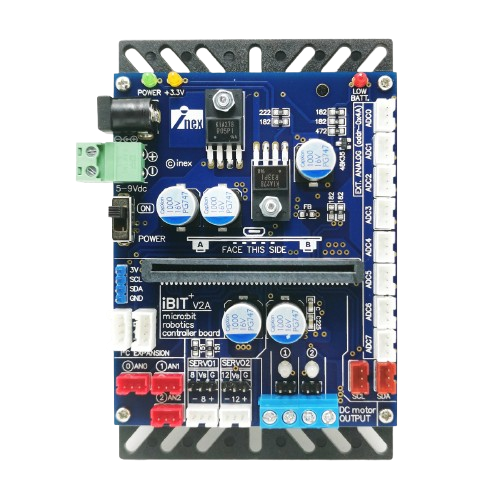
The iBIT, manufactured by INEX (Part ID: Board), is a compact and programmable microcontroller designed specifically for educational purposes and prototyping. It features built-in sensors and connectivity options, making it an ideal choice for beginners and experienced developers alike. The iBIT simplifies the process of integrating hardware and software, enabling users to focus on innovation and creativity.
Explore Projects Built with iBIT
 Open Project in Cirkit Designer
 Open Project in Cirkit Designer
 Open Project in Cirkit Designer
 Open Project in Cirkit Designer
Explore Projects Built with iBIT
Open Project in Cirkit DesignerOpen Project in Cirkit DesignerOpen Project in Cirkit DesignerOpen Project in Cirkit DesignerCommon Applications and Use Cases
- Robotics and automation projects
- STEM education and hands-on learning
- IoT (Internet of Things) prototyping
- Sensor-based data collection and analysis
- Interactive art and design installations
Technical Specifications
The iBIT microcontroller is equipped with a variety of features to support diverse applications. Below are its key technical specifications:
General Specifications
| Parameter | Value |
|---|---|
| Microcontroller | ARM Cortex-M0+ |
| Operating Voltage | 3.3V |
| Input Voltage Range | 3.3V - 5V |
| Connectivity | Bluetooth Low Energy (BLE) |
| Built-in Sensors | Light, Temperature, Accelerometer |
| GPIO Pins | 6 (Digital/Analog) |
| Programming Interface | USB Type-C |
| Dimensions | 50mm x 25mm x 10mm |
Pin Configuration and Descriptions
| Pin Number | Pin Name | Description |
|---|---|---|
| 1 | GND | Ground |
| 2 | VCC | Power supply input (3.3V - 5V) |
| 3 | GPIO1 | General-purpose I/O pin (Digital/Analog) |
| 4 | GPIO2 | General-purpose I/O pin (Digital/Analog) |
| 5 | GPIO3 | General-purpose I/O pin (Digital/Analog) |
| 6 | GPIO4 | General-purpose I/O pin (Digital/Analog) |
| 7 | GPIO5 | General-purpose I/O pin (Digital/Analog) |
| 8 | GPIO6 | General-purpose I/O pin (Digital/Analog) |
| 9 | TX | UART Transmit |
| 10 | RX | UART Receive |
Usage Instructions
The iBIT microcontroller is designed for ease of use, making it suitable for both beginners and advanced users. Follow the steps below to get started:
Step 1: Powering the iBIT
- Connect the iBIT to a power source using the USB Type-C port or an external 3.3V - 5V power supply.
- Ensure the power supply is stable to avoid damaging the board.
Step 2: Programming the iBIT
- The iBIT can be programmed using popular IDEs such as Arduino IDE or MicroPython.
- Install the necessary drivers and libraries for the iBIT from the INEX website.
- Select the appropriate board and port in your IDE before uploading code.
Step 3: Connecting Sensors and Actuators
- Use the GPIO pins to connect external sensors, actuators, or other peripherals.
- Refer to the pin configuration table to identify the correct pins for your connections.
Example: Using iBIT with Arduino UNO
Below is an example of how to read data from the built-in temperature sensor and display it on the serial monitor:
// Include necessary libraries
#include <Wire.h>

// Define the I2C address for the temperature sensor
#define TEMP_SENSOR_ADDR 0x48

void setup() {
  Serial.begin(9600); // Initialize serial communication at 9600 baud
  Wire.begin();       // Initialize I2C communication
  Serial.println("iBIT Temperature Sensor Example");
}

void loop() {
  Wire.beginTransmission(TEMP_SENSOR_ADDR); // Start communication with sensor
  Wire.write(0x00);                         // Request temperature data
  Wire.endTransmission();

  Wire.requestFrom(TEMP_SENSOR_ADDR, 2);    // Request 2 bytes of data
  if (Wire.available() == 2) {
    int tempData = Wire.read() << 8 | Wire.read(); // Combine bytes into a value
    float temperature = tempData * 0.0625;        // Convert to Celsius
    Serial.print("Temperature: ");
    Serial.print(temperature);
    Serial.println(" °C");
  }

  delay(1000); // Wait 1 second before reading again
}
Best Practices
- Avoid exceeding the voltage and current ratings of the iBIT to prevent damage.
- Use proper pull-up or pull-down resistors when connecting external components.
- Keep the iBIT firmware updated to ensure compatibility with the latest features.
Troubleshooting and FAQs
Common Issues and Solutions
The iBIT is not detected by the computer.
- Ensure the USB cable is properly connected and functional.
- Check if the necessary drivers are installed on your computer.
- Try using a different USB port or cable.
The iBIT is not responding to uploaded code.
- Verify that the correct board and port are selected in your IDE.
- Check for syntax errors or missing libraries in your code.
- Reset the iBIT by pressing the onboard reset button.
Sensors are not providing accurate readings.
- Ensure the sensors are properly connected and not obstructed.
- Calibrate the sensors if necessary, following the manufacturer's guidelines.
- Avoid exposing the sensors to extreme conditions beyond their operating range.
FAQs
Q: Can the iBIT be powered using batteries?
A: Yes, the iBIT can be powered using a 3.3V - 5V battery pack. Ensure the battery voltage is within the specified range.
Q: Is the iBIT compatible with other microcontrollers?
A: Yes, the iBIT can communicate with other microcontrollers via UART, I2C, or GPIO pins.
Q: Where can I find additional resources for the iBIT?
A: Visit the INEX website for documentation, tutorials, and firmware updates.
By following this documentation, you can effectively utilize the iBIT microcontroller for your projects and experiments.